The TikTok Events API works exactly the same way as the Meta Conversions API. For more background, see our other articles:
Adam Brzostek
Reading time: 12:00
TikTok Events API: a complete guide to implementing it yourself (2026)
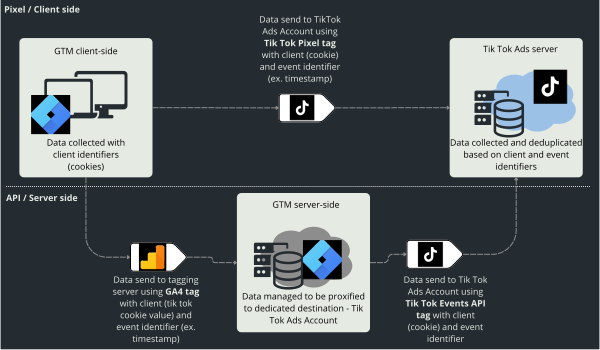
Once again we use server-side technology, and once again we send data through two channels:
- through the pixel, directly from the website to the TikTok ads platform
- through the API, using a server: we first send the data from the client side to the server, and only then pass it on to the TikTok ads platform
Just like with CAPI, the data sent through both channels should be deduplicated.
The benefits are the same too:
- Longer-lasting cookies without a shortened lifetime
- Getting around ad blockers and other tracking restrictions = more data
- A more secure way to send data
TikTok does offer an automatic Events API integration, but in my experience it doesn't work very well and the documentation is thin. That's why I put together this guide.
Subscribe to the newsletter to read the rest of this article
Join the Bettersteps newsletter to read the full article for free
Sign up with this form to get access to the full article, plus an email with a download link for ready-made JSON files for GTM WEB and GTM SERVER
Prerequisites
- Publish access to the client-side GTM container
- Publish access to the server-side GTM container
- If you don't have a tagging server set up yet, start with this article: https://bettersteps.pl/en/blog/gtm-server-side-tagging-ga4-guide. However, unlike what I described in that article, based on experience I now recommend the manual setup, for which Google provides very good instructions: https://developers.google.com/tag-platform/tag-manager/server-side/cloud-run-setup-guide?provisioning=manual&hl=pl
- Before you start, be sure to read about the pitfalls you may run into: https://bettersteps.pl/en/blog/server-side-gtm-cloud-run-setup-pitfalls
- Ideally, your tagging server should run on its own subdomain. Here's a guide on how to set that up: https://bettersteps.pl/en/blog/custom-subdomain-tagging-server-cloud-run
- Full access to TikTok Business Center
- If possible, get admin access to the whole account so you're fully independent. If that's not an option, you'll need access to Ads Manager with permission to manage events.
- Access to Google Analytics (Administrator at the account level, or Editor on a new dedicated property)
- We'll send data to the tagging server with GA4 tags, so it's worth creating a dedicated property. That way you set up the Events API and server-side GA4 tracking in one go
Client-side setup
As we already know, when implementing the TikTok Events API we first need to send the data from the client side.
This is the most complicated part of the whole implementation, but if you get it right, the server-side setup will go very smoothly.
To send data through the pixel, we'll use TikTok's authorized template.
To send data to the tagging server, we'll use Google Analytics 4 tags.
Variables
Let's start by setting up the variables we'll need. All of them are in the JSON file shared here:
Besides the standard parameters describing the events, we'll need:
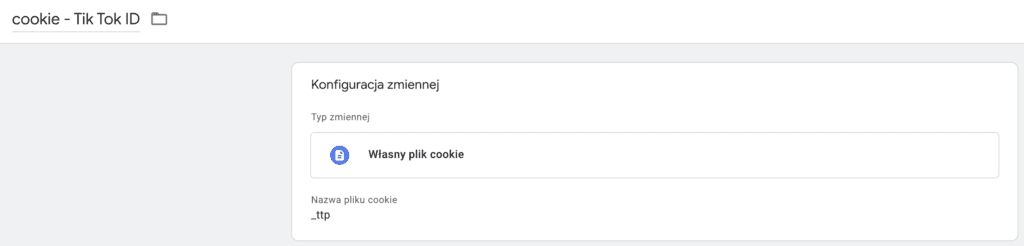
cookie - Tik Tok ID - the first-party cookie created by the TikTok pixel code that identifies a specific user. Sending it is required for deduplication and data matching in TikTok.
cjs - Tik Tok unique event ID - a unique event ID we'll use to deduplicate events.
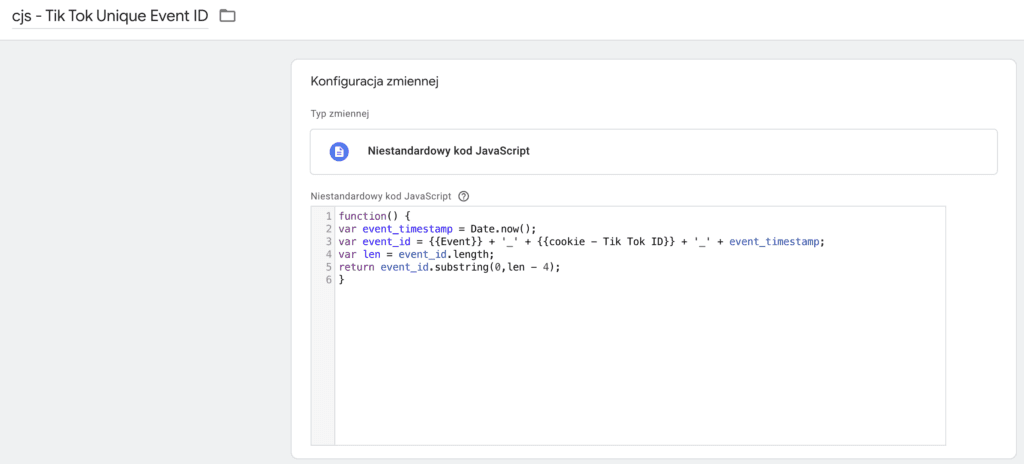
I wrote this variable myself. It combines the event name, the TikTok cookie ID and the event timestamp with the last four digits cut off. That last step is essential: for deduplication to work, the variable must have exactly the same value when it's sent by the pixel and by the GA4 tag. In theory both tags fire at the same moment, but in practice they run asynchronously and their firing times differ by fractions of a second, hence the trimming. You can copy the code here:
function() {
var event_timestamp = Date.now();
var event_id = {{Event}} + '_' + {{cookie - Tik Tok ID}} + '_' + event_timestamp;
var len = event_id.length;
return event_id.substring(0,len - 4);
}
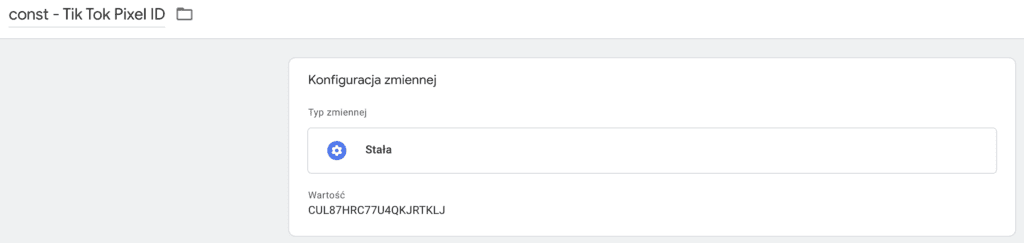
const - Tik Tok Pixel ID - a constant holding your pixel ID.
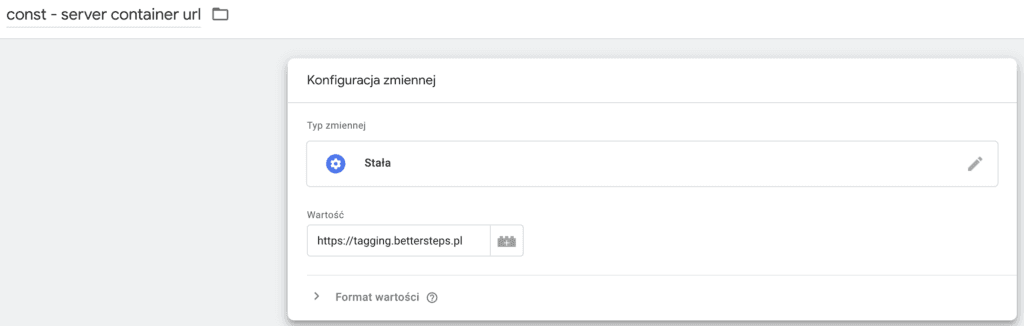
const - server container url - a constant holding your tagging server URL.
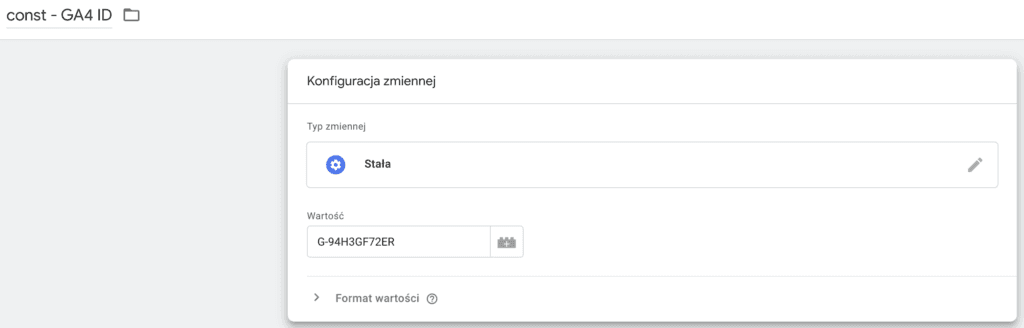
const - server GA4 id - the measurement ID of the GA4 property for data sent through the server.
Settings variables
To make things easier, we'll also use settings variables. They'll help you manage changes later on and make the tagging itself simpler.
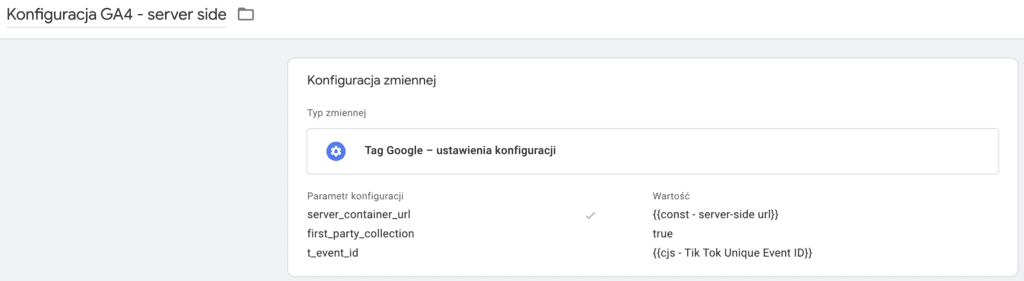
Konfiguracja GA4 server - a GA4 configuration settings variable that makes future tagging changes easy to manage.
Konfiguracja zdarzeń GA4 server - a GA4 event settings variable that makes future tagging changes easy to manage.
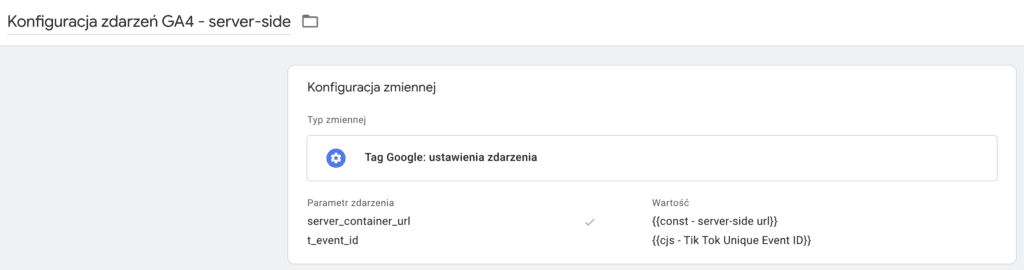
In both variables we declare the parameters shared by all events sent to TikTok through the server via the Events API:
- server_container_url - your tagging server URL
- t_event_id - the event ID used for deduplication (I prefix it with t_ to tell it apart from the Meta event ID you may already have in this variable). You can use a different name, since you'll declare this value in the API tags anyway
In my JSON file all of the variables above are already set up, but remember to change the values of the configuration parameters:
- const - Tik Tok Pixel ID
- const - server container url
- const - server GA4 id
The file also contains standard ecommerce variables and JavaScript variables in the format TikTok requires for events.
Implementing the TikTok pixel
In this guide we'll use the add_to_cart event as an example, but you can tag any other event the same way.
TikTok base tag
We start by implementing the base page view tag.
Unfortunately, the documentation doesn't explain how to set it up properly with the template, so I use a Custom HTML tag here.
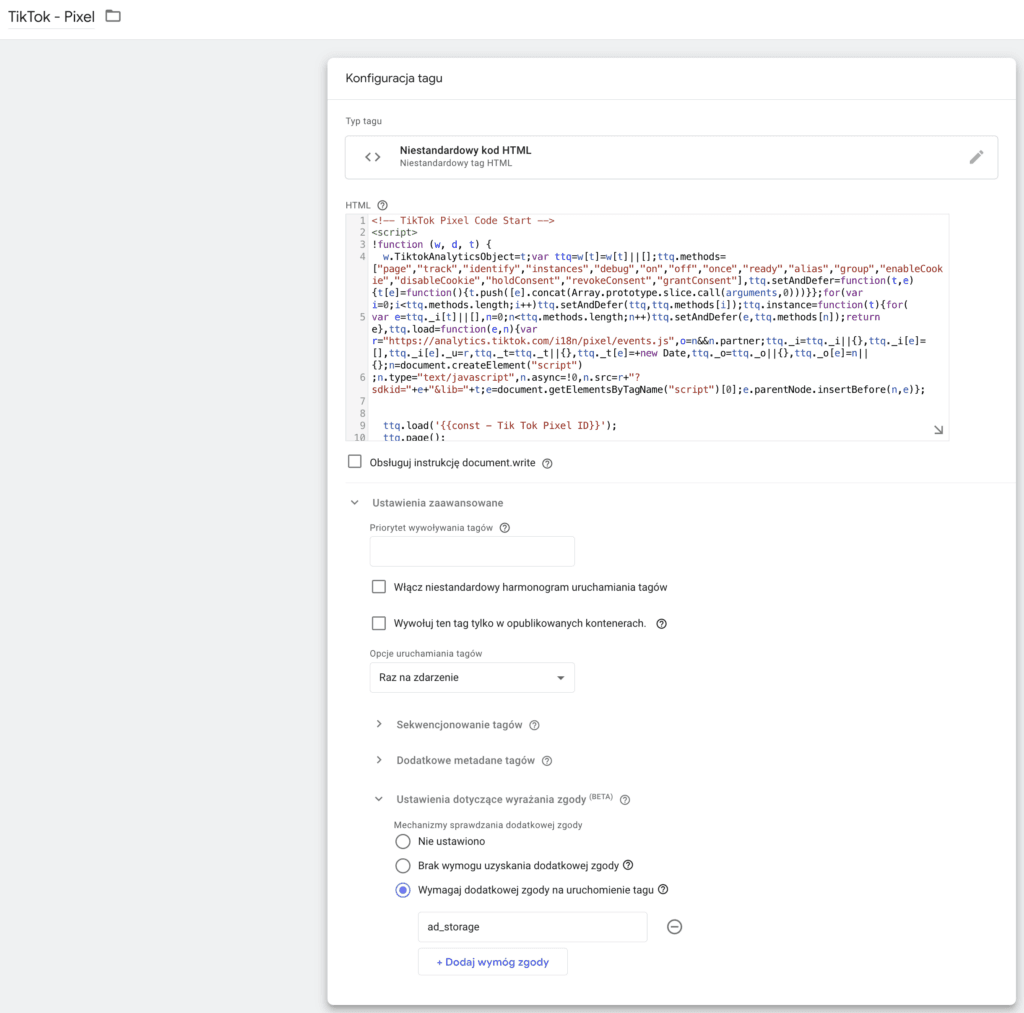
The pixel ID is stored in the variable we created earlier.
This is standard code, and it's included in the JSON file I shared.
You can also get it directly from TikTok: go from Ads Manager to Events Manager (Tools → Events → Data Sources) and select the pixel you need.
In the pixel panel, open the Settings tab and find this section:
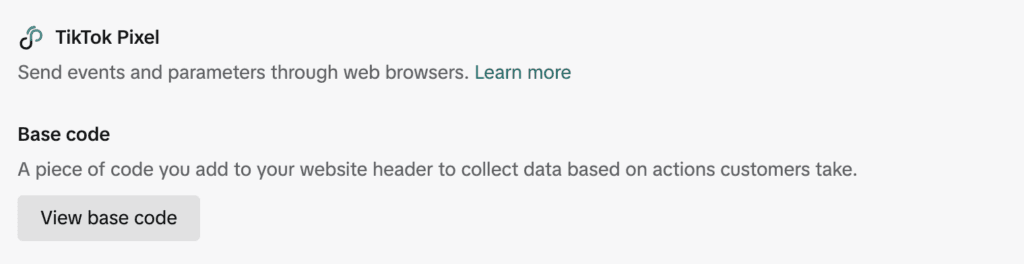
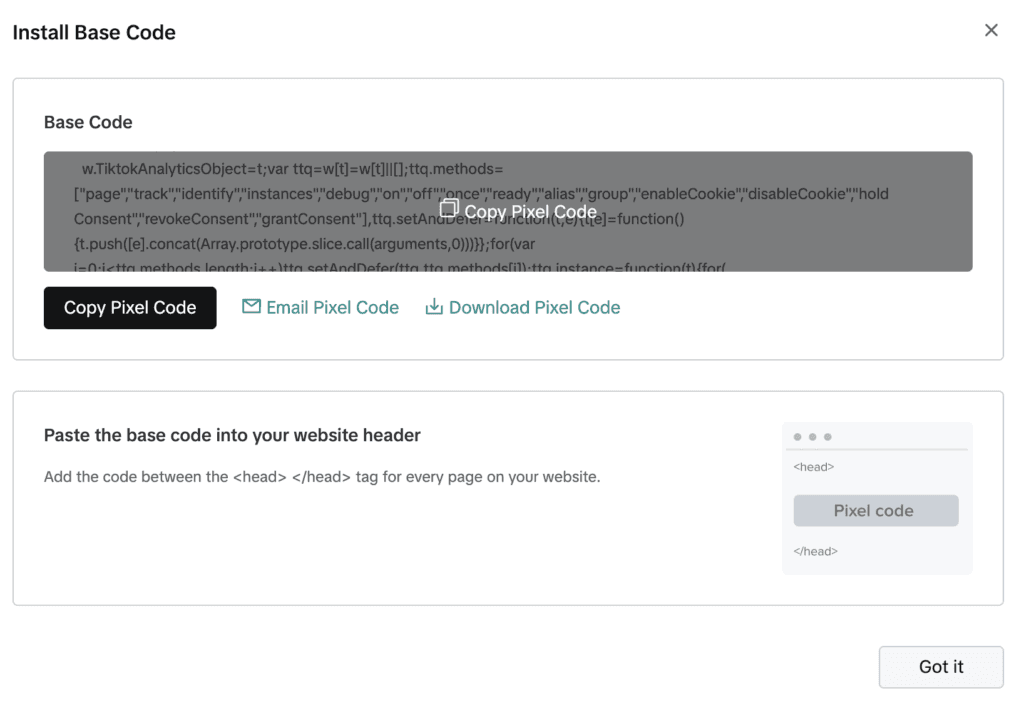
Click View base code to copy your pixel code
Remember to set the tag to fire once per page and to set the required consents. We'll cover the consent part in a dedicated section.
This code handles the page view event. It's the only event we'll track client-side only, because I couldn't find any documentation on how to declare event_id in the HTML code
Sending the event
To send events, we can now use the tag template. TikTok recommends standard events, because they are the only ones you can optimize TikTok campaigns for. You'll find the list of supported events here: https://ads.tiktok.com/help/article/supported-standard-events?aadvid=7353949490531041296
The template also lets you send custom events, of course.
In our case, though, it will be the standard AddToCart event.
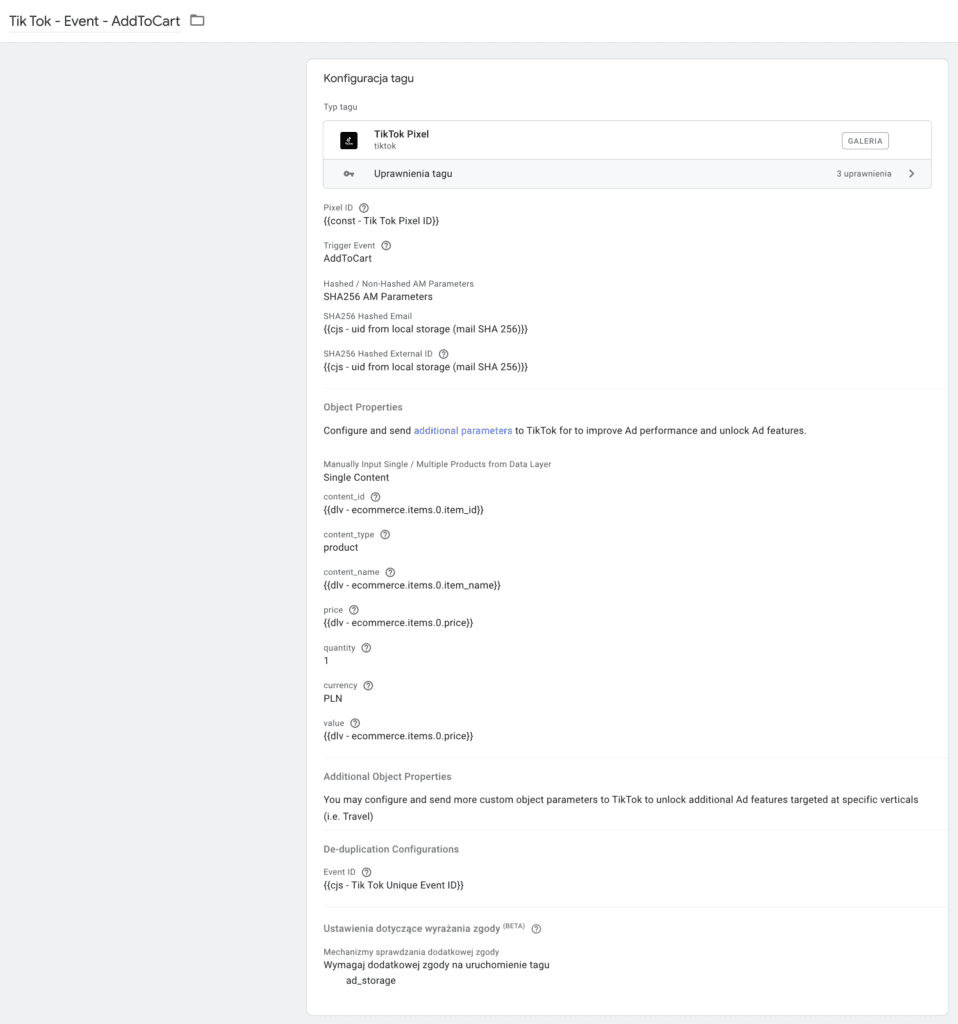
We need to add the required parameters in the Object Properties section and add a safeguard that fires the base tag before the event tag in case it hasn't loaded yet. Since the base tag is set to fire once per page, there's no risk of it firing twice and counting a duplicate page view.
When configuring Object properties, you can choose to use the data layer if it matches the enhanced ecommerce structure 100%.
If your data layer doesn't match, you'll have to configure these parameters manually.
Depending on the event, choose
- Single Content (add to cart, view item) for events involving a single product
- Multiple Contents (view_cart, purchase, etc.) for events involving a group of products.
In the deduplication section, we still need to declare the event ID using the variable we created earlier.
You can set up tracking for any event the same way. Examples for the key events are in the shared file.
For the purchase event, it's best to use the transaction ID as the event ID
Sending data to the tagging server
Now that the TikTok pixel correctly receives data from the website with all the parameters needed to deduplicate the data received through the Events API, we can move on to the main part of the setup.
Using GA4 tags, we need to send to the tagging server all the events, with the required parameters, that we previously implemented with the pixel.
Google tag
We'll start by implementing the base Google tag, which will handle the page view event.
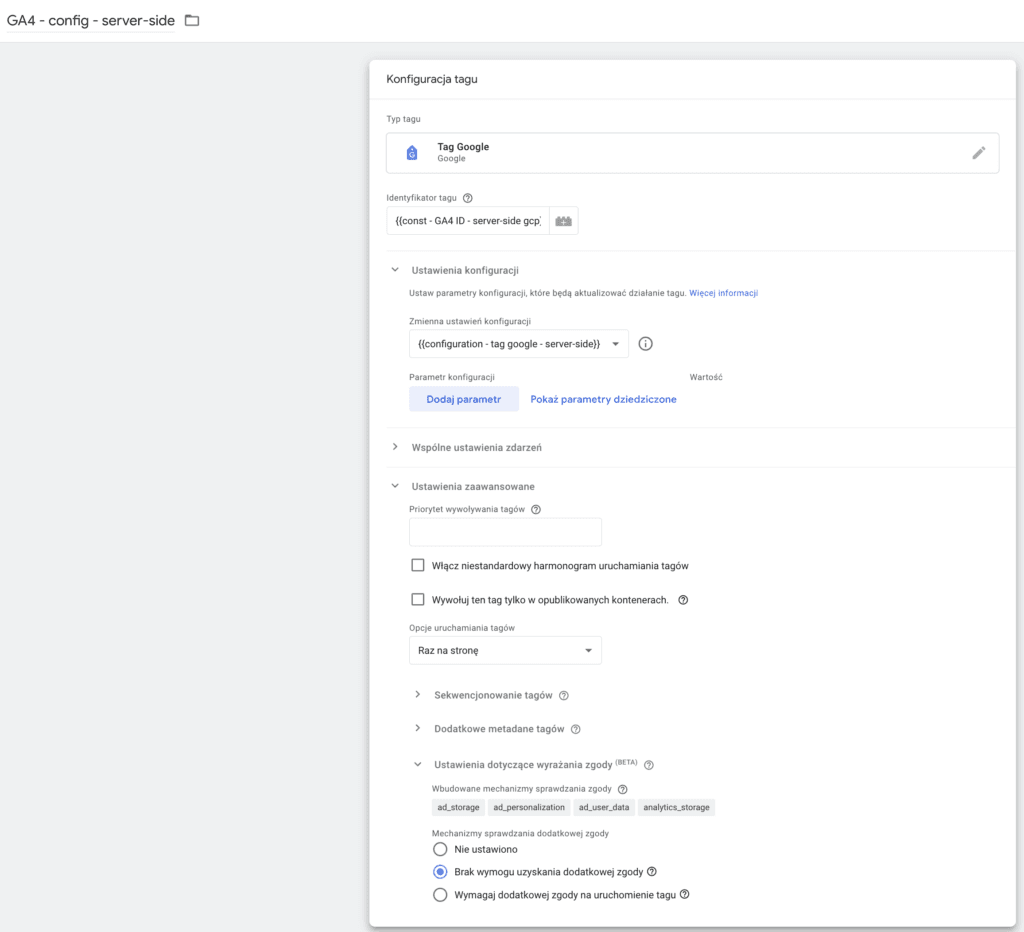
The setup is very simple.
For the measurement ID, we enter the variable we created earlier.
In the Configuration settings variable section, we select the variable we set up.
Under Tag firing options, we select Once per page.
Sending the event
To send the event to the server, we use a Google Analytics 4 event tag.
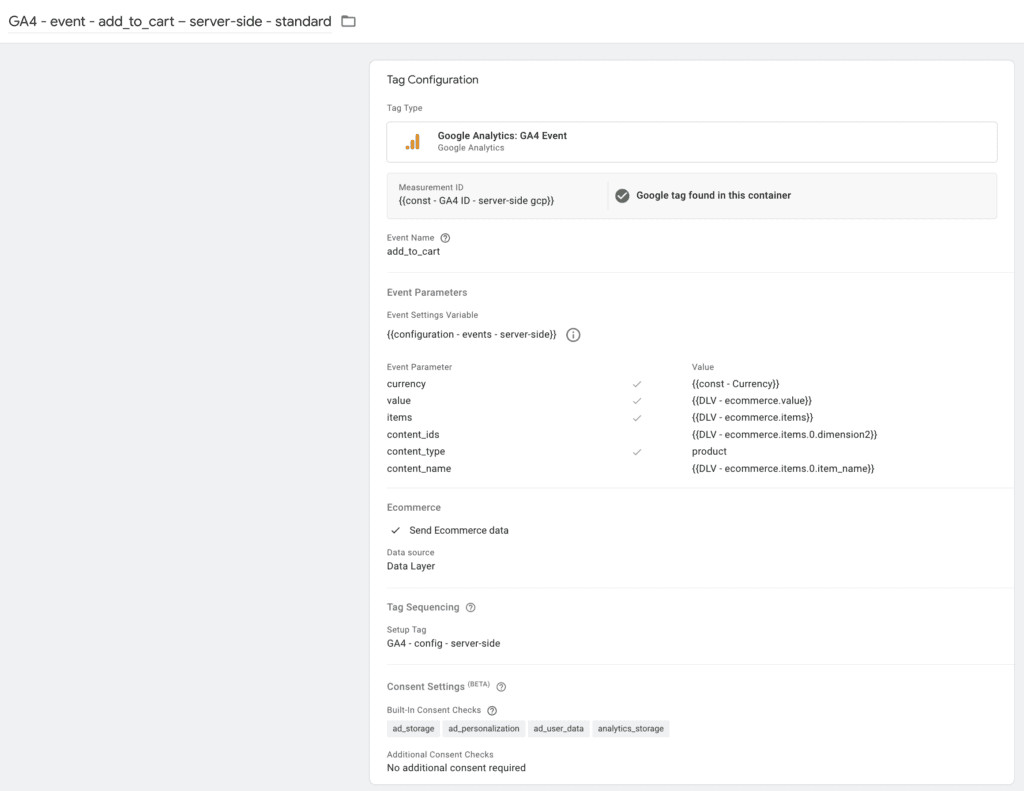
The setup is very simple here as well.
Again, for the measurement ID we enter the variable we created earlier.
In the Event settings variable section, we select the variable we set up.
In the event parameters, besides the standard ecommerce parameters, we pass the same variables as in the pixel tag.
For events that fire together with the page view, it's worth adding a safeguard: fire the GA4 configuration tag before the event tag. Because that tag is set to fire once per page, there's no risk of it firing too many times.
We implement every other event the same way.
For the purchase event, you should override the t_event_id parameter from the event settings variable by adding this parameter in the tag configuration with the order ID as its value.
Sending data from the server to TikTok
To send the data received by the tagging server to your TikTok ad account, we'll use the Tik Tok Events API (Official) tag template by TikTok
Variables
We need to create two constants:
const - Tik Tok Pixel ID - a constant holding your pixel ID, same as in the client-side container.
const - Tik Tok Access Token - a constant holding the API access token.
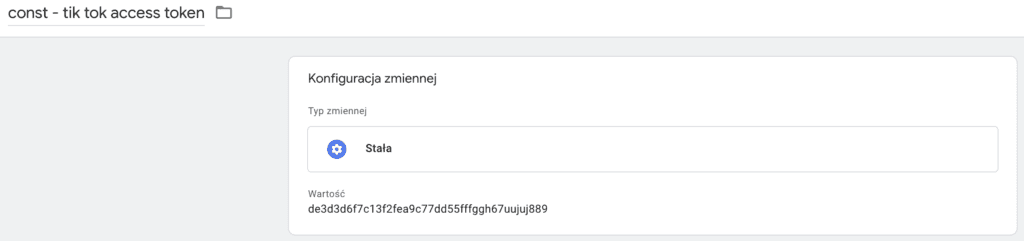
lTable - Tik Tok events map - a lookup table that maps GA4 events to the event names TikTok requires. Unfortunately, there's no confirmation that TikTok maps events on its own
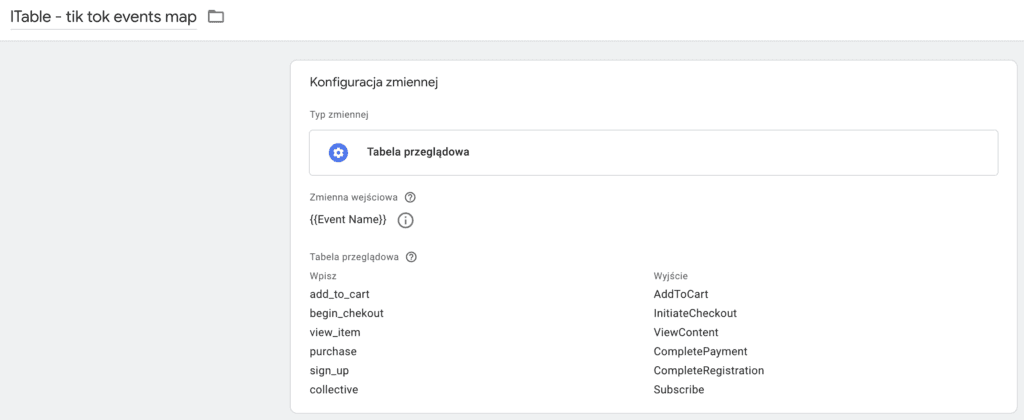
event_date - t_event_id - a variable that reads the TikTok event ID from the event data
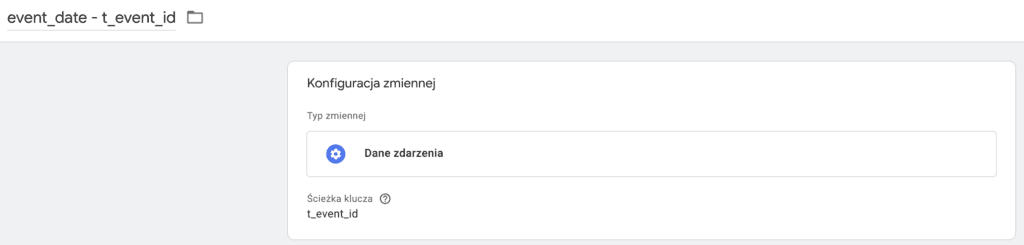
How to generate a TikTok Events API access token
You generate the token in TikTok Events Manager.
Follow the same path as when getting the pixel code: go from Ads Manager to Events Manager (Tools → Events → Data Sources) and select the pixel you need.
Go to Data Sources - > your pixel - > Settings, then find the Events API section and click Generate Access Token.
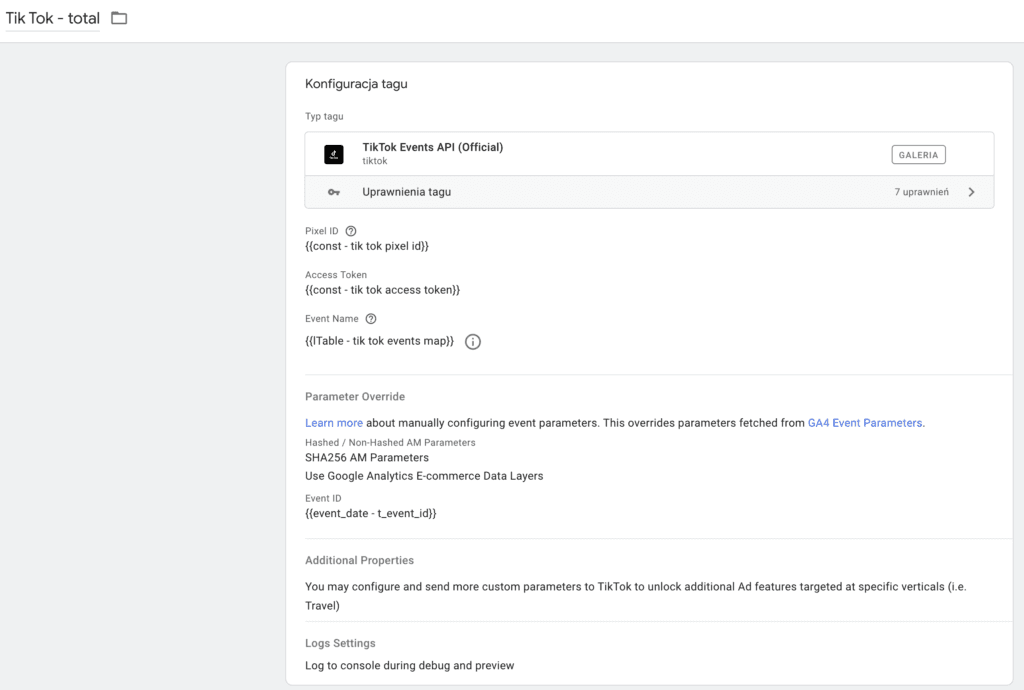
Tag configuration
If the client side is set up correctly, in most cases you won't need to change much in this configuration.
Debugging
To test whether the Events API works correctly, we need to add a test event code to the tag.
Once again, this works the same way as in CAPI.
You'll find the test code under Data Sources - > your pixel - > Test Events.
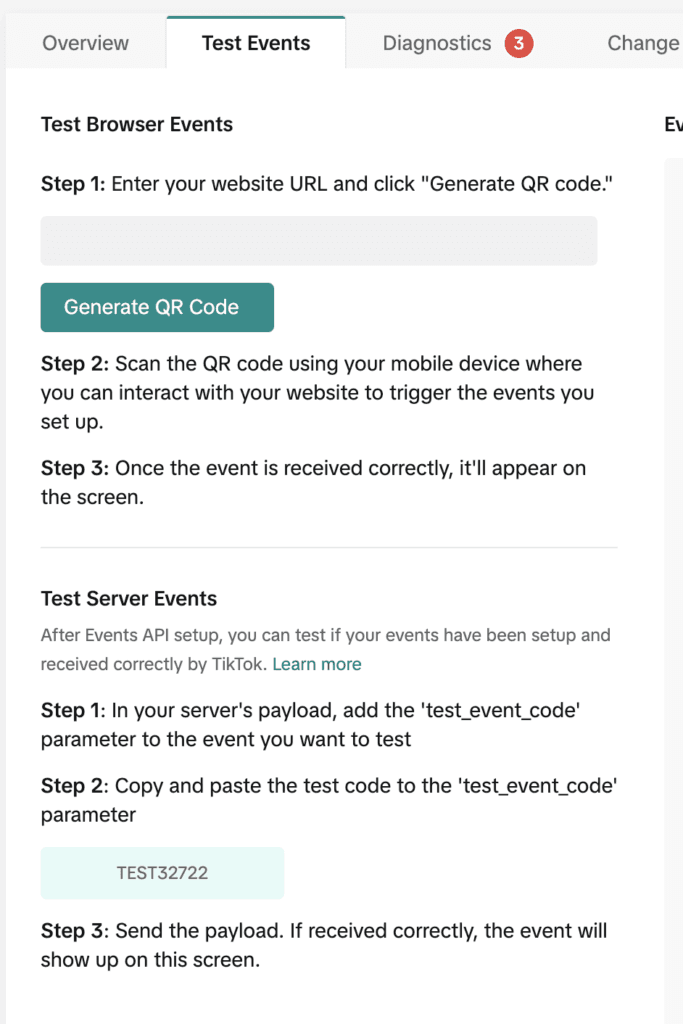
Copy it and paste it in the right field.
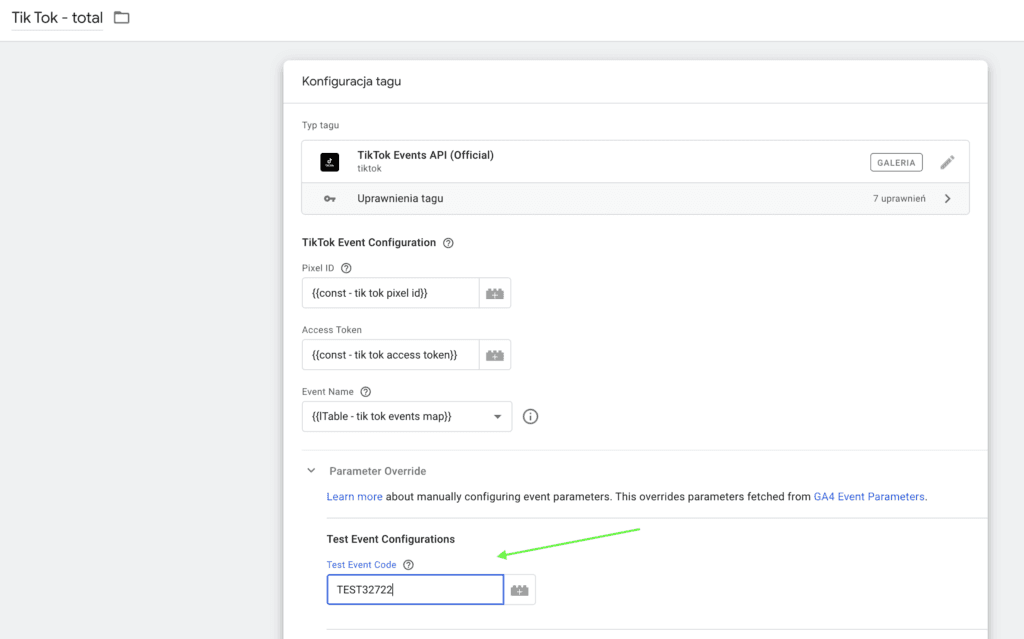
Remember to remove this parameter before you publish the workspace.
Now you can turn on Preview mode in both the client-side and the server-side container.
You should see the pixel tag and the GA4 event tag that sends data to the server fire at the same moment.
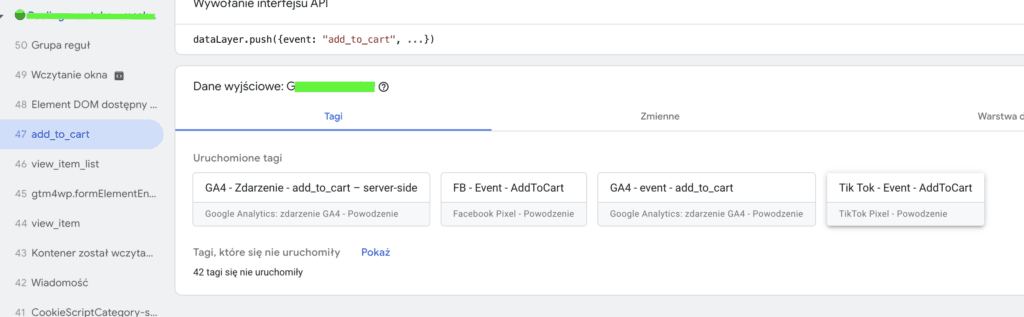
In the server-side container preview, on the Tags tab, you should see the Events API tag fired.
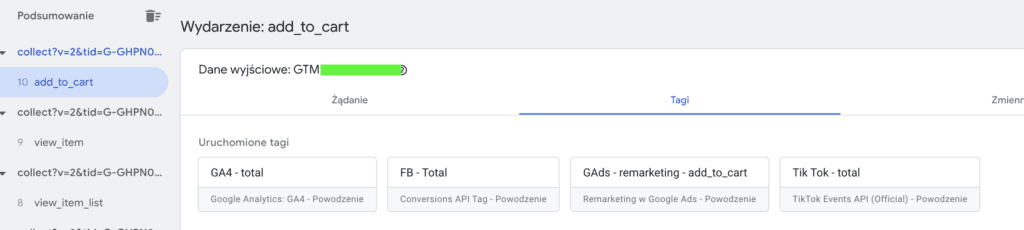
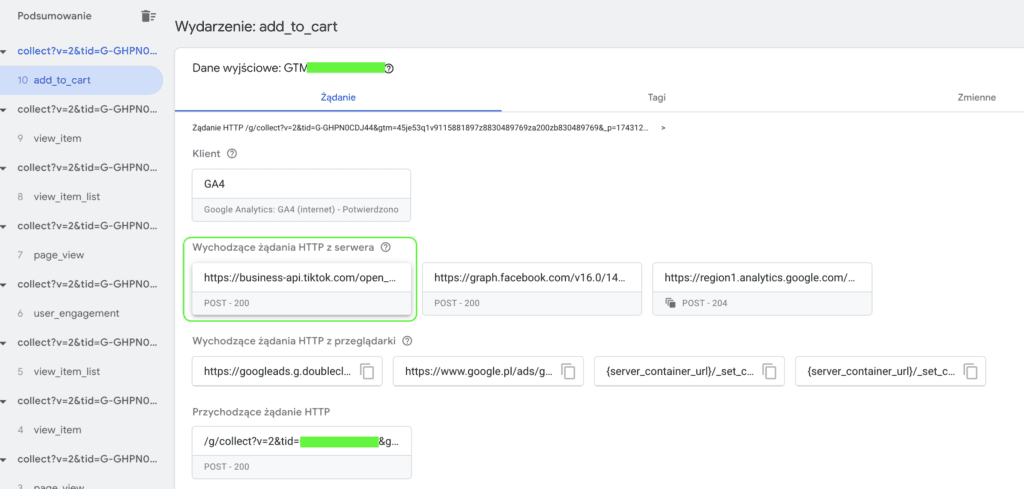
The Requests tab matters more, though. There you should see an outgoing request to TikTok with status code 200, which means the request was sent successfully.
Finally, check the event in TikTok Events Manager. This confirms that TikTok is receiving the data correctly.
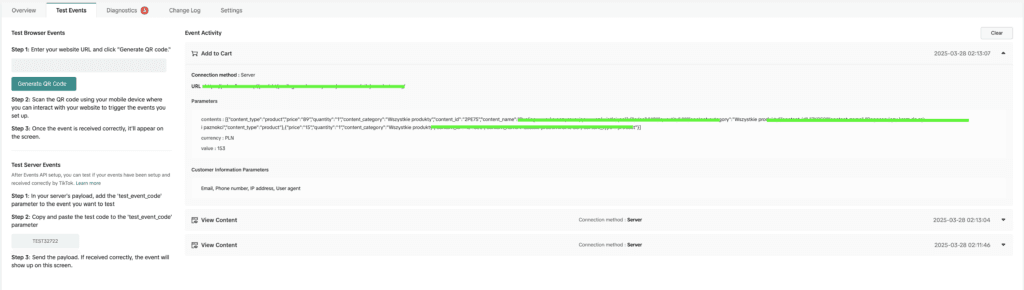
Unfortunately, the TikTok panel doesn't let you check in the live view whether deduplication works.
If the data comes through correctly, now is the time to publish your workspaces in both client-side GTM and server-side GTM,
A few days after publishing the implementation, you can check the quality of your deduplication in Events Manager. To do that, go back to the pixel's panel, select the event you're interested in on the Overview tab and check its deduplication.
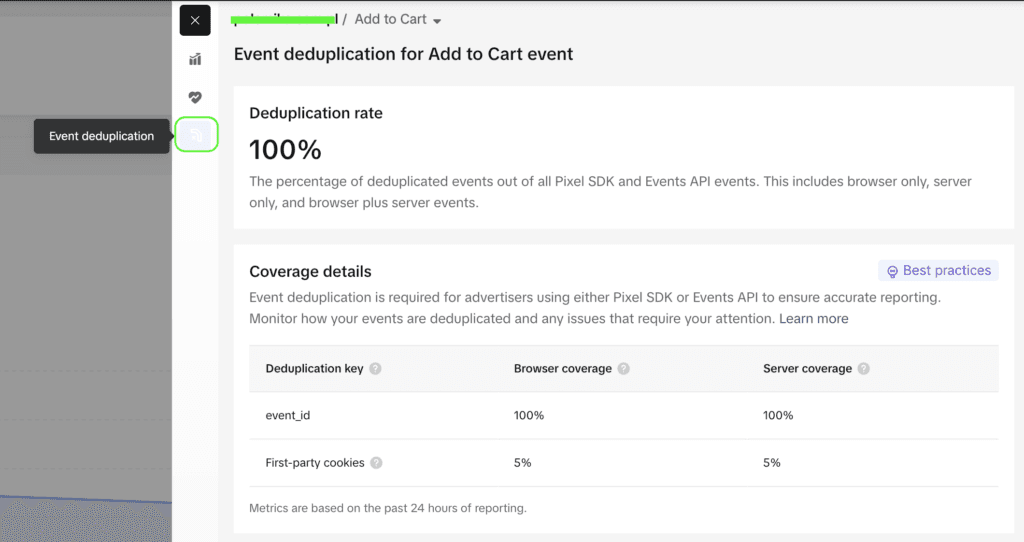
The system should detect any issues and tell you whether a fix is needed.
Consent management with Consent Mode
The last thing to cover is managing consent for tag firing.
TikTok tags, both pixel and Events API tags, require ad_storage consent.
For the pixel, this is naturally easy to set up.
For Events API tags, it's less obvious.
The simplest approach is to set the consent requirement on the client-side GA4 tags.
However, that won't work if you use the same tags for server-side GA4 tracking, especially in advanced Consent Mode.
In that case, I create a variable in client-side GTM that reads the ad_storage consent status and add an extra parameter to both settings variables.

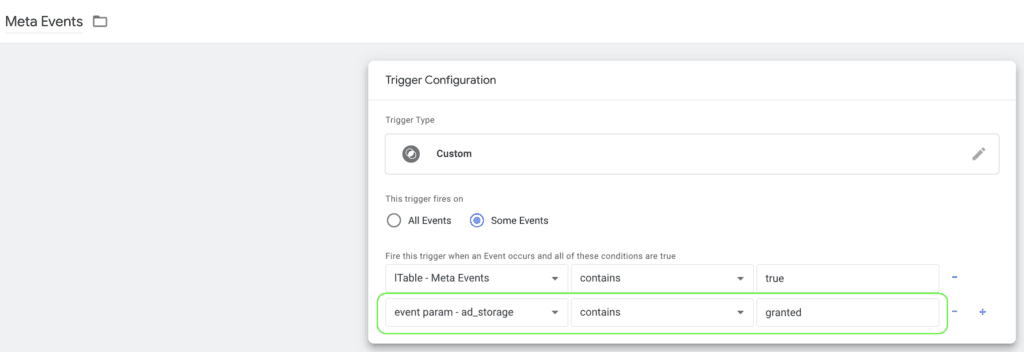
In server-side GTM, I create a variable that reads this value.
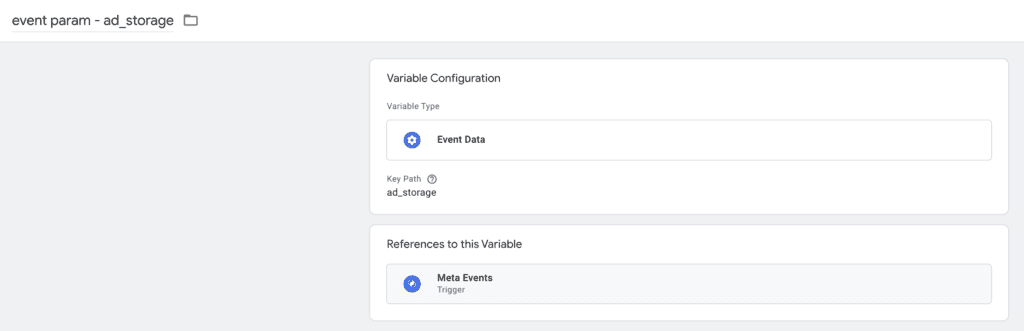
Then I use it as a condition for firing the API tags.
How to use the JSON files
The files cover the following events:
- page_view
- view_item
- add_to_cart
- begin_checkout
- purchase
For GA4 tracking, they also include tags for:
- view_cart
- add_payment_info
- add_shipping info
The files are built for the standard enhanced ecommerce Data Layer structure
GTM client side
- Import the container
- Update the variables
- const - GA4 id - server
- const - server-side url
- const - Tik Tok Pixel ID
- Update the cjs - localStorage.ad_storage variable so it reads the ad_storage consent value from the CMP you use. You may need to write code that retrieves this value
GTM server side
- Import the container
- Update the variables
- const - Tik Tok access token
- const - Tik Tok Pixel ID
Once debugging checks out, publish both containers
The Events API implementation isn't well documented, and even with several implementations behind me, a lot of it is still unclear to me. I'll keep this guide updated.
Didn't get the JSON files? Try again here: https://bettersteps.pl/en/tiktok-events-api-guide
Follow us so you don't miss our other useful content:
