Mapping a subdomain to your tagging server takes server-side tagging a step further and brings extra benefits in the form of a first-party context, which means more secure and, above all, longer-lasting cookies. As a result, your data will be more accurate and your ads will target users more precisely, which should translate into savings in your ad accounts.
Adam Brzostek
Reading time: 5:00
Mapping a custom subdomain to your tagging server in Google Cloud Platform (Cloud Run)
You may also want to read our other articles on server-side tracking:
For setting up the tagging server itself, I think Google's guide is good enough: https://developers.google.com/tag-platform/tag-manager/server-side/cloud-run-setup-guide?hl=pl&provisioning=manual . Mapping a subdomain the way Google recommends is much harder, though, which is why I wrote this article.
Introduction
When you set up a tagging server in Google Cloud Platform using Cloud Run, it gets its own default domain, created for this purpose by Google, where it is hosted.
This domain is the endpoint that receives all the requests (e.g. Google Analytics 4 events) you want to handle with server-side tagging.
The domain name combines your own tagging server name, a string of digits, the region where you set up the server and the fixed "run.app" part, for example:
https://server-side-tagging-1015978308997.us-central1.run.app
or
https://test-732008615078.europe-central2.run.app
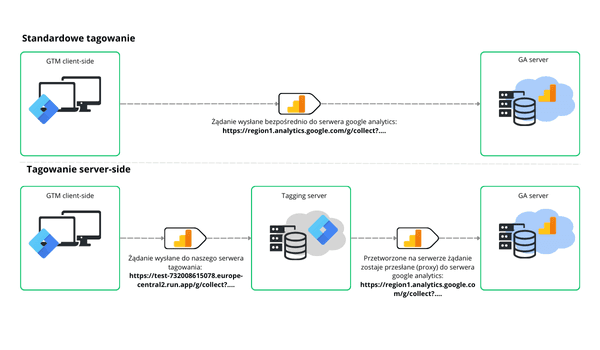
Tagging on the default domain will still work correctly, but you only get the extra benefits described in the first paragraph once you map your own custom domain to the server.
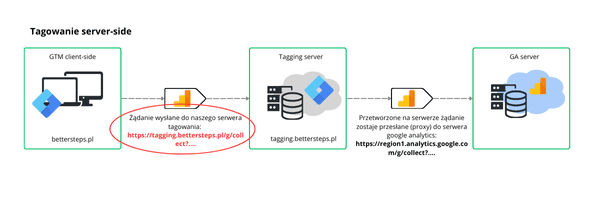
How to map your own domain to the tagging server
In October 2024, Google changed the process of mapping a subdomain to Cloud Run, and it is now much more complicated than before. The documentation isn't very clear here, so let's go through the whole process together, step by step.
According to Google's recommendation, the best way to map your own domain to the server is to set up a load balancer.
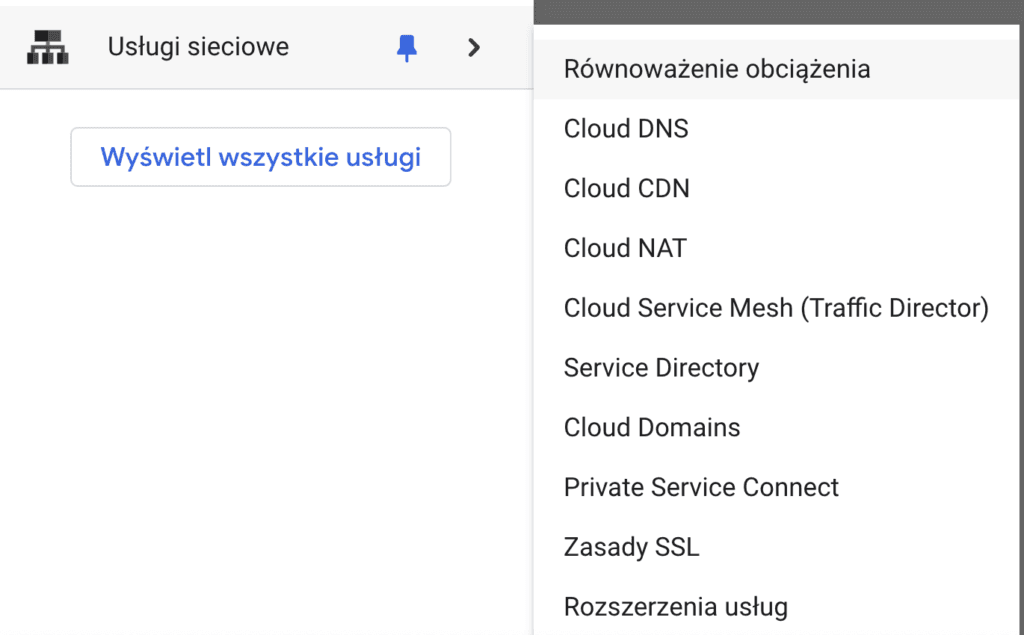
To do that, select Network services → Load balancing from the menu
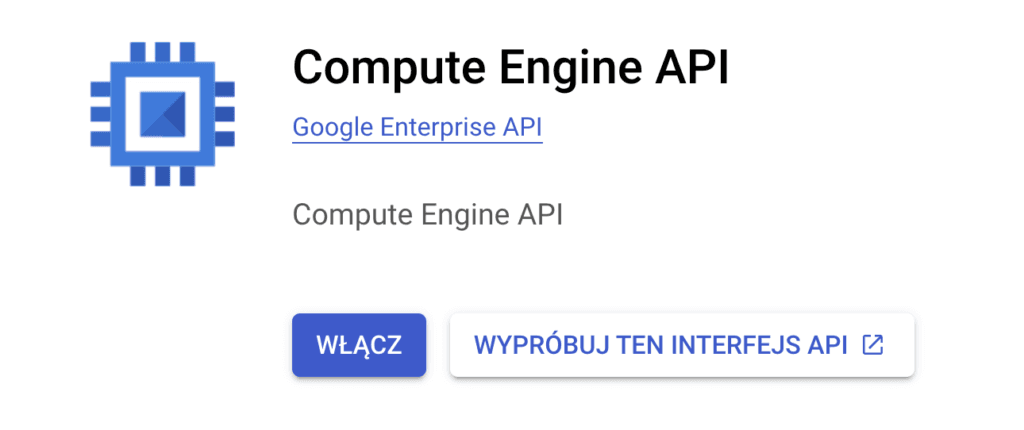
Keep in mind that the Compute Engine API must be enabled in your project
Load balancer configuration
Once that's done, click the Create load balancer button

We'll go through the most general, default configuration, which should work for most server-side tagging use cases.
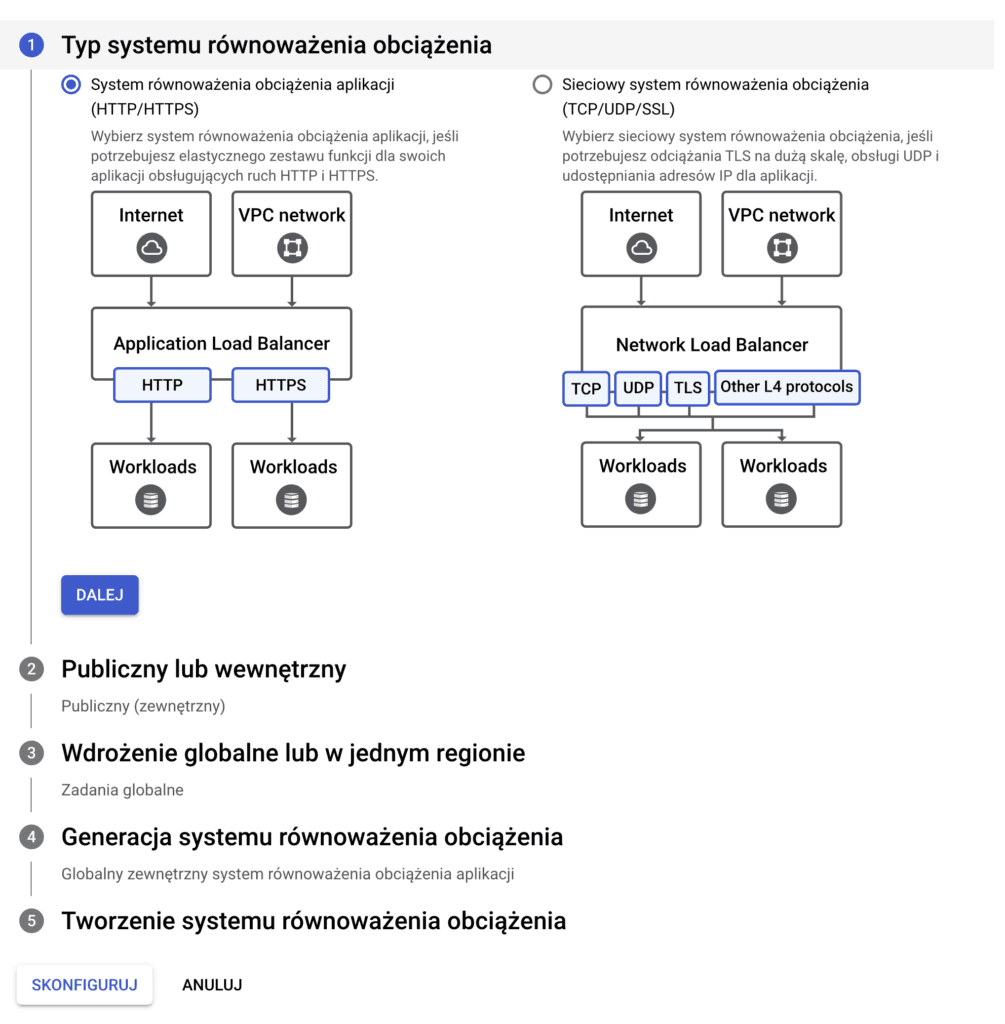
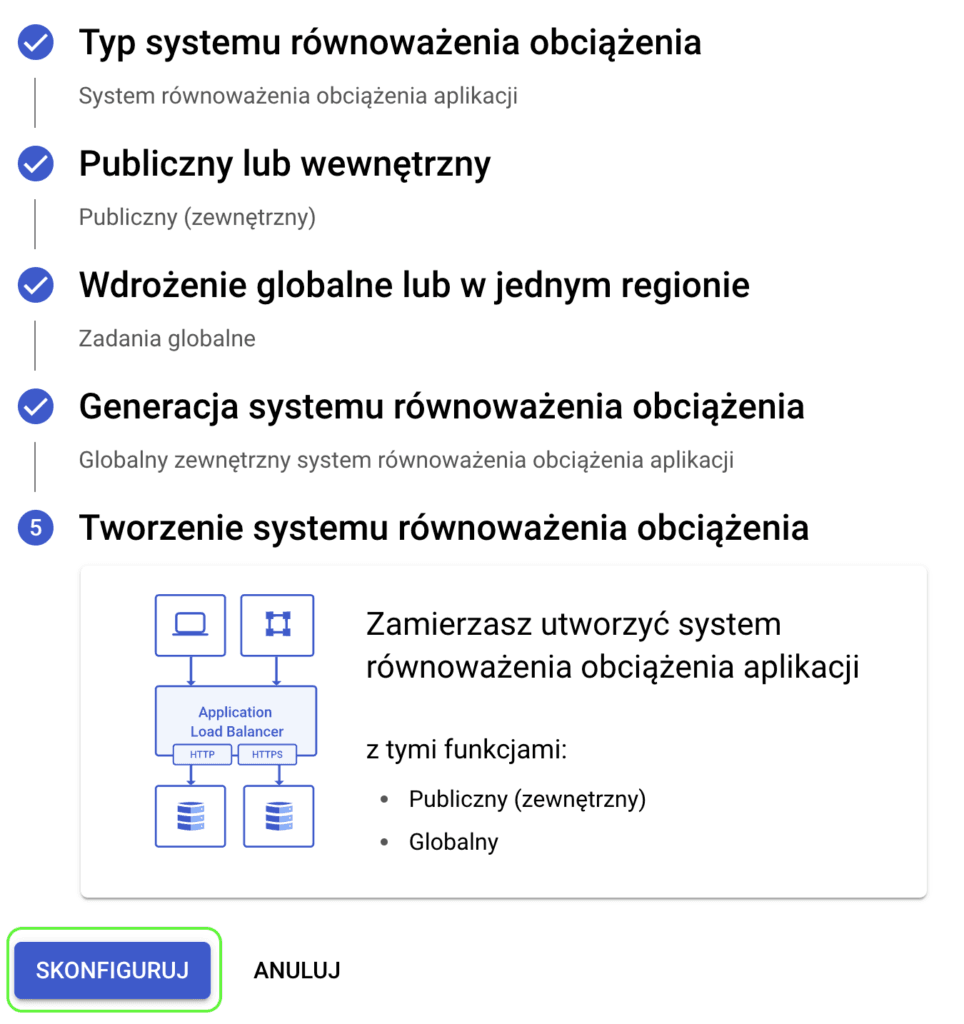
In the first step, leave the default option selected: Application Load Balancer (HTTP/HTTPS)
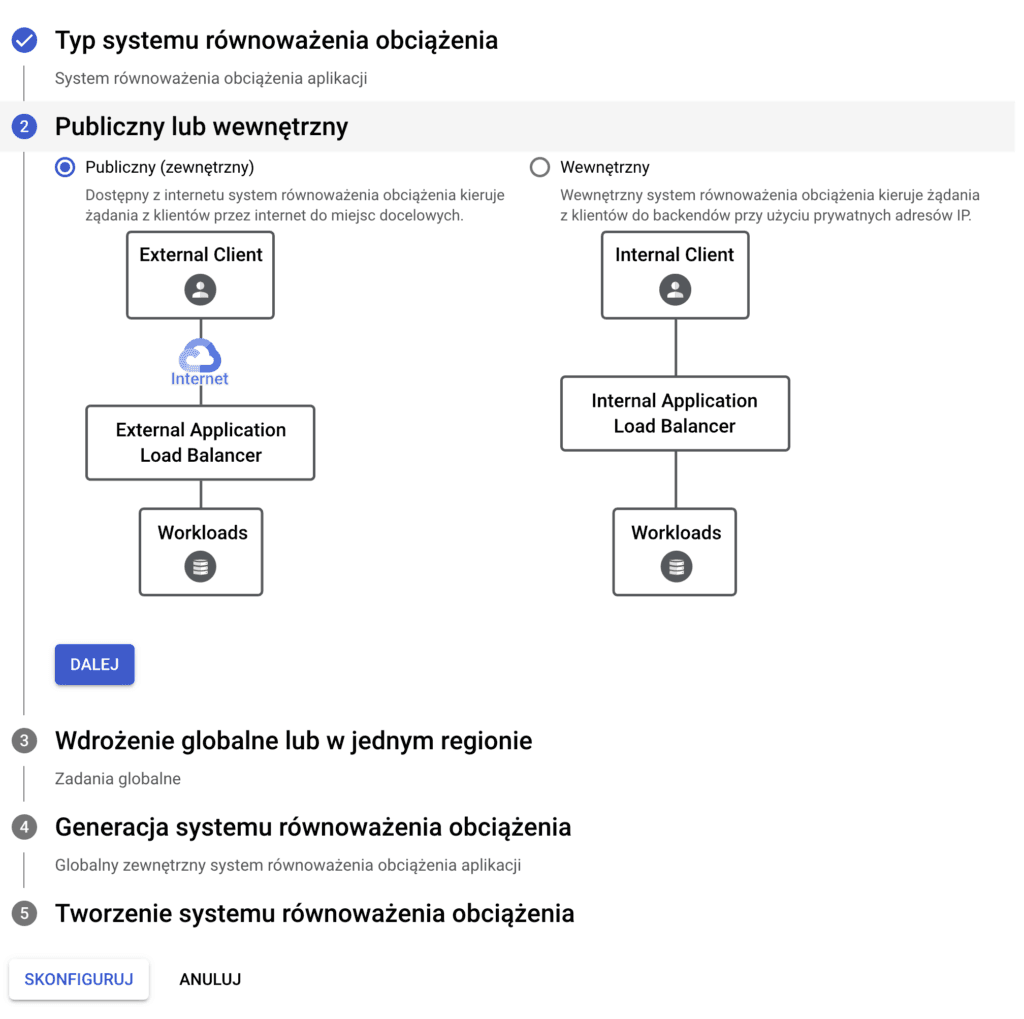
In the next step, also leave Public facing unchanged
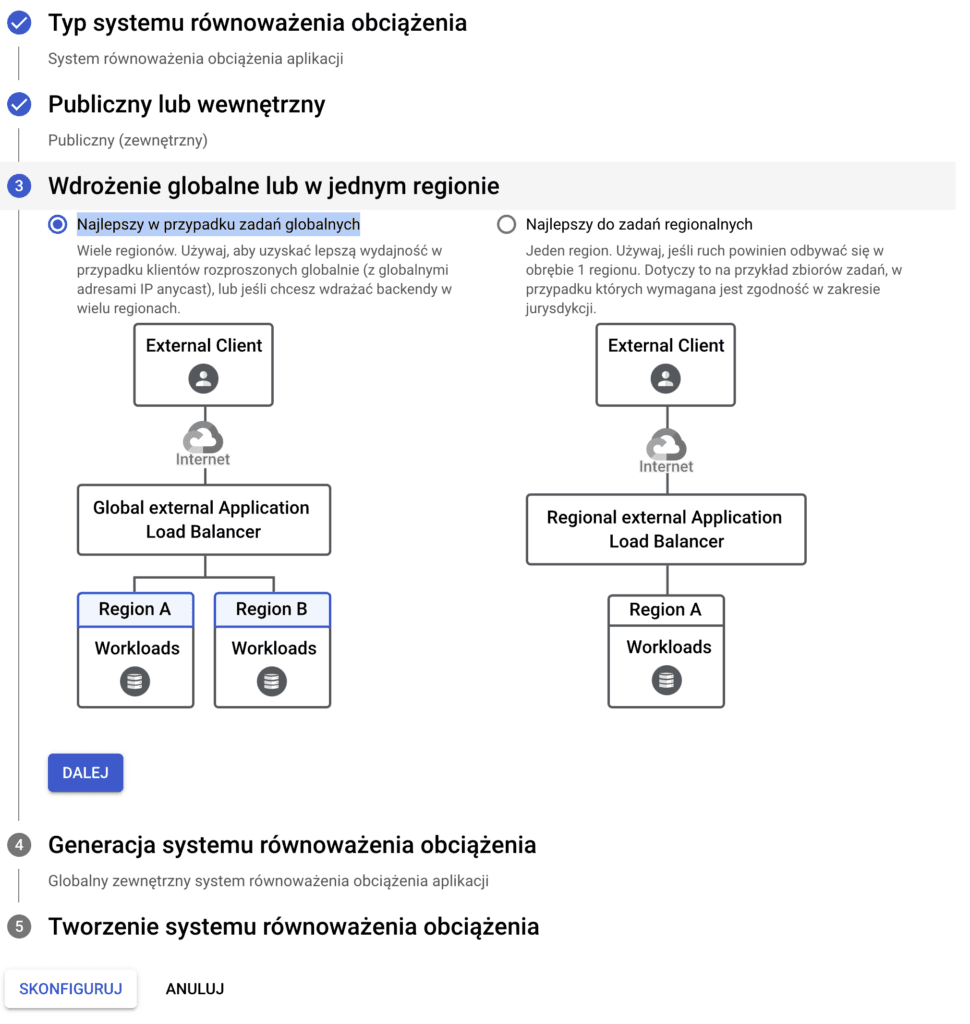
The next step stays unchanged too: Best for global workloads
In step four, again change nothing and keep Global external Application Load Balancer
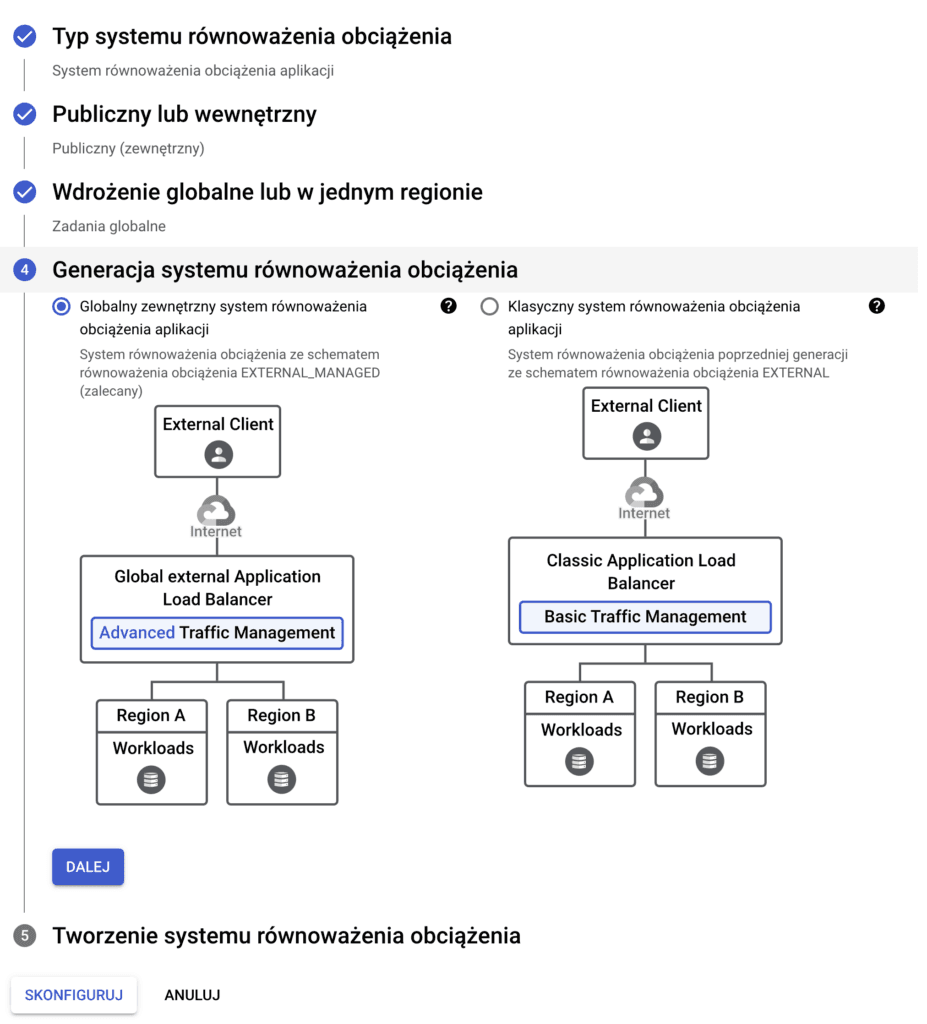
To finish this stage, click the Configure button
Frontend configuration
So far it's been very simple, but now it gets a bit harder.
First, enter a name for the load balancer and a name for the frontend.
Then select the HTTPS protocol
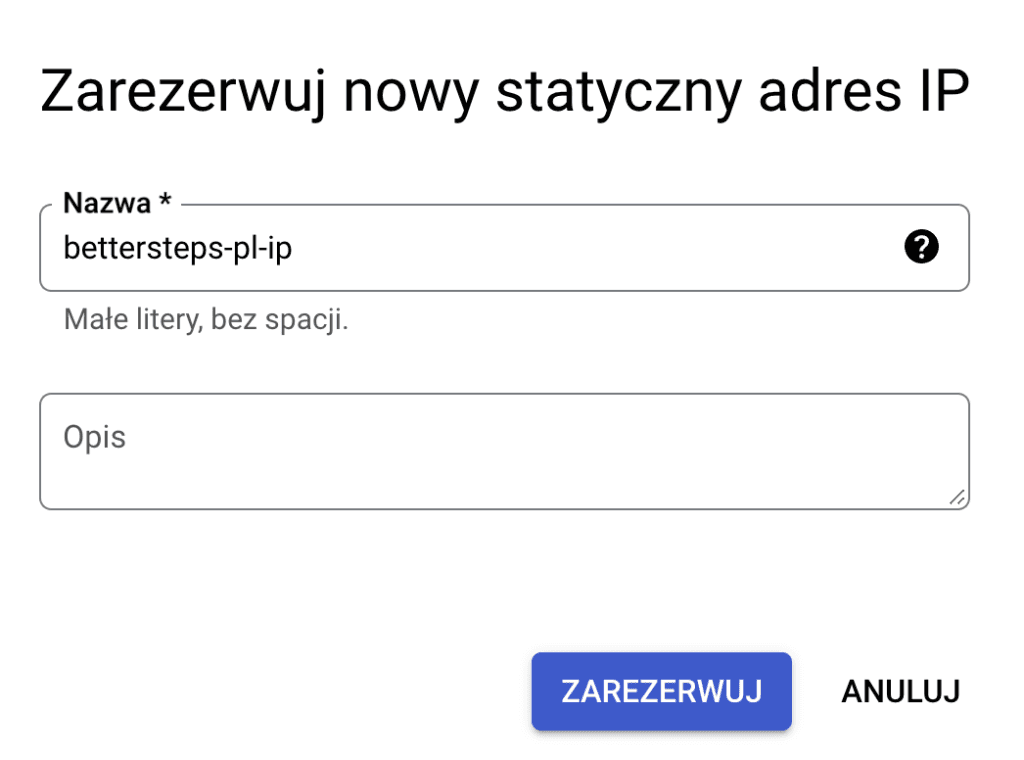
You need to create a new static IP address
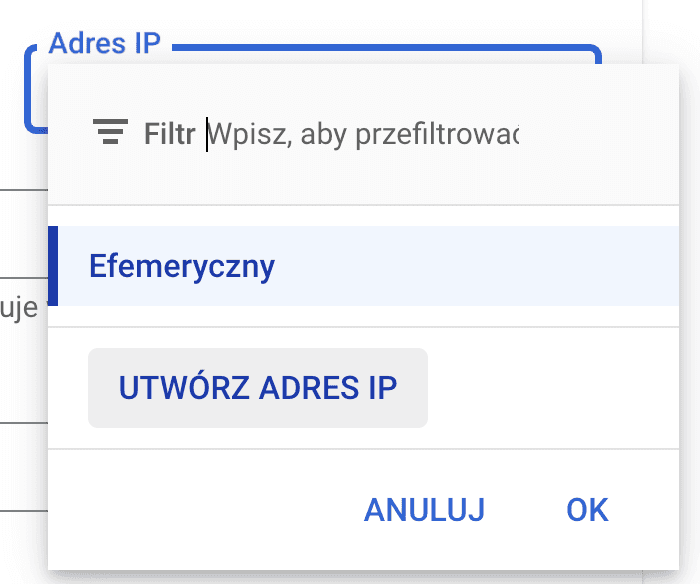
Just give it a name and click Reserve
The next setting is the certificate, which you need to create
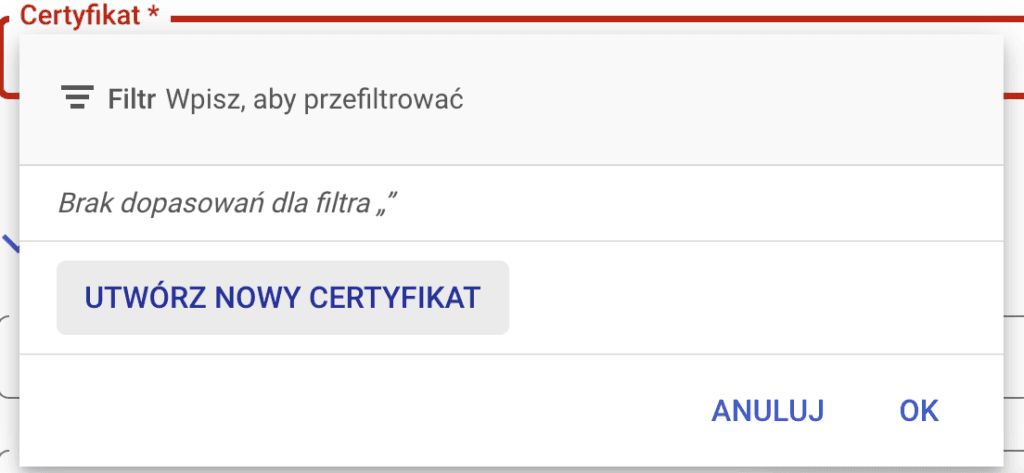
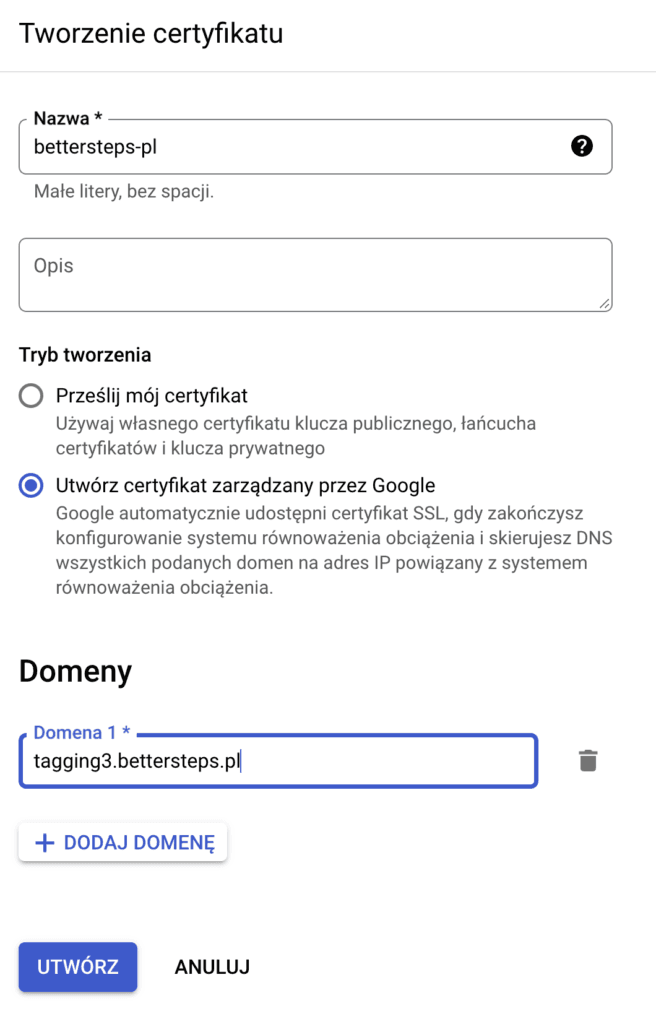
Again, enter a name and select Create Google-managed certificate.
Here you also need to enter the domain you want to map, then finish by clicking Create.
Before moving on to the backend configuration, also check the option to enable HTTP to HTTPS redirect.
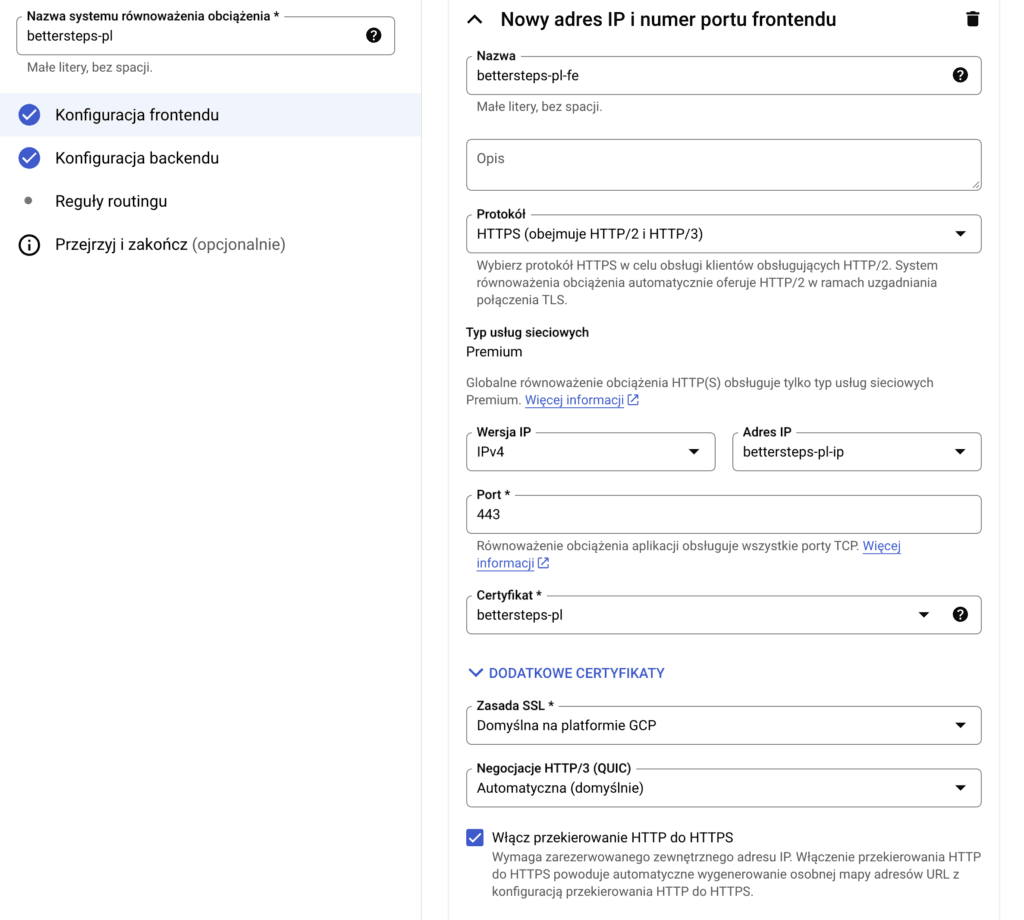
Confirm with the Done button and move on to the backend configuration
Backend configuration
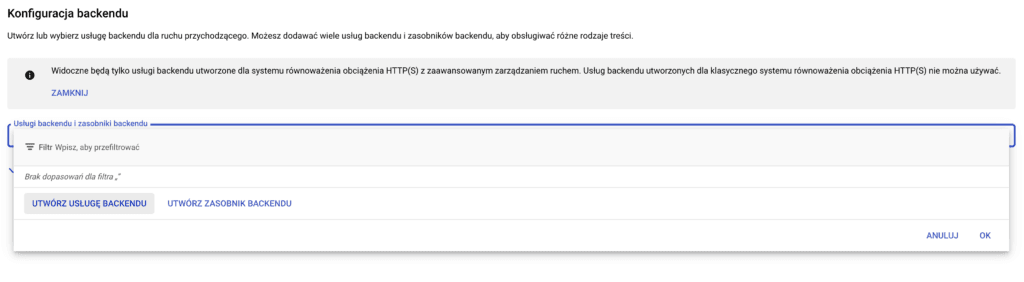
Start this stage by selecting Create a backend service
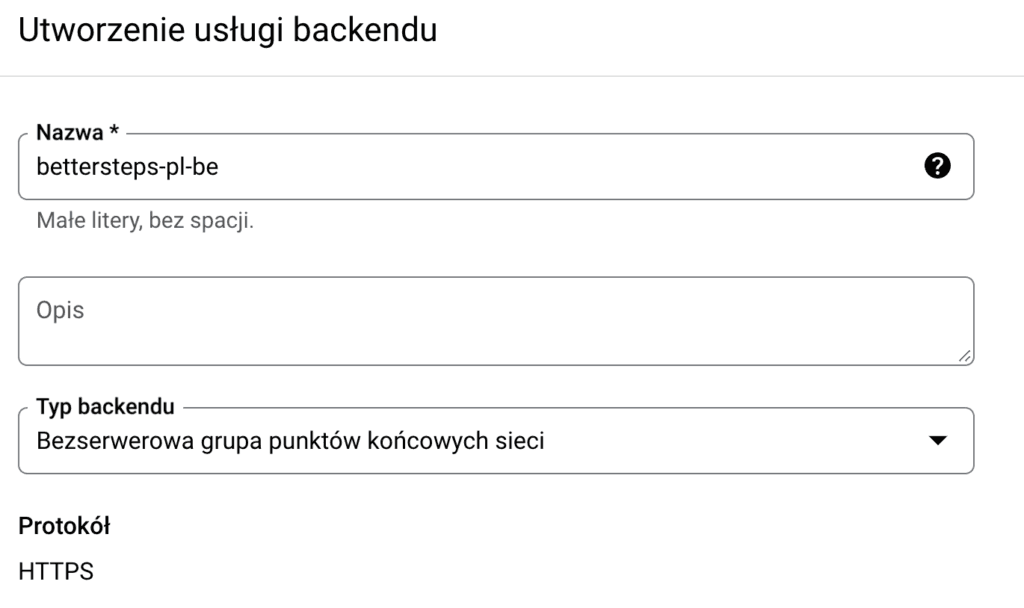
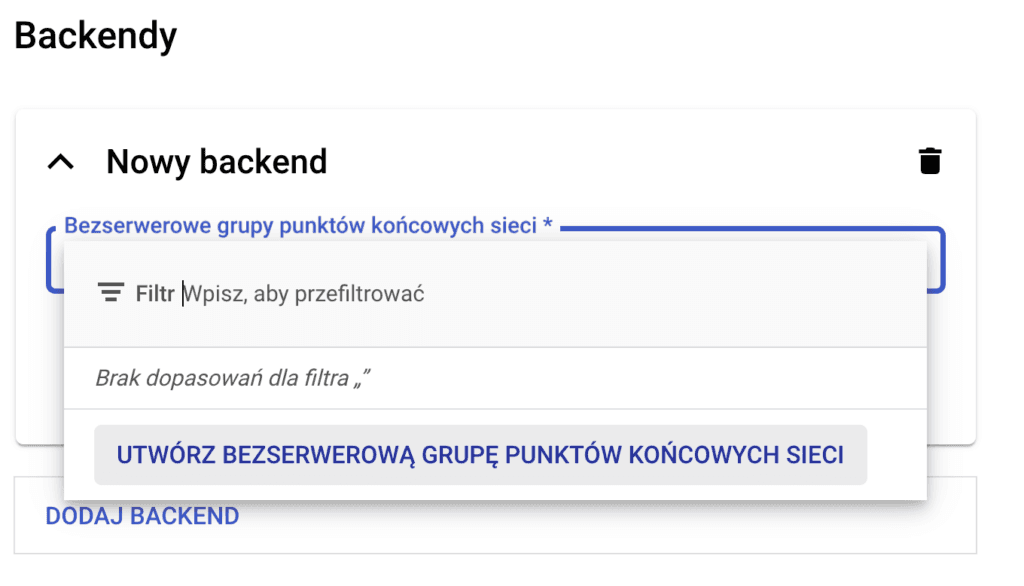
Enter a name for the backend and select Serverless network endpoint group as the type.
In the Backends section, we'll create such a group.
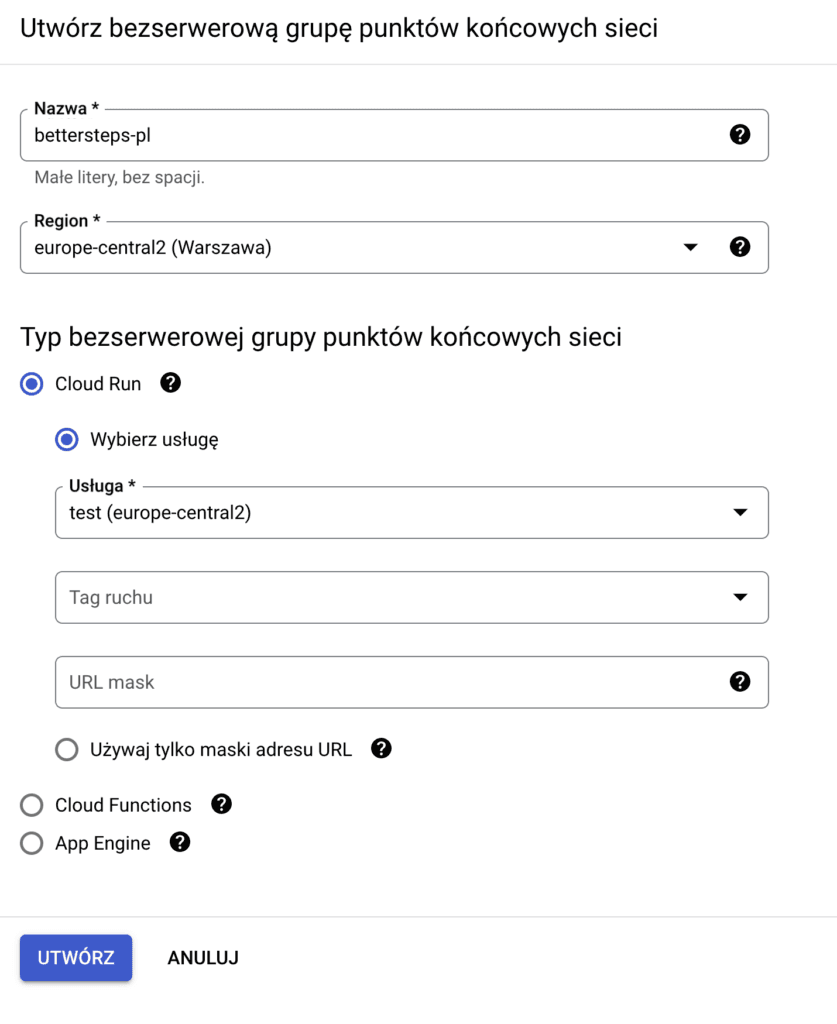
As several times before, enter a name. Then choose a region. It's best to pick the same region where you created your tagging server, i.e. your Cloud Run instance.
Set the group type to Cloud Run and select the server you want to map from the drop-down list.
Click Create.
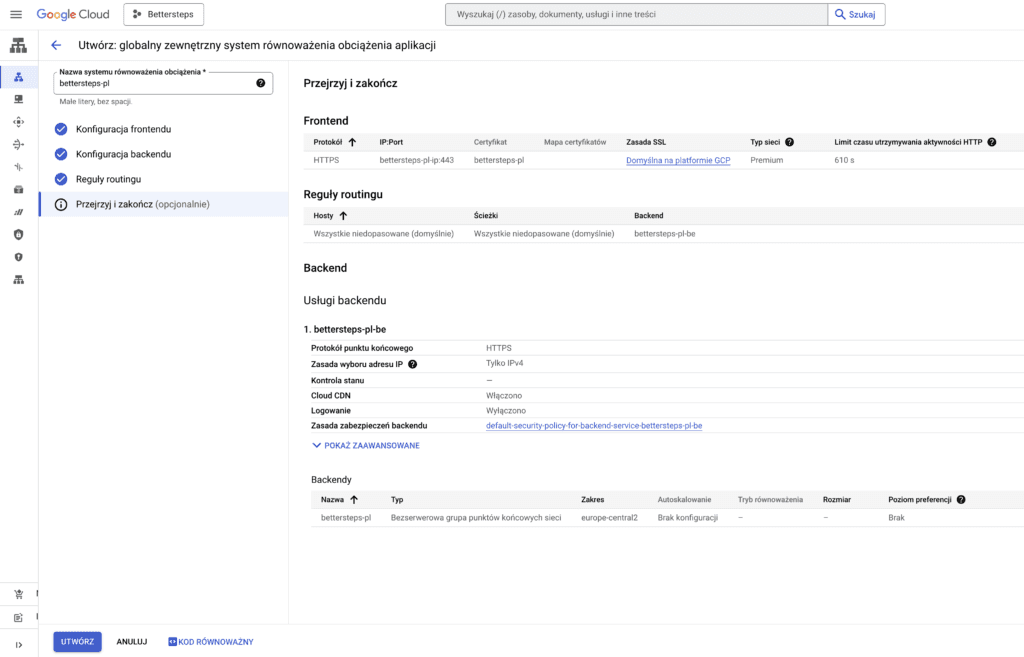
Then click Create in the backend service configuration window as well
We won't change the routing rules, so you can go to the last part of the process and create the load balancer.
Creating your own subdomain
The load balancer is now configured, but it stays inactive until you create the domain you want to map.
When creating the domain, you need to add a DNS A record pointing to the right IP address.
To find this IP address, open your load balancer. You'll find it in the Frontend section.
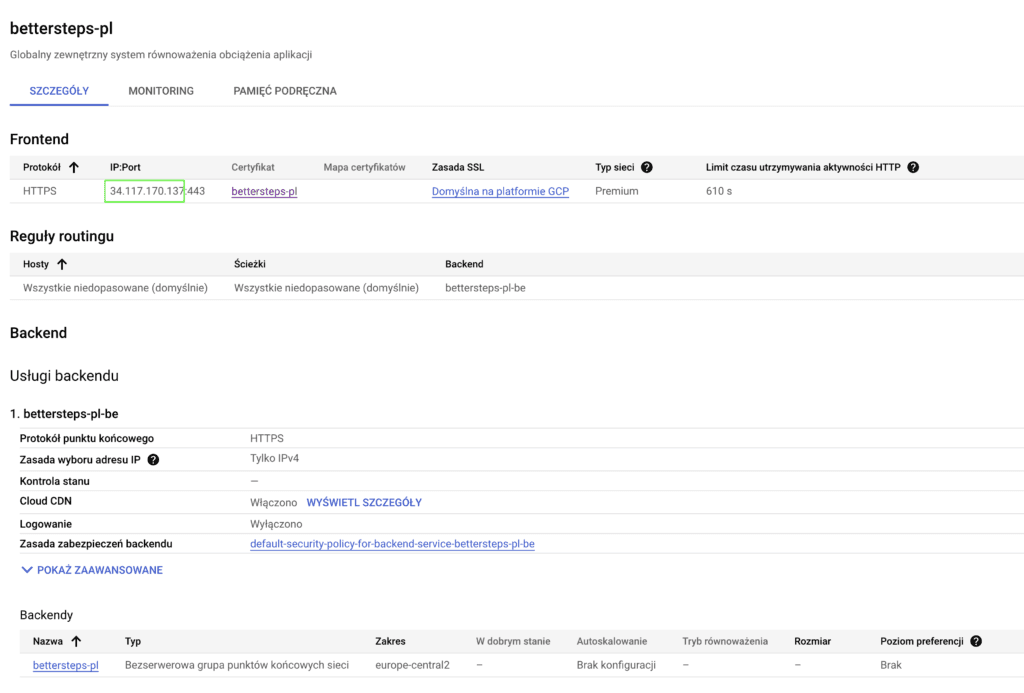
Now create the domain whose name you entered when configuring the certificate, with a DNS A record pointing to that IP address.
It's best to pass this to your company's network administrator, unless you have access to the hosting control panel yourself.
The load balancer becomes active once the certificate is active. This can take up to several hours after you create the domain and add the DNS record.
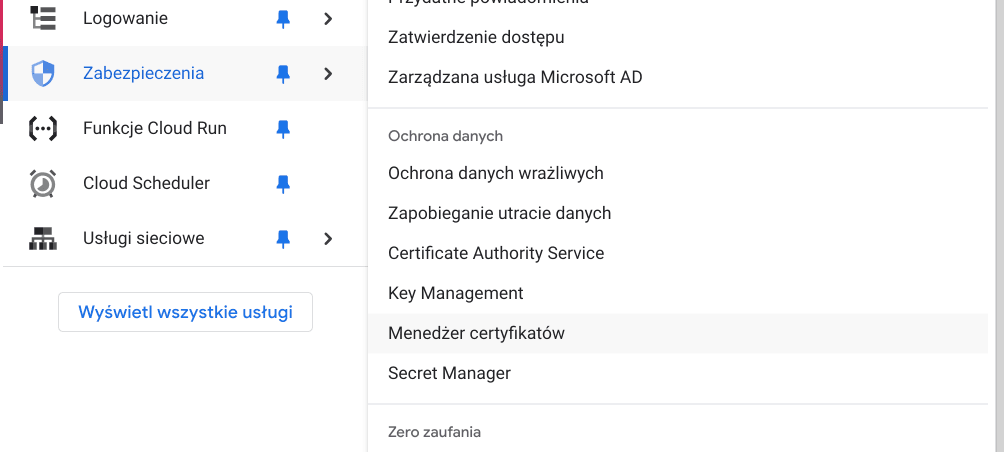
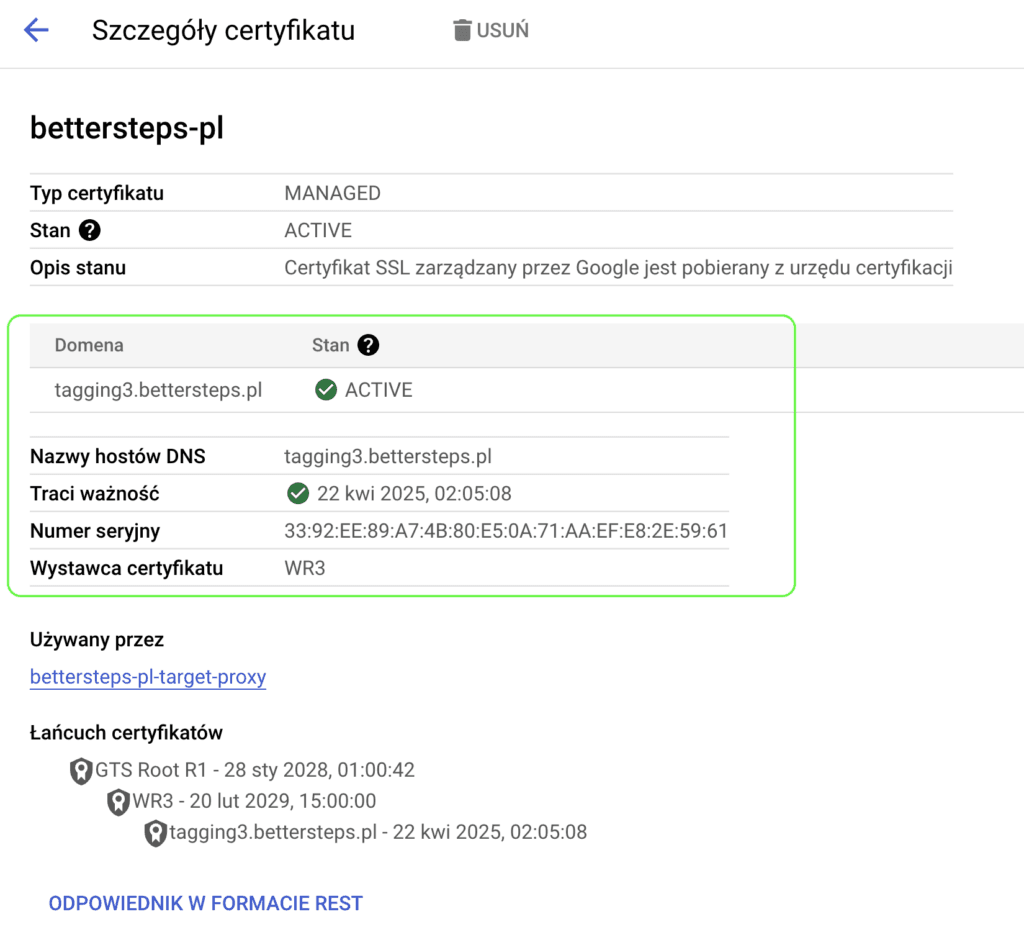
You can check the certificate status under Security → Certificate Manager
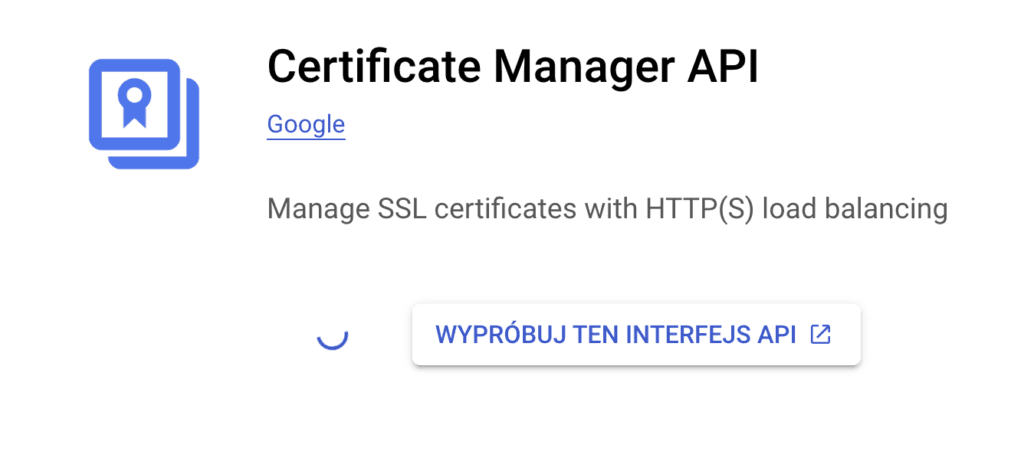
For this, the Certificate Manager API must be enabled in your project.
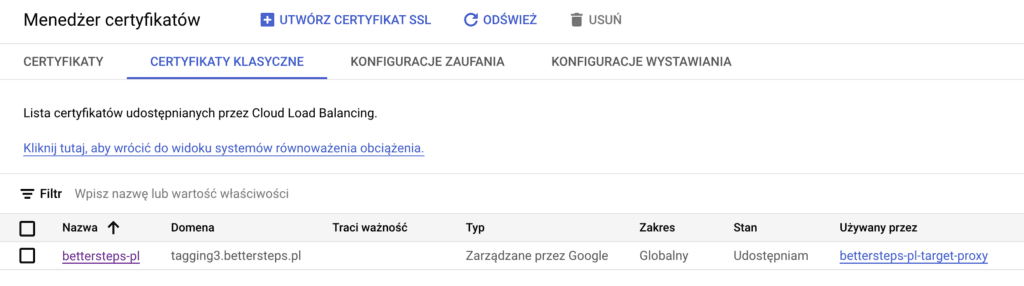
You'll find your certificate on the Classic certificates tab
At first, its status will probably look like this:
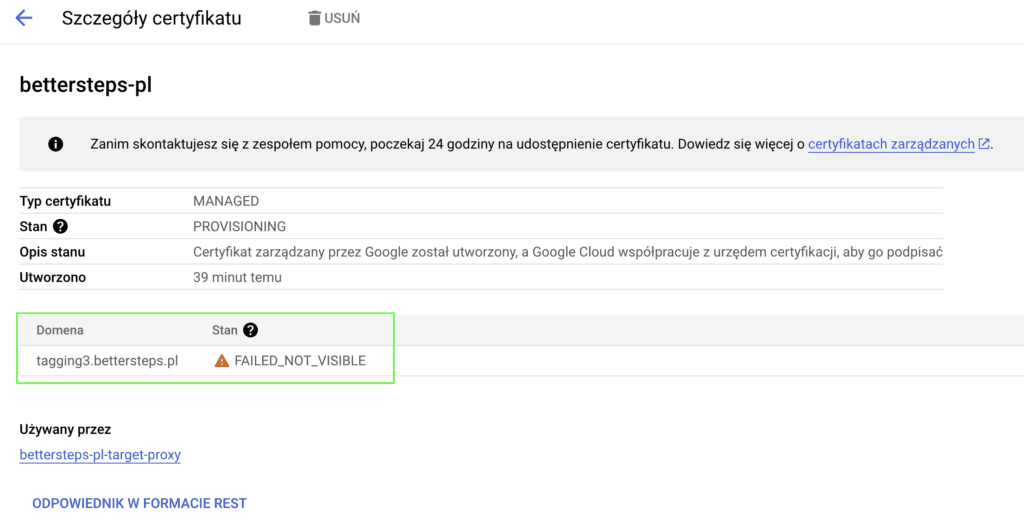
After a few hours, it should change to:
Adding the subdomain to the GTM container
The last and easiest step is adding the subdomain to the GTM container.
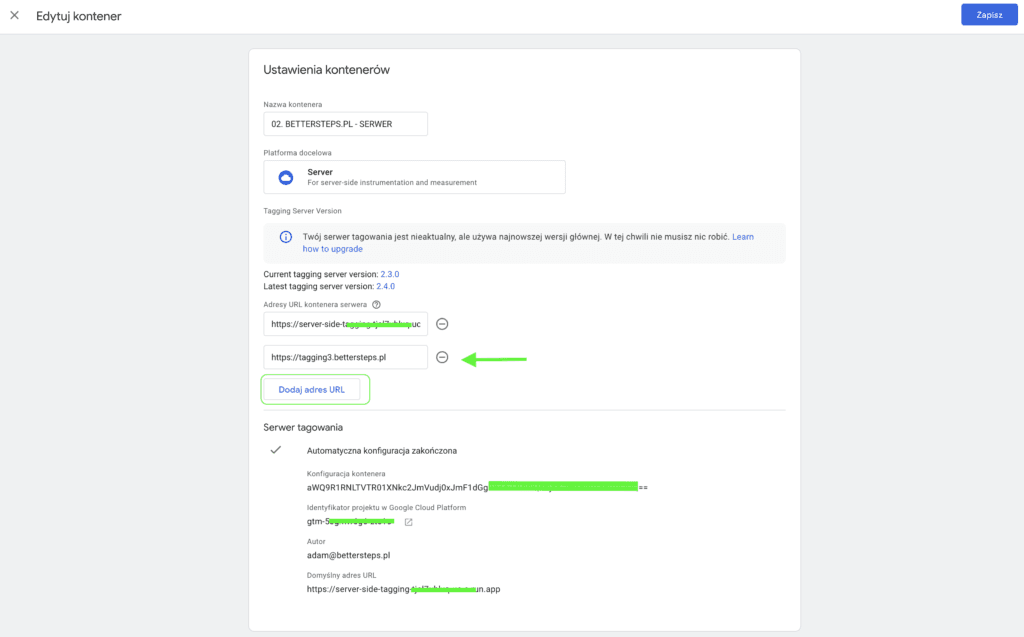
To do this, open Container Settings in your server-side container and click Add URL. Then enter your subdomain and click Save in the top right corner.
From now on, you can send all your GA4 tags to your own domain. You do this by changing the value of the server_container_url parameter (in my case, in the configuration settings variable)
If you're not sure how to map your own subdomain based on this article, get in touch.
I also encourage you to read the other articles in our server-side tagging series and to sign up for our newsletter to stay up to date.