Adam Brzostek
Reading time: 7:00
A practical guide to GTM server-side tagging for Google Analytics 4
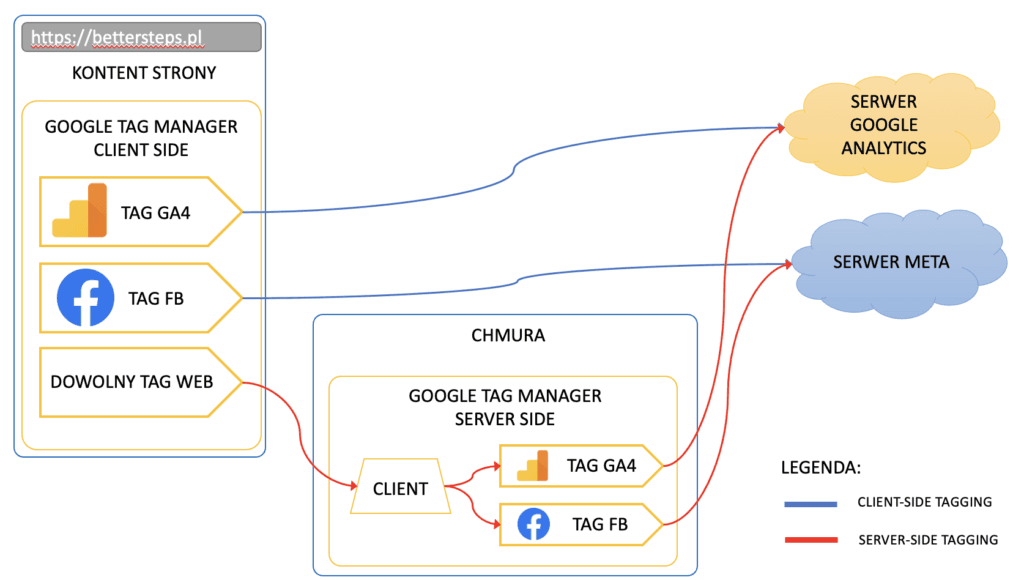
Server-side GTM is a new type of container that lives on a server, so it doesn't run in the user's browser but on the server itself. You can think of it as a proxy server: it receives requests from the client and, based on them, fires tags that send data to the endpoints you need.
An example makes it easier to see how server-side GTM works. With a classic client-side GTM setup, when the GA tag fired, the data went straight to Analytics. With server-side tagging, the data goes first to your GTM container on the server, and only then does the server forward it to Analytics.
Why implement server-side GTM tracking?
More data
A common problem in web analytics is losing data at the collection stage. That happens because of rejected cookie consent, but also because of ad blockers and browsers that simply block Google Analytics scripts or other analytics tools. Blocking usually works by detecting requests to specific servers and stopping them.
With server-side GTM you can, in a way, “trick” the ad blocker or browser into thinking you're talking to your own server, which in theory should mean you collect more data.
First-party context
With the cookieless world fast approaching, it's worth knowing that server-side tagging on your own custom domain gives you a first-party context, which is another way to “trick” the browser. With the right domain configuration, this can be a lifesaver, especially in Safari
Better security
Another reason to use server-side tagging is security: when you need to send data to an endpoint that requires credentials, you don't have to expose them on the client side.
Lighter load on the client side
Server-side tagging lets you streamline client-side tagging. From a single request received by the server, you can send the same data to many destinations. That gives you more control and reduces the number of actions (tags firing) in the browser, which can improve your site's performance.
Setting up server-side GTM
To get started with server-side tagging, you need a GTM container of that type. Running sGTM comes with some small fees, so you need a Google Cloud billing account. If you don't have a GCP billing account yet, it's best to create one before you start setting up GTM, although you can also create it during setup.
There are two billing models to choose from:
- app engine - you permanently reserve a virtual machine that handles your requests. The cost depends on the number of machines, starting at $45 per machine. This model is recommended for high-traffic sites where keeping request latency as low as possible matters. The number of virtual machines you need is matched to your traffic
- cloud run - you pay for actual virtual machine usage, and capacity is allocated based on the requests you receive
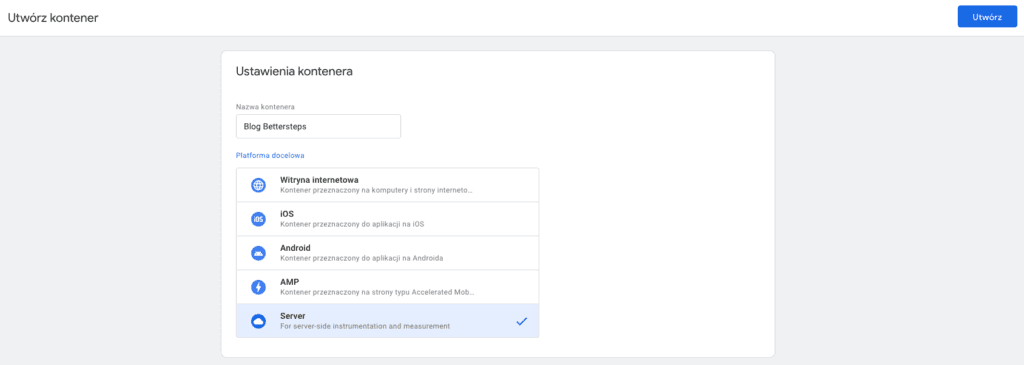
Now you can set up the server-side GTM container. In the wizard, enter a name, choose Server as the target platform and click Create.
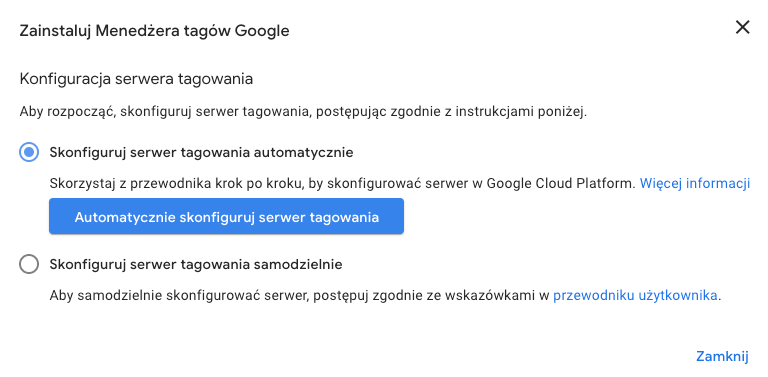
In the next step, the wizard asks you to set up a tagging server. I recommend automatic provisioning, because it creates sGTM on Cloud Run, which is what we want. All the steps in this guide assume this option.
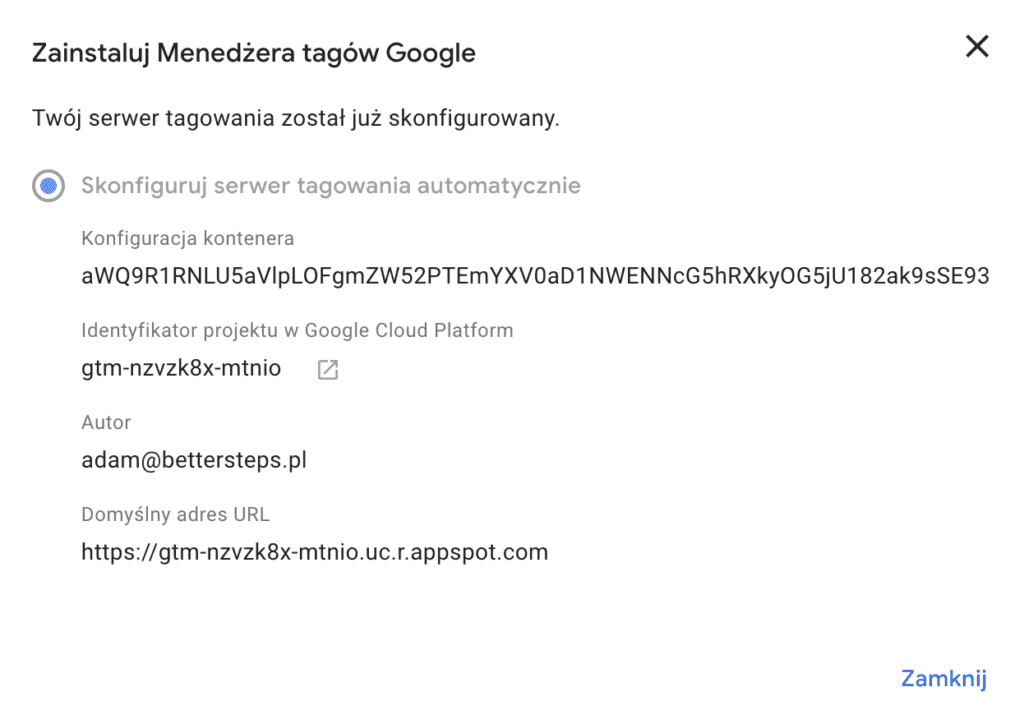
In the last step, choose the billing account to link to the GCP project that will be created for your container (if you don't have a billing account, you have to create one now)

After a few moments, your tagging server should be set up
Sending requests to server-side GTM
The first part of setting up server-side tracking is sending requests to your sGTM.
We'll do this with GA4 tags. Add the server_container_url parameter to your Google tag and set it to your server's URL. To make this easier to manage, I recommend creating a Configuration Settings variable:
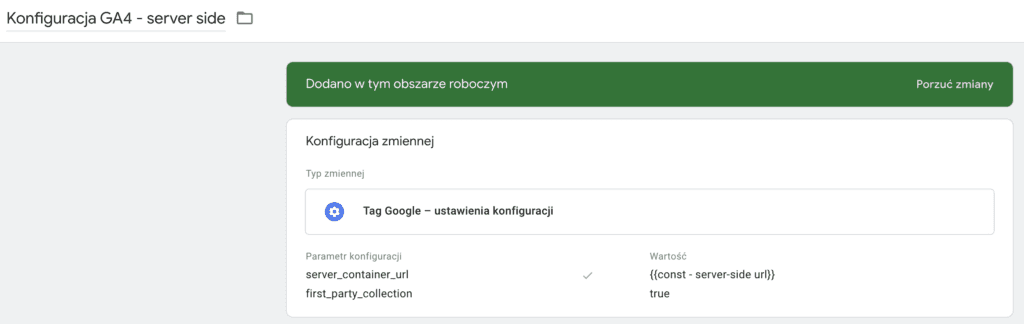
Here, the const - server-side url variable is a constant that stores your server's address:
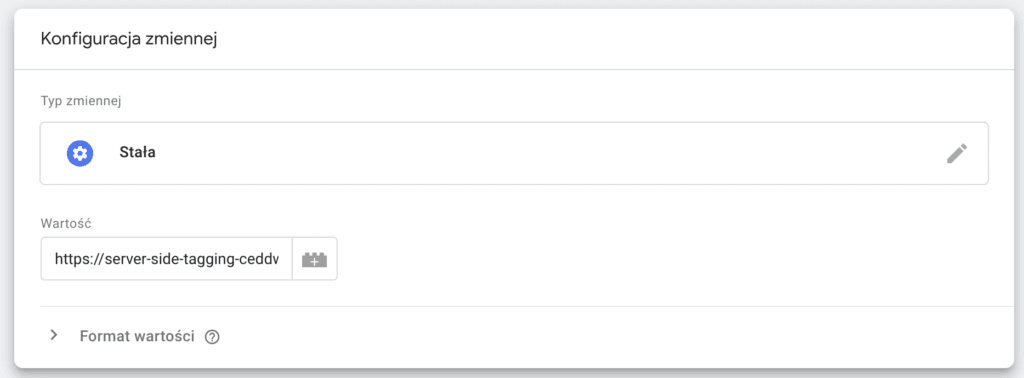
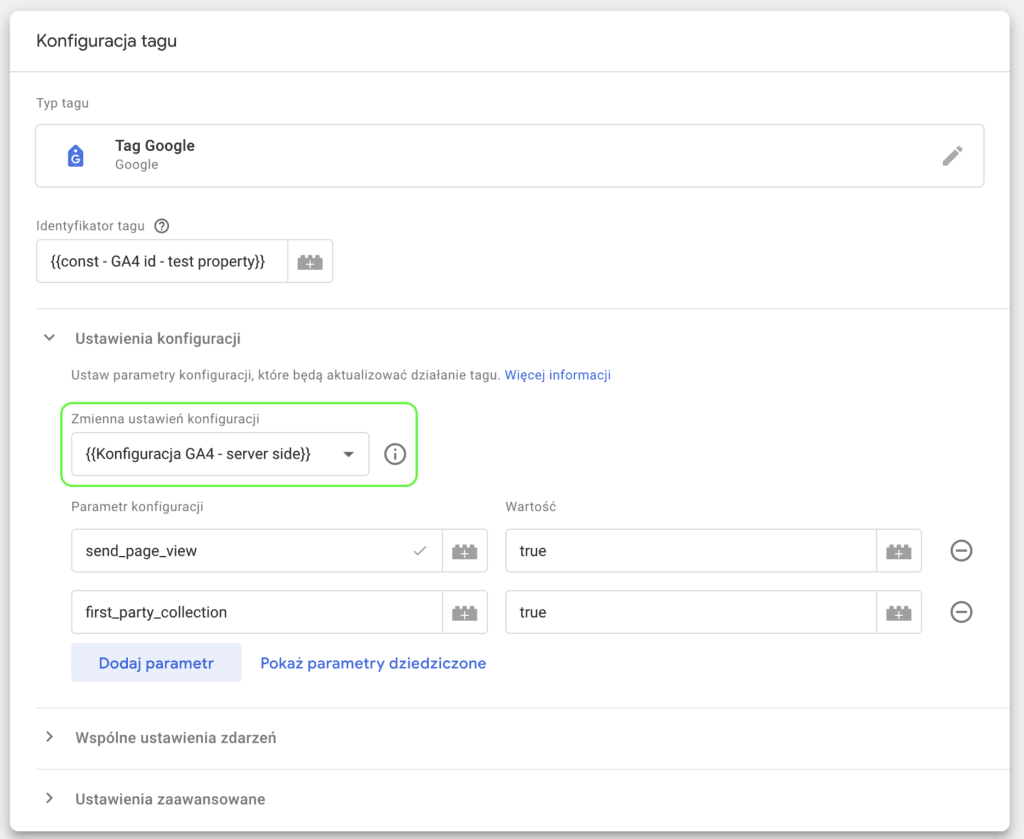
To make sure all events go to your server, you should also add the server_container_url parameter to the event configuration. This time, to make it easier to scale the events sent to the server, create an Event Settings variable:
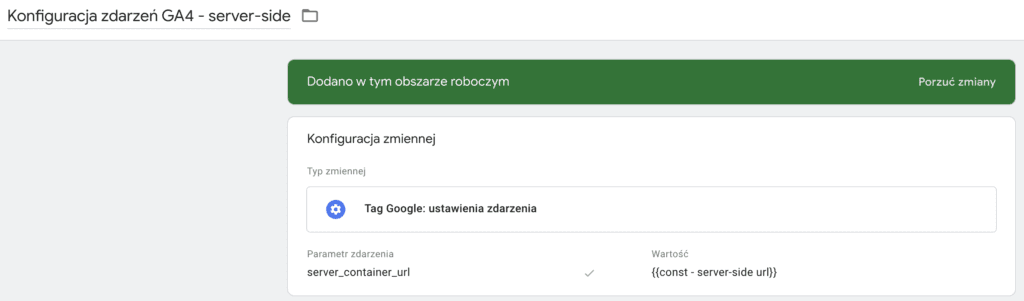
Now make sure every event uses this variable:
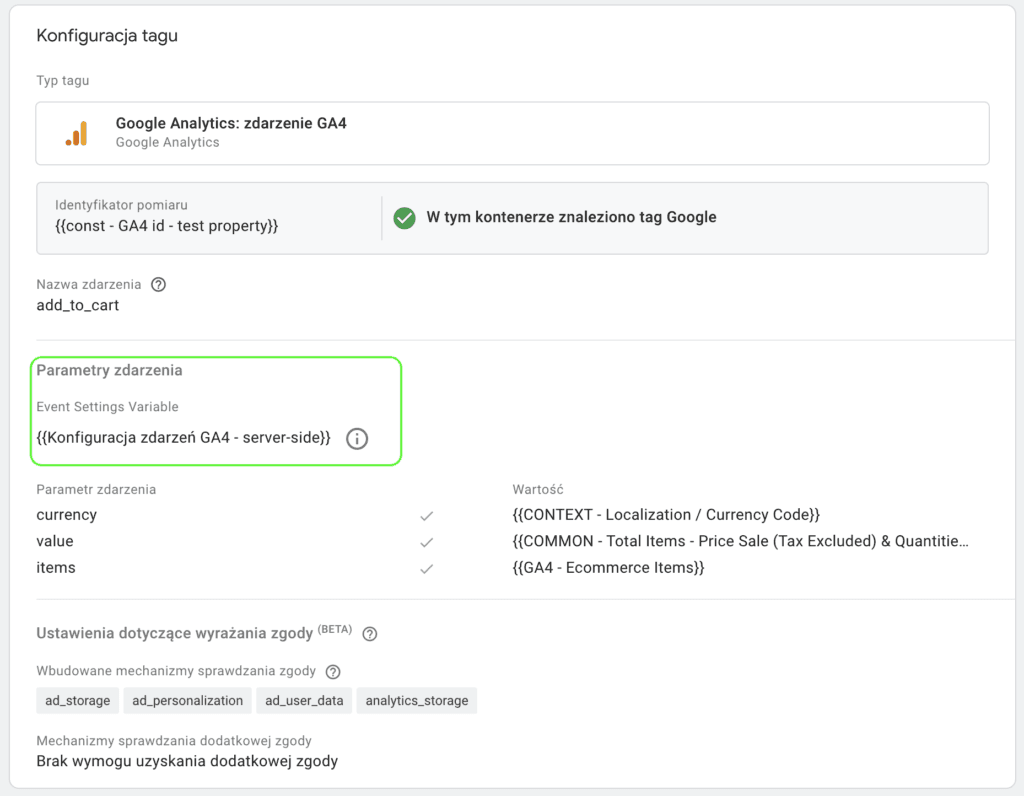
Receiving events on the server and sending them to Google Analytics 4
Once you publish the workspace in your client-side Google Tag Manager, your tagging server will start receiving events. You can easily check this in Preview mode.
You start it the same way as in a standard GTM container. To see incoming requests, open your site and perform the action that triggers the expected event. If your client-side GTM container isn't published yet, do this in that container's Preview mode as well.
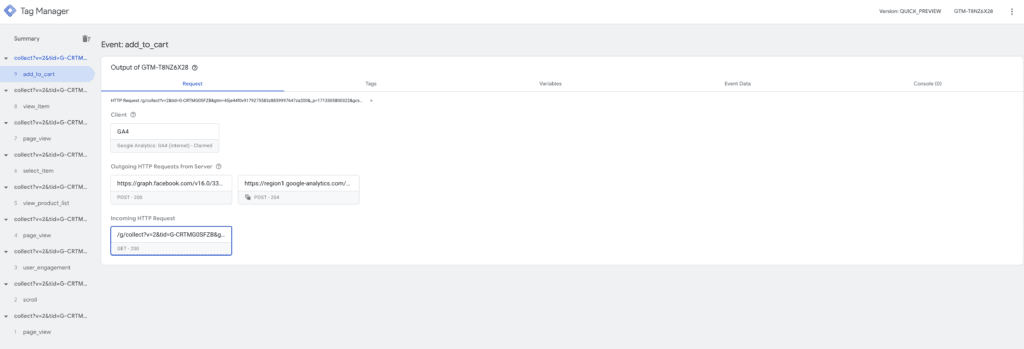
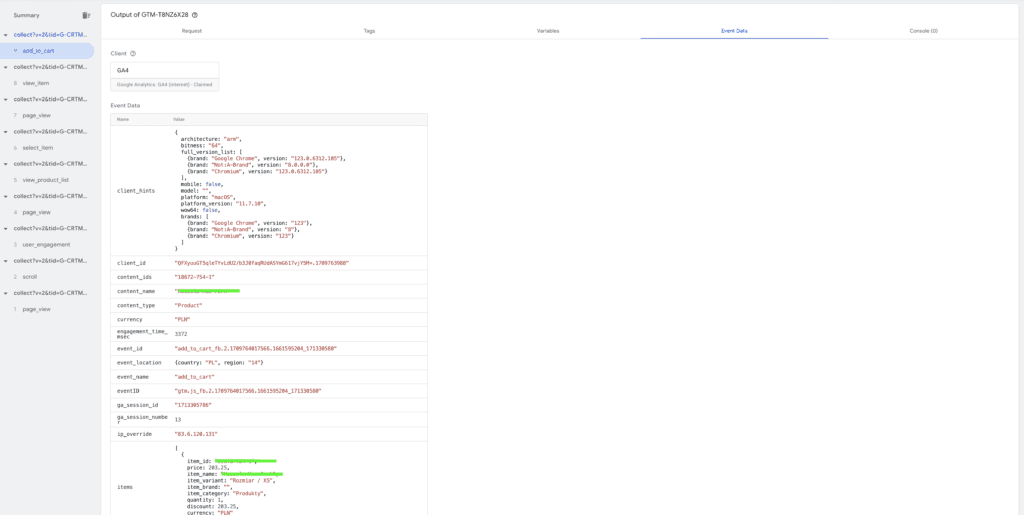
Preview mode itself looks very similar to client-side GTM. On the left you can see incoming requests, that is, the events you configured to be sent to the server. There are two important new tabs:
- Request: shows the requests received by and sent from the server
- Event Data: the data of the event received by the server, which you can use.
You also have the tabs you know from the client-side debugger: Variables and Tags.
To send data to Google Analytics 4, you only need to set up one tag of the Google Analytics: GA4 type
You don't have to change anything in its configuration. In that case, all the data the server received with a given event is passed on to the GA4 property.
Of course, there are plenty of configuration options, including:
- Changing the Measurement ID if you want to send data to a different property than the one set on the client side. This is useful if you want to send data from the server to several different properties.
- Removing user IP addresses entirely, although this means no geographic data in the GA interface
- Changing the event name
- Choosing which event and user parameters to include or exclude, when you want to modify the event received by the server
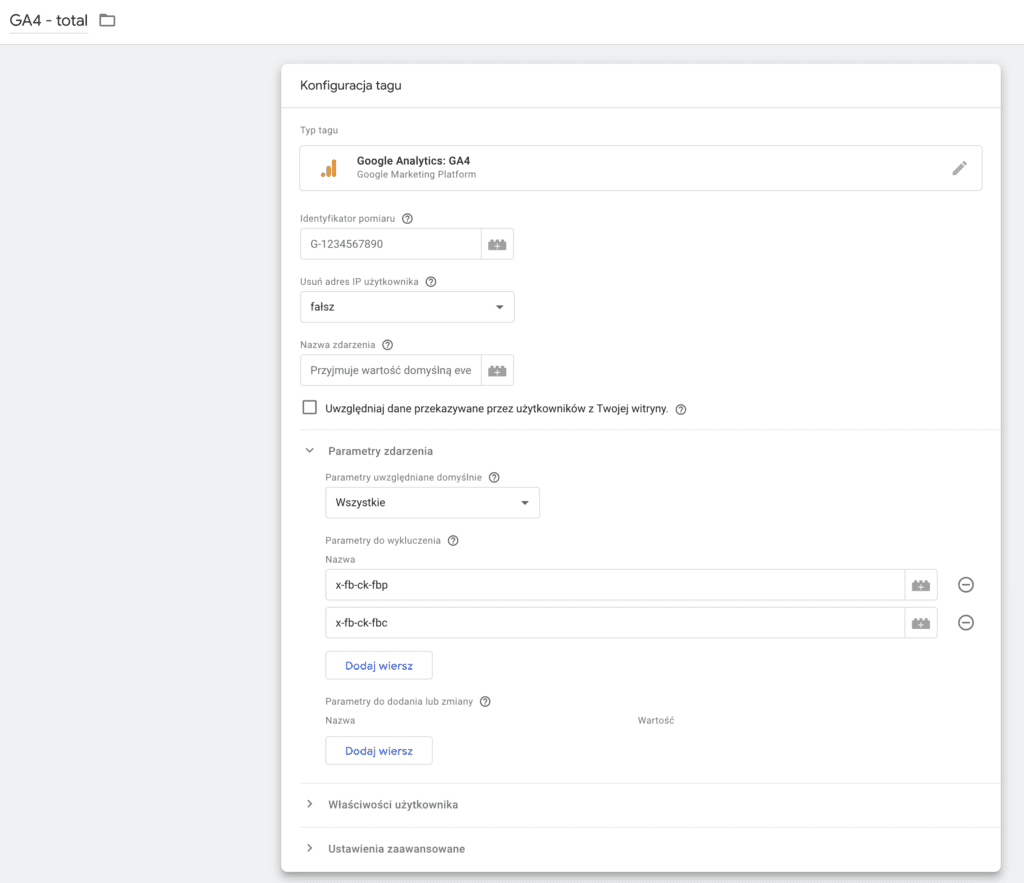
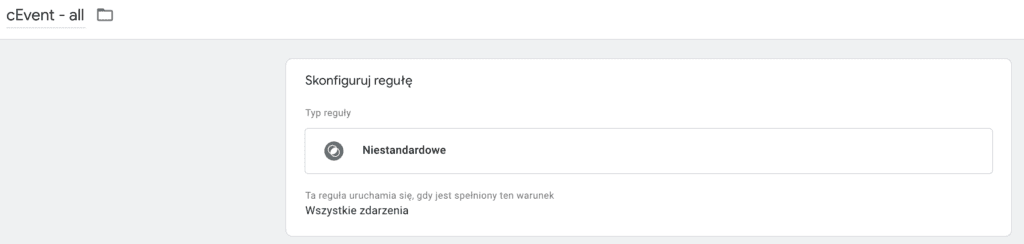
Set the trigger to All Events. As with client-side configuration, you can of course be more precise and, in more advanced implementations, specify exactly which incoming requests should fire the tag.
Before publishing, check in Preview mode that the tag fires as it should, and then publish the container.
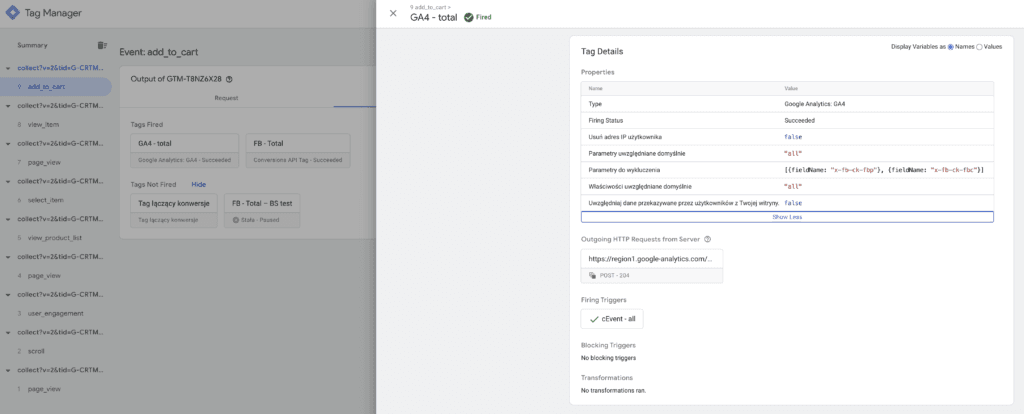
That's it: you're now collecting data with server-side tagging.
Custom subdomain
To get the most out of server-side tagging, you need to connect your server to a custom subdomain, which becomes the endpoint you send data to.
First you need a configured subdomain. Ideally on the same server, and in a perfect world with at least the first four characters of its IP address matching the IP address of your main domain. That way, even in less friendly browsers like Safari, you should, for now, be able to get a first-party context and extend cookie lifetime significantly.
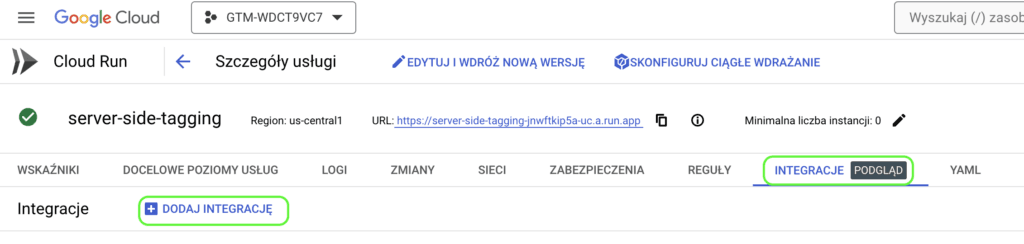
To connect your subdomain, go to your GCP project and open Cloud Run from the menu. That's the service running your server. With the default setup you should see two services. You want the first one, the main server; the second one is used for debug mode.

Go to the Integrations tab and click Add Integration
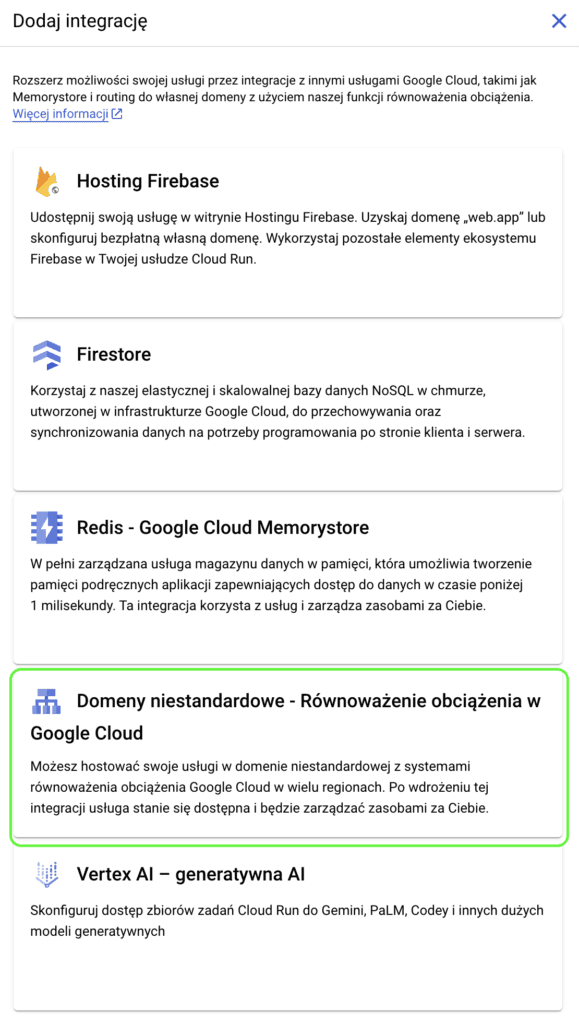
From the available options, choose Custom domains - Google Cloud Load Balancing
In the next step you need to:
- enter your subdomain name
- enable the required APIs
- grant the default service account the right permissions
Once that's done, click Submit.
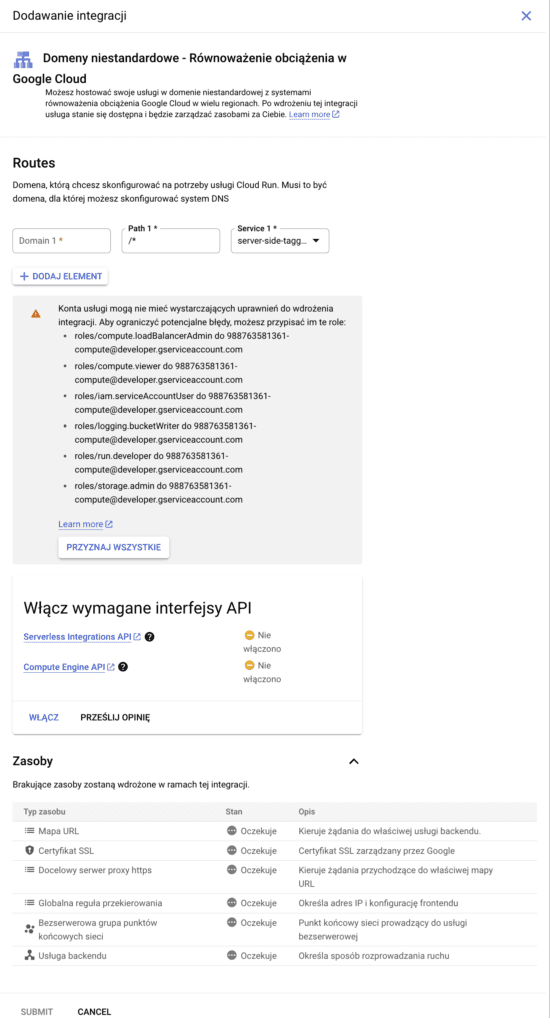
If your subdomain is configured correctly, after a few minutes all resources except the SSL certificate will be deployed. A DNS record will also be generated, which you'll need to add to your subdomain.
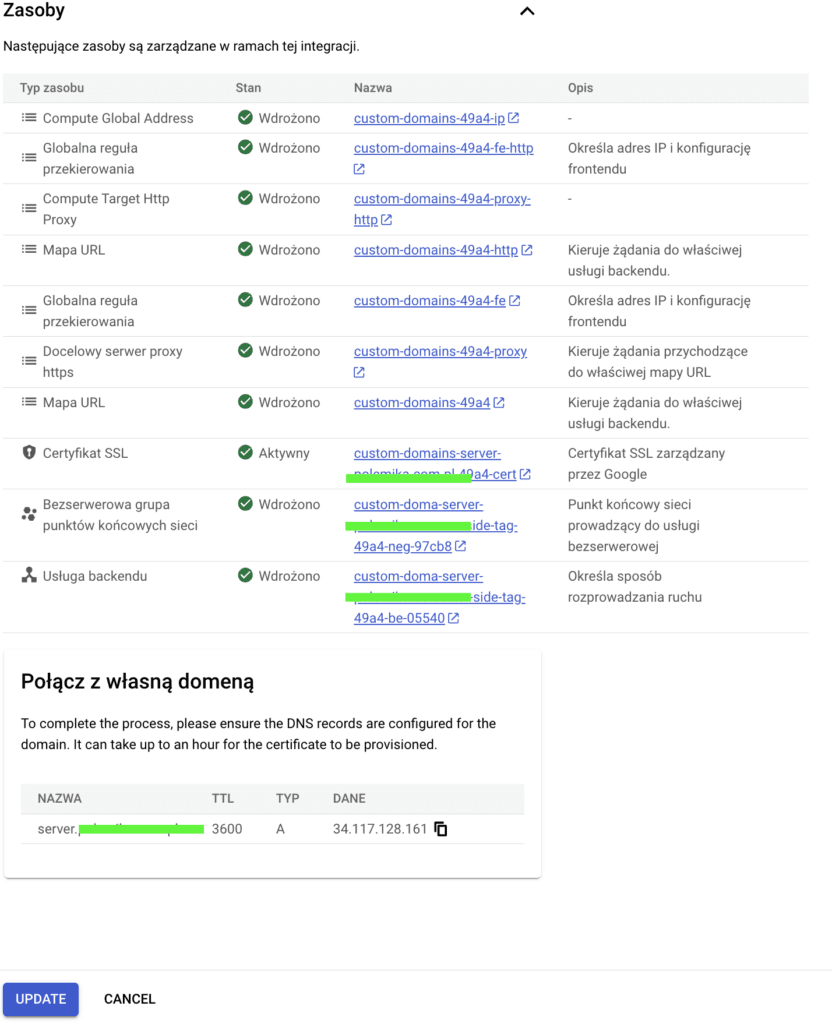
It's an A record with a specific IP address. After adding it, wait a few hours and then run Update. This time all resources should deploy correctly, and the SSL certificate will become active, just like your subdomain.
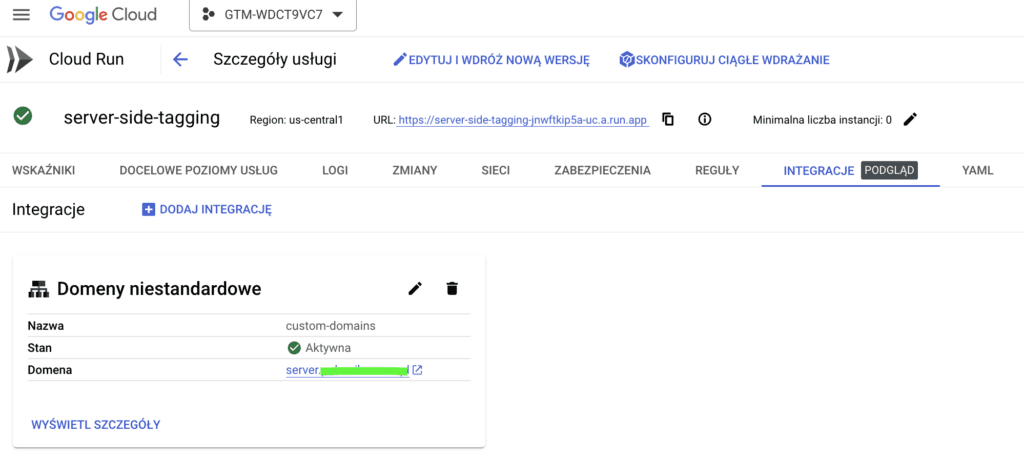
Now you can add your subdomain to the server-side GTM container settings
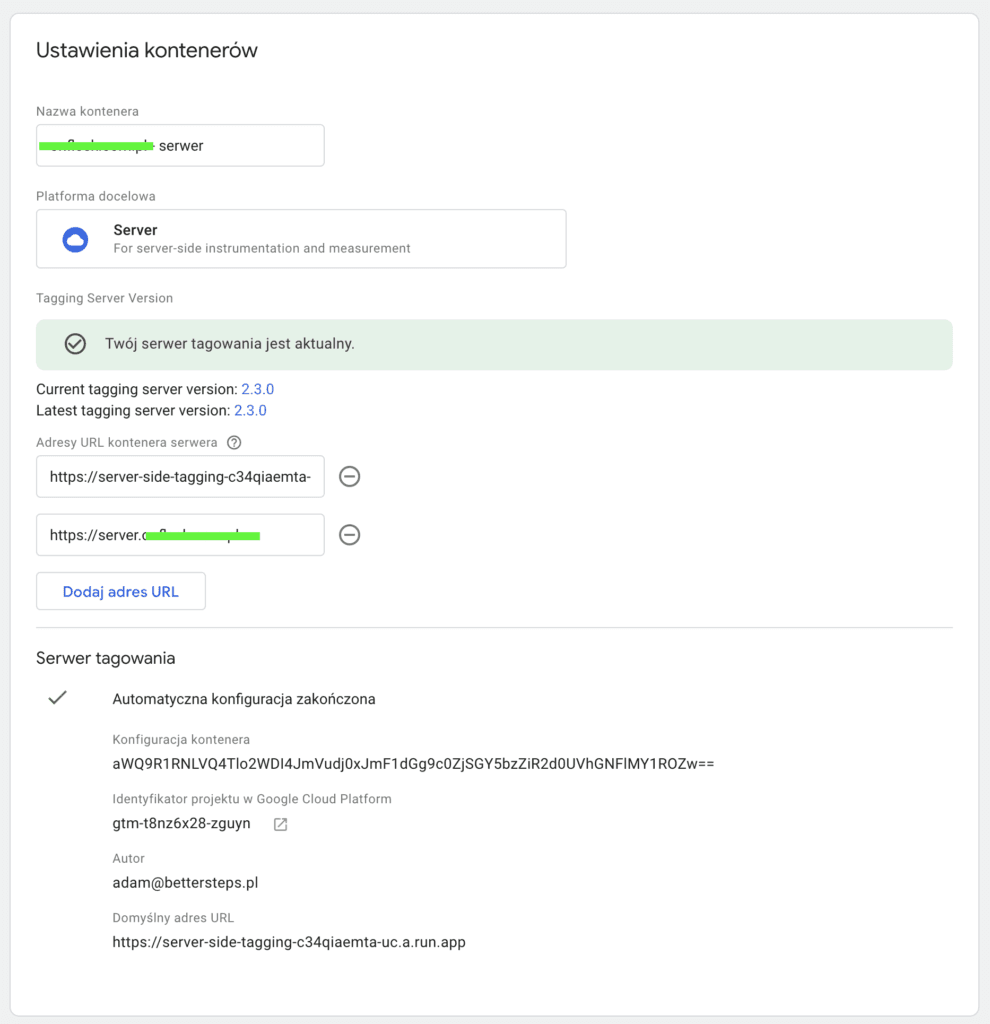
The last step is to replace the server address in your client-side GTM with your subdomain and publish the changes.
I hope this article helped you implement server-side tagging for Google Analytics 4. If your implementation is more complex and you can't handle it on your own, get in touch and we'll be happy to help.