In an article last year I explained how the Meta Conversions API works. Today I'll walk you through implementing CAPI yourself, step by step.
Adam Brzostek
Reading time: 10:00
Meta Conversions API: a complete guide to implementing it yourself (2026)
Prerequisites:
- Publish access to the client-side GTM container
- Publish access to the server-side GTM container
- If you don't have a tagging server set up yet, start with this article: https://bettersteps.pl/en/blog/gtm-server-side-tagging-ga4-guide. Unlike what I described there, though, experience has taught me to recommend the manual setup, for which Google provides very good instructions: https://developers.google.com/tag-platform/tag-manager/server-side/cloud-run-setup-guide?provisioning=manual&hl=pl
- Before you start, make sure you read about the pitfalls that may be waiting for you: https://bettersteps.pl/en/blog/server-side-gtm-cloud-run-setup-pitfalls
- Ideally, your tagging server should run on its own custom subdomain. Here's a guide on how to set that up: https://bettersteps.pl/en/blog/custom-subdomain-tagging-server-cloud-run
- Full access to the pixel in Meta Business Suite
- If possible, get admin access to the whole account, so you can generate the access token yourself. Otherwise, you can ask someone with that access to generate it for you. It's very simple.
- Access to Google Analytics (Administrator at the account level, or Editor on a new, dedicated property)
- We'll send data to the tagging server with GA4 tags, so it's worth creating a dedicated property. That way you implement CAPI and server-side GA4 tracking in one go.
Client-side configuration
As you know from my article on CAPI, we'll send data along two paths: through the pixel, directly from the browser, and through the server, which also needs to receive the data from the client side.
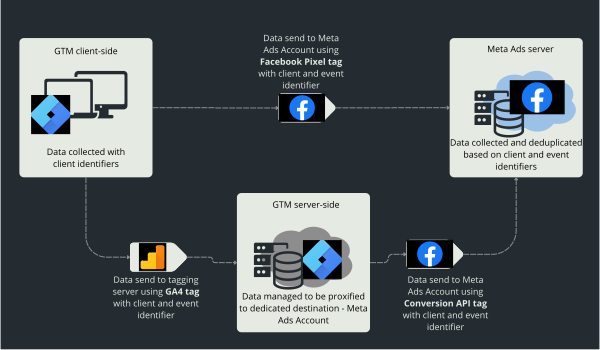
This is the most complicated part of the whole implementation, but if you get it right, the server-side configuration will go very smoothly.
Subscribe to the newsletter to read the rest of this article
Join the Bettersteps newsletter to read the full article, completely free
Sign up with this form to get access to the full guide, plus an email with a link to download ready-made JSON files for GTM WEB and GTM SERVER
To send data through the pixel, we'll use the authorized template from Meta.

To send data to the tagging server, we'll use Google Analytics 4 tags.
Variables
Let's start by configuring the variables we'll need. You'll find all of them in the JSON file shared here:
Besides the standard parameters that describe events, we'll need:
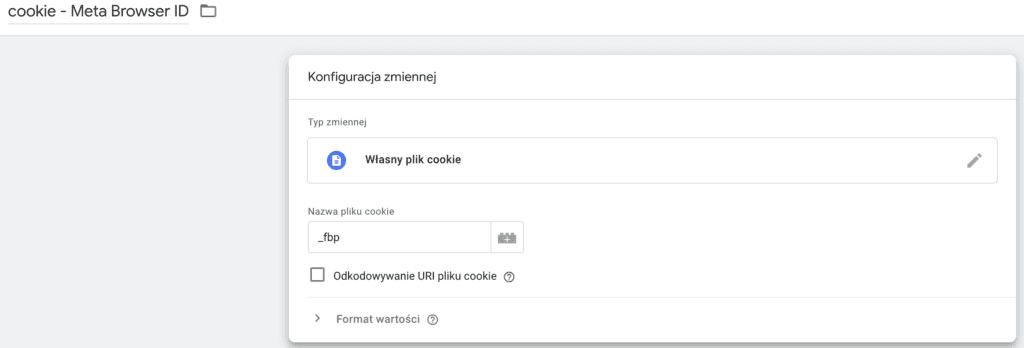
cookie - Meta Browser ID: the first-party cookie set by the Facebook pixel code that identifies a specific user. You need to send it for deduplication and data matching in Meta.
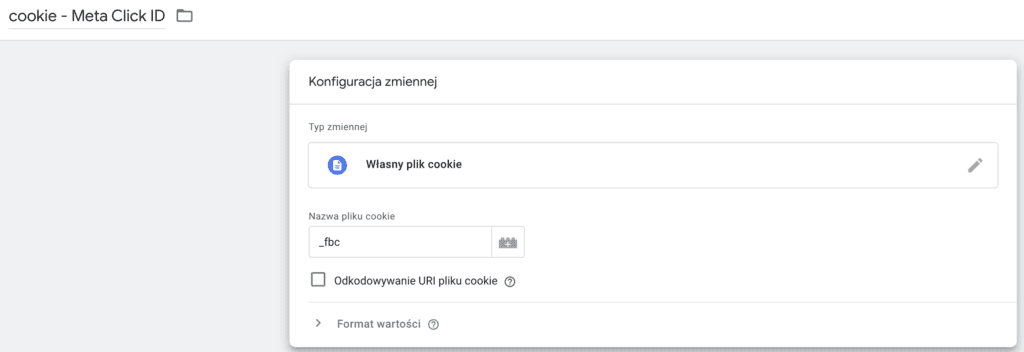
cookie - Meta Click ID : the first-party cookie set by the Facebook pixel code that identifies a specific ad click. You need to send it for deduplication and data matching in Meta.
cjs - Meta unique event ID: a unique event identifier we'll use to deduplicate events.
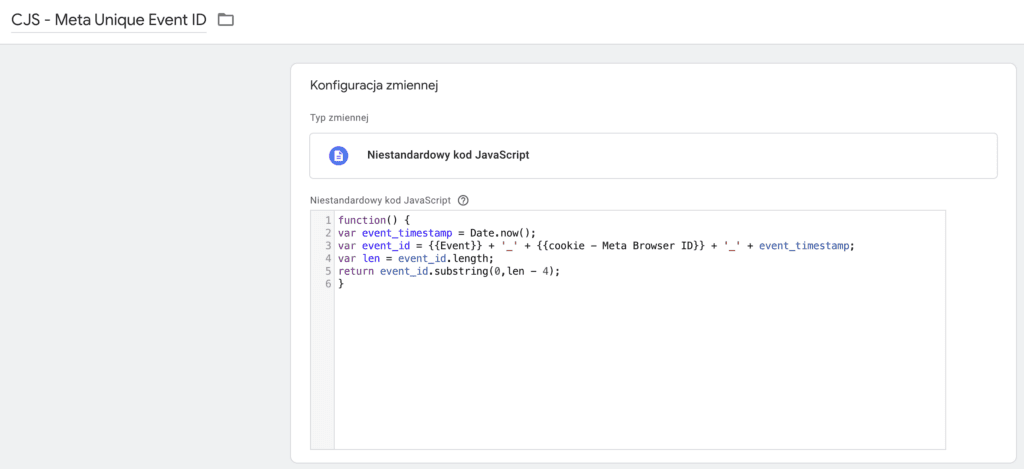
This variable is my own creation. It combines the event name, the Meta cookie ID and the event timestamp with the last four digits removed. That last step is essential: for deduplication to work, the value of this variable has to be identical when it's sent by the pixel and by the GA4 tag. In theory both tags fire at the same moment, but in practice they run asynchronously and their firing times differ by fractions of a second, which is why I trim the timestamp. You can copy the code here:
function() {
var event_timestamp = Date.now();
var event_id = {{Event}} + '_' + {{cookie - Meta Browser ID}} + '_' + event_timestamp;
var len = event_id.length;
return event_id.substring(0,len - 4);
}
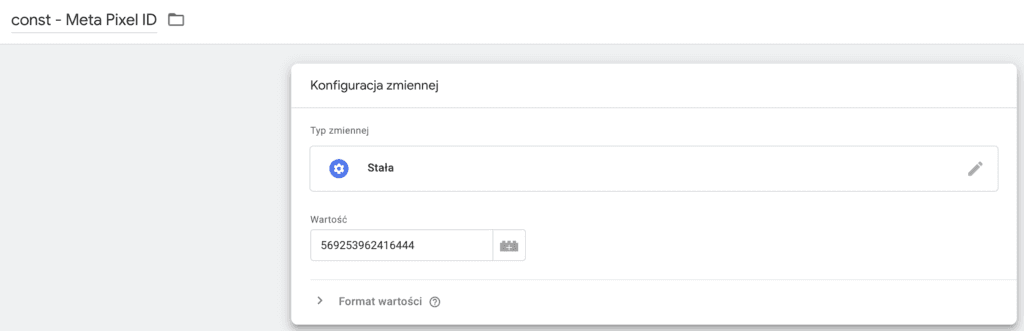
const - Meta Pixel ID: a constant that stores your pixel ID.
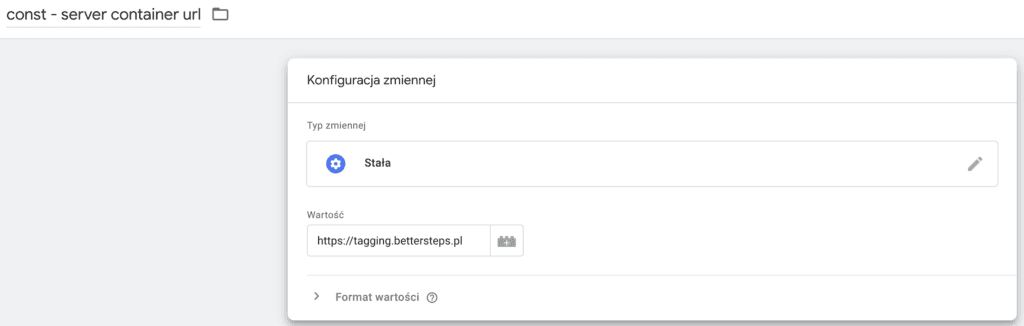
const - server container url : a constant that stores the address of your tagging server.
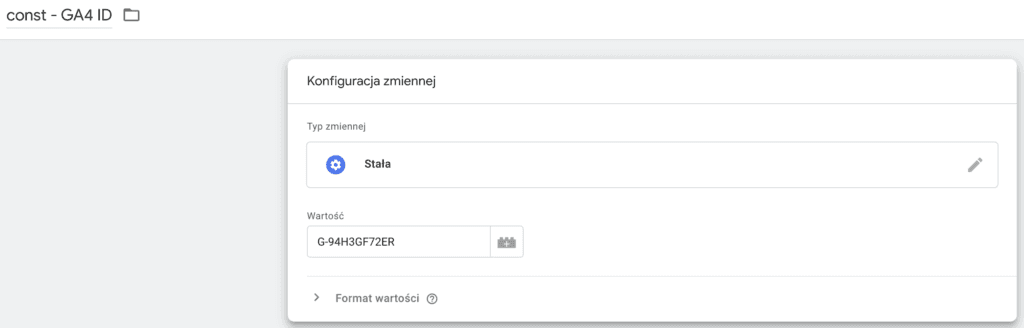
const - server GA4 id: the measurement ID of the GA4 property for data sent through the server.
Settings variables
To keep things simple, we'll also use settings variables. They'll help you manage changes later on, and they make the tagging itself easier too.
Konfiguracja GA4 server: a GA4 configuration settings variable, so tagging changes are easy to manage in the future.
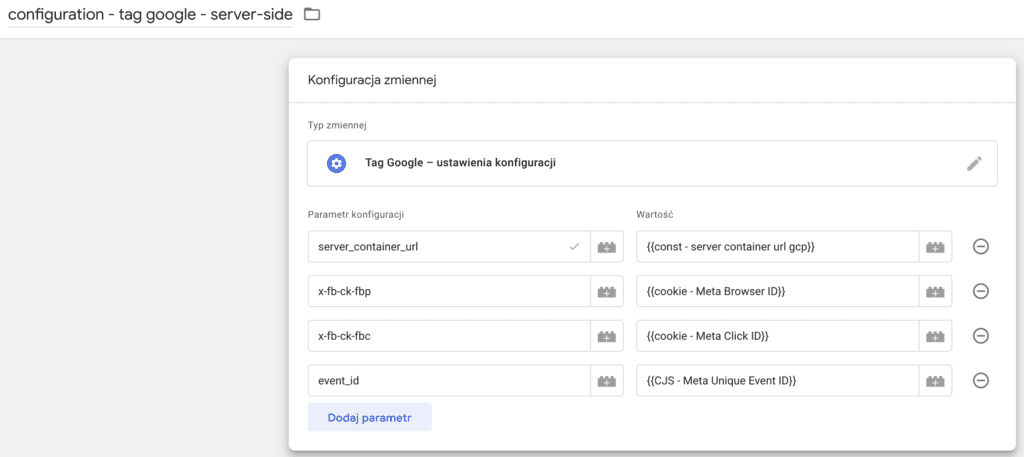
Konfiguracja zdarzeń GA4 server: a GA4 event settings variable, so tagging changes are easy to manage in the future.
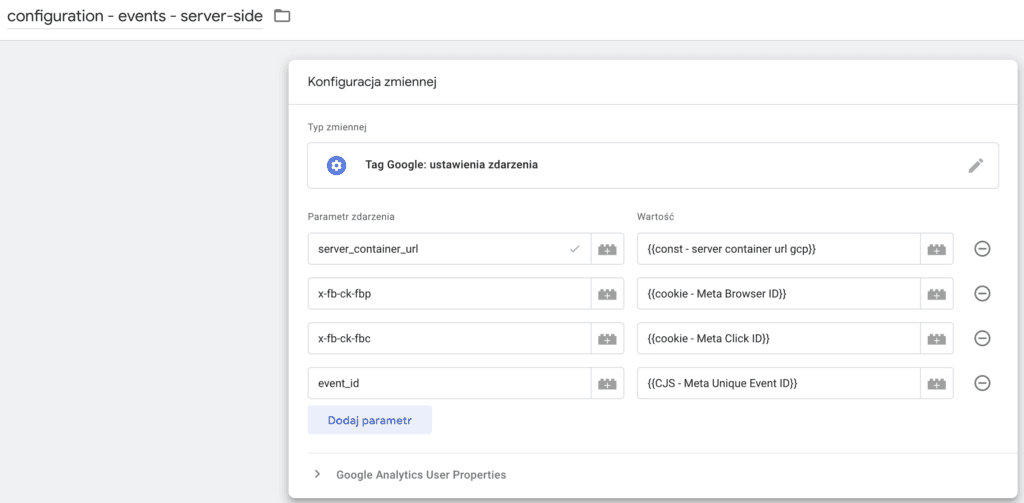
In both variables we declare the parameters shared by all events sent to Meta from the server via CAPI:
- server_container_url: the URL of your tagging server
- x-fb-ck-fbp: the Meta cookie ID
- x-fb-ck-fbc: the Meta click ID
- event_id: the event ID used for deduplication
It's very important to use exactly these names, because Meta requires them and processes them automatically.
All of the variables above are already configured in my JSON file, but remember to change the values of the configuration parameters:
- const - Meta Pixel ID
- const - server container url
- const - server GA4 id
The file also contains the standard ecommerce variables and JavaScript variables in the format Facebook requires.
Implementing the Meta pixel
In this guide we'll use the add_to_cart event as an example, but you can tag any event the same way.
Base Meta tag
We start by implementing the base page view tag.
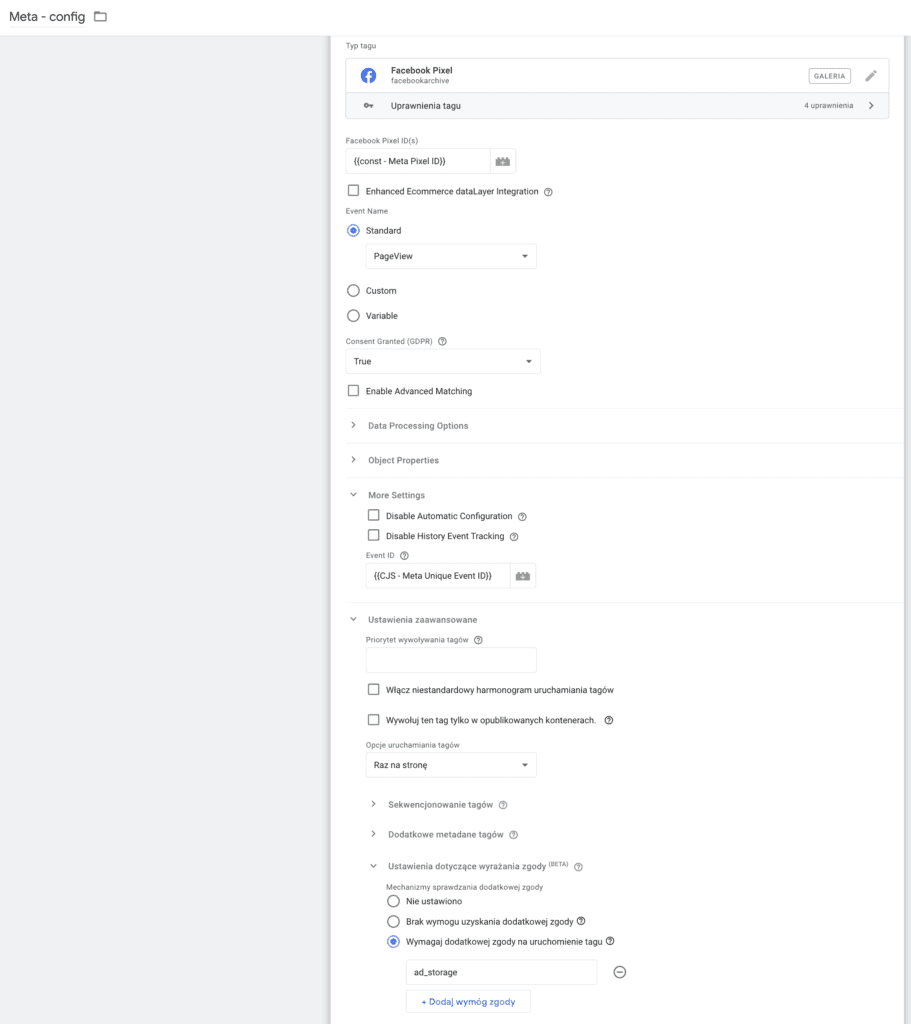
Enter your pixel ID, which is stored in the variable we created earlier.
Select the standard event PageView.
Under More settings, enter the event ID, which we've also already created.
Remember to set the tag to fire once per page and to configure the required consents. We'll cover consent in a dedicated section.
Sending an event
To send an event, we use the same tag template. Meta recommends using standard events. You'll find the list and the required parameters here: https://developers.facebook.com/docs/meta-pixel/reference/.
Of course, the template also lets you send custom events.
In our case, though, it's a standard event called AddToCart.
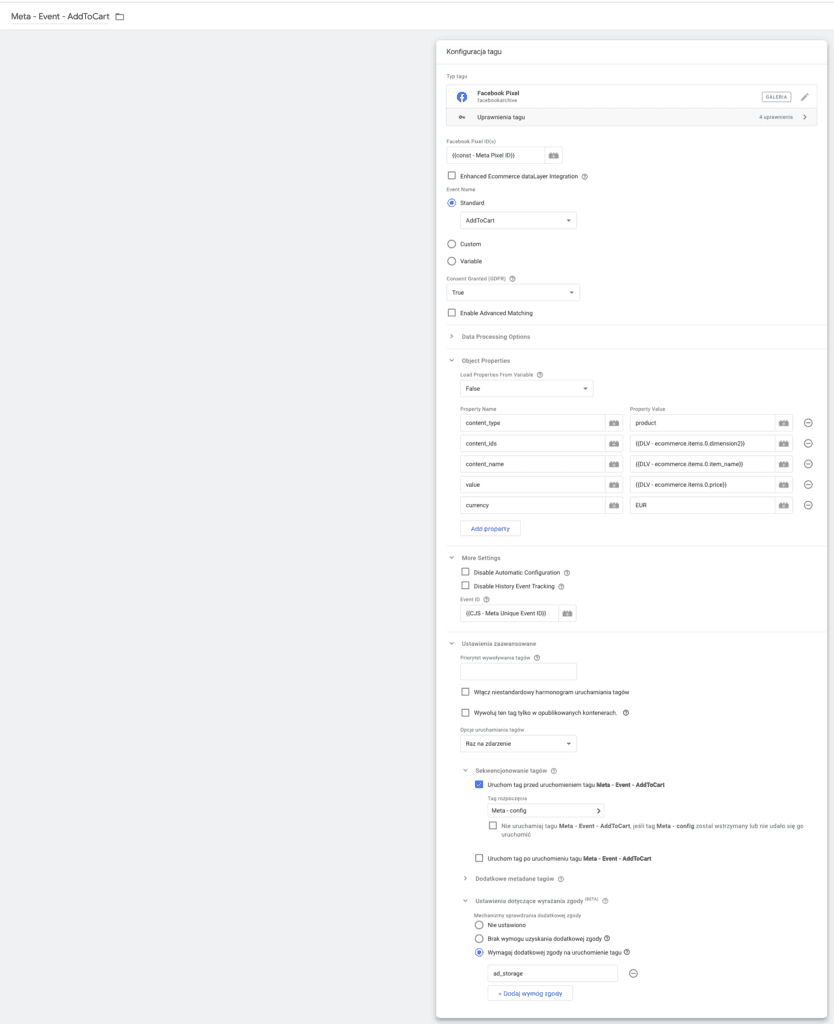
The only differences from the base tag are the required parameters added under Object Properties and a safeguard that fires the base tag before the event tag in case it hasn't loaded yet. Since the base tag is set to fire once per page, there's no risk of it firing twice and counting the page view twice.
You can set up tracking for any other event the same way.
For the purchase event, the transaction ID works best as the event ID
Sending data to the tagging server
Now that the Meta pixel correctly receives data from the site, with all the parameters needed to deduplicate the data CAPI receives, we can move on to the main part of the setup.
Using GA4 tags, we need to send to the tagging server every event we implemented with the pixel, along with the required parameters.
Base Google tag
We'll start with the base Google tag, which handles the page view event.
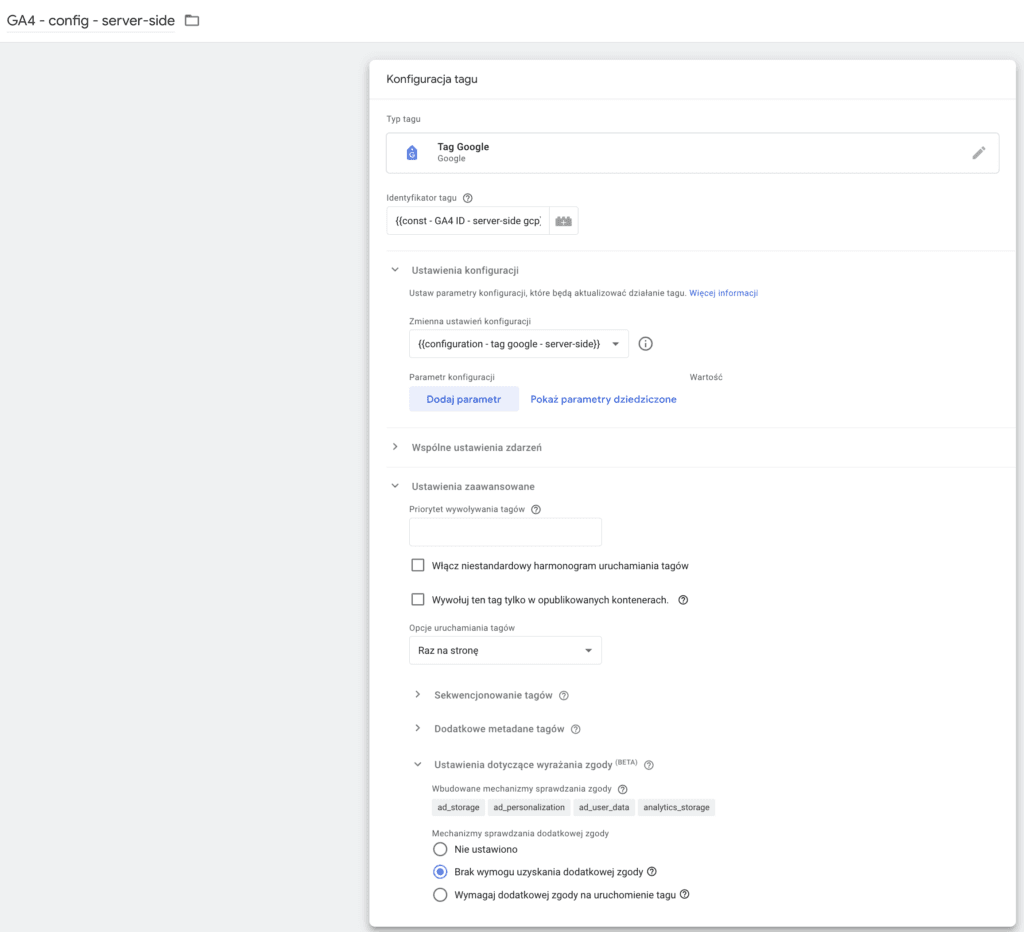
The setup is very simple.
For the Tag ID, enter the variable we created earlier.
Under Configuration settings variable, select the variable we configured.
Under Tag firing options, select Once per page.
In this setup the configuration tag sends the page_view event, so it's very important to use exactly the same trigger as for the base pixel tag. This matters for event deduplication in Meta, which relies on the event ID, and that ID includes the timestamp.
Sending an event
To send an event, we use the Google Analytics 4 event tag.
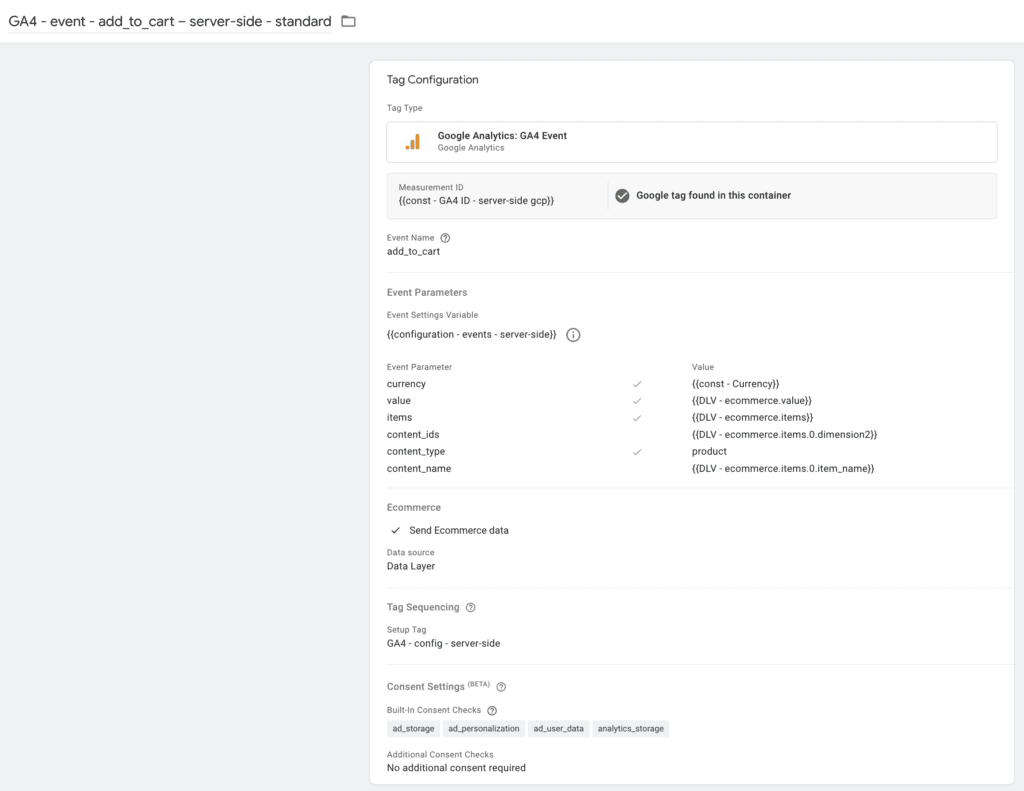
This setup is also very simple.
Again, enter the variable we created earlier as the Measurement ID.
Under Event settings variable, select the variable we configured.
In the event parameters, besides the standard ecommerce parameters, pass the same variables you passed in the pixel tag.
For events that fire together with the page view, it's worth adding a safeguard: fire the GA4 configuration tag before the event tag. Because it's set to fire once per page, there's no risk of it firing too many times.
Implement every other event the same way.
For the purchase event, override the event id parameter from the event settings variable by adding this parameter in the tag configuration with the order ID as its value.
Sending data from the server to Meta
To send the data received by the tagging server to your Meta account, we'll use the Conversion API Tag by facebookincubator.

Variables
We need to create two constants:
const - Meta Pixel ID: a constant that stores your pixel ID, the same as in the client-side container.
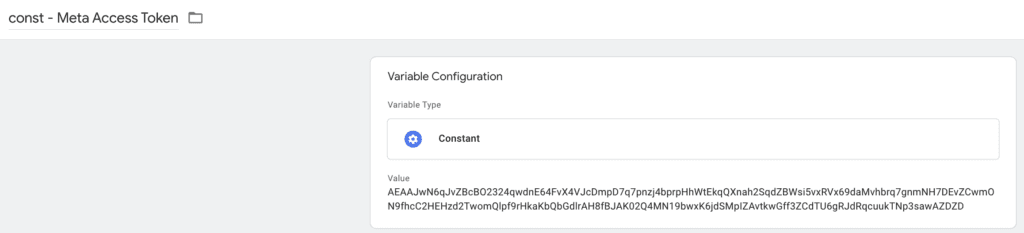
const - Meta Access Token: a constant that stores the API access token.
How to generate a CAPI access token
Only a Meta Business Suite admin can generate a Conversions API access token.
You do it in Events Manager.
Go to Data sources - > your pixel - > Settings, then click Generate access token.
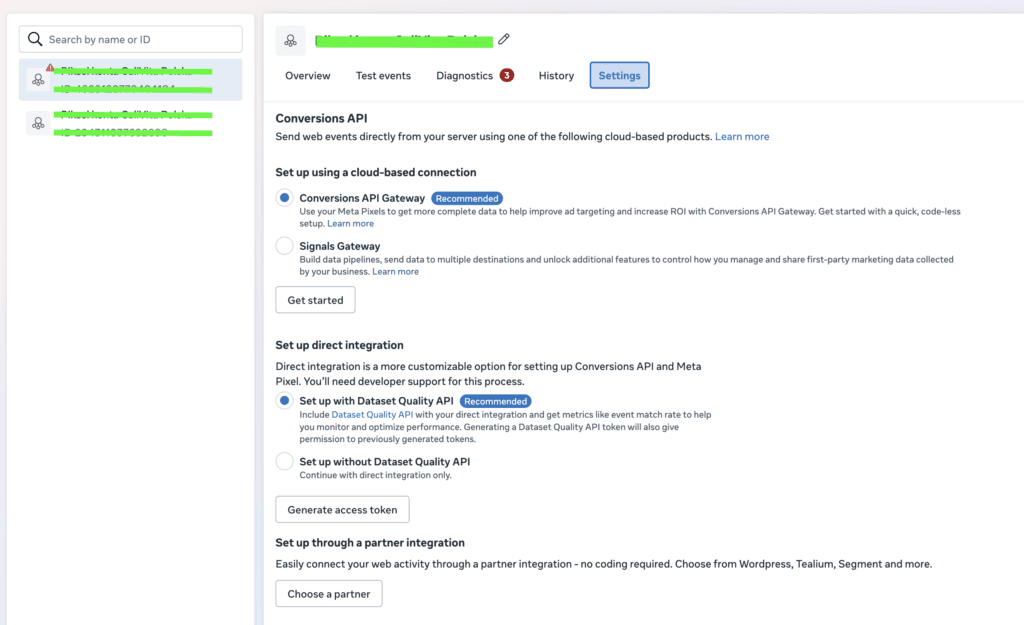
Once the token is generated, save it right away. When you close the page, it's gone for good.

Tag configuration
If the client side is configured correctly, in most cases you won't need to change much here.
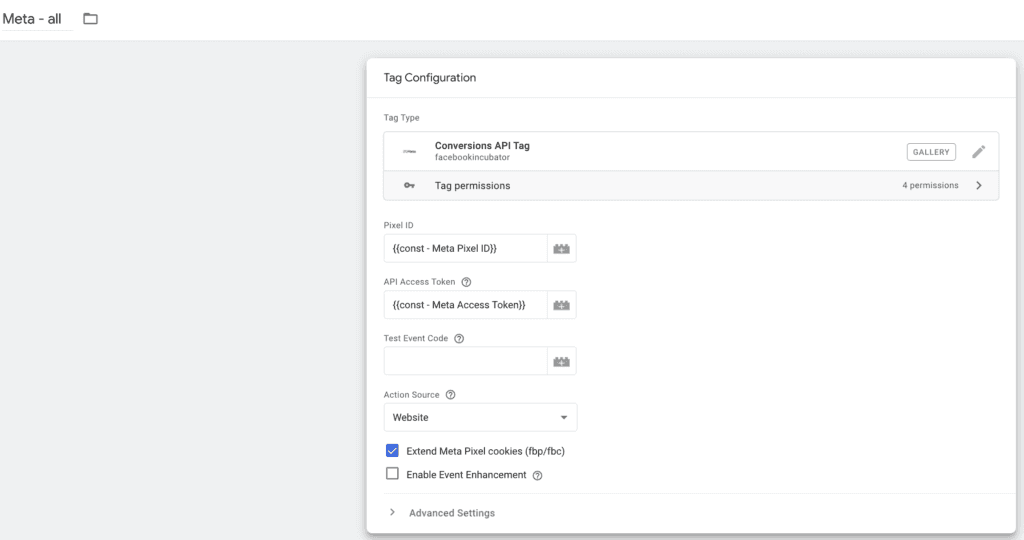
Enter the Pixel ID and the API Access Token using the variables we created.
Check the Extend Meta Pixel cookies option.
Add the trigger (or triggers) that fire the tag for the events you want to handle through CAPI.
For standard ecommerce events, the tag maps the event names to the ones Meta expects on its own.
For other events you may need to add a transformation so the event names match the taxonomy recommended for the Pixel, but you can also declare the right names on the client side from the start.
Debugging
To test whether CAPI works correctly, add a test event code to the tag.
You'll find it under Data sources - > your pixel - > Test events.
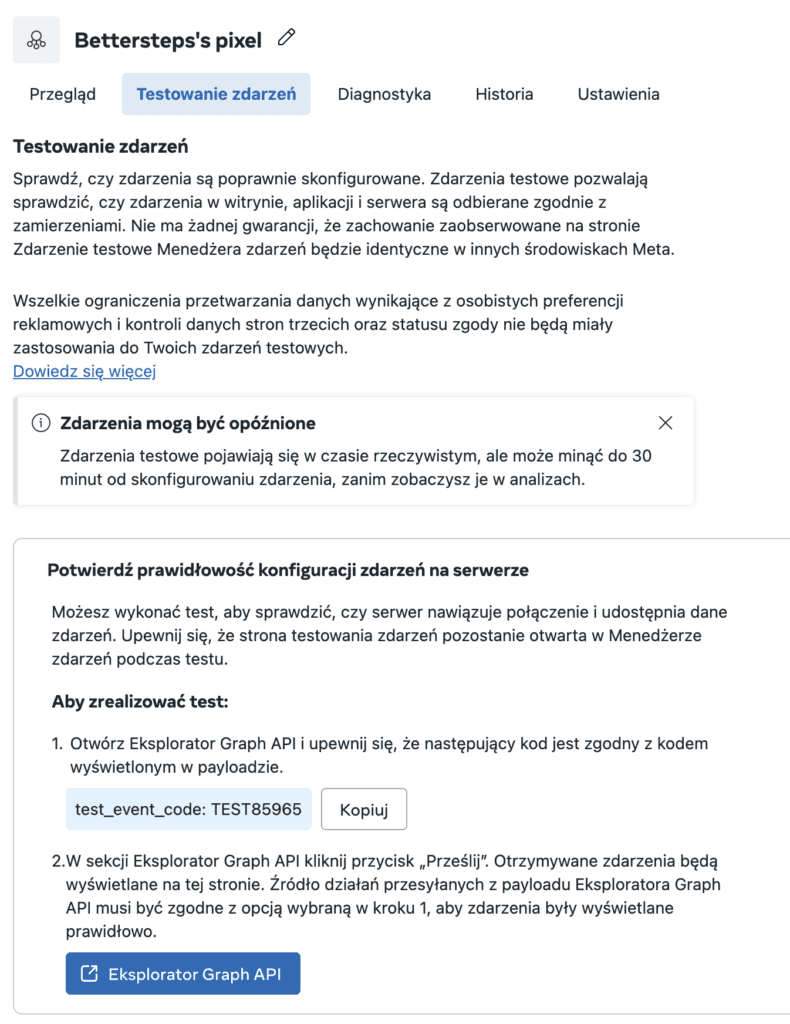
Copy it and paste it into the right field.
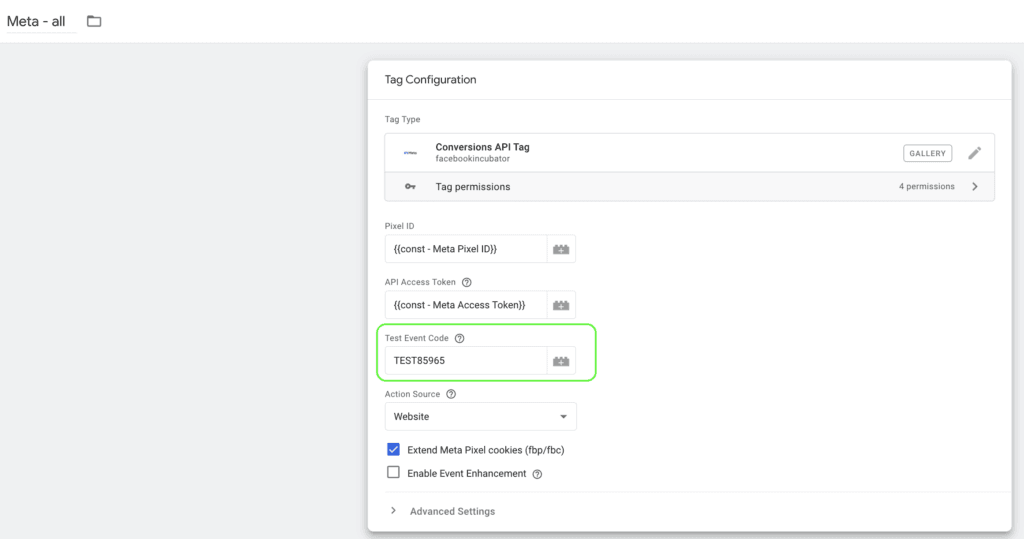
Remember to remove this parameter before you publish the workspace.
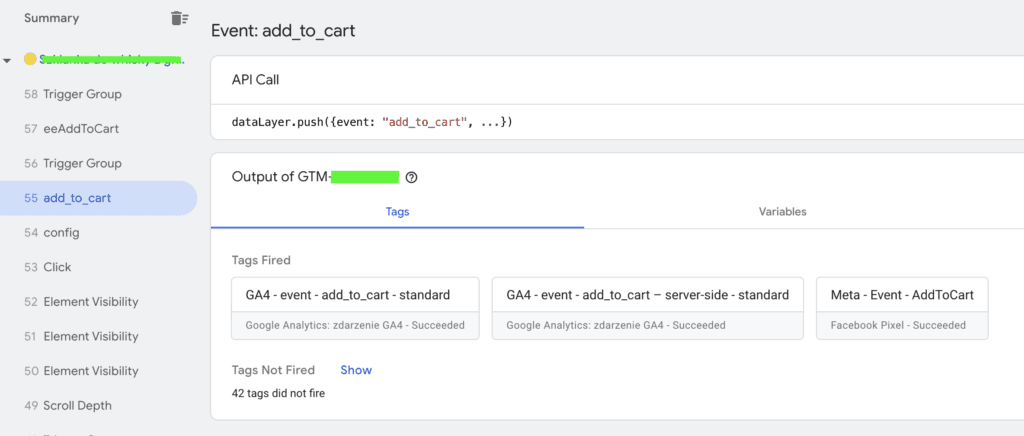
Now you can turn on Preview mode in both the client-side and the server-side container.
You should see the pixel tag and the GA4 event tag that sends data to the server fire at the same moment.
In the server-side container preview, the CAPI tag should show up as fired in the Tags tab.
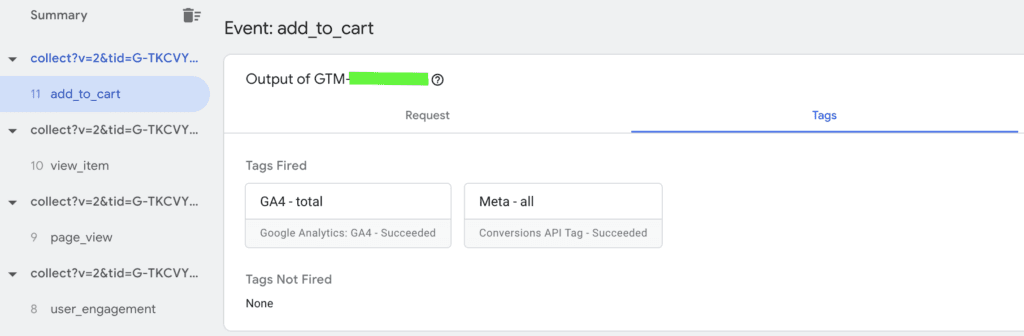
The Requests tab matters more, though. You're looking for an outgoing request to Facebook with status code 200, which means the request was sent successfully.
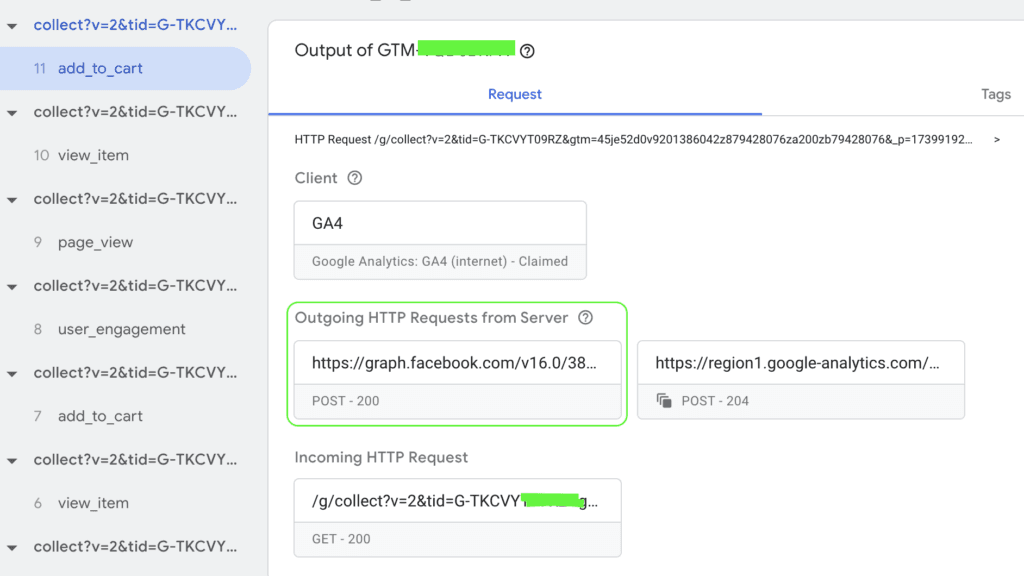
Finally, check the event in Meta Events Manager. That confirms whether events are received and deduplicated correctly.

If everything works as it should, you can publish your workspaces in both client-side GTM and server-side GTM.
A few days after the implementation goes live, you can check the quality of your deduplication in Events Manager.
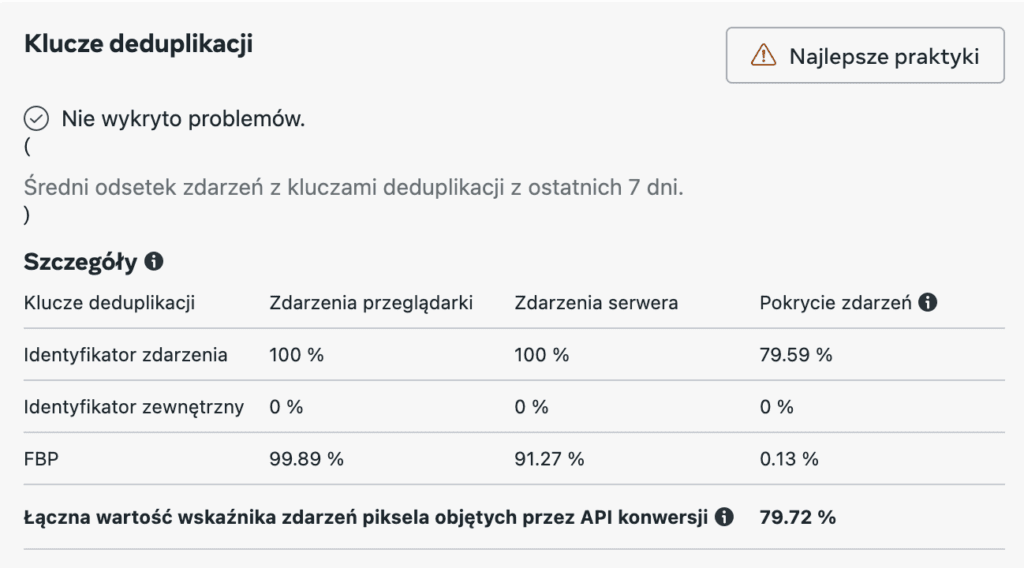
Meta should detect any problems and tell you whether something needs fixing.
Managing consent with Consent Mode
The last thing to cover is managing consent for firing tags.
Meta tags, whether pixel or CAPI tags, require ad_storage consent.
For the pixel, this is naturally easy to set up.
For CAPI tags, it's less obvious.
The simplest option is to require consent for the GA4 tags on the client side.
That won't work, however, if you use the same tags for server-side GA4 tracking in advanced Consent Mode.
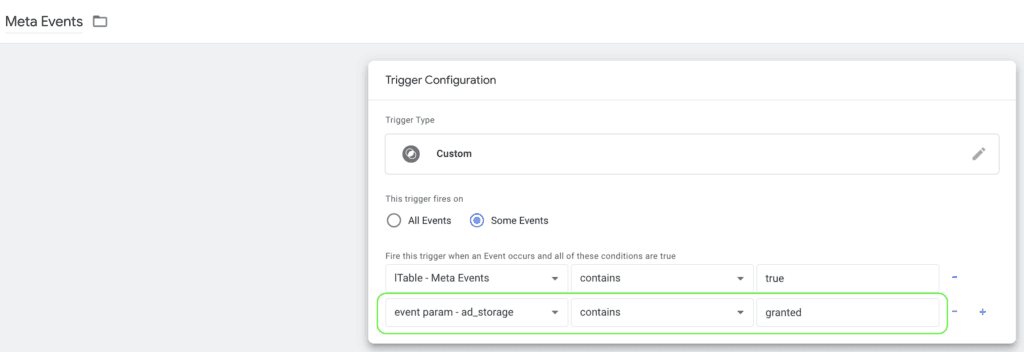
In that case, I create a variable in client-side GTM that captures the ad_storage consent status and add an extra parameter to both settings variables.

In server-side GTM, I create a variable that reads this value.
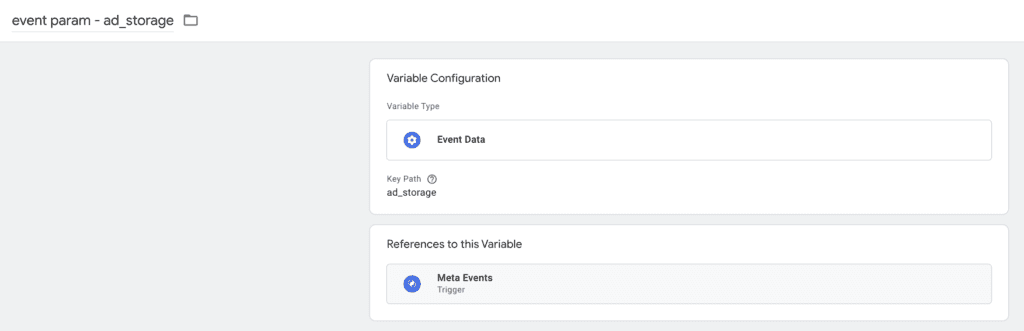
Then I use it as a condition for firing the CAPI tags.
How to use the JSON files
The files cover the following events:
- page_view
- view_item
- add_to_cart
- begin_checkout
- purchase
For GA4 tracking, they also include tags for:
- view_cart
- add_payment_info
- add_shipping info
The files are built for the standard enhanced ecommerce Data Layer structure
GTM client side
- Import the container
- Update the variables
- const - GA4 id - server
- const - server-side url
- const - Meta Pixel ID
- Update the cjs - localStorage.ad_storage variable so it captures the ad_storage consent value from the CMP you use. You may need to write code that reads this value.
GTM server side
- Import the container
- Update the variables
- const - Meta CAPI Token
- const - Meta Pixel ID
Once debugging checks out, publish both containers.
Didn't get the JSON files? Try again here: https://bettersteps.pl/en/meta-conversions-api-guide
Follow our profiles so you don't miss other useful content:
