Almost every time we compare Google Analytics data with an accounting system or CRM, we find discrepancies, and GA is always the one coming up short.
Adam Brzostek
Reading time: 3:00
How to get around ad blockers and collect more data in Google Analytics 4
It's easy to see in order data. At a large enough scale, the number of orders in your reporting system will be higher than the number of orders recorded in Google Analytics. Sometimes the gap reaches 20%.
There are a few reasons for this:
- “unfriendly” web browsers: the main culprit here is Firefox, which blocks Google Analytics scripts in its default settings, but other browsers can have similar settings too
- ad-blocking software (adblock) or extensions that block analytics scripts
According to research by the Canadian company Blockthrough, around 25% of internet users in Poland used ad blockers in 2022. Many of these tools block not only ads but also analytics scripts such as GA.
In practice, this means Google Analytics can't show you the actual numbers, and you should always treat it as a tool for spotting trends rather than for reporting.
Even so, Google Analytics data is essential for:
- measuring the results of online campaigns
- the size of your remarketing audiences
- knowing how your site actually performs
Fortunately, there are ways to collect more data, and one of them is tagging with server-side Google Tag Manager.
How does server-side tagging affect the amount of data you collect?
We ran a test on one of the sites Bettersteps looks after, and the results of switching to server-side tagging exceeded our expectations: data volume grew by more than 20% compared with standard client-side tagging
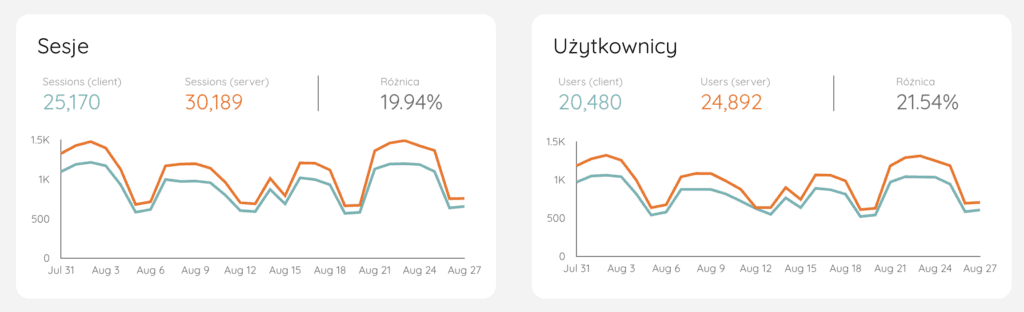
That should be seen as an extreme case, though, and the result depends on many factors. The smallest increase we've seen is 2%, and in our experience the gain usually falls between 2% and 10%.
How does it work?
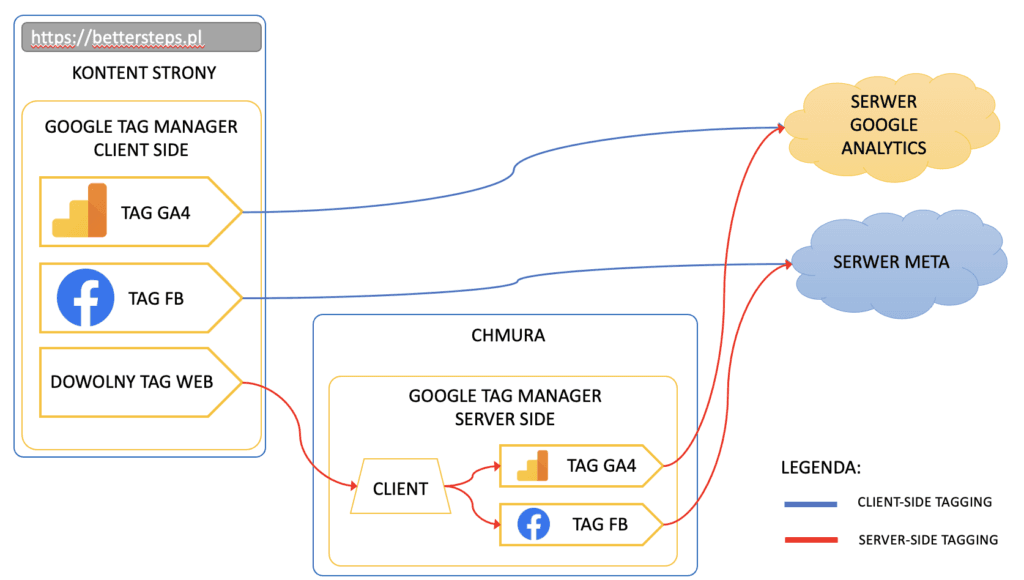
The diagram above shows how client-side and server-side tagging work.
As you can see, server-side tagging adds an intermediate step before the data reaches its destination: your server-side Google Tag Manager, which you can think of as a proxy server.
Sending data this way “tricks” blocking tools to some extent: they interpret the request as communication with your own server rather than a third-party server.
To get a full first-party context with server-side tagging, you should host GTM on a subdomain of your site. The solution also works with Google's default domain, but the results will certainly be weaker.
How do you set it up?
To retag your site with server-side GTM, you need a server-side container, ideally configured on a subdomain of your site.
We've described the whole process in this article: https://bettersteps.pl/en/blog/gtm-server-side-tagging-ga4-guide
Setting up a custom domain for App Engine
The article linked above explains how to set up a custom domain for Cloud Run. To complete the picture, here's how it works for App Engine.
First, register the subdomain with your hosting provider
Once the subdomain is registered, add and verify it in the Google Cloud project your container uses.
In the App Engine section, go to Settings and open the Custom domains tab, where you'll find the Add a custom domain option
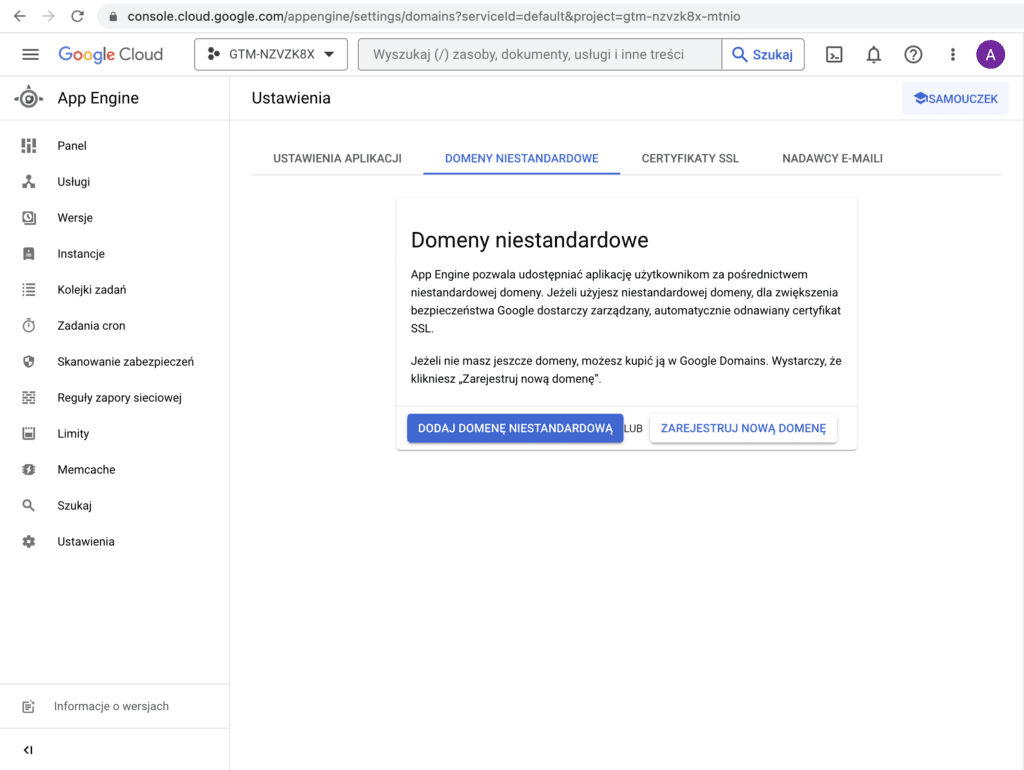
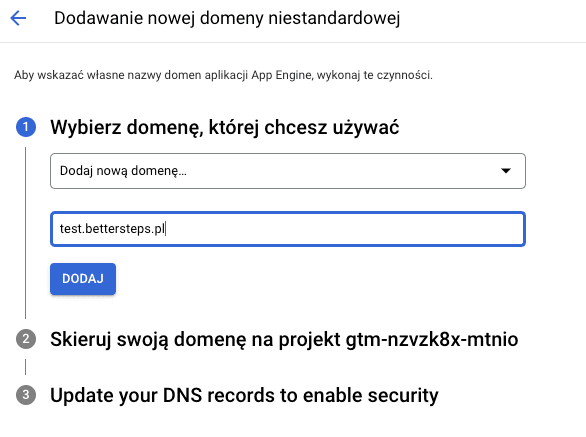
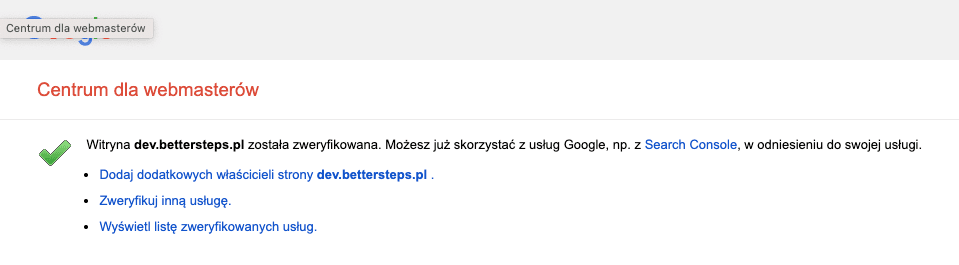
After you enter the domain name, Google will ask you to verify ownership through Google Search Console. The DNS method works best for this.
Once the domain is verified, you'll see the following message:
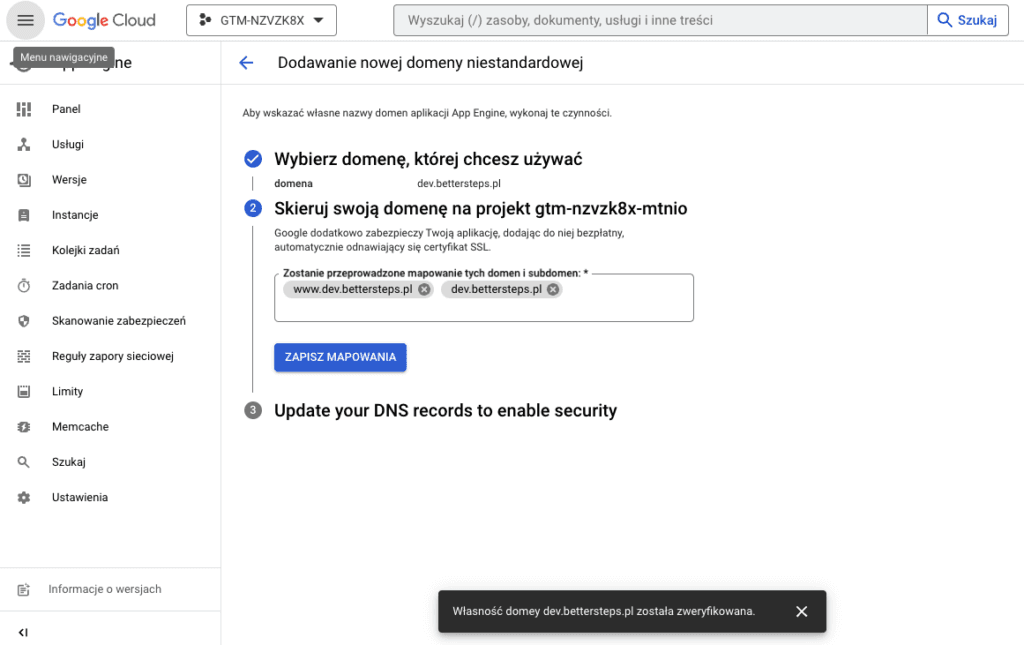
After verification, map your domain aliases
The last step is to update your DNS configuration
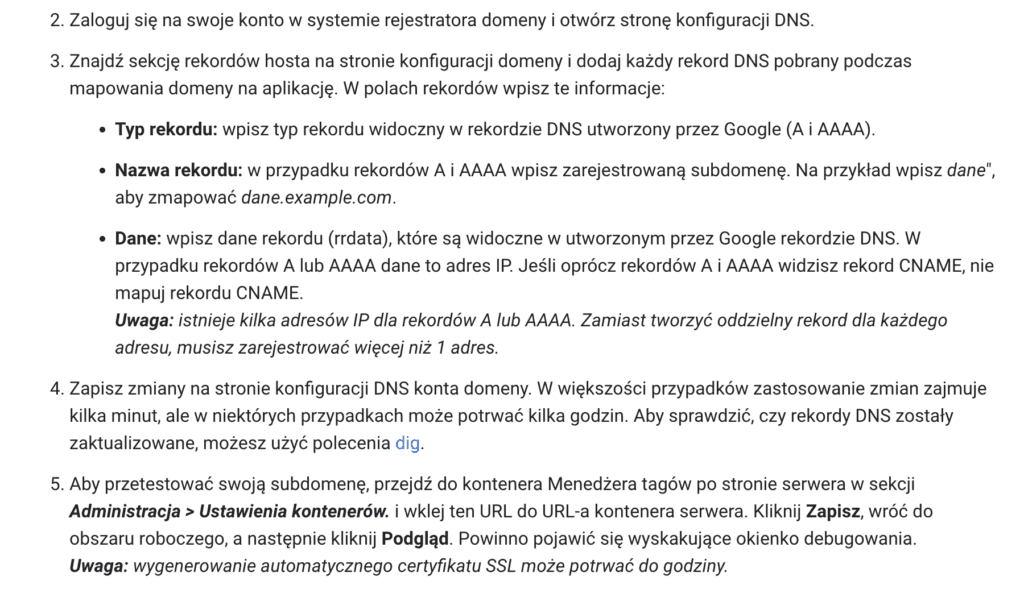
With that last step done, the custom domain is added to your server. Now, just as with Cloud Run, update the settings of your server container and your client-side tagging.