Installing Google Analytics on a website sounds scary if you've never done it, but it's a fairly quick and simple job, especially if your site runs on WordPress, where plugins make the Google Analytics installation trivial. I'll show you all the available installation methods, but I encourage you to use the one described in section 5: implementing Google Analytics through Google Tag Manager. It takes a bit longer and is a little more complicated, but down the road GTM (Google Tag Manager) will let you get much more out of Google Analytics, and adding other tools such as Hotjar will be a breeze!
Rafał Piszczatowski
Reading time: 10:00
How to install Google Analytics and Google Tag Manager on your website
Setting up Google Analytics
First, if you don't have Google Analytics yet, you need to set it up. Go to https://marketingplatform.google.com/about/analytics/ and click Start for free. You'll need a Gmail account, so if you don't have one, you'll have to sign up for it. Once you're signed in with your Gmail account, you can start creating your Google Analytics account. In the first step you enter an account name, and then you get to the question What do you want to measure?. Here we're measuring traffic on a website, so choose Web. In the third and final step you'll be asked for the website name and URL. If your domain redirects to https, select it from the list before typing the address. Also remember to change the reporting time zone to Poland.
After you accept the Google Analytics terms of service, you'll land on a page with your unique tracking ID. If you've made it this far, you've just set up Google Analytics.
Installing Google Analytics with a plugin: the easiest way
This section is only for site owners who use WordPress. If your goal is to measure traffic on your site and you plan to expand the analytics on it later, this implementation is enough for you. It shouldn't take more than 10 minutes. Log in to your site's CMS and go to Plugins -> Add New. Search for Google Analytics and you'll get plugins that let you add Google Analytics to your site. The most popular one right now is Google Analytics Dashboard Plugin for WordPress by MonsterInsights, with more than 2 million downloads, which is a good sign that the plugin is kept up to date and compatible with the latest version of WordPress.
After installing and activating the plugin, go to its settings. The plugin will ask you to sign in to the Gmail account you used to create your Google Analytics account. Choose that account and complete the connection. If everything went smoothly, you should see a message that the connection is complete. From now on, Google Analytics is implemented on your site, and you can check your traffic statistics in Google Analytics or in the WordPress plugin under Insights -> Reports, where you'll find basic data pulled from Google Analytics.
Installing Google Analytics manually without a plugin
If you don't want to use a plugin or your site isn't built on WordPress, you can paste the code directly into your site's code. To get it, go to Google Analytics -> Admin -> Property -> Tracking Code. Keep in mind, though, that the current recommendation is to install Google Analytics through Google Tag Manager, which gives you more options for collecting data. I recommend implementing Google Analytics directly on the site only if you're sure you need just basic traffic data and won't be extending your analytics with things like phone number clicks or scroll depth tracking.
<!– Global site tag (gtag.js) – Google Analytics –>
<script async src=”https://www.googletagmanager.com/gtag/js?id=UA-126880409-1″></script>
<script>
window.dataLayer = window.dataLayer || [];
function gtag(){dataLayer.push(arguments);}
gtag(’js’, new Date());

gtag(’config’, 'UA-126880409-1′);
</script>
This is the script that should go into your site's code. You can put it in <header> or <body>. If your site runs on WordPress, go to Appearance -> Editor in the settings and find Theme Header (header.php) among the theme files. Paste the script and update the file. From then on, the Google Analytics script will run on every pageview of your site and send that information to Google Analytics.
Site Kit, a new plugin from Google with more features
Site Kit is a WordPress plugin. It's similar to other plugins of this kind, but it has one advantage: it also gives you quick access to other Google tools: Google Tag Manager, Search Console, AdSense, Optimize and PageSpeed Insights. So if you need more than Google Analytics and you know you'll use at least one of the tools listed above, this plugin may be useful. Be careful when installing it, though! Quite a few users report that it caused errors on their sites. For that reason I much prefer the method described in section 5, but if you really want to try Google's plugin and have everything in one place, go ahead and use Site Kit. To get it, go to your site's admin panel (www.yourdomain/wp-admin) and open Plugins -> Add New. Once it's installed and activated, you can start the setup.
At this point you should already have a Google account and Google Analytics or any other tools you want to connect.

Use Google Tag Manager to install Google Analytics: the best option!
The best way to add the Google Analytics code is through Google Tag Manager (GTM). With this setup, you'll later be able to easily install other tools, such as Hotjar, or any HTML code on your site.
Just like Google Analytics, GTM can be installed in two ways: with a plugin or by pasting the code directly into your site. First, though, you need to create a GTM account at https://marketingplatform.google.com/about/tag-manager/. After a quick setup of basic information about your site and country, GTM will be created.

In our case, choose Web as the target platform, since we're setting it up for a website. Once the account is created, you'll see the Install Google Tag Manager window. Save those two snippets if you want to implement GTM on your site manually. If you'll use a plugin, you won't need them. If you closed the window or need the code later, you can always find it by clicking the GTM ID in the top bar.

Implementing Google Tag Manager on WordPress with a plugin
One of the most popular plugins is Google Tag Manager for WordPress. https://pl.wordpress.org/plugins/duracelltomi-google-tag-manager/. With your GTM account ready, open the plugin settings and enter your container ID in the Google Tag Manager ID field. It's the 7-character code shown on the GTM home page. Select Codeless injection and click Save Changes. That's it. GTM is now installed on your site. You'll find how to verify that everything worked and GTM is implemented correctly in the last section of this article.
Implementing GTM by pasting the code into your site
Google recommends placing the scripts shown in the screenshot above in <head> and <body>. That makes sense, because it reduces the number of cases where the script doesn't fire before someone leaves the page. If you put all the code at the very bottom of the page, there's a good chance you'll miss some users who were too impatient and closed your site after 2 seconds. Keep in mind, though, that this isn't a requirement, and GTM will work even if you place it elsewhere in your page code.
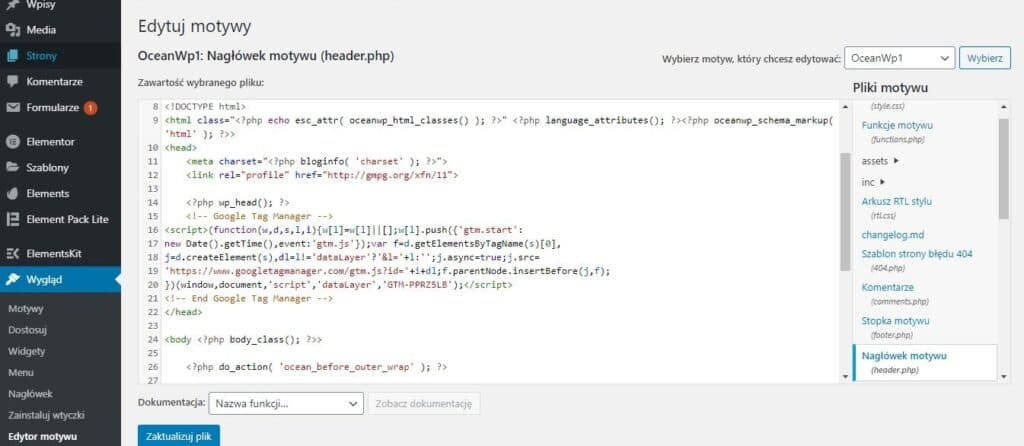
In the WordPress dashboard you can add the scripts under Appearance -> Theme Editor. Put the first snippet in the header. You'll find it among the Theme Files as Theme Header (header.php). Paste the code at the very bottom, but before the closing </head> tag, and update the file. Check that nothing has broken on your site.
After pasting the top GTM snippet, go to Theme Files -> Theme Footer (footer.php) in the same way. It may depend on your theme, but you should find the page's <body> there. Place the second GTM snippet right before the closing </body> tag. Update the file.
That's it. The code should now be running on your site. The last missing piece is adding Google Analytics through GTM so traffic data gets sent to the tool.
Already have GTM on your site? Time to add Google Analytics through Google Tag Manager
If you don't have Google Analytics yet, you'll find short instructions for creating an account in section 1. If you already have an account, you need to add it to your site. Open Google Tag Manager, go to Tags and create a New one.

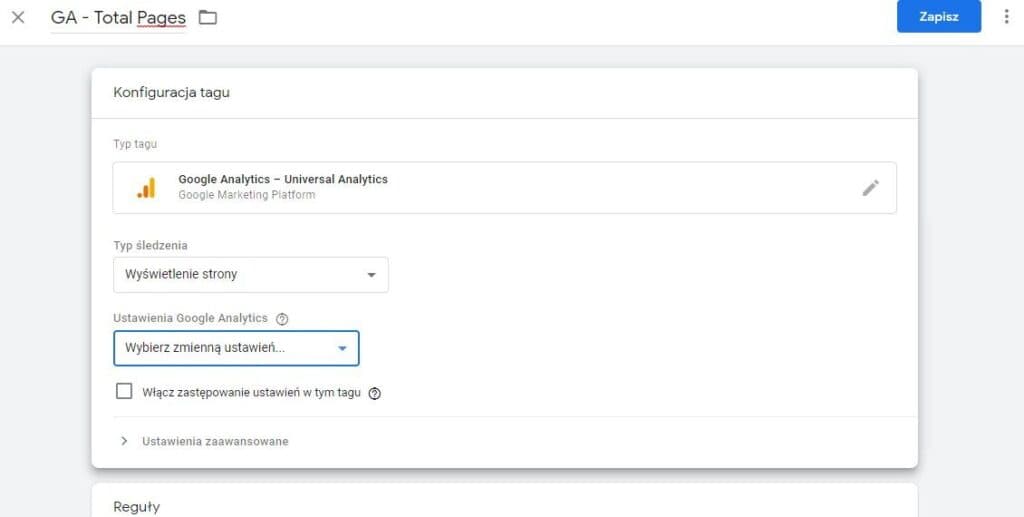
When you click Tag Configuration, you'll get a list of tag types. For a website, choose Google Analytics – Universal Analytics. We want Google Analytics to fire on every user visit to your site, so leave Page View as the Track Type. In Google Analytics Settings you need to create a new variable that passes your unique Google Analytics ID.
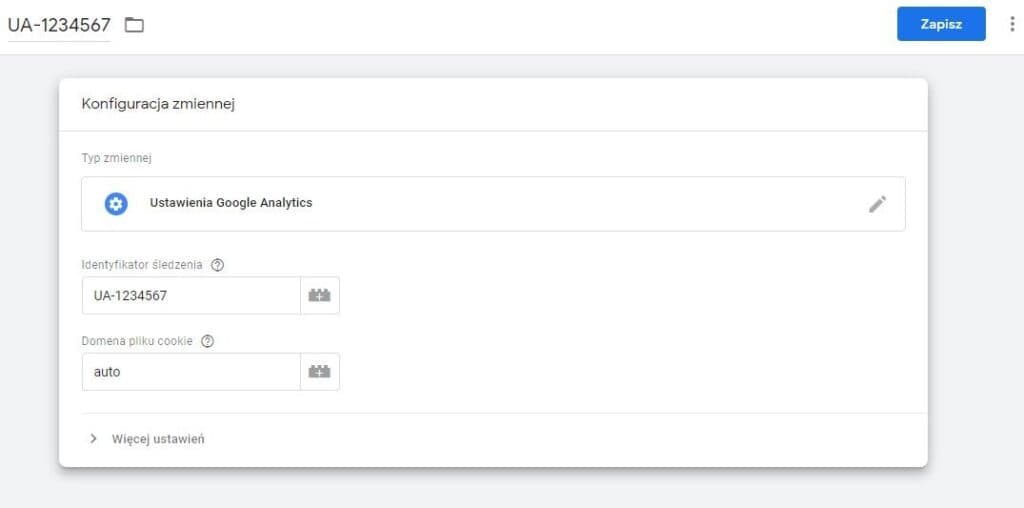
Enter your ID in the variable. Give the tag a name that will be clear to you right away.
Save it. The last step is creating a trigger. The tag should fire on every page, because we want to track user traffic across all the subpages of our site. So go to Triggering and choose the built-in All Pages trigger. Your tag should look like this (of course, the UA ID has to match yours):
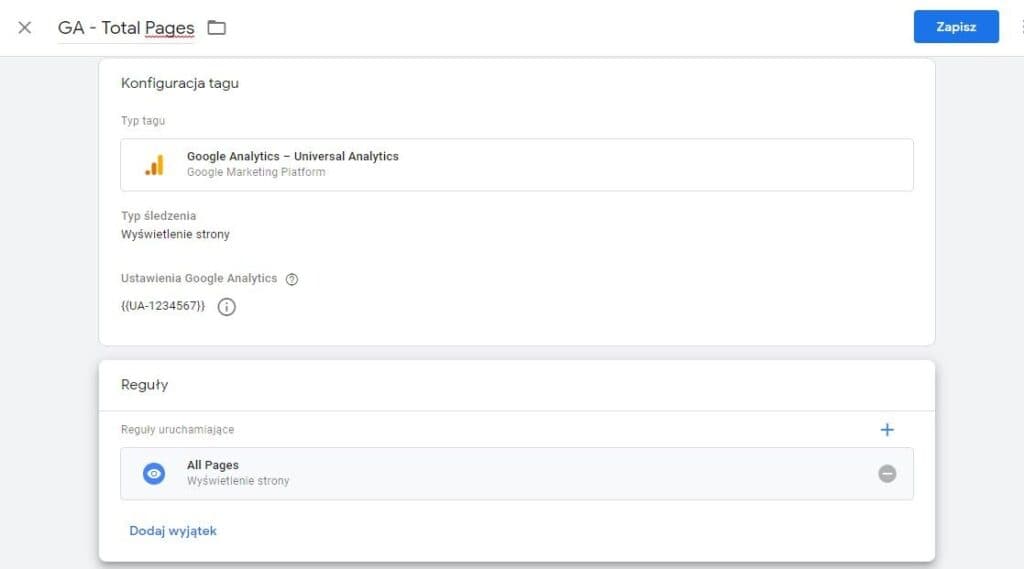
Save the tag and publish it. To do that, click Submit in GTM and then Publish. You'll get a confirmation that Version 1 has been published. If anything goes wrong, you can always go to Versions and roll back the changes.
That completes the GA implementation through GTM. A few quick steps and GTM is now firing on your site, and every time it fires, it runs the scripts it contains according to the triggers you've created. In our case, that's the script that loads Google Analytics. You'll be able to implement other tools on your site in much the same way, with everything in one place: GTM, which is a kind of drawer full of different code snippets that fire according to the triggers you create. Our trigger said the Google Analytics script should fire on all pages (All Pages). Keep in mind, though, that for other tools it's sometimes worth changing these settings. With Hotjar, for example, we don't always want to record user behavior across the whole site; we might only care about behavior on a single page. To avoid firing unnecessary scripts on other pages, you'll be able to create a trigger that says the Hotjar script should only run on www.przykladowastrona.pl/oferta.
Checking that the Google Analytics and Google Tag Manager scripts fire
In Chrome you can install an extension called Tag Assistant (by Google). On your site, open the extension, click Record and refresh the page. After the refresh, the extension will show which scripts fired and whether everything looks fine at first glance. You only need to start worrying if a label lights up red.
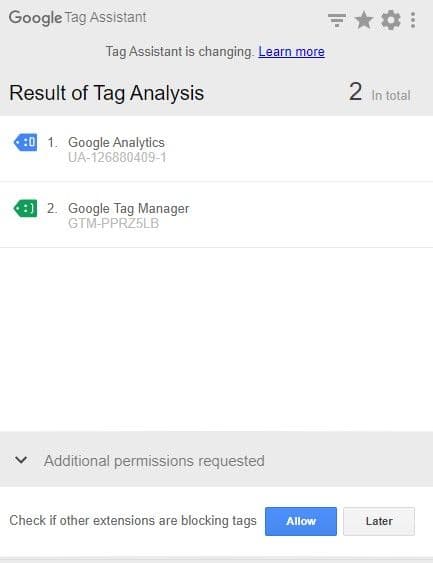
You can also check this in Google Analytics itself, in the Real-Time section. Add unique UTM parameters to your site URL (article about UTM parameters) like this: https://twoja-strona.pl?utm_source=test&utm_medium=test123&utm_campaign=test1234. Google Analytics will pick up the UTMs, and under Real-Time -> Traffic Sources you should see the result below. Your own traffic with the UTMs has come through, which means Google Analytics is running on the site.