Rafał Piszczatowski
Reading time: 8:00
UTM tags in links: what UTMs are and how to use them to get accurate data in Google Analytics
UTM (Urchin Tracking Module) parameters are tags you add to a link to measure how well your activity on external sources that send traffic to your site performs. They tell Google Analytics where a user came from. With a proper Google Analytics implementation, you can also judge the quality of that traffic. What matters most about UTMs: they're completely free and very easy to use! Once you add UTMs to a link, Google Analytics picks them up automatically and records them in your reports.
A UTM structure consists of 5 parameters you can use to segment traffic. Unless you run a very large site, the three main ones will be enough:
- utm_source – where the traffic comes from. For example, a newsletter or the website where you place your link.
- utm_medium – the type of source, e.g. sms, display, mailing
- utm_campaign – the campaign name, which clearly identifies the activity, e.g. newsletter_winter_sale_2020
On top of those, you can use two more. They're optional, but useful if you want to break down your traffic further in a separate column.
- utm_content – originally the ad content, e.g. jacket_sale_200off
- utm_term – the keyword the user searched for, e.g. cheap jackets sale.
How do you add UTMs to a link?
UTM values can be whatever you want. You do have to use the parameter names exactly as they are, but the values you assign are entirely up to you. What matters is using the three main parameters: utm_source, utm_medium and utm_campaign. The other two are optional. Tagging a link is very simple. Take bettersteps.pl/ as an example. Say I post about web analytics on LinkedIn with a link to the home page. I could use UTMs like this:
- utm_source=linkedin
- utm_medium=content
- utm_campaign=web_analytics
After adding them to the link, we get:
bettersteps.pl/?utm_source=linkedin&utm_medium=content&utm_campaign=web_analytics_utm You'll notice a question mark was added to the link before the UTMs. Remember to put it after the landing page URL. The only exception is when the link already contains a question mark; then you don't add another one and use & instead. So if we were linking to bettersteps.pl/?sample_article and added the UTMs we came up with earlier, the link would look like this: bettersteps.pl/?sample_article&utm_source=linkedin &utm_medium=content&utm_campaign=web_analytics_utm.
Keep this rule in mind, but don't worry: there are automatic link generators that will do it for you. You'll find links to them at the end of this article.
Why use UTMs in links?
I partly answered this in the first paragraph. But the main reason to use UTMs is to correctly sort the traffic on your website. If you have a structure in place and stick to it in external links (that is, links outside your website), you'll be able to quickly see where users come to your site from and which sources matter most to you. Besides the amount of traffic from a given link, you'll be able to see which traffic was the best and most engaged.
Common UTM mistakes
Before you start tagging links, make sure you read what to avoid if you want accurate data in Google Analytics.
#don't use UTMs on your own site. This is by far the most important rule! I've come across a few websites that decided to use UTM tagging on their own pages. If you have a promo banner on your home page and want to track it, never use a UTM link for it. It's a serious mistake that overwrites the session source. Here's how it plays out: a user finds our link in a LinkedIn article and lands via bettersteps.pl/?utm_source=linkedin&utm_medium=content&utm_campaign=web_analytics_utm. That means the reports show linkedin as the source, content as the medium and web_analytics_utm as the campaign. The bettersteps.pl home page had a banner linking to an article via: bettersteps.pl/?utm_source=bettersteps&utm_medium=banner&utm_campaign=analytics_wrong_tagging If the user clicks the banner, the UTMs get overwritten. We'll then see bettersteps as the source and banner as the medium. That isn't true, because the LinkedIn article was the real reason for the visit. The banner on our site was only an internal promotion.
Note: GA4 doesn't overwrite UTMs during a session, so this point only applies to Universal Analytics setups. In GA4 the traffic source is attributed to session_start, which fires only once, when the session begins.
#don't use special characters such as Polish diacritics, or capital letters. Avoid accented characters and capital letters in UTM values. That way you won't end up with several traffic sources that should really be one. Google Analytics treats accented characters and capital letters as different characters, so if you use utm_source=newsletter in one link and utm_source=Newsletter in another, you'll get two separate rows in your results.
#don't change your structure. Design your UTM structure once and try to stick to it. Changing it every now and then makes it hard to analyze longer periods. Say you want to compare your marketing activities a year from now. That will be a real challenge if you've completely changed your tagging rules. Changes to the structure break data continuity, so it's important to think through the rules for future activities right at the start, even if you aren't running them yet.
#avoid spaces and special characters. Use hyphens or underscores instead. Spaces don't go down well with link generators or with Google Analytics itself. This saves you errors and ugly-looking links. The same goes for special characters such as % or $. Try to avoid them, because they can cause problems later when you clean up your data and analyze it, e.g. in Excel.
When don't you need UTMs?
Not every link needs UTMs for Google Analytics to tell you where the traffic came from. Google Analytics recognizes these traffic sources on its own: typing the address directly, search engines and referring sites (pages that link to your site where you didn't use UTMs). With direct traffic, i.e. direct/none, it isn't that straightforward, though. Keep in mind that if a user lands on your site and the browser doesn't tell Analytics where the traffic came from, Google Analytics will put it under direct/none. An untagged newsletter in an email campaign is a typical case. If you don't tag your newsletter, you can be sure that users who come from it will be attributed to direct/none, which loses the real source and inflates your direct traffic. Organic search traffic works automatically, but paid traffic from AdWords campaigns will take a few minutes of work on your side.
To turn on automatic tracking of AdWords traffic, see this link: https://support.google.com/analytics/answer/1033961?hl=pl. Once the accounts are linked, you won't have to worry about adding UTMs every time you create a campaign. utm_source will automatically be set to google and utm_medium to cpc (cost per click). The other parameters will be taken from what you set up in the given AdWords campaign.
How do you check whether UTMs were sent to Google Analytics?
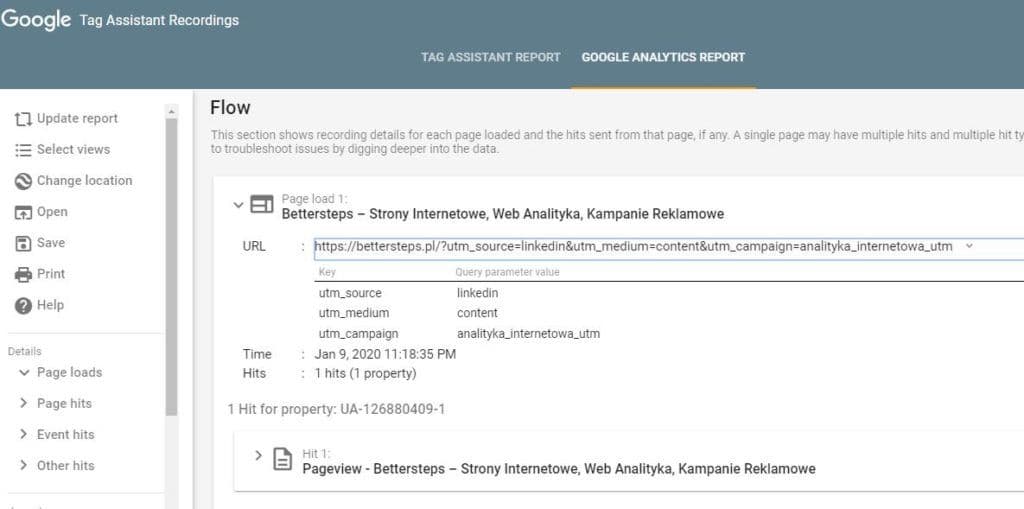
There are several ways. I'll show you the one I find simplest and fastest. You need the Chrome browser with the Google Tag Assistant extension installed. Once it's on, you can see what data was sent to Google Analytics. After you click Record and refresh the page, open the "recording" and go to the Google Analytics Report tab, where you'll see all the parameters. The UTM parameters have the values we used in the link. That means we didn't make any typos in the parameters, and these are the values we should eventually see in Google Analytics. Another option is the Real-Time view in Google Analytics, but it's only a quick solution if your site doesn't get a lot of traffic.
Automatic UTM link generator
The most popular generator is Google's own tool. You'll find it here: https://ga-dev-tools.appspot.com/campaign-url-builder/. You fill in the required fields, i.e. the website URL and the UTM values, and get a ready-made link with parameters underneath. It's a good tool that speeds up creating links and shows you the correct structure, especially when your landing page URL is unusual and contains a lot of special characters. If it doesn't meet your needs, take a look at my generator built in Google Sheets. It's especially helpful if you work in an organization where many people create campaign links and you need more detailed UTM values. The generator helps your team avoid incorrect and inconsistent tagging. Once you've prepared the right structure (there's a sample one in the file), everyone works in the same file. That speeds up the process and, most importantly, you can be sure you're all using the same naming.
If you want to use it, just go to File and choose Make a copy. You can then adapt the file to your needs. If you have any questions, feel free to get in touch.
Generator link: Automatic UTM link generator