Rafał Piszczatowski
Reading time: 6:00
Setting up Enhanced Ecommerce with a WordPress plugin
I tested a plugin that automatically builds a dataLayer for an Enhanced Ecommerce implementation in Google Analytics. If your store already pushes Data Layer events, you can skip the first sections and go straight to setting up the tags in Google Tag Manager. The plugin can be a great fit for smaller stores that need to pass parameters in a fairly standard way. It won't work for larger stores, where variable requirements are usually unusual and extensive. But if you don't have a developer or analyst on your team who can implement the dataLayer on your site, and no budget for advanced analytics, it looks like a sensible solution.
Start by installing the Google Tag Manager for WordPress plugin on your WordPress site (https://pl.wordpress.org/plugins/duracelltomi-google-tag-manager/). You can also use this plugin for other things, such as embedding Google Tag Manager itself. I have the GTM code added directly to the site's code, so I'll skip that part.
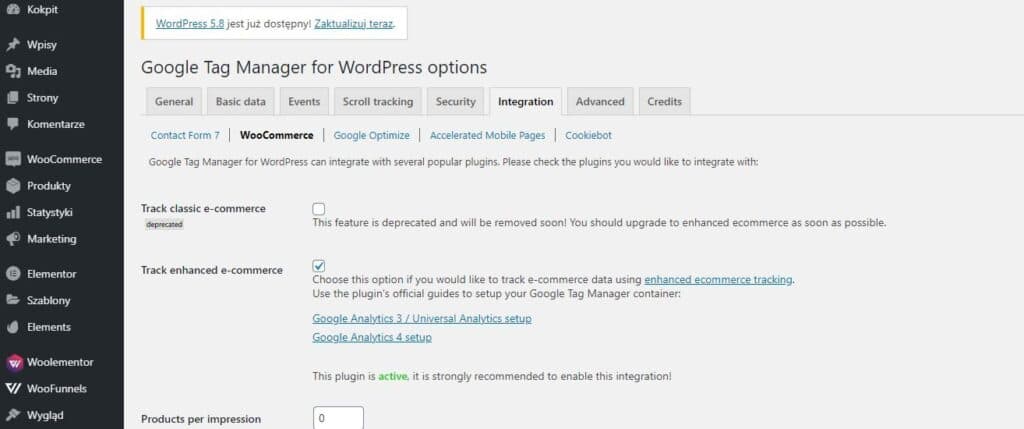
In the plugin, go to the Integration -> WooCommerce tab. Check Track enhanced e-commerce and save the settings.
Checking that the plugin works and pushes the Data Layer on the site
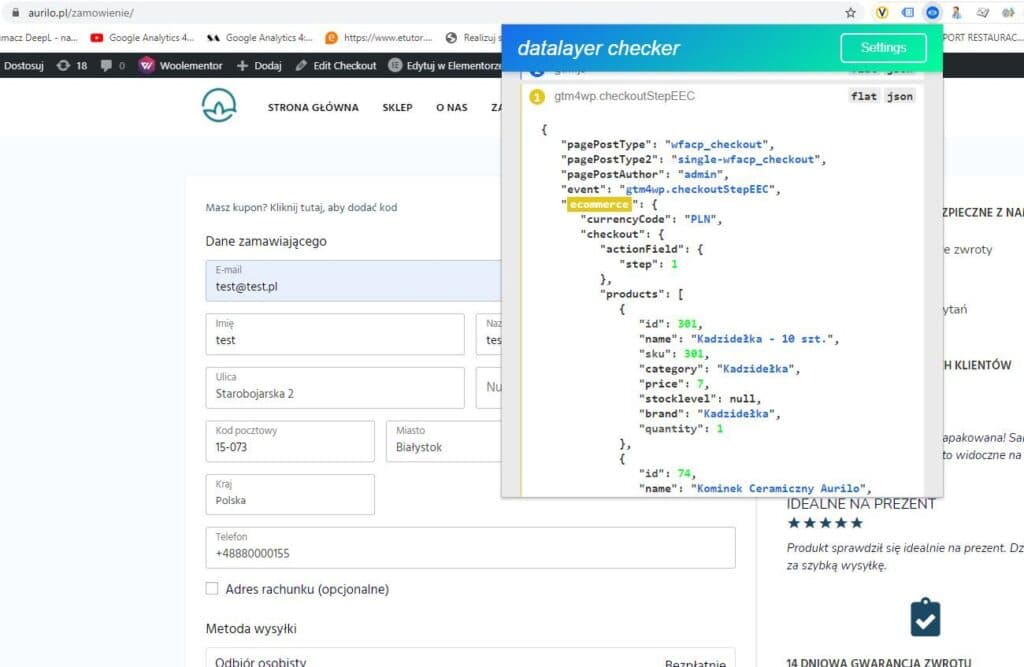
After enabling the plugin, it's worth checking that everything is fine and the data layer for the purchase process is being sent. I recommend using Chrome with the DataLayer Checker extension. You can check it in the console just as well, but the Checker is definitely faster. The screenshot shows that the purchase parameters were sent. The variable values come from the products in your store, so of course they'll be different for every store. Run this test on all the main steps: add to cart, the cart steps and the order summary.
Implementing Enhanced Ecommerce in Google Tag Manager
In this article I assume you already have Google Tag Manager on your site and use it to send data to Google Analytics. If not, and you're only just installing the tools, go to https://bettersteps.pl/en/blog/install-google-analytics-google-tag-manager-website. It walks through the whole Google Tag Manager installation and setting up the basic tags that send data to Google Analytics.
Step 1: create a trigger in Google Tag Manager
To collect Enhanced Ecommerce data, we need a tag that reads data from the Data Layer. Let's start by creating a trigger that defines when the tag should fire. My goal is to capture the Data Layer when a product is added to the cart, on the checkout steps and on the order summary. With the plugin I'm testing, there are 3 main events: add to cart, checkout and purchase. The plugin sends these events with the following names (values):
- add to cart: gtm4wp.addProductToCartEEC
- checkout: gtm4wp.checkoutStepEEC
- purchase: gtm4wp.orderCompletedEEC
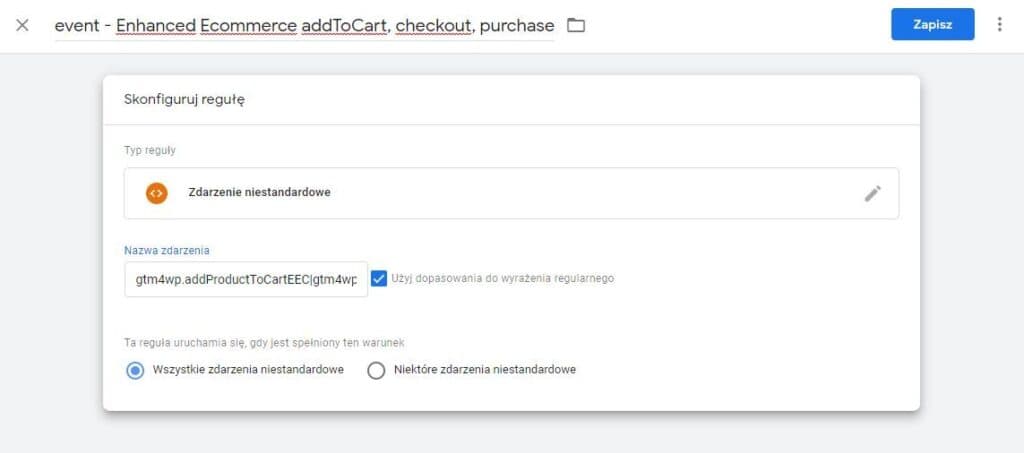
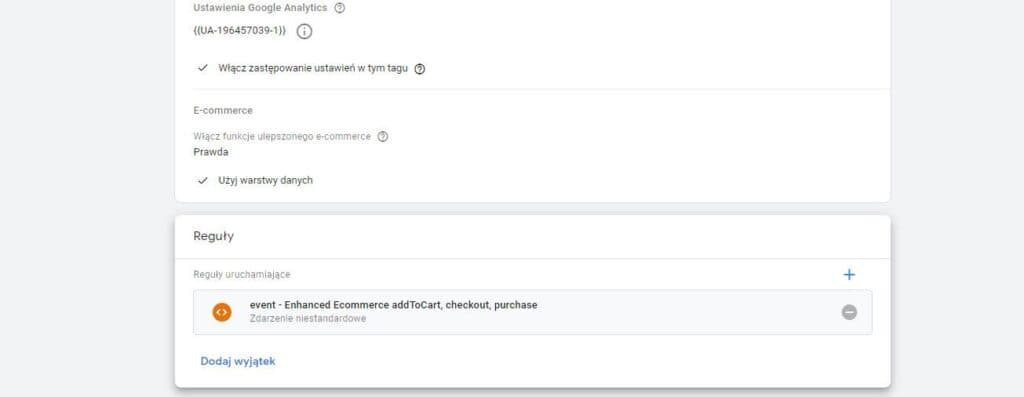
So the trigger, which I named event – Enhanced Ecommerce addToCart, checkout and purchase, has gtm4wp.addProductToCartEEC|gtm4wp.checkoutStepEEC|gtm4wp.orderCompletedEEC in the Event name field, with the Use regex matching box checked. I could have created three separate triggers, one for each of the events above, but it's quicker to handle everything in one. Just save the trigger. I'm doing all of this directly on production, so no other conditions are needed here. With larger stores, you should of course test the tags in a staging environment.
Step 2: create the variables
We need variables to read the values passed in the Data Layer. We'll use them in the next stage, so here I'm only explaining how to set them up. In the following steps you'll learn how to use them and send them to Google Analytics.
The first variable is Event. Go to Variables, find Built-In Variables and click Configure. In the Utilities category, check Event. Then close the panel.
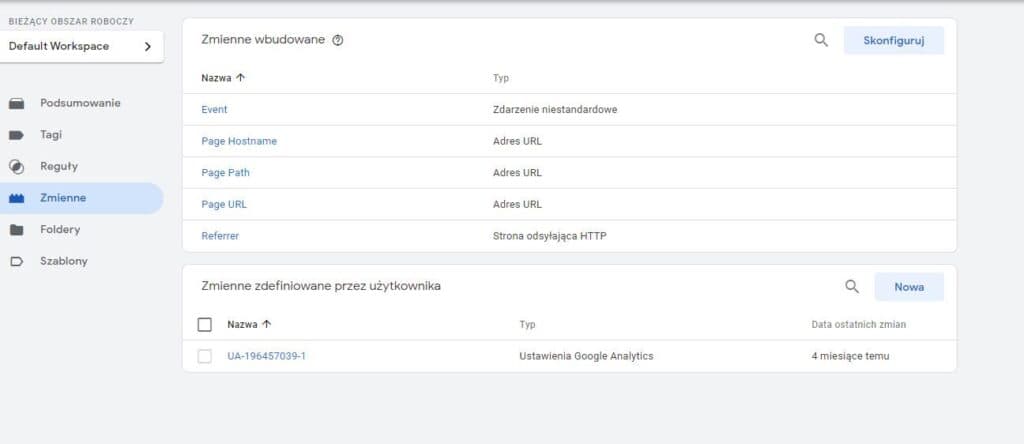
The next variable will pass the sales revenue. Later on, this lets you analyze traffic sources and page value accurately. Under User-Defined Variables, click New and choose Data Layer Variable.
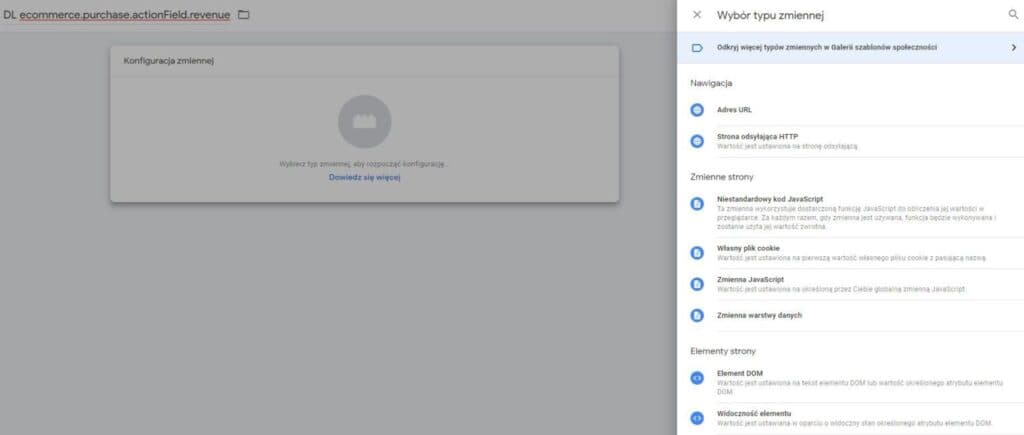
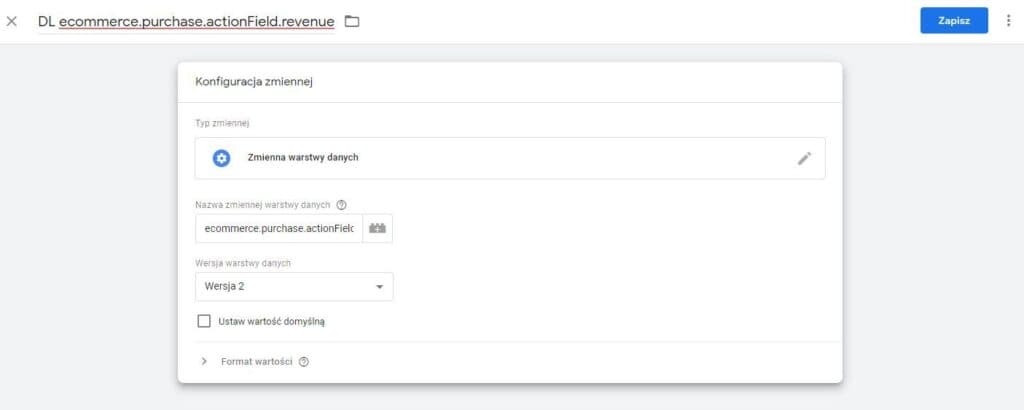
In Data Layer Variable Name, enter: ecommerce.purchase.actionField.revenue. This Data Layer variable passes the value of the whole cart when a transaction is completed.
Step 3: create the tag
We're implementing the tag for Google Analytics – Universal Analytics, so choose that tag type. Set Track Type to Event. You have some freedom with the event tracking parameters, but I recommend entering Ecommerce as the Category and passing the value of the Event parameter as the Action (Event Action in Google Analytics). In other words, we want to pass the values gtm4wp.addProductToCartEEC, gtm4wp.checkoutStepEEC and gtm4wp.orderCompletedEEC.
For this store, select the Event variable we created earlier as the Action. You can leave the Label empty. For the event Value, select the other variable we created earlier, the purchase revenue. This value will only be present on the order summary.
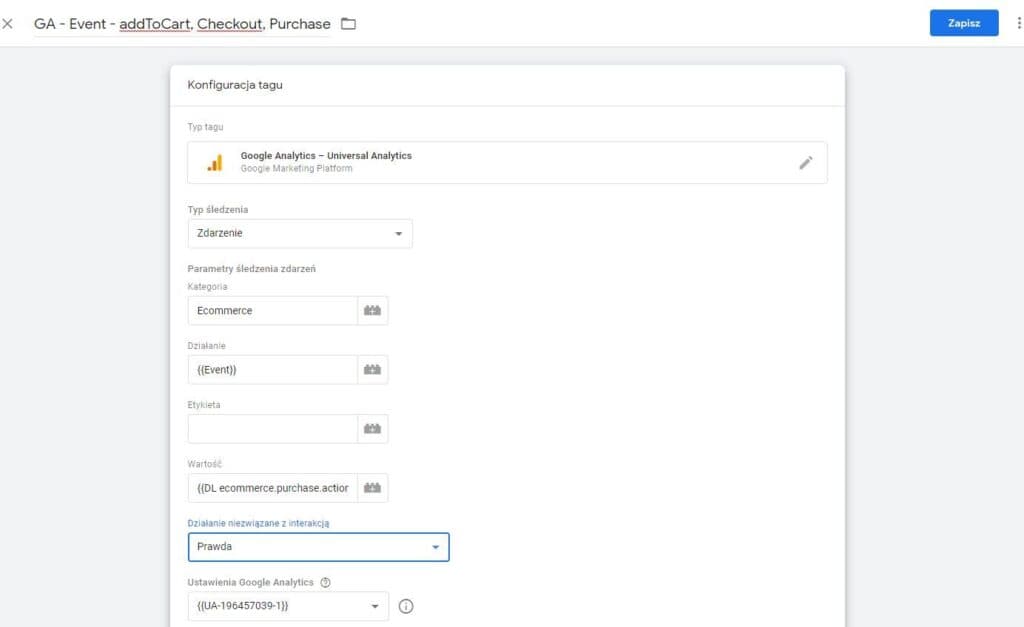
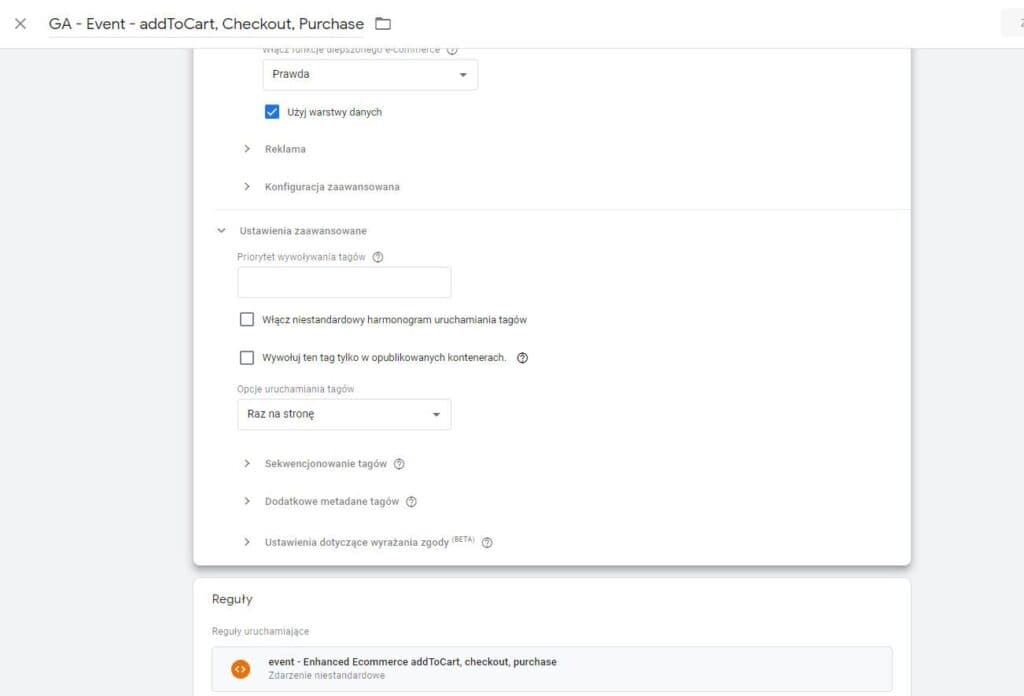
Set Non-Interaction Hit to True. If you leave it as False, your bounce rate will drop to almost 0%, but unfortunately that number won't be real. So choose True, so the event doesn't affect the bounce rate. In Google Analytics Settings, select your Google Analytics ID, then open More Settings and, under Ecommerce, turn on Enable Enhanced Ecommerce Features. Also check Use data layer. This lets the tag automatically pick up data from the Data Layer pushes sent by the plugin.
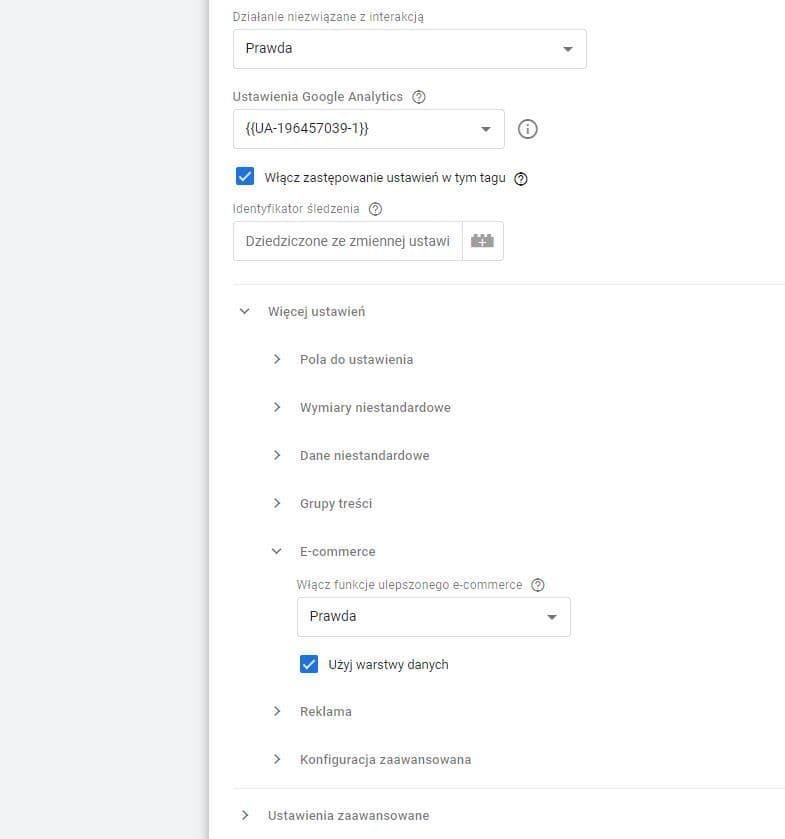
Finally, add the trigger we prepared earlier. The tag is ready. Test it in Preview mode, and if everything is set up correctly, publish it.
Turning on Enhanced Ecommerce in Google Analytics
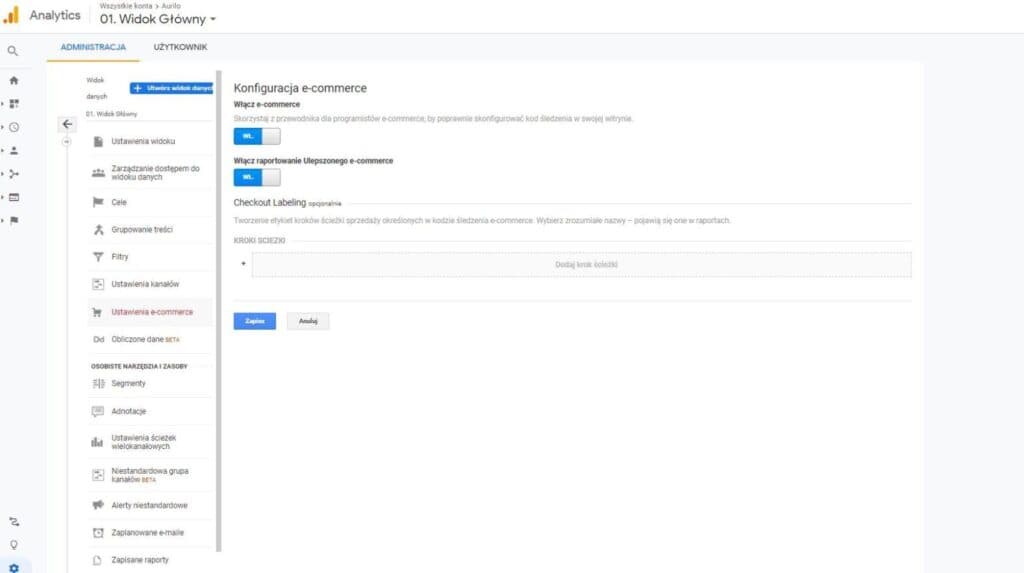
You also need to turn on Enhanced Ecommerce in the Google Analytics view. Go to Admin -> View -> Ecommerce Settings. I recommend creating a new view for this, but that depends on your situation. For a store, you'll also need to add referral exclusions. Without them, your path will lose the actual source of the sale. Damian covers this well in his article, so I'll send you straight to his blog: https://www.damianrams.pl/jak-wykluczyc-bramki-platnosci-google-analytics/
A small plugin pitfall
While testing the tag and variables from this article in Preview mode, I noticed that even though there is only one checkout step, several checkout events are sent when you move to the order summary. That's because the store uses a one-step checkout, which isn't standard in WooCommerce.
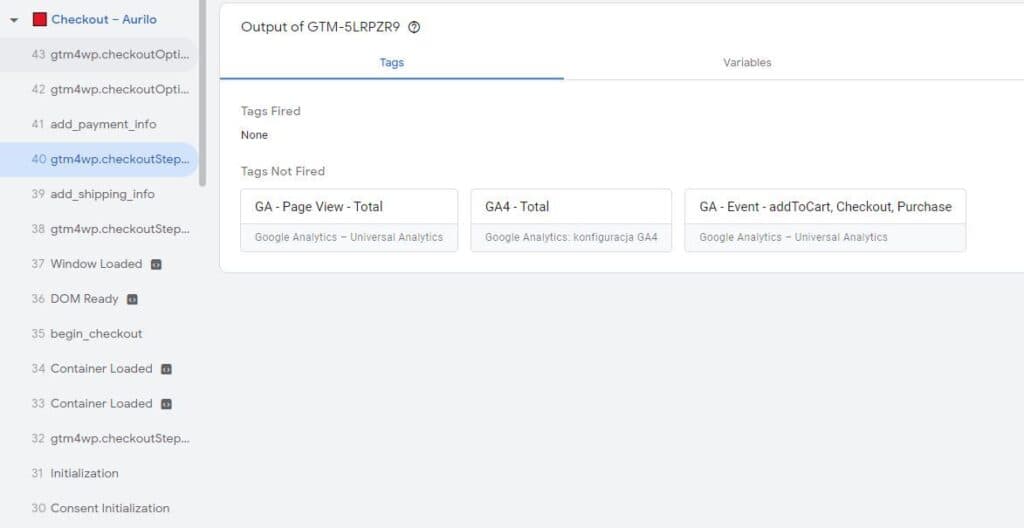
To avoid collecting several checkouts at once (they differed only in the value of the step variable), I set the main GA-Event-addTocart, Checkout, Purchase tag to fire once per page. In my tests that seemed to solve the problem, so I recommend checking whether you also have an "artificially" shortened purchase path that makes the plugin act up and automatically send several checkouts when the user reaches the summary.