Adam Brzostek
Reading time: 8:00
Data Layer step by step: a beginner's guide
The Data Layer is a JavaScript object (stored in an array) used to pass information from your website in a consistent, structured way. Most tag management systems, such as Google Tag Manager, Tealium and Adobe Dynamic Tag Management, can then read and map this data, and so can performance marketing tools like Synerise, Salesforce, SALESmanago, etc.
How does the Data Layer work?
To understand how the Data Layer works, you need to know what a JavaScript object is. A JS object describes some element of a page, such as a button, by listing its properties. An object is written in curly braces {}, and its properties are separated by commas:
0
1
2
3
4
var button = {
’id’: 'xyz'
’tekst’: 'przycisk'
’kolor’: 'czarny'
}
The button object above has 3 properties: id, text and color.
The data layer is simply a set of JS objects describing various elements of, or actions on, a website, except that they sit inside the Data Layer array []. Let's look at an example Data Layer object that describes a product page in an online store. It gets added to the Data Layer array when a user visits a product page:
0
1
2
3
4
5
6
7
{
’event’: nazwa eventu który pojawi się razem z obiektem,
’nazwa_produkt’: nazwa produktu przedstawionego na stronie,
’producent_produktu’: nazwa producenta produktu przedstawionego na stronie,
’kategoria_produktu’: nazwa kategori produktu przedstawionego na stronie,
’cena_produktu’: cena produktu przedstawionego na stronie porduktowej
}
This object describes the product shown on the product page. If a user visits a page with an iron, the object's properties could take the following values:
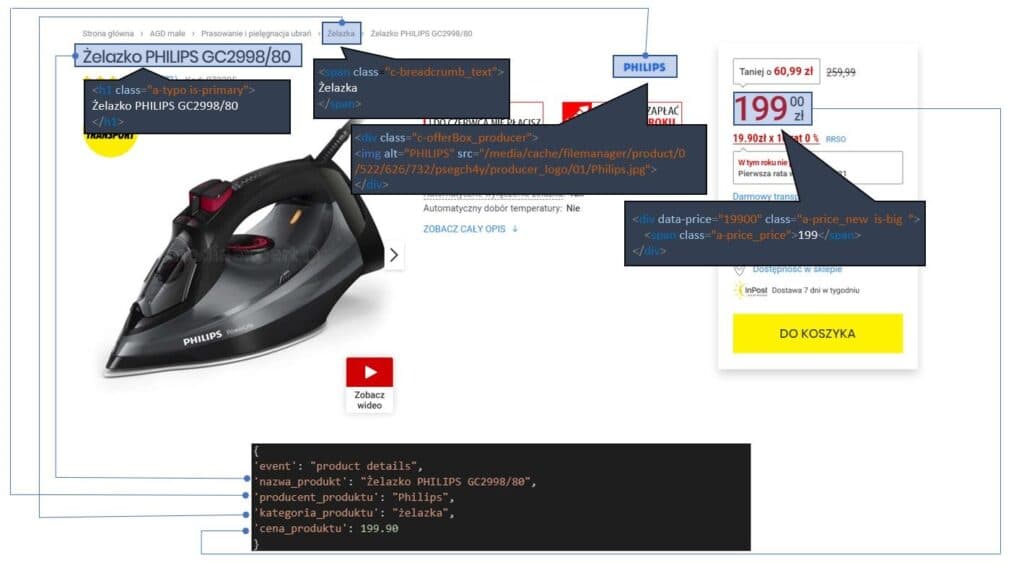
You can read and use the dataLayer with Google Tag Manager. The graphic below shows how it works:

A script on the website sends the relevant information as objects to the Data Layer array.
The tag management system reads the parameter values of the Data Layer objects and maps them to variables. With GTM this is very easy, because it has a dedicated variable type for this: to map a value, you only need to enter the parameter name.
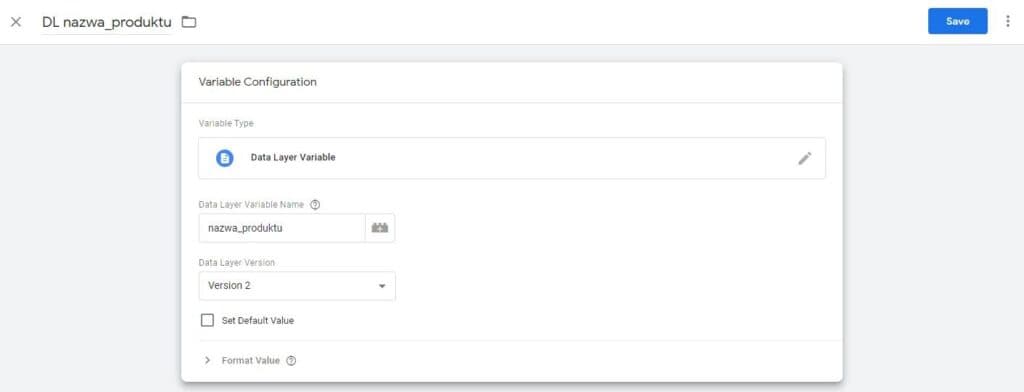
GTM then finds the DL parameter in the code and passes its value to the variable you created.
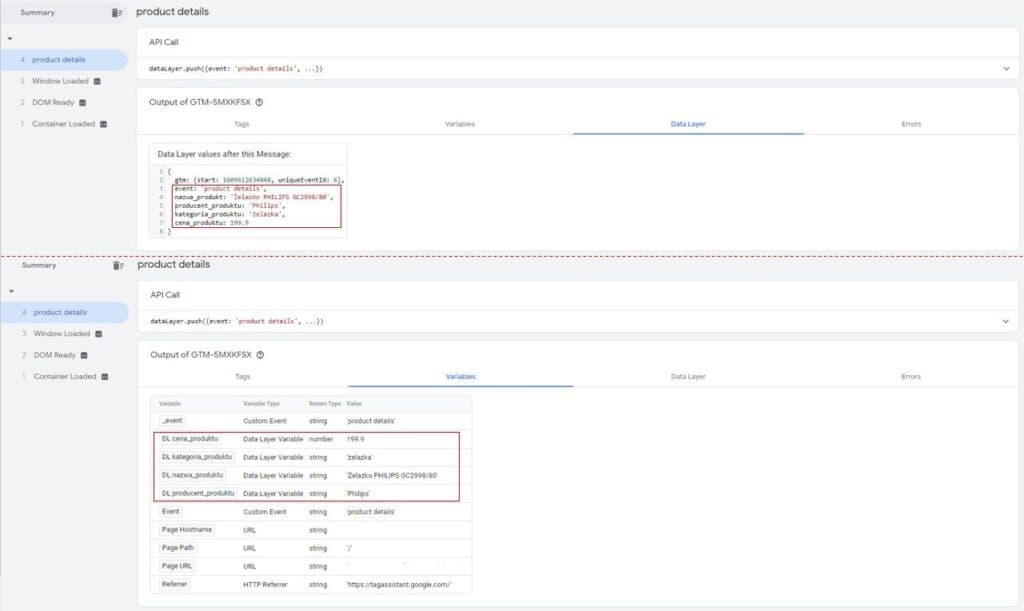
Variables are used to build tags and triggers, but they can be used in other ways too, for example to feed a product feed for remarketing. Of course, some applications can be fed directly from the Data Layer.
How to write a simple Data Layer script
In most cases the Data Layer has no fixed structure or parameter naming. Depending on your needs, you can use a ready-made template such as Google's Enhanced Ecommerce, but if your needs are simpler, you can design it yourself.
Once you know what information you need in the data layer, you have to prepare a script that fills the Data Layer parameters with the right values. Ideally, you would ask your development team to write and deploy it. Unfortunately, in a corporate setting, waiting for IT to handle a request like this can take a very long time, so later in this article I'll show you how to write such a script yourself. You'll need basic JavaScript knowledge for that.
The goal of this exercise is to write a script that, when the button below is clicked, pushes data with the following structure to the Data Layer:
1
2
3
4
5
6
7
{
’event’: 'klik' //nazwa eventu który pojawi się razem z obiektem,
’button_tekst’: button_tekst // tekst znajdujący się na przycisku,
’article_name’: article_name // nazwa tego artykułu – pobierana dynamicznie z frontend,
’article_author’: article_author // nazwa autora artykułu – pobierana dynamicznie z fronend
}
We want a generic script that works on every article page (with the same structure), so instead of taking the easy route and hardcoding the parameter values, we'll pull dynamic values from the frontend.
Step 0: the Data Layer array
The first step is to declare an empty Data Layer array. It takes one line of JavaScript:
1
2
dataLayer = [];
If your site uses Google Tag Manager, you can skip this step, because the GTM snippet already declares the DL array. If you're not sure what Google Tag Manager is, read our article: Installing Google Analytics and Google Tag Manager on your website
Step 1: variables holding the DL object parameter values
With the Data Layer array in place, we can move on to pulling values from the frontend that will populate the DL object parameters.
First, we need to find where in the DOM tree the element we want to read a value from is located. Let's start with our button: right-click it and choose Inspect.
Next, in the developer tools window that opens, go to the Elements panel and check which class our button has. You could use other properties of the element, such as its id, but the class is the most universal one.
We artificially added a class named xyz to our button (the yellow "Przycisk do nauki" practice button above). You don't have to do this; you can of course use a class that's already there.
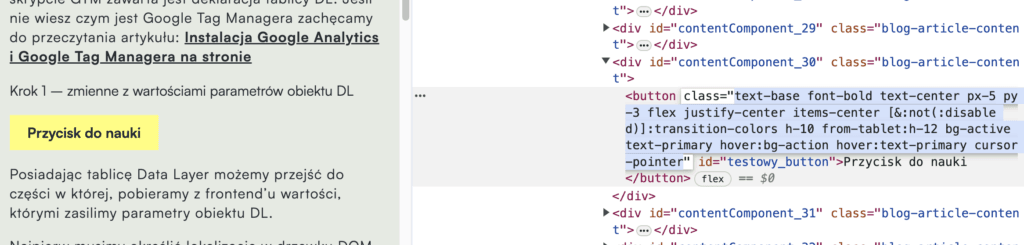
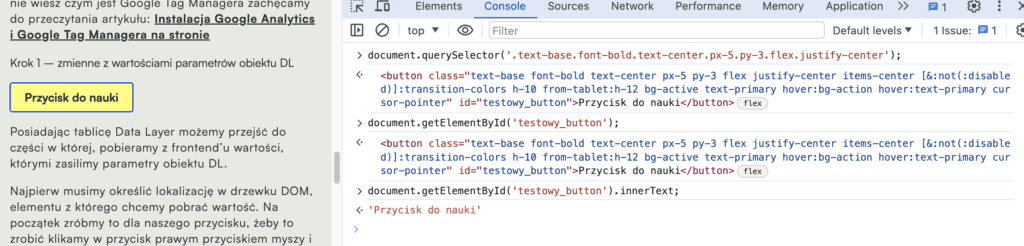
As you can see, our button has a class with a fairly complicated name. To reference it, we'll use the document.querySelector() method. We need to pick a combination of classes that is unique to our button. Remember to replace the spaces between classes with dots in the method's argument.
document.querySelector('.text-base.font-bold.text-center.px-5.py-3.flex.justify-center');
You can test this command in the developer tools console. When you run it, you should see a code snippet representing our button.
Besides classes, our button also has an id. So we can also reference it with the getElementById() method, which in our case is simpler and more precise.
document.getElementById('testowy_button');
document.getElementById('testowy_button').innerText;If you now test the command in the console, it should return the text shown on the button.
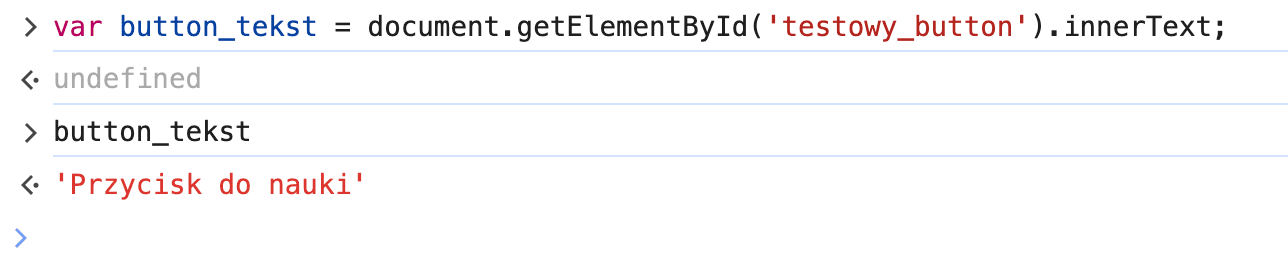
To use this command to populate our DL object, we should declare it as a JavaScript variable. We can use the same name as the parameter:
var button_tekst = document.getElementById('testowy_button').innerText;To test it, call the button_tekst variable in the console. After you press Enter, you should again see the text on the button.
Now repeat the same procedure for the other two parameters you want in the DL object. Remember to end each command with a semicolon ";". For this test, let's assume we want to collect information about the article's author and about the orange button we created.
1
2
3
4
var button_tekst = document.getElementById('testowy_button').innerText;
var article_author = document.querySelector('.flex.gap-1.items-center').innerText;
var article_name = document.querySelector('h1').innerText;
Step 2: populating the DL object with the JS variable values
To push the object we designed, filled with the values of the JS variables created earlier, to the DL array, we'll use the push method. Let's call our event "klik". We'll use that later.
1
2
3
4
5
6
7
dataLayer.push ({
'event': 'klik' ,
'button_tekst': button_tekst,
'article_author': article_author,
'article_name': article_name
});
You can run this command in the console and then check the DL by typing dataLayer. You should get the following result:
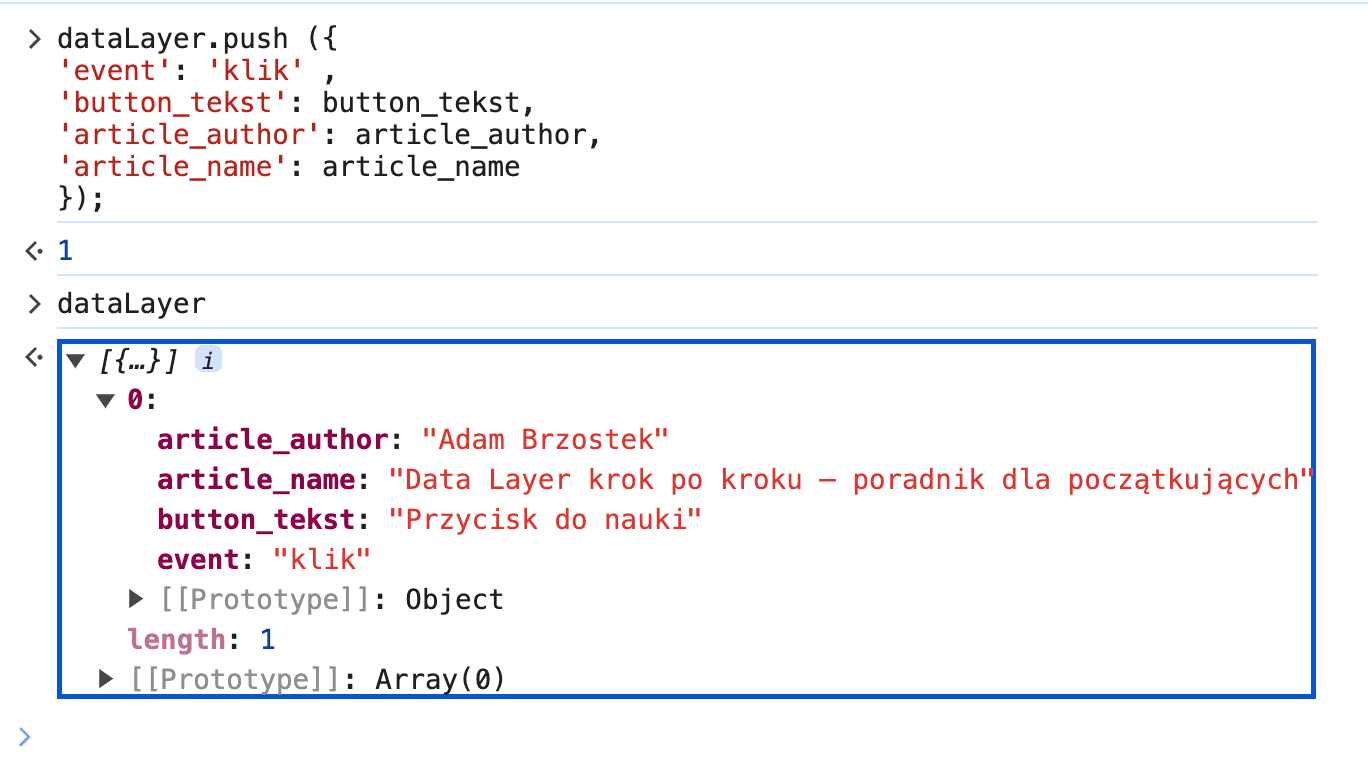
At this point, the whole script looks like this:
1
2
3
4
5
6
7
8
9
10
11
var button_tekst = document.getElementById('testowy_button').innerText;
var article_author = document.querySelector('.flex.gap-1.items-center').innerText;
var article_name = document.querySelector('h1').innerText;

dataLayer.push ({
'event': 'klik' ,
'button_tekst': button_tekst,
'article_author': article_author,
'article_name': article_name
});
Step 3: adding a condition that triggers the DL script
As planned, the script should run when the orange button is clicked, so we need to add a triggering function to it. There are two ways to do this:
- Use the JS addEventListener method
This adds a listener for a specific event to a specific element (in this case a click), along with the command to run when that event happens.
1
2
3
4
element.addEventListener('click', function () {
//komenda wywołana po kliknieciu
});- Use the jQuery .on method
This adds a listener for a specific event to a specific CSS selector (again, a click), along with the command to run when that event happens.
1
2
3
4
jQuery(element).on('mousedown', 'slector CSS', function(e) {
//komenda wywołana po kliknieciu
});
In our script we'll use addEventListener. The element we reference is the button whose location in the DOM tree we already found. Now we'll store it in a variable and then add a click event listener to it:
1
2
3
4
5
6
7
8
9
10
11
12
13
14
var button = document.getElementById('testowy_button');
button.addEventListener('click',function () {
var button_tekst = document.getElementById('testowy_button').innerText;
var article_author = document.querySelector('.flex.gap-1.items-center').innerText;
var article_name = document.querySelector('h1').innerText;

dataLayer.push ({
'event': 'klik' ,
'button_tekst': button_tekst,
'article_author': article_author,
'article_name': article_name
})
});
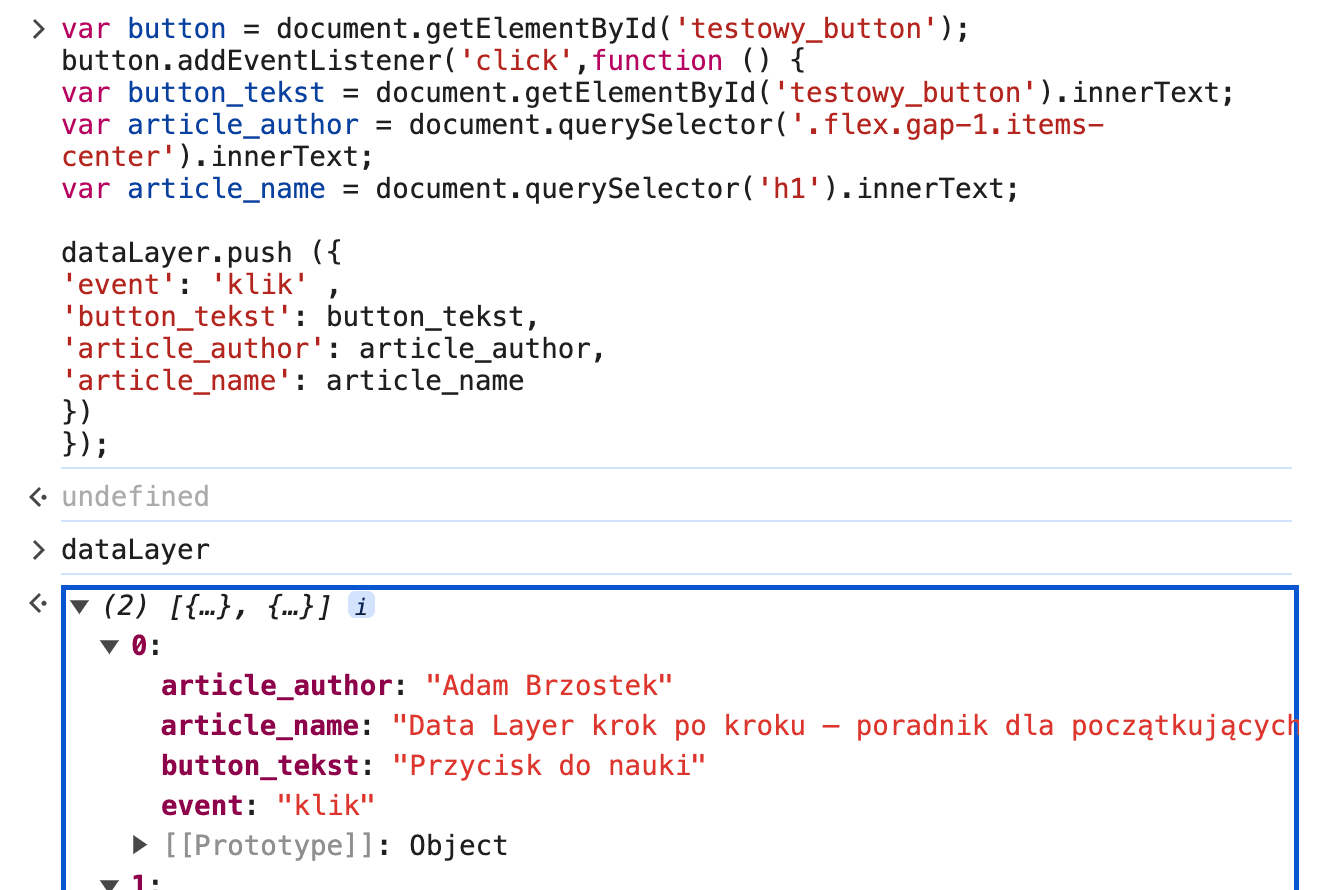
To check that the script works, refresh the article page and run the script above in the console. Then click the button (ideally with CTRL held down, so a new page opens in a separate tab if the button links somewhere) and type dataLayer in the console. You should see our object with the parameters we defined earlier: the button name and the article author.
How to implement the Data Layer with Google Tag Manager
The best way to implement the Data Layer is directly in the website's code. However, that requires more advanced programming skills and access to the code, or getting the IT department involved, and they often make you wait weeks for the deployment. This is where Google Tag Manager helps. If GTM is already installed on your site, you don't need advanced development skills or the IT department.
To implement the Data Layer, we'll use a Custom HTML tag. If you need a simple Data Layer and can reproduce the moment it should appear in the page code with a GTM trigger, add the script to the Custom HTML tag without the triggering condition. The appropriate GTM trigger takes its place.
Important: the code must be placed inside <script> </script> tags
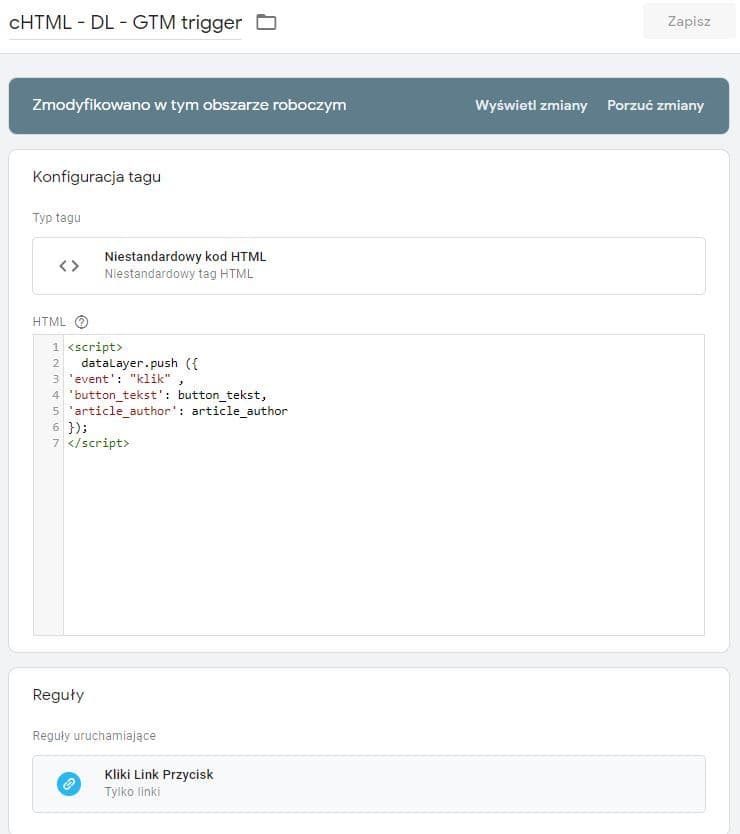
If your script includes a triggering condition, it should fire once all DOM elements are available on the page, that is, on the DOM Ready event.
This matters because when you pull dynamic values from the frontend, you reference DOM elements. If the script ran earlier, you could get an error, because the element you reference might not have loaded yet. Of course, if your script doesn't reference any page elements, you can load it when the page is displayed, i.e. on the Container Loaded event.
Important: you can adjust the DOM Ready trigger to your needs; you don't have to fire the script on every page. Here we fire it on every page for learning purposes, but if you only wanted to collect clicks from articles, you could add a trigger condition: Page URL contains bettersteps.pl/blog/.
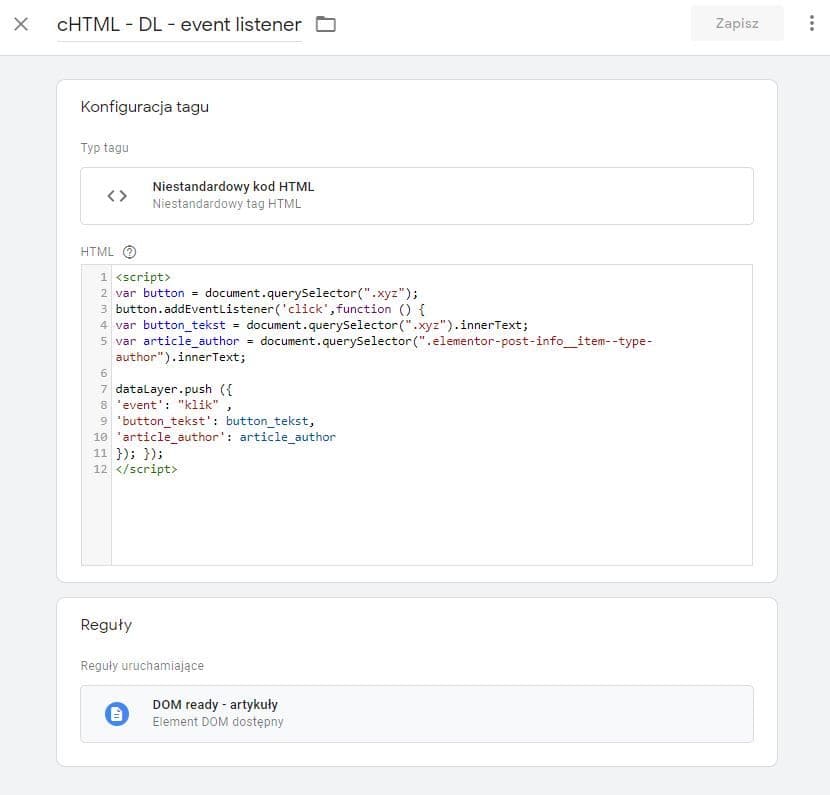
And that's how you implement the Data Layer on your site with Google Tag Manager, without involving your company's IT department. From now on, every time someone clicks our button, you should see an event named klik in the Data Layer with 2 parameters: the button name and the article author.
You'll find the implementations described in this article in the GTM configuration available here.