Have you ever wondered how your website stacks up against the competition? Probably more than once. There are plenty of tools on the market for comparing traffic, with SimilarWeb leading the pack, and Google Analytics recently introduced a benchmarking feature, which you can read more about here: https://bettersteps.pl/en/blog/analytics-news-october-2024
Adam Brzostek
Reading time: 5:00
Chrome UX Report
Today I'd like to focus on website performance.
Why does site performance matter?
Performance is a major factor in the success of any online business. Pages that load faster and respond properly to what users do engage them better and hold their attention longer than slow ones.
As people use our site, they judge it and compare it with competitors, so load time is essential for making a good impression.

The example above shows what a fast-loading page looks like next to a slow-loading one. Those few seconds can frustrate users and can also make them leave the site altogether.
Let's not forget that speed can also be what decides whether someone buys from us or uses our services rather than a competitor's.
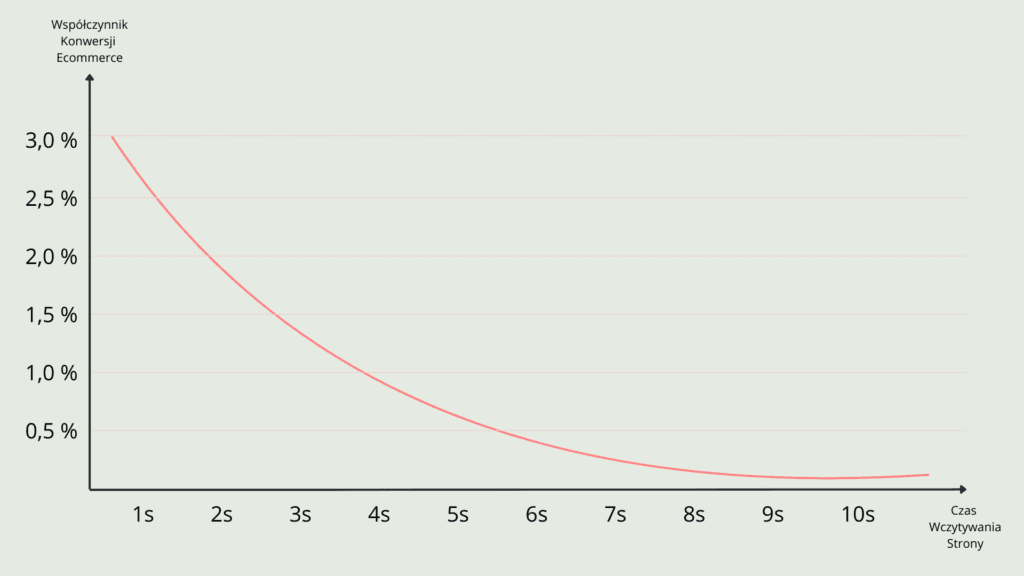
Many studies have shown that site speed correlates directly with conversion rate. It's safe to assume that every slowdown on our site costs money.
The chart below shows how page load time affects e-commerce conversion rate. As load time goes up, CVR goes down.
How do you measure load time?
We know load time is a very important metric, but what's the best way to measure it?
Of the well-known site speed metrics, load time is certainly the easiest to measure. Whether it's the best one is what we'll try to figure out now.
Load time tells us when the page has fully loaded along with everything it depends on, including external scripts.
During loading, however, the page goes through many states that determine how usable it is and how users perceive it.
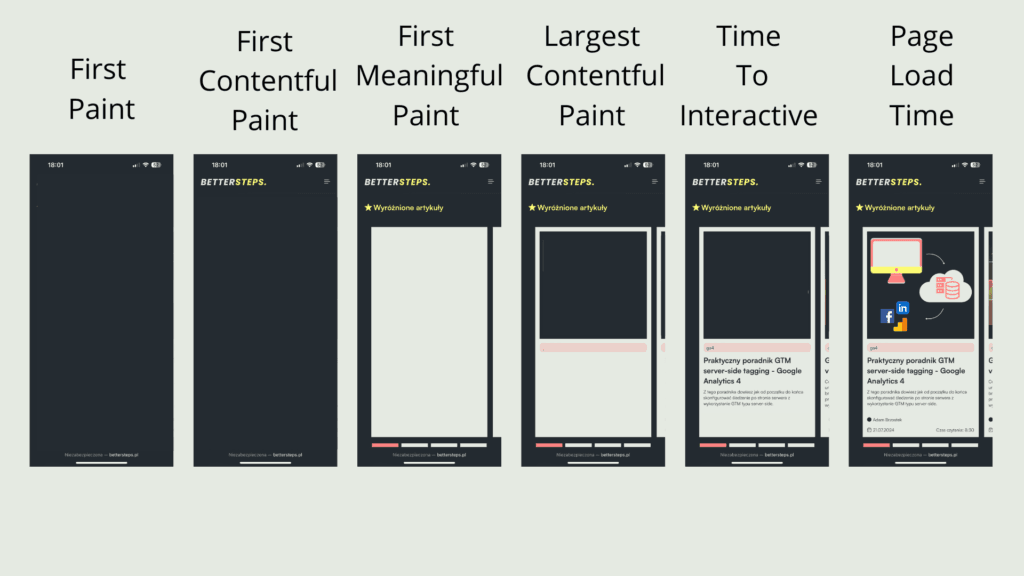
That's why judging a page by load time alone isn't reliable: these different stages affect how users perceive it in different ways.
Over the years and after a lot of research, Google defined three key metrics called Core Web Vitals, which tell us how our site is doing in terms of speed.
They are:
Largest Contentful Paint (LCP): measures loading performance.
LCP reports the render time of the largest image, text block or video visible in the viewport, relative to when the user first navigated to the page. To provide a good user experience, LCP should occur within 2.5 seconds of when the page first starts loading.

Interaction to Next Paint (INP): measures interactivity.
INP assesses a page's overall responsiveness to user interactions by observing the time from a click, tap or keyboard interaction until the next paint, across the user's entire visit to the page. The final INP value is the longest interaction observed, ignoring outliers. To provide a good user experience, pages should have an INP of less than 200 milliseconds.

Cumulative Layout Shift (CLS): measures visual stability.
CLS is a measure of the largest burst of layout shift scores for every unexpected layout shift that occurs during the entire lifecycle of a page. To provide a good user experience, pages should maintain a CLS of 0.1 or less.

How can I check these values for my site and my competitors' sites?
There are many ways to check Core Web Vitals and other performance metrics. The simplest include
- Scanning the page with a dedicated tool:
- Lighthouse takes a URL and runs a series of audits against the page to generate a performance report. You can run Lighthouse in several ways, including an easy page audit in Chrome DevTools.
- PageSpeed Insights provides both lab and field data about a page. It uses Lighthouse to collect and analyze lab data, while the real-world field data comes from the Chrome User Experience Report dataset.
- Using the Chrome User Experience Report (CrUX)
What is the CrUX report?
The Chrome User Experience Report is a public report showing how Chrome users experience websites around the world.
Chrome User Experience Report data is collected from real browsers all over the world. It includes a set of dimensions and metrics that help site owners understand how users experience their pages.
Google uses this data, among other things, to assess page quality in the algorithms behind SEO and SEM.
Not every site is included in the report. Whether a site makes it in mainly depends on whether it's publicly accessible and popular enough for the measurements to be statistically significant. The exact number of users required hasn't been disclosed. If you can't find a site in the report, it's probably because it gets too little traffic from Chrome, in which case you'll need to use the options described in point 1 of the previous section.
The data Chrome collects is public, and you can access it from many tools.
If you want a simple report for a single site, you can use the ready-made Looker Studio report generator available here https://developer.chrome.com/docs/crux/dashboard?hl=pl

It generates a really solid Looker Studio report, and best of all, you can do it for practically any website
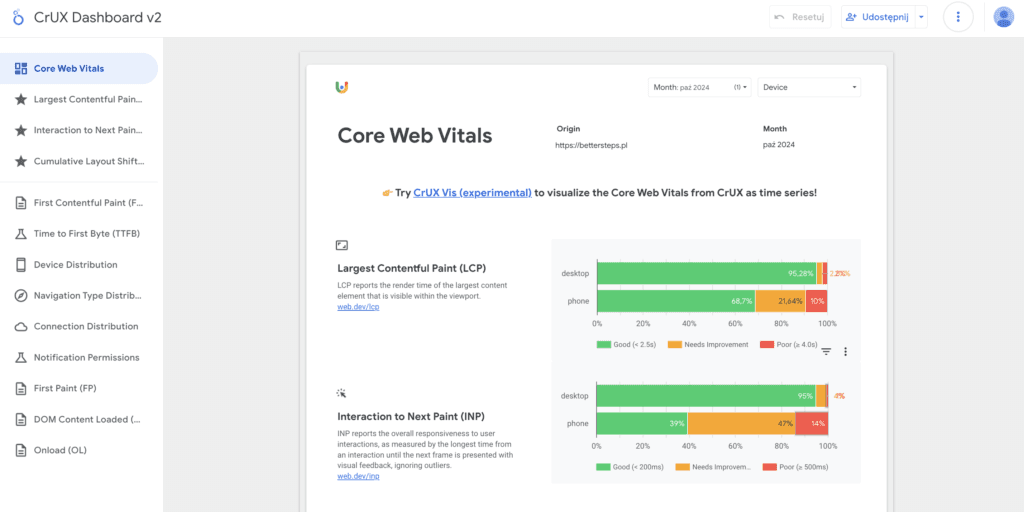
The same data is also available in BigQuery, which gives you complete freedom in building reports and aggregating data.
I put together a comparison report for some of the biggest fashion e-commerce players:
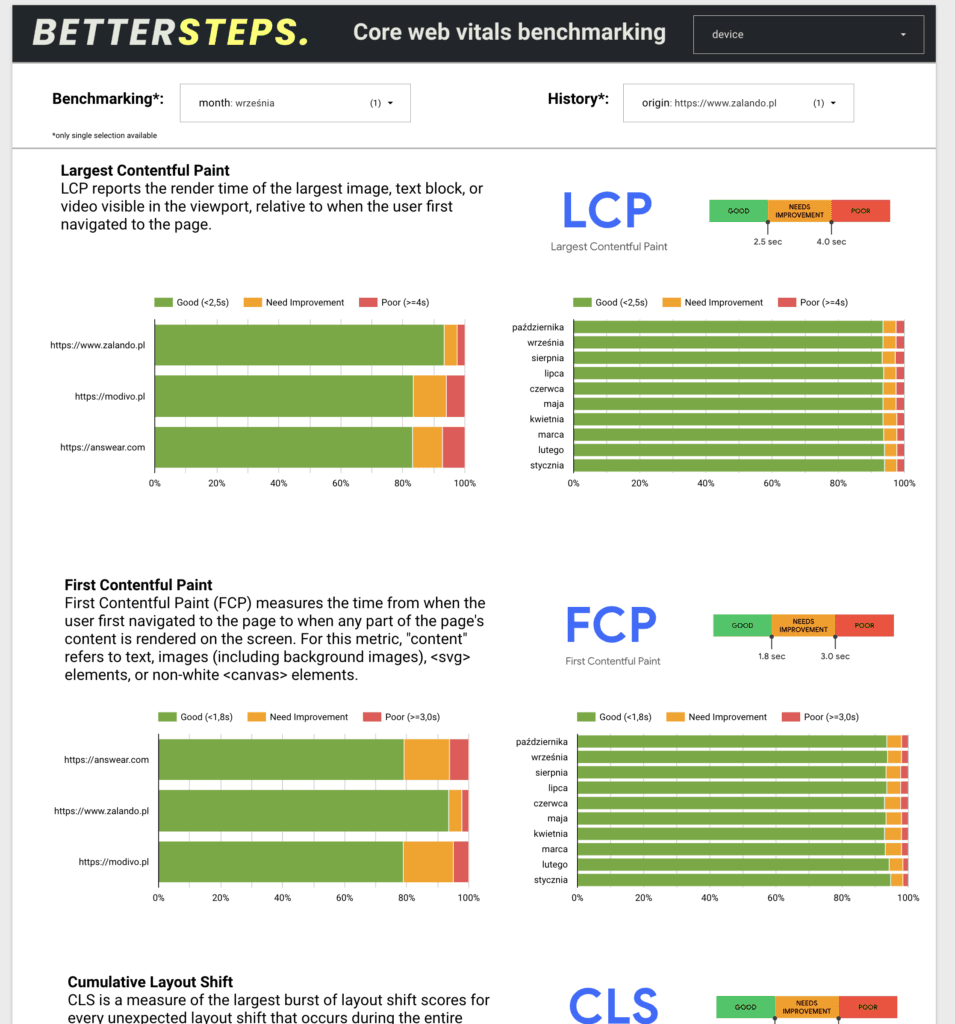
You can easily build the same report for your own site and compare it with your competitors.
Full documentation of the BigQuery dataset is available here: https://developer.chrome.com/docs/crux/bigquery?hl=pl
If you'd like me to prepare a report like this for you, get in touch through the contact form.
The Looker Studio report template is available at this link: https://lookerstudio.google.com/reporting/0e3b0d34-8893-4b33-9d4e-f76a5bf4da60
The SQL query for the Chrome UX dataset in BigQuery is available at this link: https://console.cloud.google.com/bigquery?sq=732008615078:39986a306225406bbab34b85a94d4e88
The comments in the query explain how to modify it. Once you've generated the table in BigQuery, set it as the data source of the Looker Studio dashboard by updating the existing data source