Over the past few weeks, Google has released connectors for the ad platforms of popular social networks, including Meta Ads, TikTok Ads and Pinterest Ads.
Adam Brzostek
Reading time: 4:00
Importing ad costs into Google Analytics 4 from Meta, TikTok and Pinterest
At first glance, this makes it much easier to evaluate traffic sources, both in terms of traffic and on-site interactions and in terms of marketing costs and overall ad performance, with metrics such as impressions and clicks.
In short, these connectors use APIs to pull cost and interaction data from the ad platforms, then join it with GA4 data using the date and UTM parameters as keys
The imported data is available in the custom report Acquisition → Non-Google cost or in Explorations.
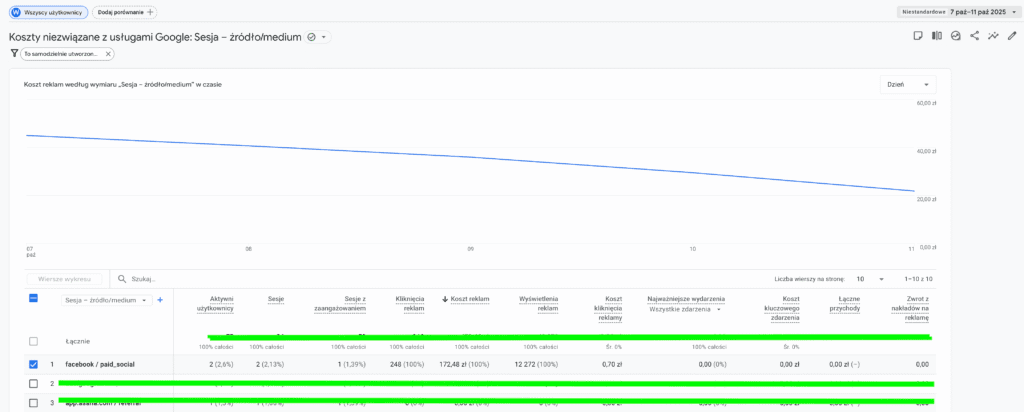
There you'll find metrics that make it easy to evaluate traffic sources in one place, and with an exploration you can quickly build your own simplified report.
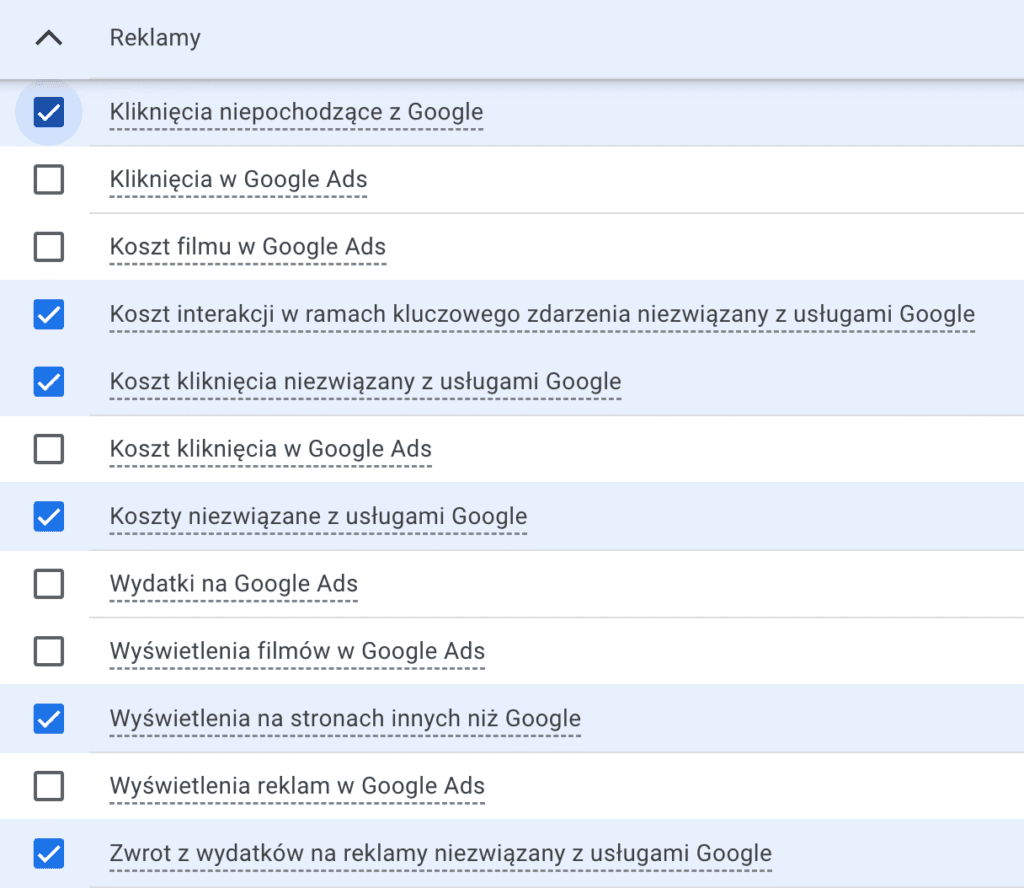
It's also worth adding that the data is joined at the campaign name level, which gives you a much more detailed picture.

Another plus is that every data import you configure refreshes regularly and fully automatically.
Before we get to the setup itself, we need to cover a few limitations that come with it.
- First, your campaigns need to use structured tracking based on UTM parameters.
- All data from a given ad account must have a single utm_medium value. This applies to all platforms
- For Meta, utm_source can have different values depending on where the ad is published (e.g. Instagram, Facebook, etc.), but for the other platforms utm_source must also be a single, unique value.
- If you want to join cost data at the campaign level, your landing page URLs must dynamically pull the campaign name set in the ad platform into utm_campaign.
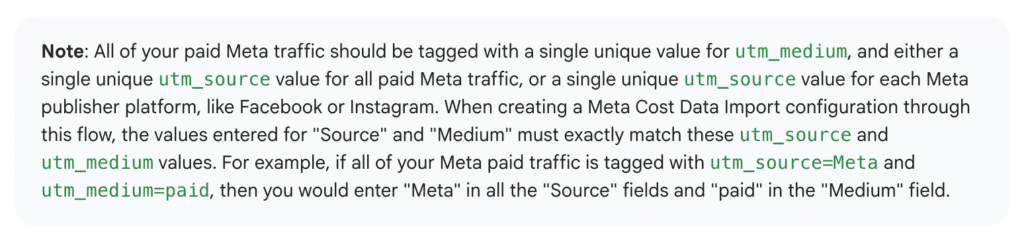
The second and third points are critical. If your tracking setup uses multiple utm_medium values, e.g. paid_social_cpc and paid_social_cpm, and/or multiple utm_source values, the native cost data import won't work and you'll have to use a custom solution based on a CSV file, Google Sheets, BigQuery or another database.
So before you start the import, make sure your UTM structure allows you to use this option. Unfortunately, I suspect that in many cases this will be a dealbreaker, so I'm fairly skeptical about the current versions of these integrations.
Meta Ads
Open Admin and, in the Data collection and modification section, select Data import.
Then select Create data source. In the wizard, enter a name for the source, select Cost data, and choose Meta as the data source.
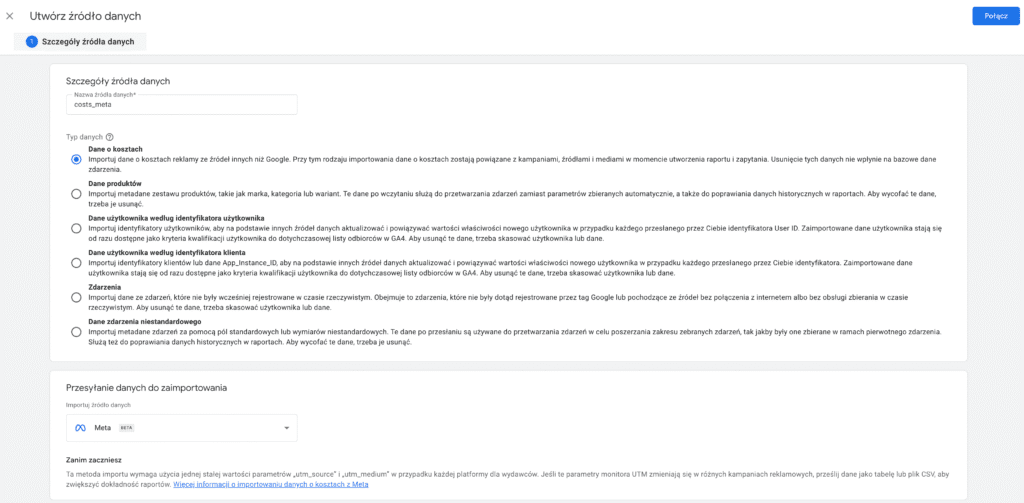
After you click Connect, you'll be taken to Facebook, where you need to sign in with an account that has the right access to the ad account.
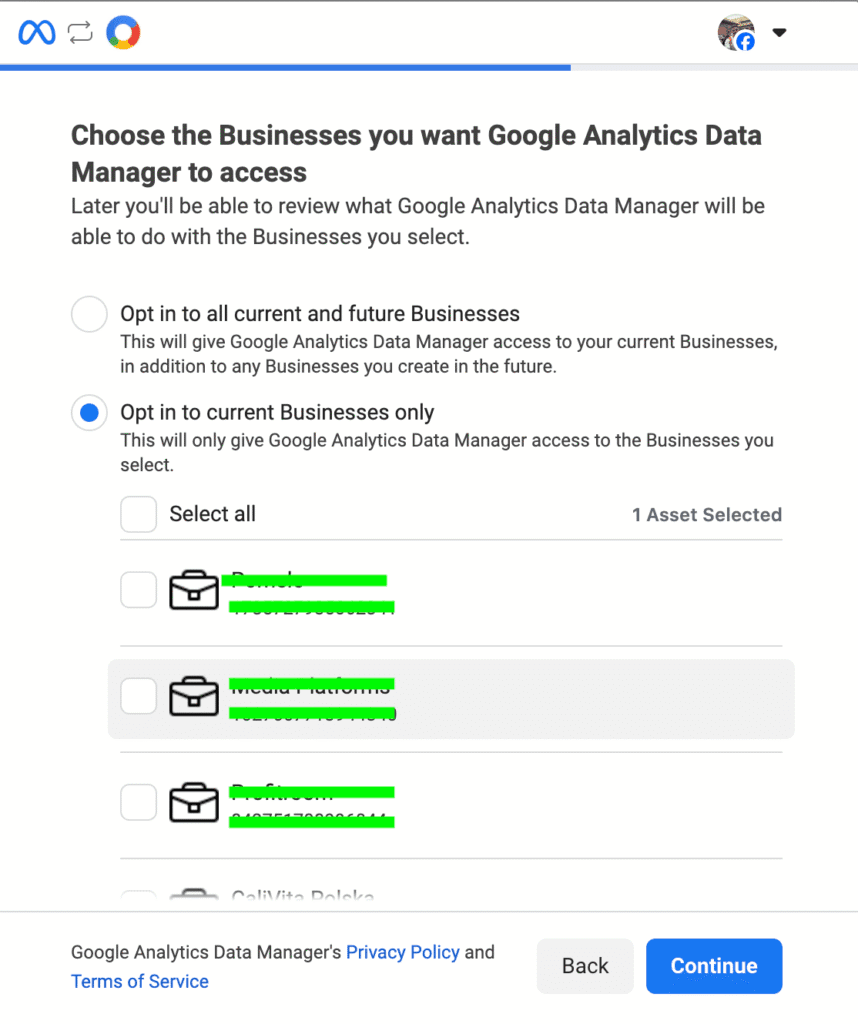
After signing in, you can choose which business accounts to connect to GA4. You can select several so you don't have to change these settings when connecting data for other properties. You'll pick the specific ad account in the next step.
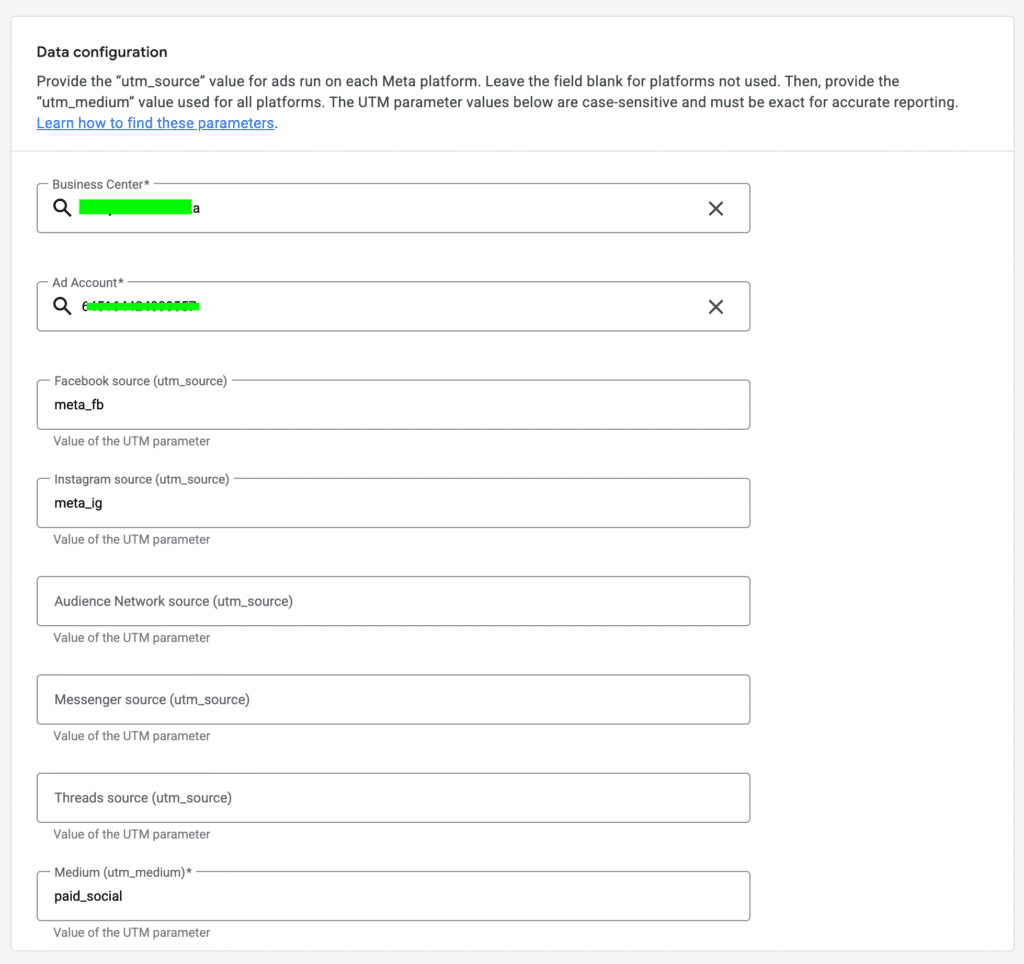
In the next step of the wizard, select the right business account and ad account.
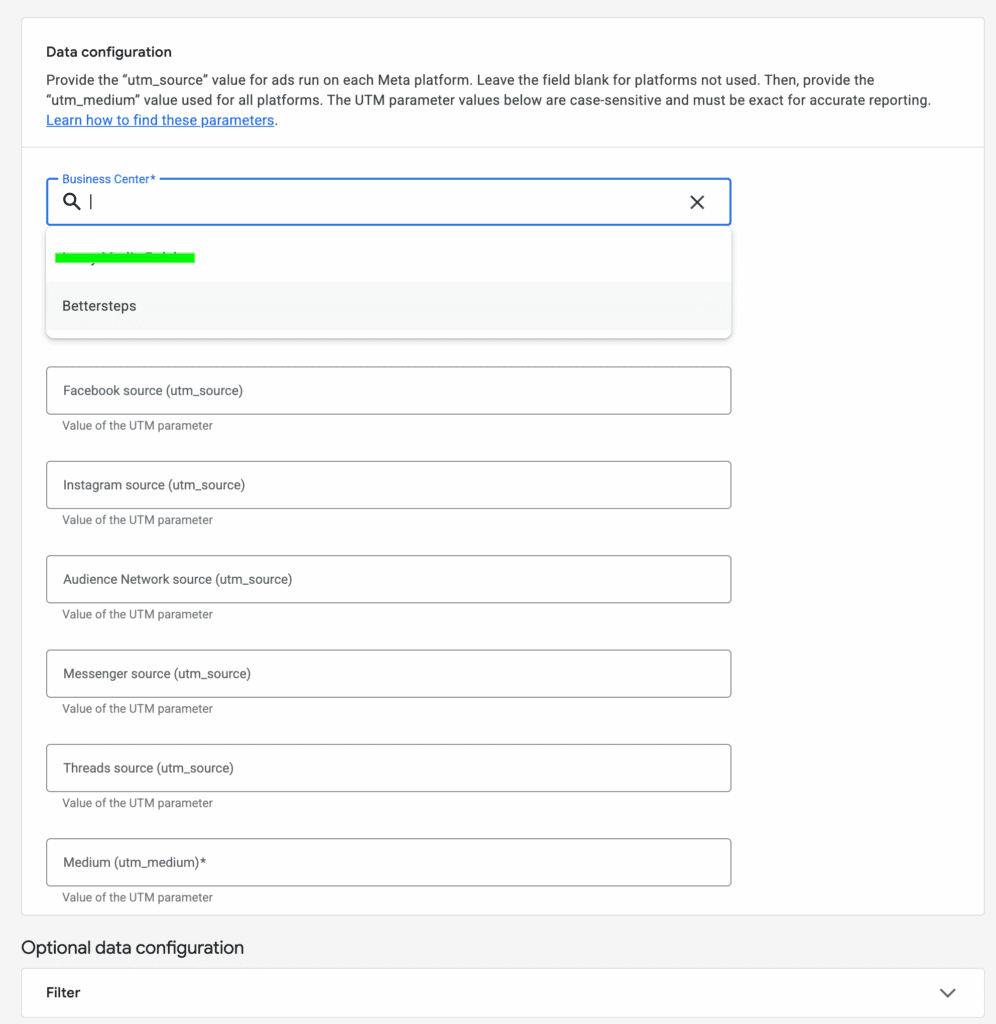
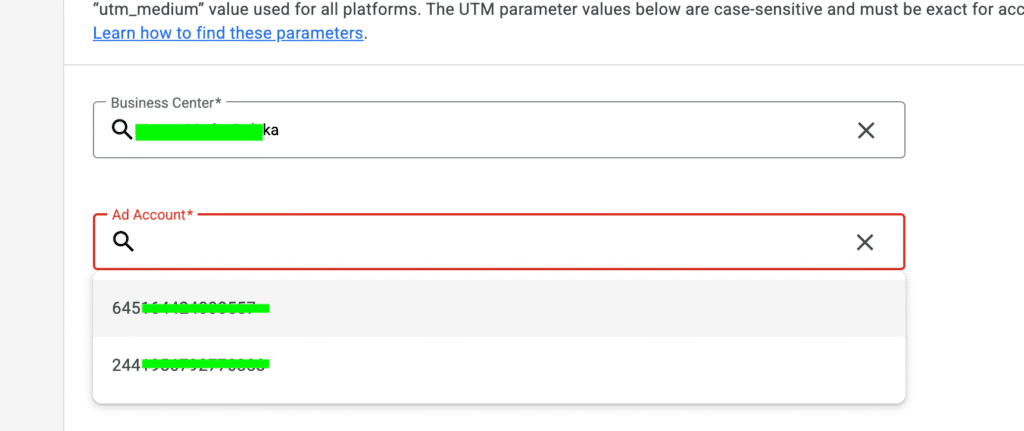
In the form, enter the utm_medium value used for traffic from your ad account and at least one utm_source value.
Although the utm_medium value has to be consistent across the whole ad account, you can split traffic using different utm_source values assigned to the different platforms in Meta's portfolio
All that's left is to check that all the settings are correct
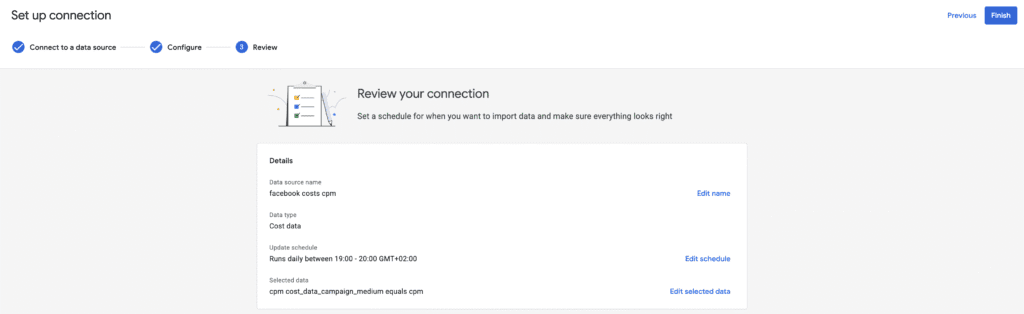
And confirm with the Finish button
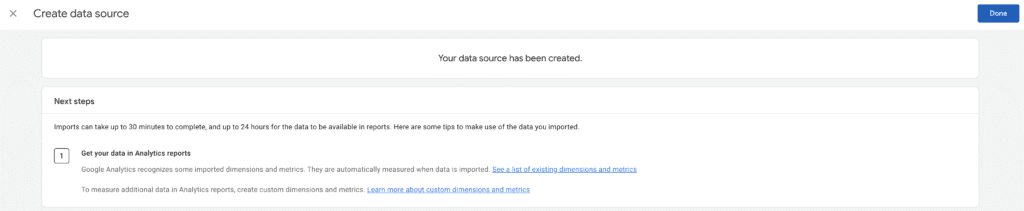
The data should show up in your property within a few minutes to half an hour.
Importantly, the first sync imports all available historical data, so check that it won't overwrite any costs you uploaded earlier, e.g. with a different method.
TikTok Ads
The steps are the same as for Meta, except you choose TikTok as the data source
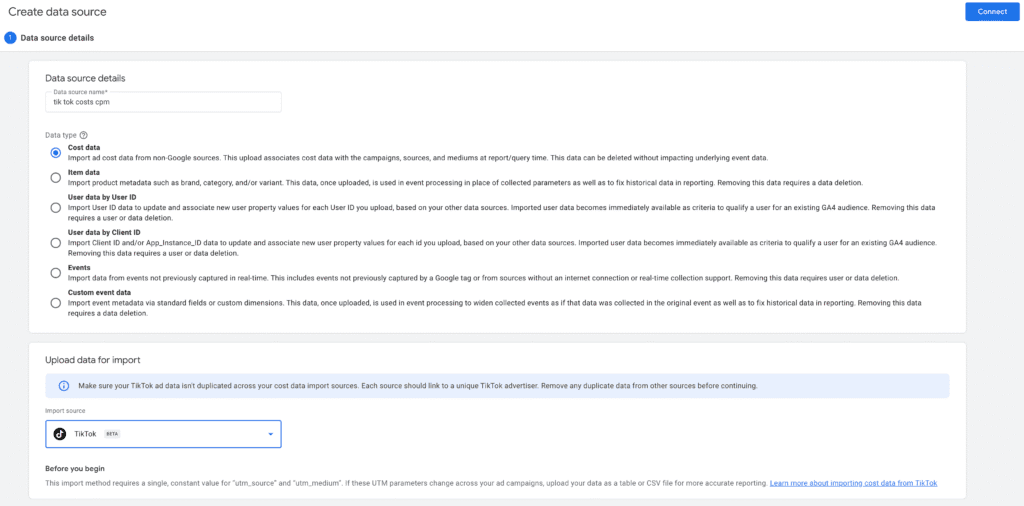
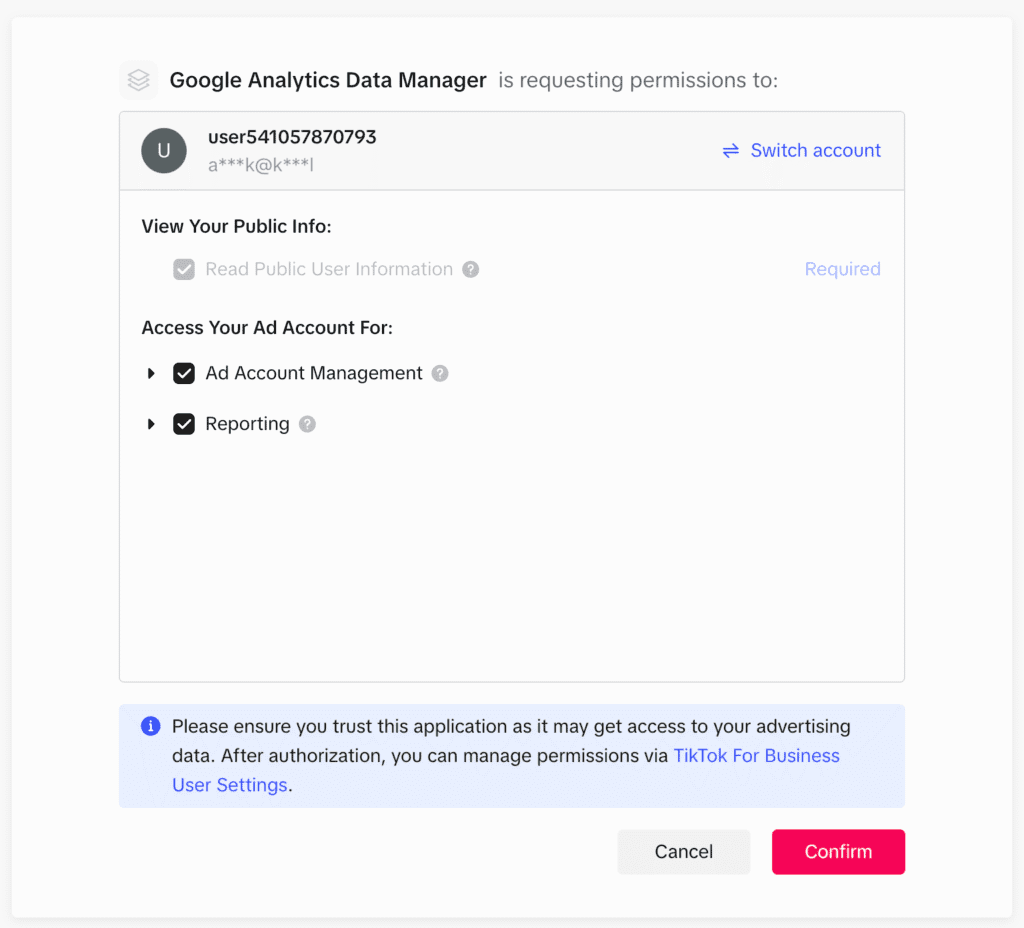
After signing in, you need to confirm that GA4 can access data from the ad account
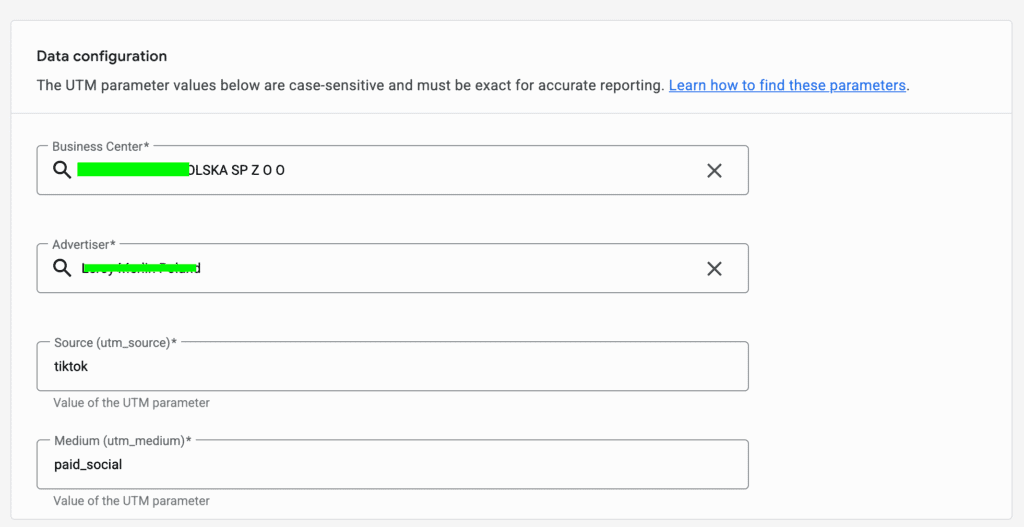
In the next step, select the right Business Center and Advertiser, then enter the utm_source and utm_medium values used in the TikTok campaigns run from that account. They must be single, unique values.
Now all you need to do is confirm the configuration and wait for the data import to finish.
Pinterest Ads
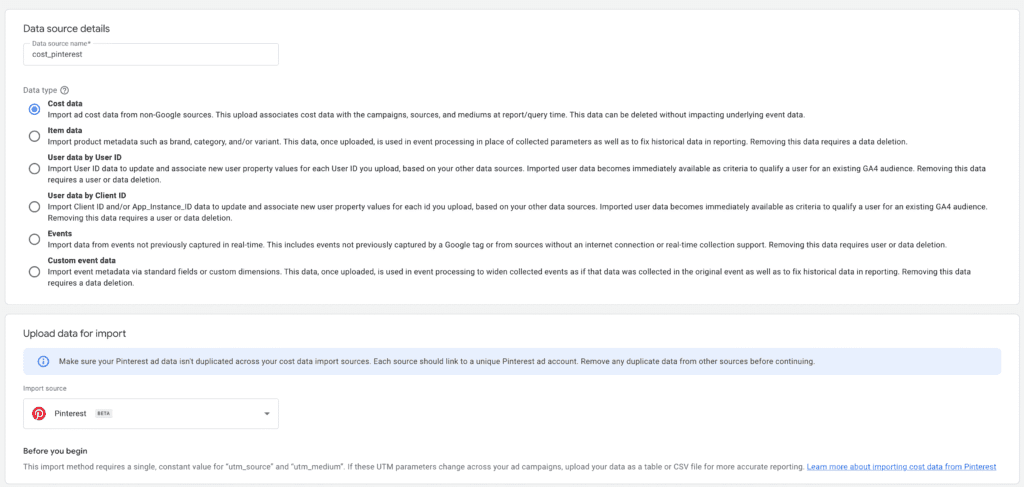
I start the process the same way, selecting Pinterest as the data source
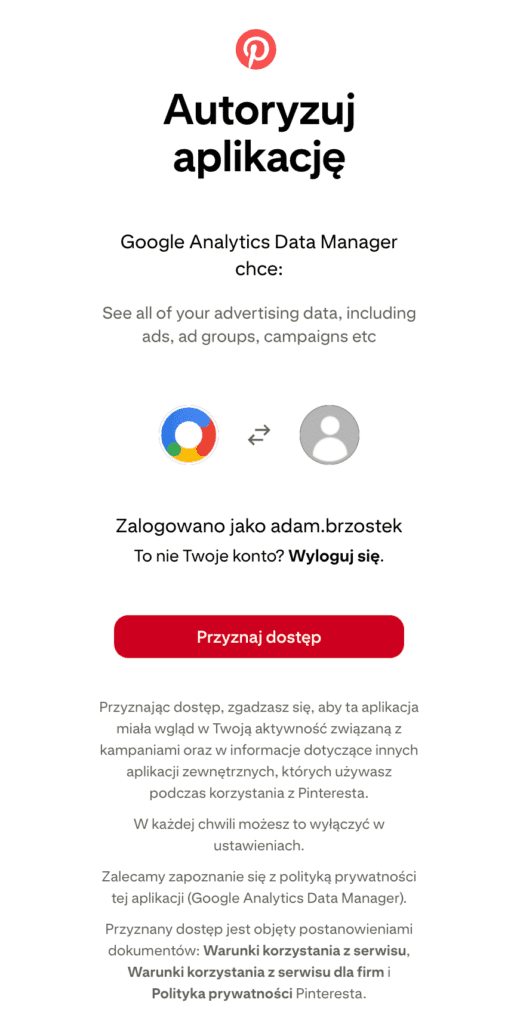
In the next step, you'll be asked to authorize access in Pinterest
Pinterest's structure is simpler: here you just select the right ad account, then enter a unique utm_source and a unique utm_medium
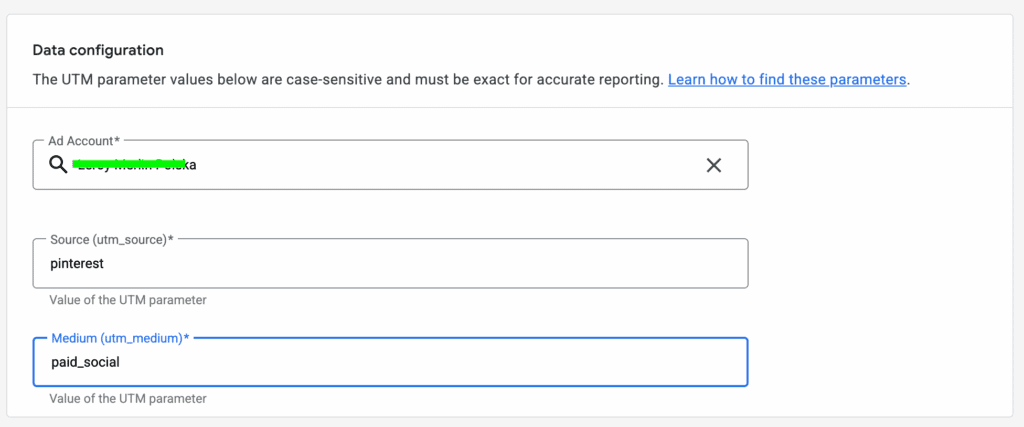
Confirm and wait for the data
If you'd like to set up a more advanced custom cost data import into Google Analytics that still runs automatically, get in touch. We'll be happy to help.