This article shows how to set up the main tags in Google Tag Manager for an enhanced ecommerce implementation in Google Analytics 4. It's especially useful if your store runs on WordPress, because the available plugins let you implement the main sales events quickly. Plugins that push a ready-made Data Layer have their limits and won't handle custom data in large stores, but for smaller stores they can be all you need.
Rafał Piszczatowski
Reading time: 4:00
Google Analytics 4: setting up enhanced ecommerce tags
Installing the GTM4WP plugin to push a GA4-ready Data Layer
Installing the plugin
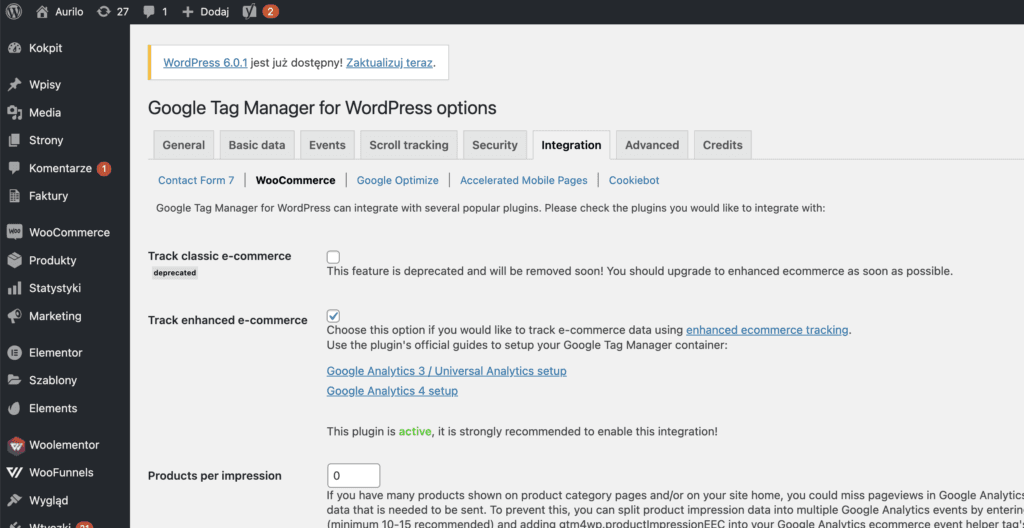
After installing the GTM4WP plugin (https://pl.wordpress.org/plugins/duracelltomi-google-tag-manager/) on WordPress, go to its settings -> Integration -> WooCommerce and turn on Track enhanced e-commerce. The plugin will require your GTM ID. One thing to watch out for: if GTM is already implemented directly in your site's code, don't add it again here, or you'll end up with duplicates. If GTM is already in the code, either remove it and enter your GTM ID in the plugin, or enter a made-up GTM ID in the plugin, e.g. GTM-111111.
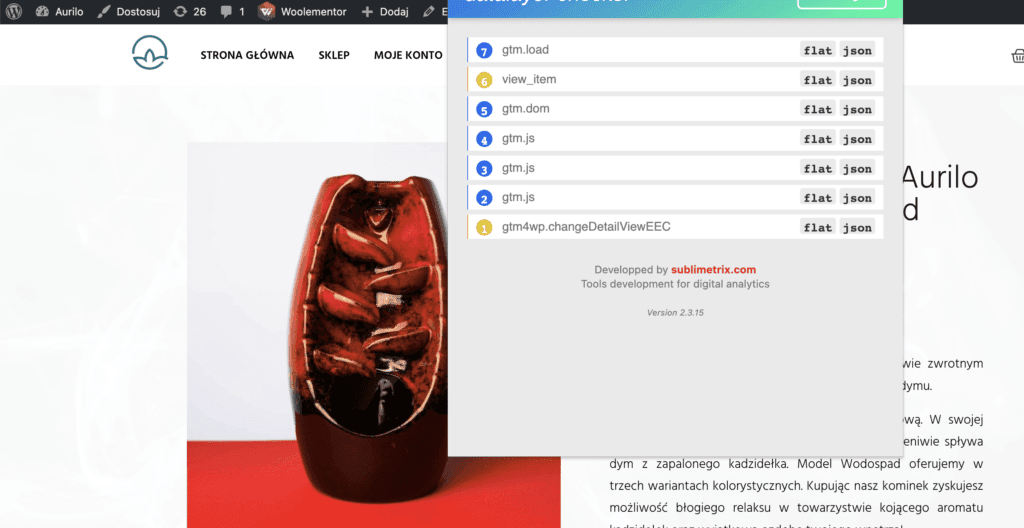
Example of the data sent
Once you've saved the plugin settings and enabled it, you should see that on sales events (viewing a product, adding a product to the cart, starting checkout, etc.) the plugin pushes a Data Layer with information about the action. The plugin sends 2 Data Layer objects, one matching the GA3 standard and one matching GA4. It's up to you which parameters and values you use, but since we're implementing tags that send data to GA4, it's easier to use the data structured for the Google Analytics 4 standard.
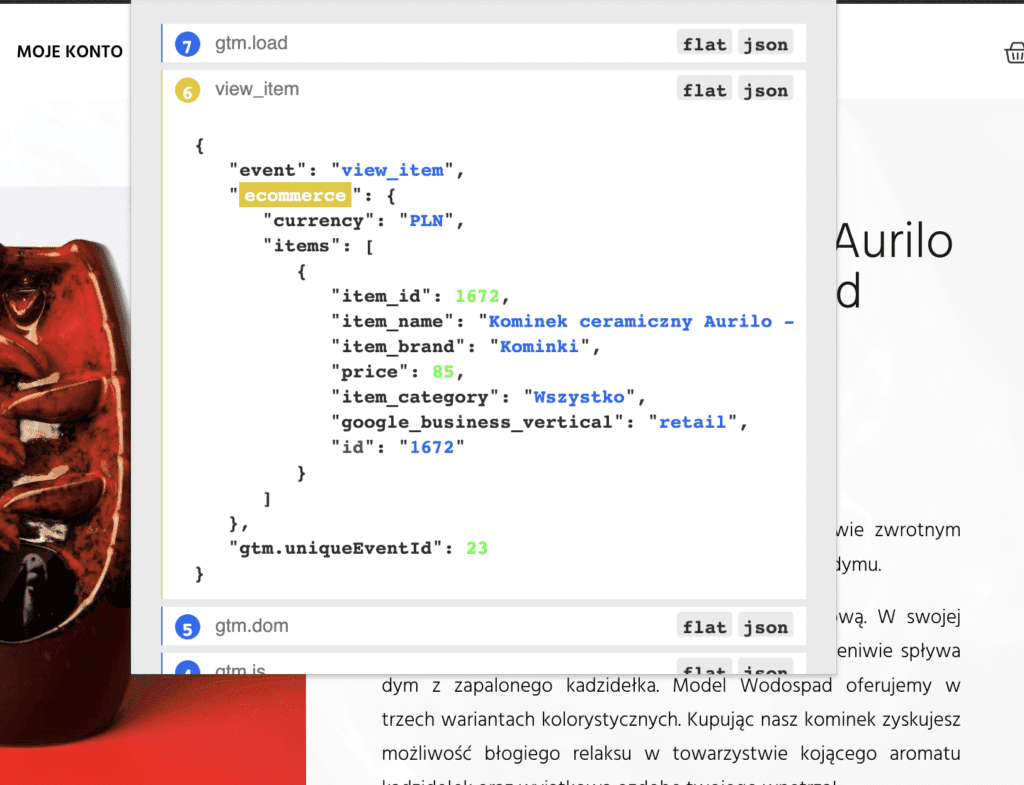
Check the parameters and their naming against Google's documentation: https://developers.google.com/analytics/devguides/collection/ga4/ecommerce?client_type=gtm
Following the logic of the documentation, when you open a product page, the plugin pushes a Data Layer with the view_item event and that product's parameters. The parameter values come straight from the fields filled in for the product in WooCommerce.
Preparing the add_to_cart event for Google Analytics 4
Data Layer with the add_to_cart event
Adding a product to the cart is one of the main events on any store website. Apart from reporting, it's also used to optimize marketing campaigns, and it shows up in A/B tests that compare which version speeds up the purchase process. To prepare the add_to_cart tag, let's look at the data structure pushed when a product is added to the cart.
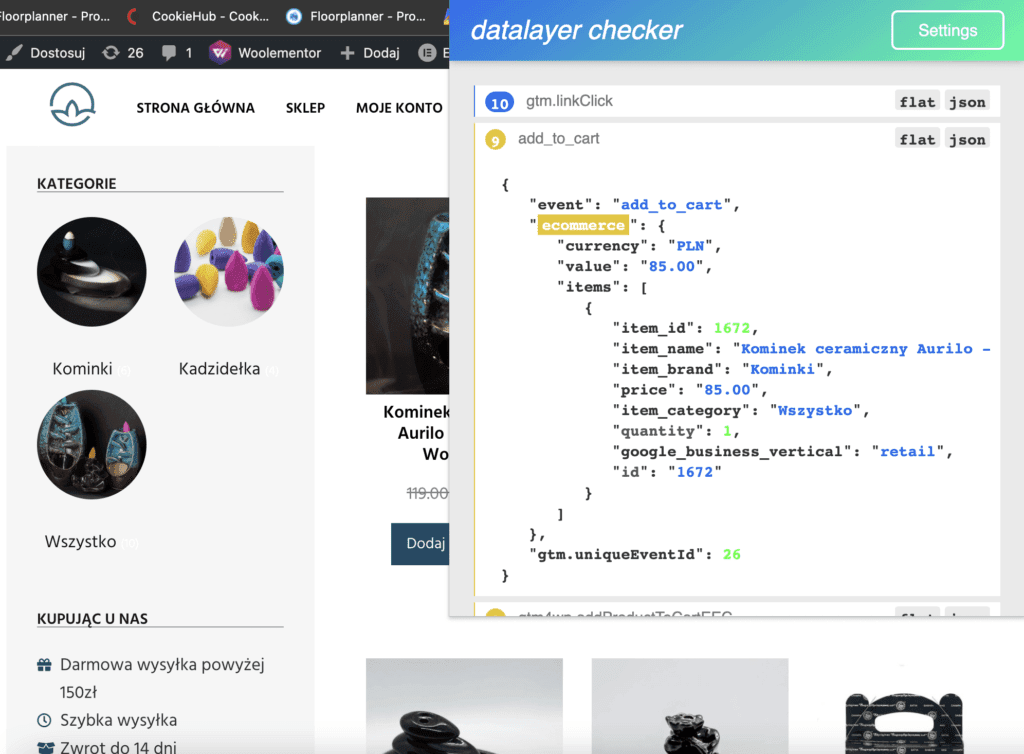
Implementing the GA4 tag in Google Tag Manager
Now that we know the DL structure, we can build a tag that reads the values and sends them to our GA4 property. Here I describe implementing a single event, assuming GTM and Google Analytics 4 are already in place.
In GTM, create a tag with a name such as GA4 – add_to_cart. In the Event Name field, enter the recommended name, in our case: add_to_cart. You'll find the full list of Google's recommended events here: https://support.google.com/analytics/answer/9267735?hl=pl
Creating variables in GTM
To send data from the dataLayer to GA4, you need variables that pass it along. When a product is added to the cart, the DL gives you information such as currency, value and product data in the items object (product ID, product name, brand, price, category and quantity). Create a variable for everything you want to pass to GA4. Let's start with the currency parameter, the store's currency.
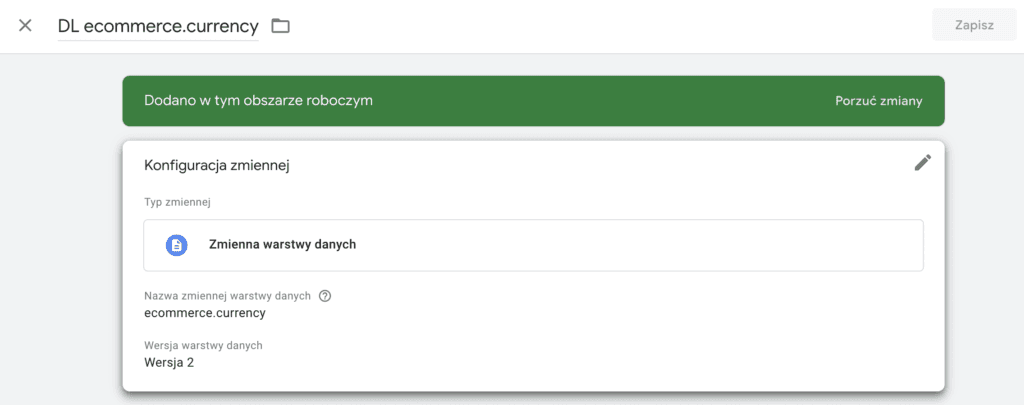
The other parameters you should set up the same way:
| Parameter | Data Layer variable |
| currency | ecommerce.currency |
| items | ecommerce.items |
| value | ecommerce.value |
The add_to_cart GA4 tag in GTM
With the variables in place, use them in the tag you created.
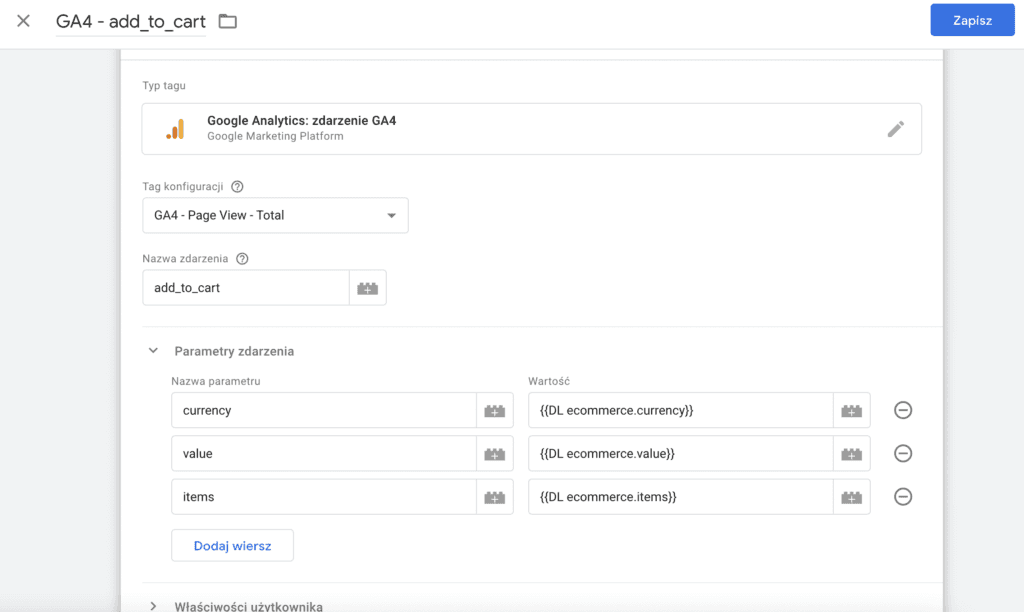
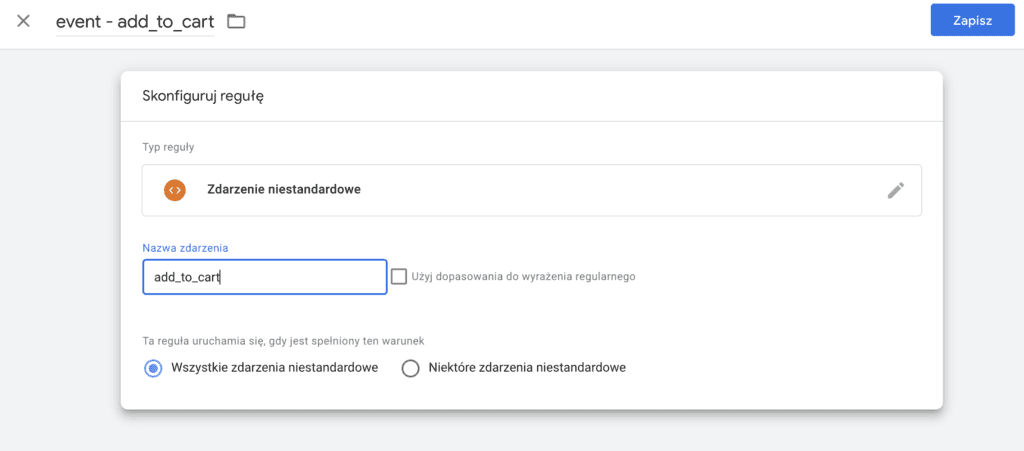
The last step is to add a trigger, that is, the condition for when the tag should fire. The action that should fire it is adding a product to the cart, so the trigger is a custom event named add_to_cart.