
Adam Brzostek
Reading time: 3:00
How to archive your Universal Analytics data
Very soon, on June 30, 2024, we'll lose access to our historical data in Universal Analytics for standard accounts. Without a 360 license, unfortunately, we can't use the BigQuery export to archive the data. So to archive our old data, we'll have to jump through a few hoops and accept some limitations. What are the options?
A report in the Google Analytics interface
The simplest way to archive your data is to create a report in the GA interface and export it to Google Sheets or a CSV file.
You can use a standard report, but there you can only use two dimensions. A better option is to create a custom report, where you can use up to 5 dimensions and up to 25 metrics.
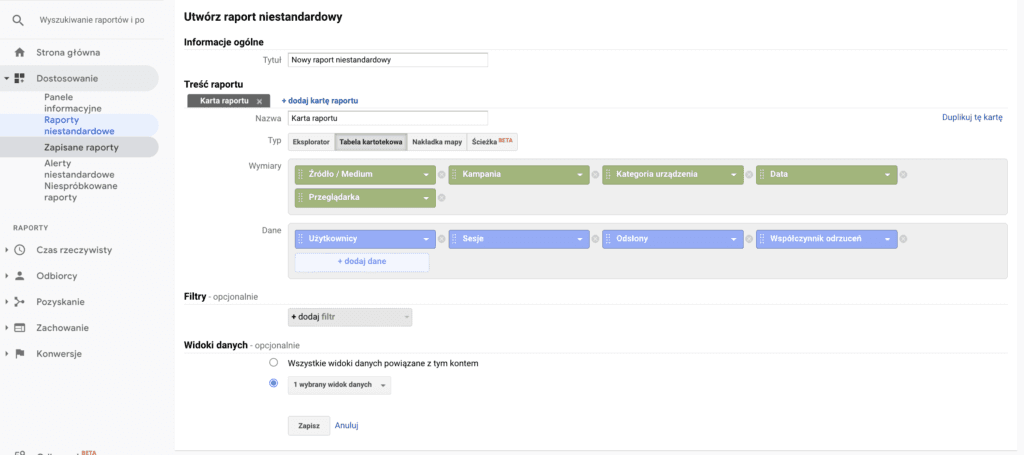
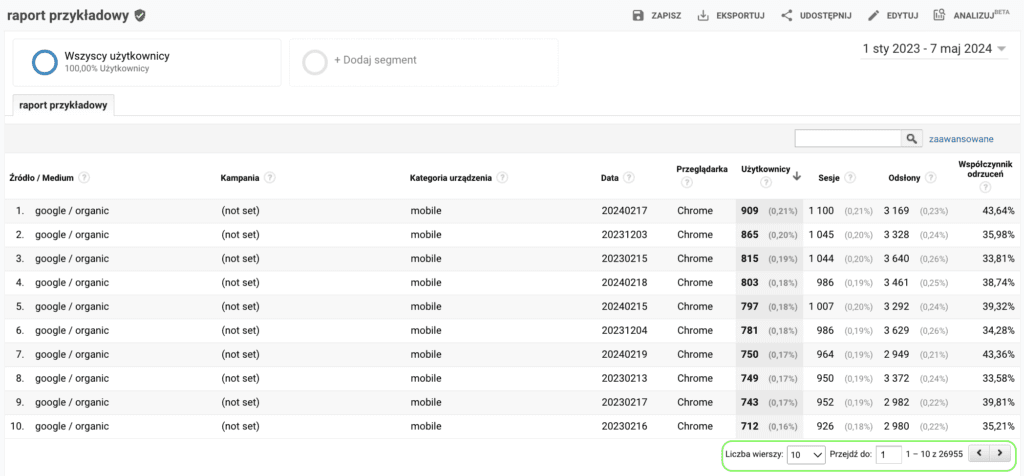
With this option, also keep in mind that not every dimension can be combined with every other, so you need to choose them carefully. Another limitation is the 5,000-row limit per report page, so with larger data ranges you're in for some repetitive manual work.
The Google Analytics add-on for Google Sheets
Another option is to use the Google Analytics add-on for Google Sheets.

First install the add-on, then open Google Sheets.
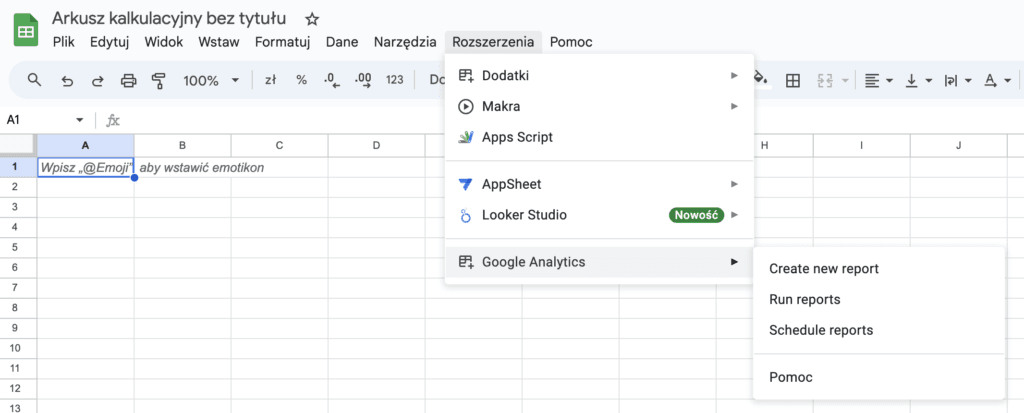
From the Extensions menu, select Google Analytics, then Create new report
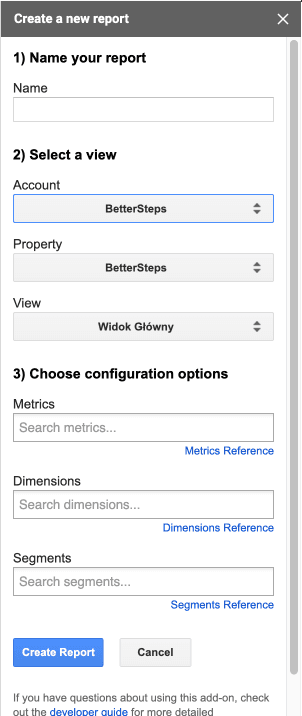
In the wizard, enter a report name, select the view you want to use, and specify the dimensions, metrics and, optionally, segments for your report.
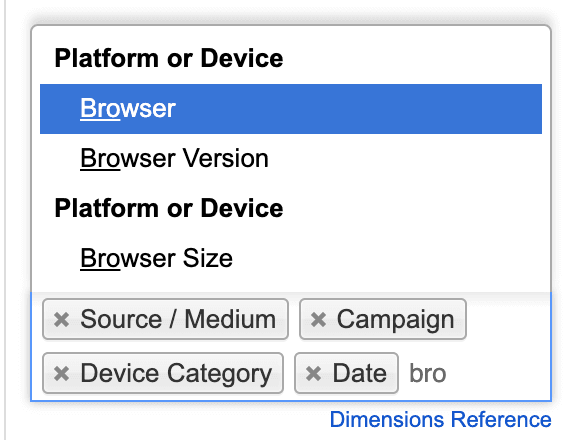
After you click Create Report, a more detailed report configuration opens in the Google sheet.
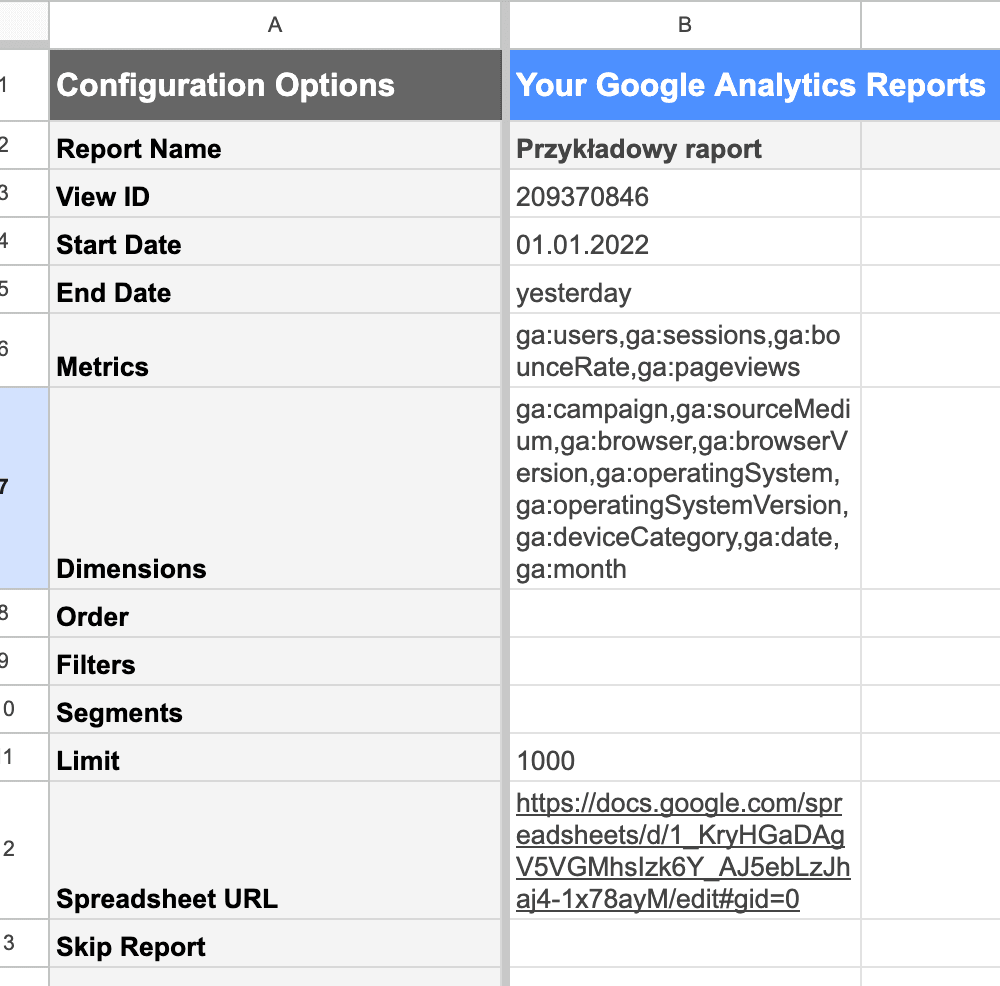
The fields you definitely need to set here are:
- Start Date - the first day of the reporting period
- End Date - the last day of the reporting period
- Limit - the number of rows to fetch; you can remove it, but with a longer reporting period you risk exceeding the request quotas
- Spreadsheet URL - the URL of the spreadsheet you want to send the data to
The other fields matter less and you can skip them, but they're well described in the add-on documentation: https://developers.google.com/analytics/solutions/google-analytics-spreadsheet-add-on?hl=pl#creating-reports
Once you've finished configuring the report, run it by going to Extensions -> Google Analytics again and this time selecting Run reports
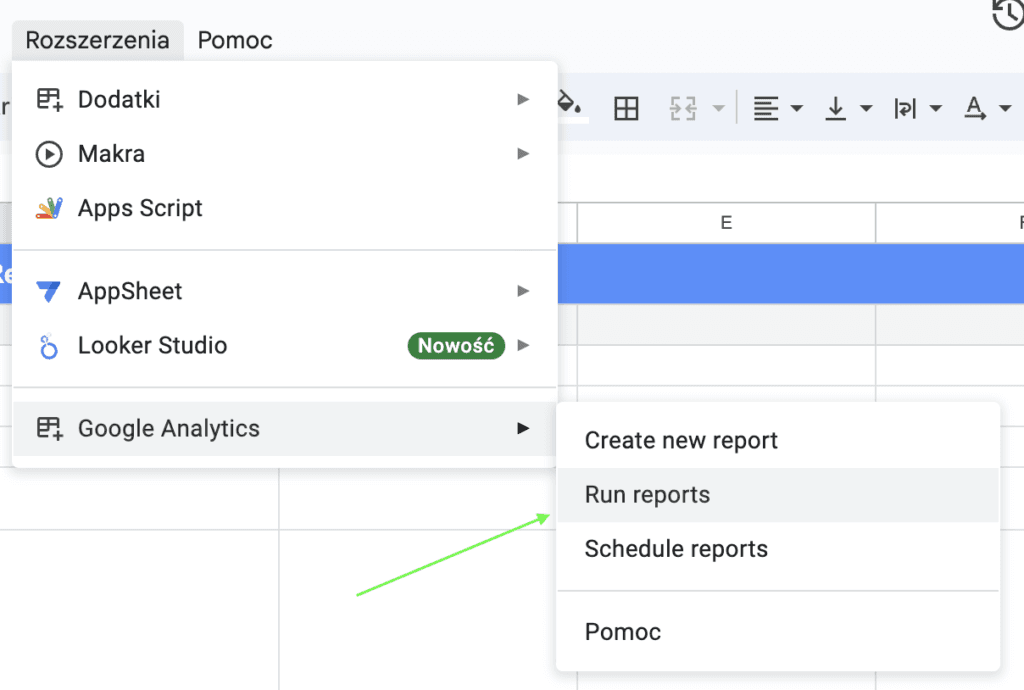
The report will appear in the sheet you specified
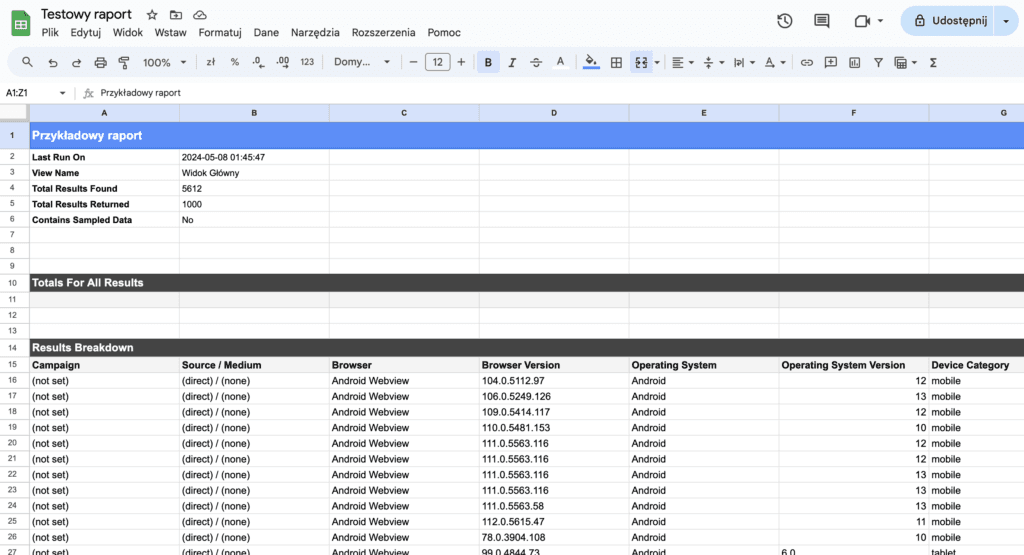
Configuring additional reports
To configure another report, you don't need to go through the wizard again. You can add the configuration in the next column, but you need to know the correct dimension and metric names: https://ga-dev-tools.google/dimensions-metrics-explorer/
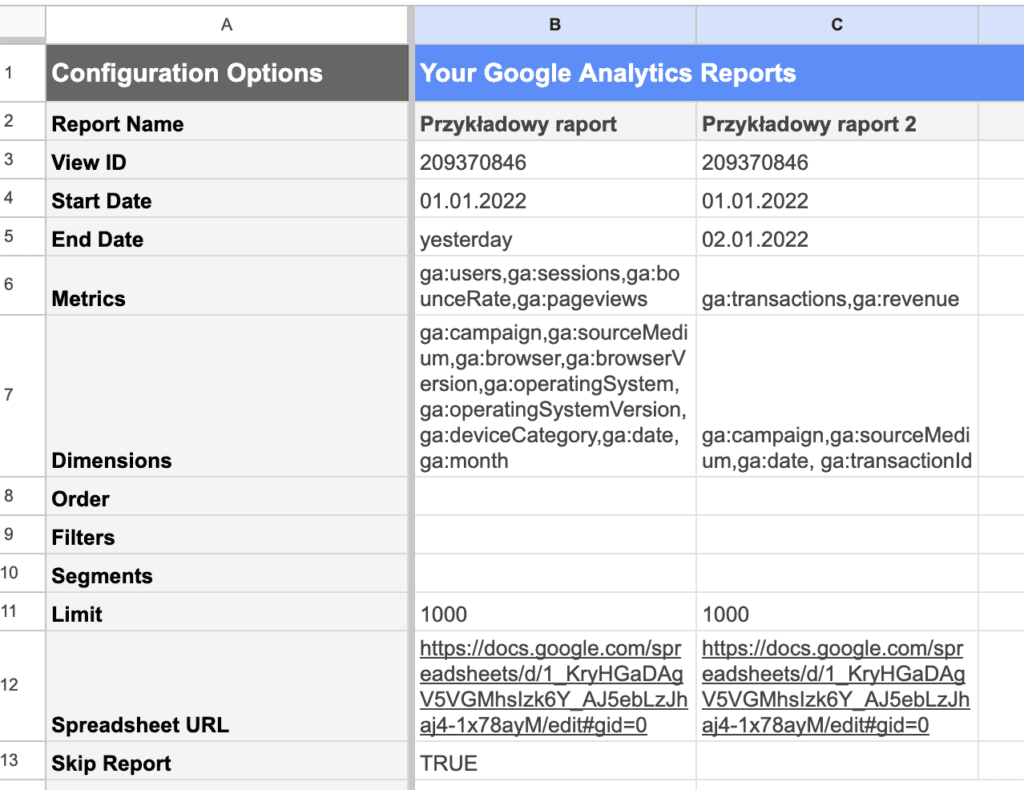
If you run the reports now, all configurations will be generated, so if you want to skip a configuration on the next run, use the Skip Report field and enter TRUE.
That's how you can archive the historical data your organization needs most.
If needed, you can back up the generated data to BigQuery by following the instructions in this post: https://www.googlecloudcommunity.com/gc/Data-Analytics/Importing-Google-Sheets-into-a-BigQuery-Table/m-p/604595
Google Analytics Reporting API
The last option, and the most complicated one, is the Google Analytics Reporting API v4. It requires programming skills. The Google Sheets add-on uses this API's methods, so it should be enough in most cases, but if you need a custom solution, this is the best route.
I hope this article helps you archive your UA data on your own. If not, get in touch. We'll be happy to help your company with it.