First of all, this change doesn't require any action on your part. It will happen automatically, and Google Analytics measurement will keep working as before.
Adam Brzostek
Reading time: 3:00
Google tag replaces the Google Analytics 4 Configuration tag
What is the Google tag?
It's a single Google tag that lets you manage multiple products from one tag. Since September, the Google tag has been fully compatible with GTM and supports Google Analytics 4 and Google Ads as destinations.
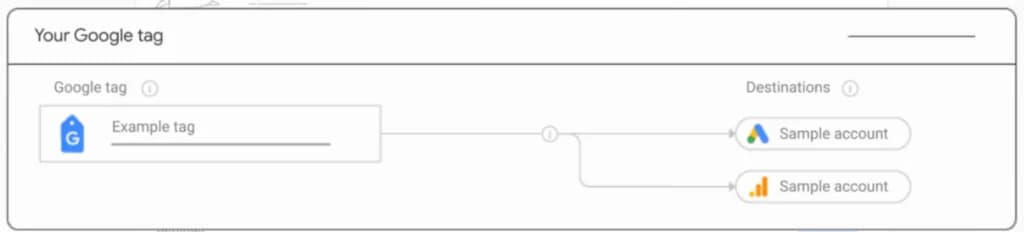
The Google tag has one unique ID that many destinations can be connected to. In other words, with one tag you can send data to multiple Google Analytics properties and multiple Google Ads accounts.
What is a destination?
A destination is where you send data. Each destination has its own unique ID. For GA4 it's the Measurement ID, and for Google Ads it's the Conversion ID.
How do you implement the Google tag?
In newly created containers you can no longer create a GA4 Configuration tag, and in containers that have been around for a while this option is now marked as legacy.
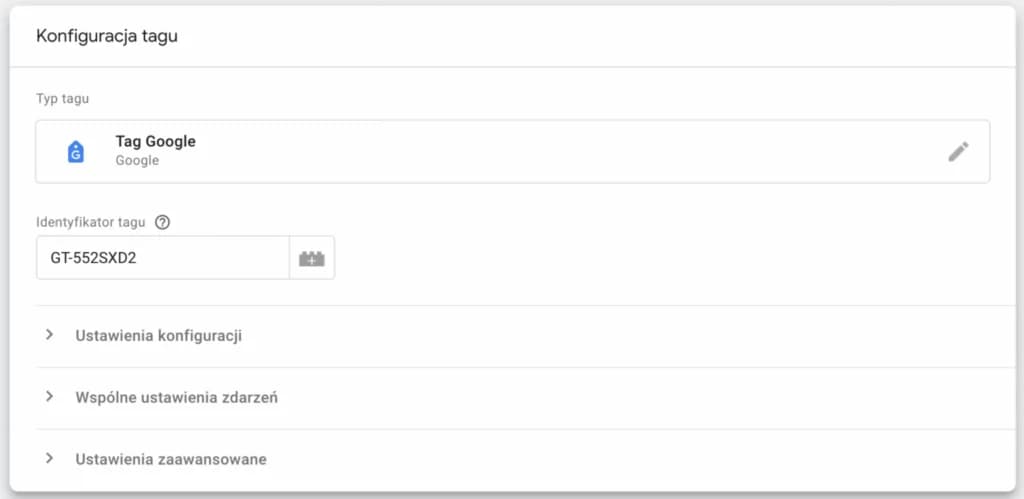
To create a new Google tag, in the new tag wizard choose exactly that option from the Google Analytics tag group. You'll need to enter the tag ID
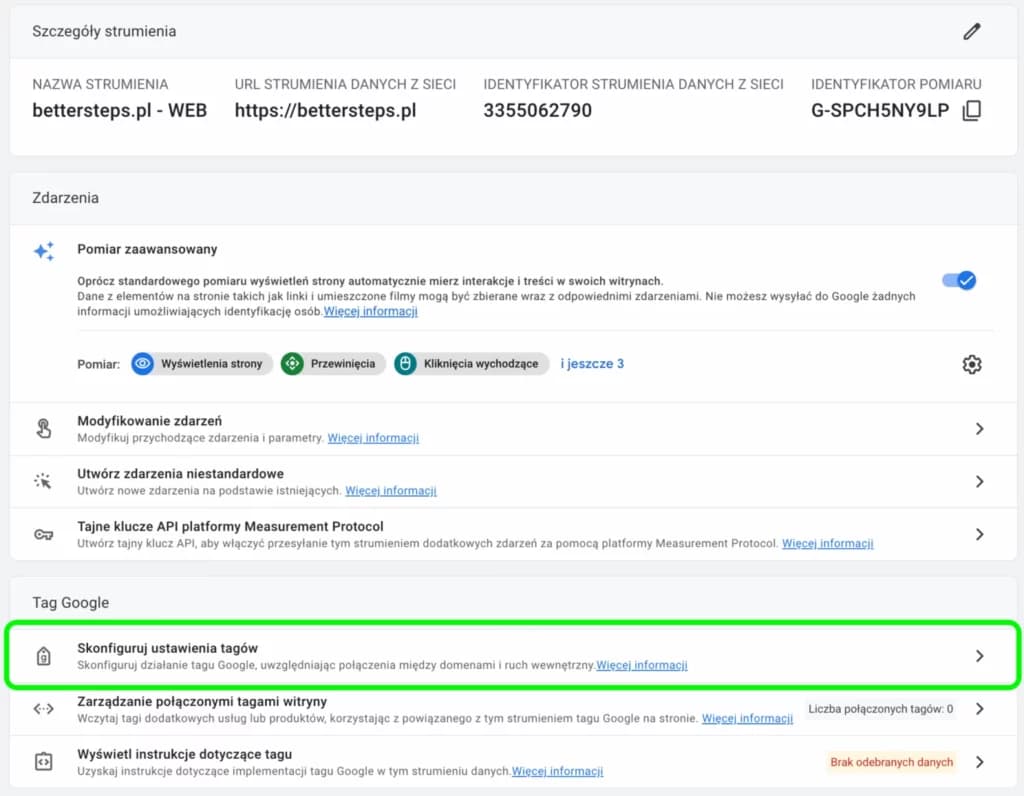
In Analytics, you'll find it under Data streams → your stream → Google tag: Configure tag settings
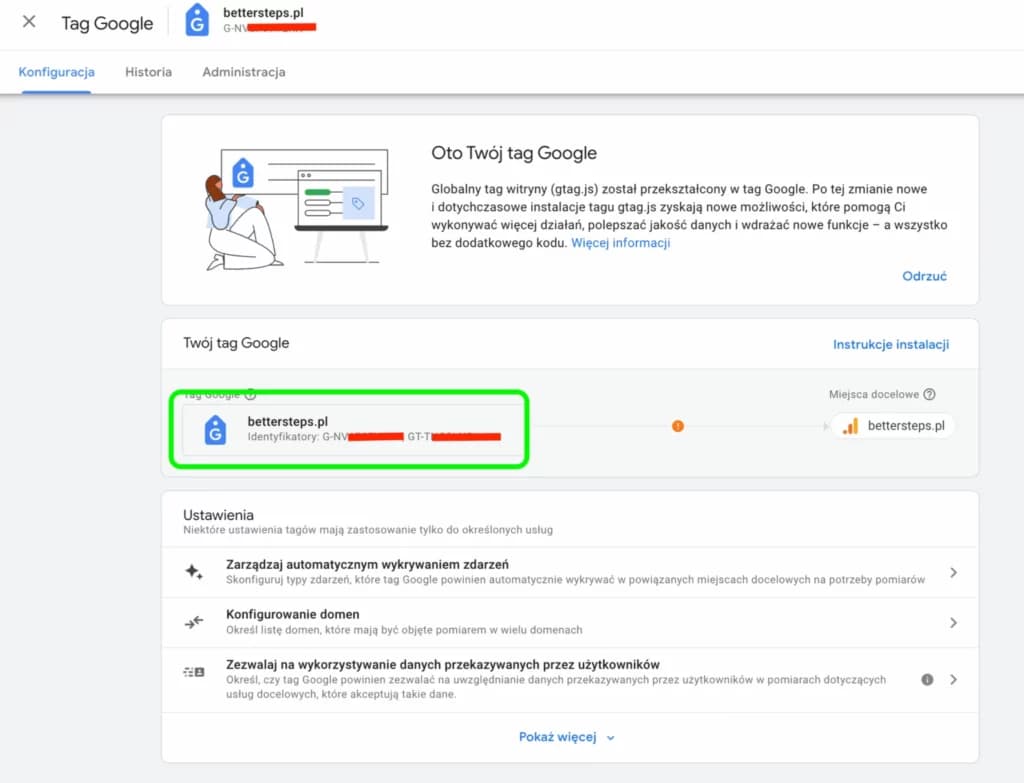
The next screen shows your tag ID. If one is available, the one you want starts with “GT-…”, but your Google tag can have several IDs and any of them will work.
From here you can also manage your Google tag, for example add another destination or combine your Google tag with another Google tag
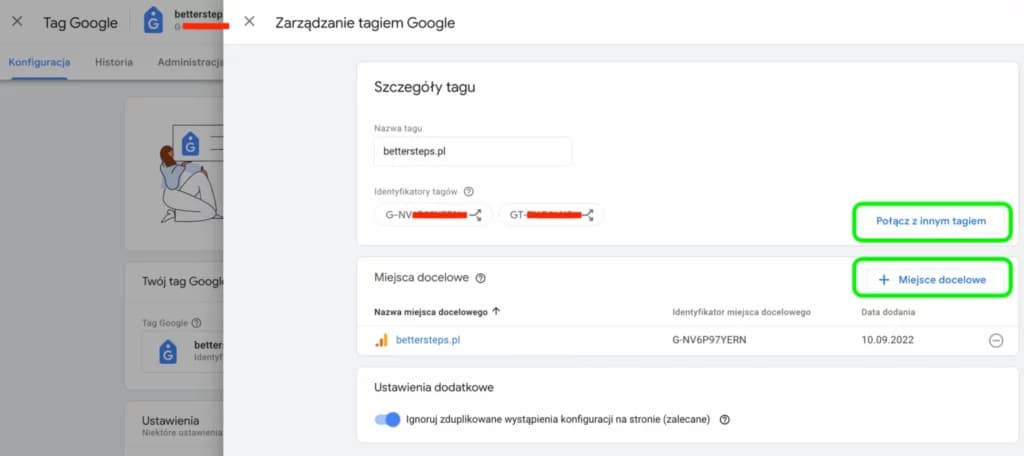
Remember that you need the right permissions both for the other Google tag and for the new destination.
If you add a new destination to your Google tag, it will be disconnected from any other Google tag, so be careful not to create a gap in your tracking.
Combining two Google tags is an even more complex operation: it merges both configurations, extending what the tag does. The destinations get merged too.
Configuration settings
Now we can go back to GTM. After entering the tag ID, you can adjust the configuration settings if you want to change the defaults.
For Google Analytics, this is where you set things like whether to send the page_view event, sending to a server-side container, or user_id. The full list of parameters is here: PARAMETER LIST
It's best to set these through a Google Tag: Configuration Settings variable, because you can then reuse it in another Google tag
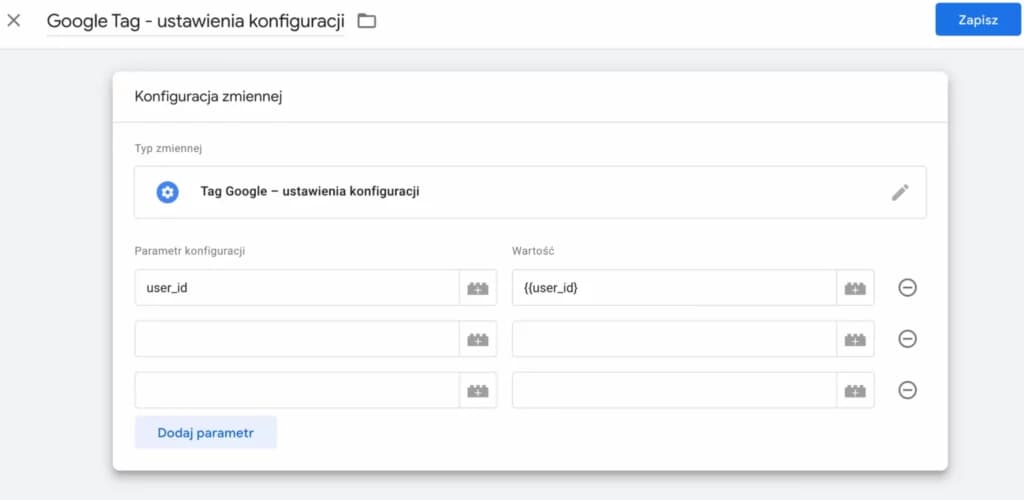
Only add the parameters whose default settings you want to change
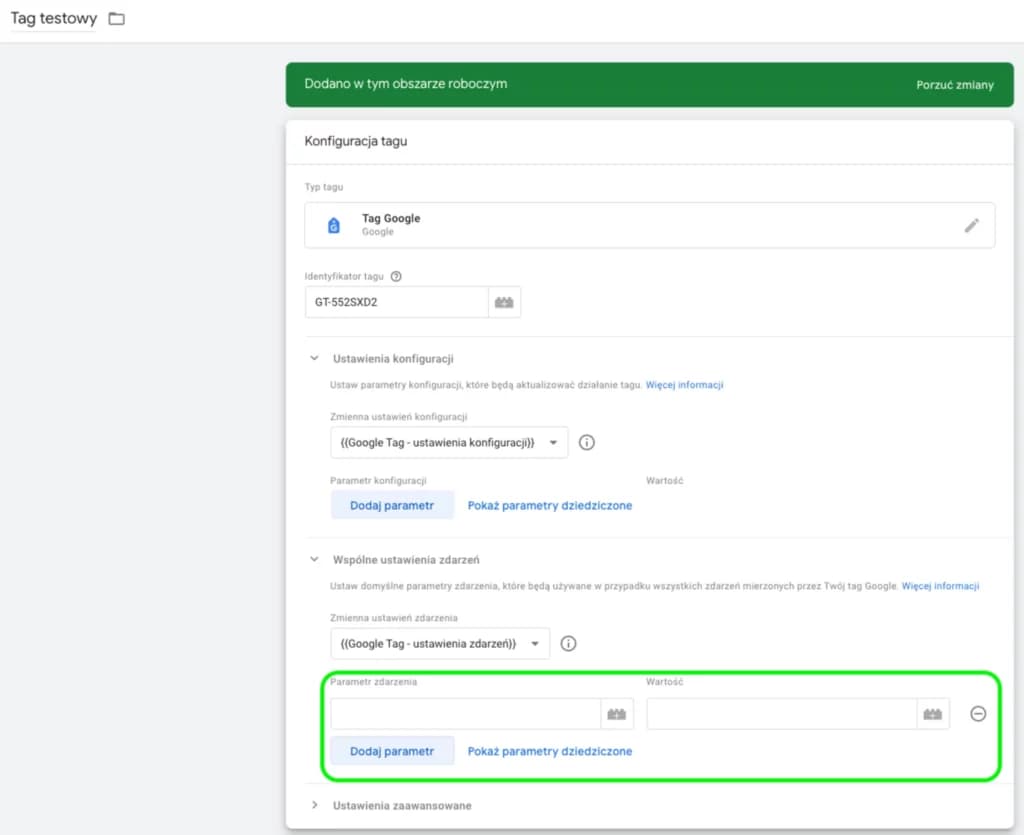
If you need to, you can override the variable's settings directly in the tag
Shared event settings
The last element is the shared event settings.
This is where you define which event parameters and/or user properties are sent with every event.
As with the configuration settings, it's best to do this with a variable you can reuse in other tags.
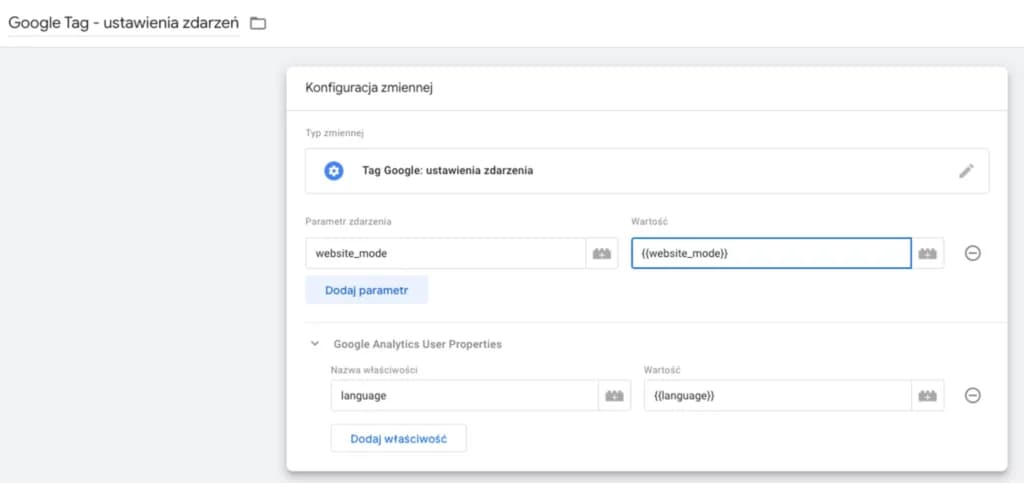
And as with the configuration settings, you can override the variable's settings directly in the tag if needed.
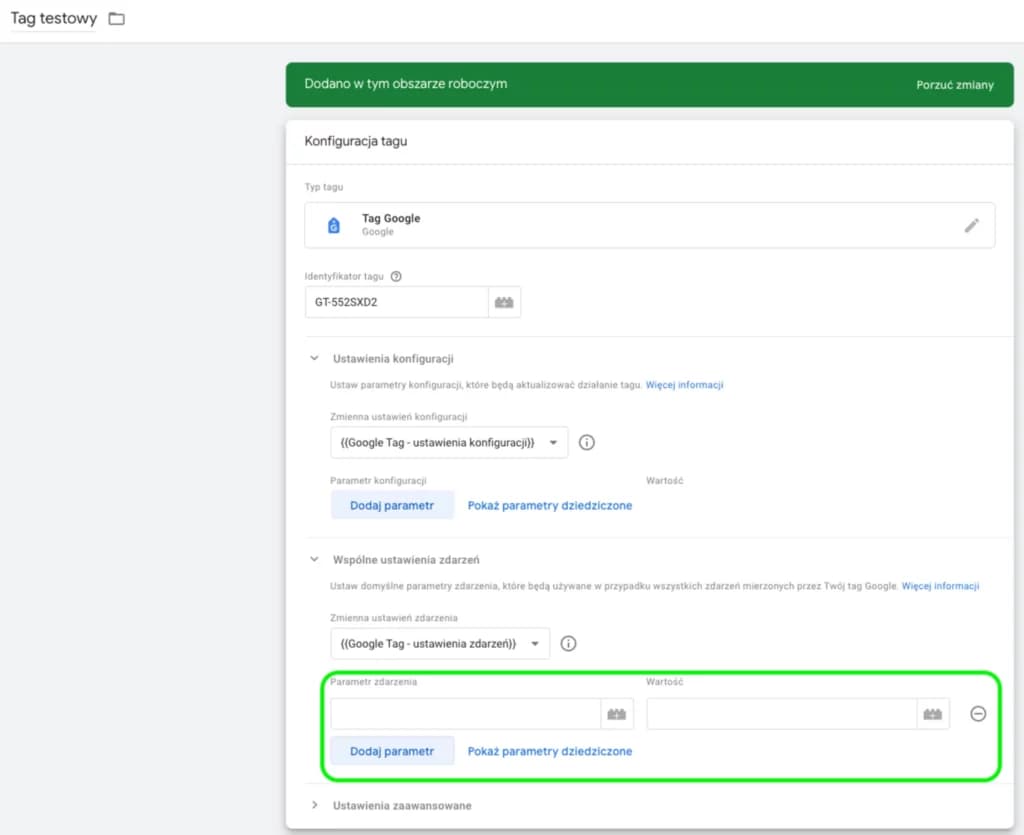
That's the Google tag configured. All that's left is to add the right trigger and publish your changes.
I hope you found this article useful. If you need help with your own site, get in touch.
Here are a few useful links to Google's documentation:
- About the Google tag: https://support.google.com/tagmanager/answer/11994839
- Technical support: https://support.google.com/tagmanager/answer/12002338