I hope this article helps you understand how Google Consent Mode works and set it up on your own site. If you can't do it yourself, get in touch. We help at every stage of the implementation, from choosing a tool that fits your traffic, through legal support, to the technical setup.
Adam Brzostek
Reading time: 15:00
A practical guide to Google Consent Mode v2
Introduction
Online marketing has long relied on collecting information about website users. Most of it is gathered with cookies, which are then used in digital campaigns. The more we know about a customer, the more precisely we can personalize the offer, the ad message or the communication channel.
Under GDPR, in force since May 25, 2018, websites can't use cookies without the user's consent. To keep using cookies, a site has to obtain that consent, and this is where Consent Mode comes in.
What is Consent Mode?
Consent Mode is a standard under which website users are first informed about the use of cookies through a dedicated banner and can then accept or reject them.

Consent Mode assumes that any third-party scripts that set cookies on the client side should run only once consent has been given.
On websites, consent can cover different areas, such as collecting analytics data, setting cookies, personalizing content or tracking user activity for advertising.
If the user refuses consent entirely, cookie use should be limited to the absolute minimum the site needs to work, which means blocking all third-party tags. If the user refuses only some categories, the site should adjust its tags so they respect the choices made and fire only tags from the accepted categories. This kind of setup is often called basic consent mode. Later in the article we'll look at how advanced mode differs and what it gives you.
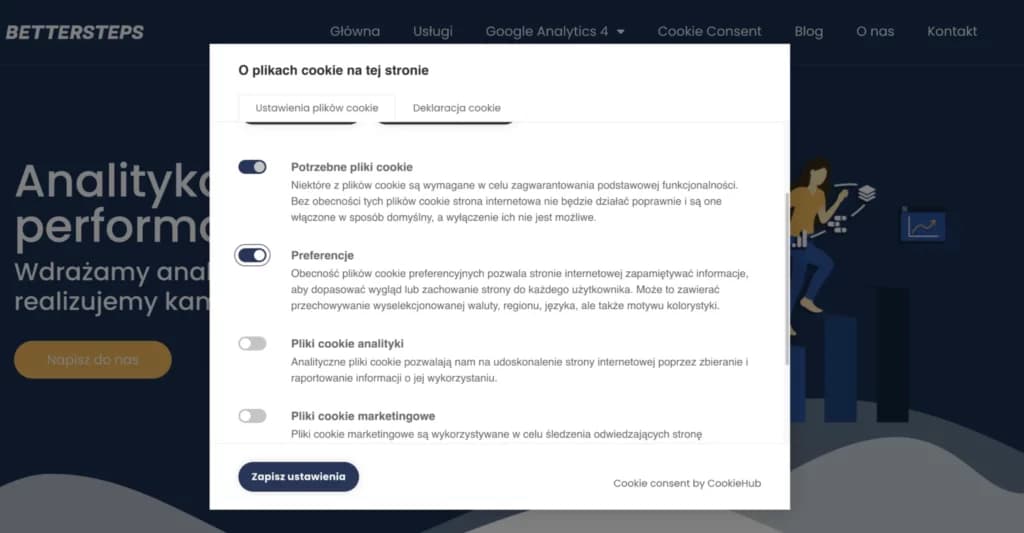
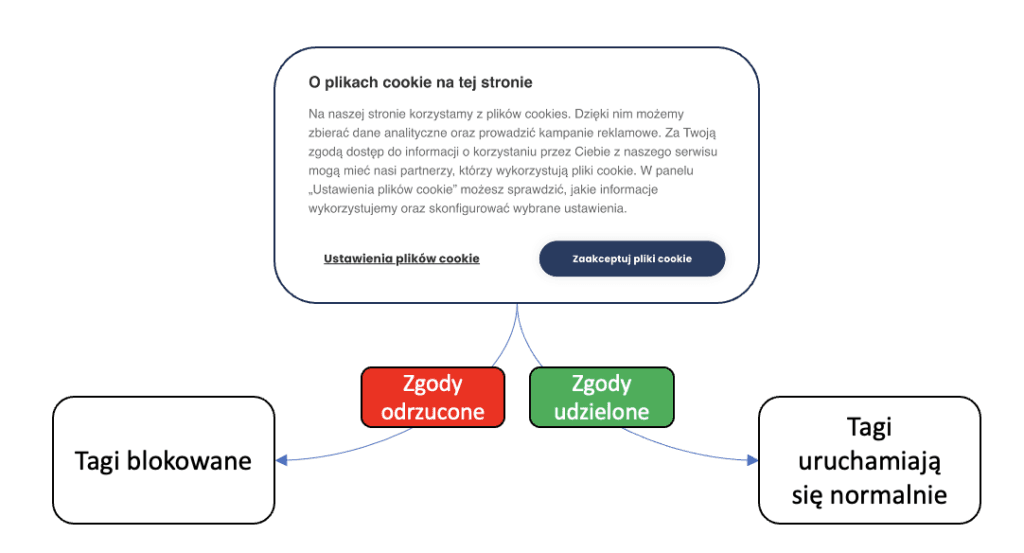
This is where the most common consent mode implementation mistake shows up. The site does display a proper cookie banner, often one that lets users decide on cookies, but the third-party analytics and/or marketing scripts ignore the user's preferences and fire regardless of the choice.
How do I check whether consent mode is implemented correctly on my site?
The simplest way is to check whether any unexpected cookies are stored in the browser before consent is given. If they are, consent mode may be implemented incorrectly.
Does my site use Google Consent Mode?
Tags firing and cookies being stored before consent may mean Consent Mode is set up incorrectly, but not necessarily. With Google Consent Mode, Google tags can run in a special mode without consent, which we describe in more detail later. To check whether your site uses GCM, you can review the configuration in Google Tag Manager (described in the following sections). If you don't have access to it, the browser console helps once again.
In the Network tab, find the Google Analytics request and check its payload.
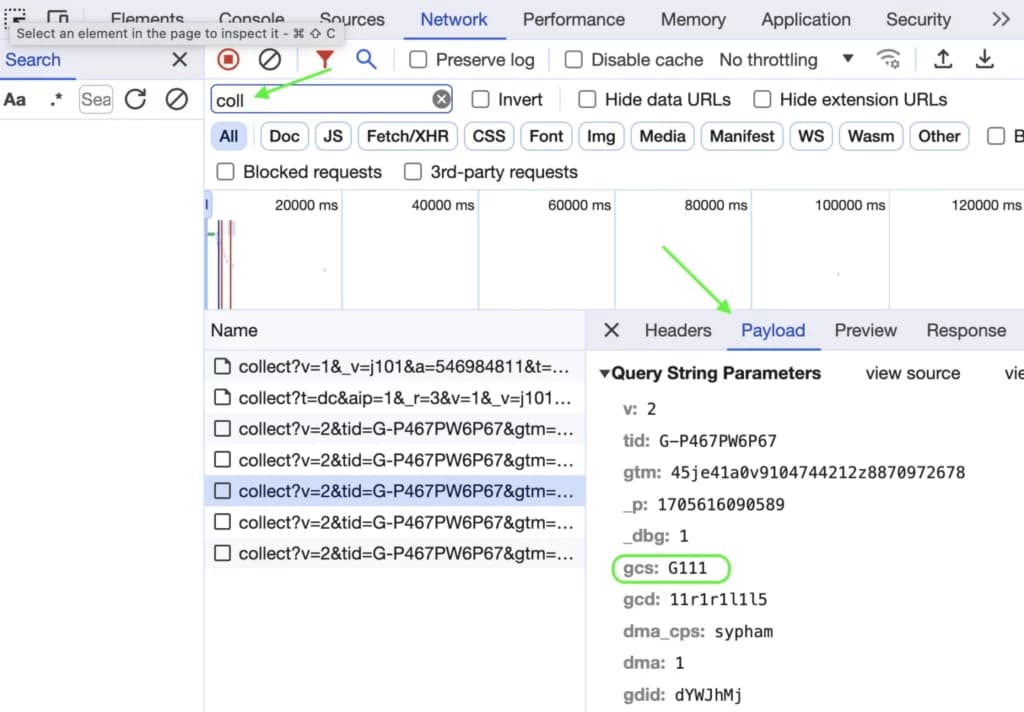
The parameter we care about most is gcs, which takes values in the format G1xy, where
- x – consent for Google Ads (ad_storage – explained below) – 1 = granted, 0 = denied
- y – consent for Google Analytics (analytics_storage – explained below) – 1 = granted, 0 = denied
So the parameter can take these values:
- G100 – no consent given
- G110 – consent for Google Ads, no consent for Google Analytics
- G101 – no consent for Google Ads, consent for Google Analytics
- G111 – consent for everything
If the gcs parameter is missing from the payload, Google Consent Mode isn't implemented on your site. If you see a Google Analytics request before consent is given, that's a clear sign Consent Mode isn't implemented correctly.
Google Consent Mode v2
What is Google Consent Mode?
Google Consent Mode is Google's own way of capturing the user's consent state and passing it to Google Tag Manager in a defined format. GCM affects the following tags:
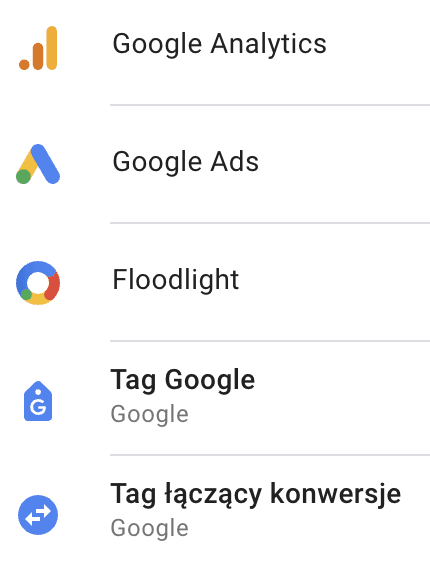
With Google Consent Mode in place, when consent is not given, these tags don't store cookies but still send anonymized information to Google's tools. In Google Analytics 4, the gaps in the data are filled with conversion modeling and behavioral modeling.
What's different in Google Consent Mode v2?
Google Consent Mode collects user consent in specific categories:
- analytics_storage – consent for analytics cookies
- ad_storage – consent for advertising cookies
- functionality_storage – enables storage that supports the website's functionality
- security_storage – enables storage of security-related data
- personalization_storage – enables storage of data used to personalize content on the site
Each of these consent types can have one of two states:
- denied – consent refused
- granted – consent given
This value determines how Google tags behave. The states change as the page loads. First comes the default state, in which usually everything except functionality and security cookies is denied. It should be set on the Consent Initialization event so that it's available at page view (Container Loaded). Later in the article you'll learn the easiest way to set it
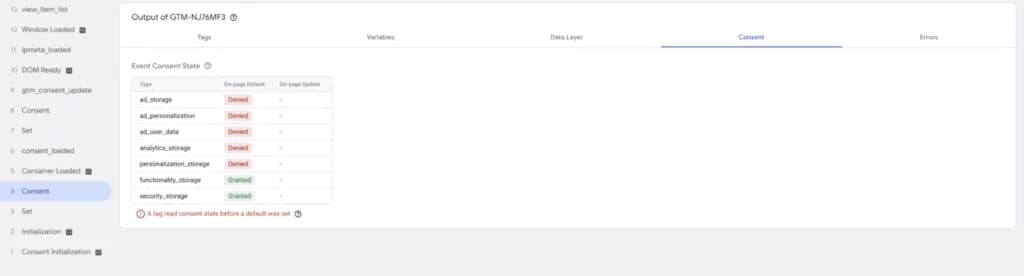
The consent states change once the cookie management tool loads or, on a first visit, when the user makes a choice. At that point the updated consent state (update state) is sent.
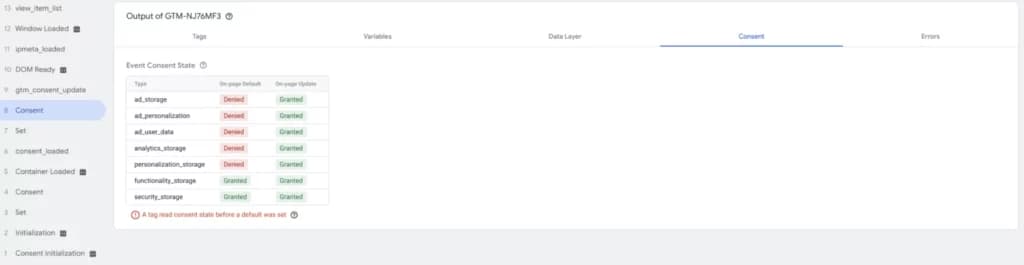
The change in Google Consent Mode v2 is small: it adds two new consent types:
- ad_user_data – allows user data to be sent to Google for online advertising purposes
- ad_personalization – allows personalized ads
How does Google Consent Mode v2 affect Google tags in advanced mode?
When all consents are granted, Google Consent Mode has no effect on how tags work. When consent is denied, however, a correctly implemented GCM in advanced mode gives you a lot.
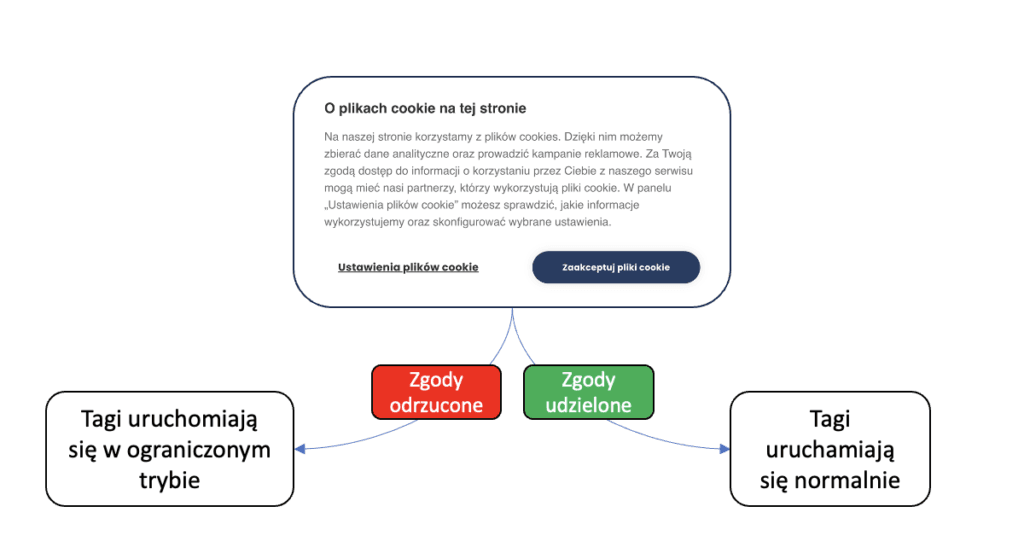
Without consent, Google tags don't store cookies on the client side, but they do send a minimum of information about user activity in the form of pings. The most important thing pings give you is counts of:
- conversions – in Google Ads and Google Analytics 4
- page views and events – in Google Analytics 4
Unfortunately, pings don't let you identify the user or use the data for remarketing.
Even so, Google Analytics 4 fills in the missing session and user counts with behavioral modeling.
To see exactly how tag behavior changes when specific consents are missing, I recommend checking the source documentation.
How do I check Google Consent Mode v2 consent values in the console?
Along with GCM v2, Google added a new parameter, gcd, next to gcs. It appears in the payload of all Google services, whether or not GCM is active.
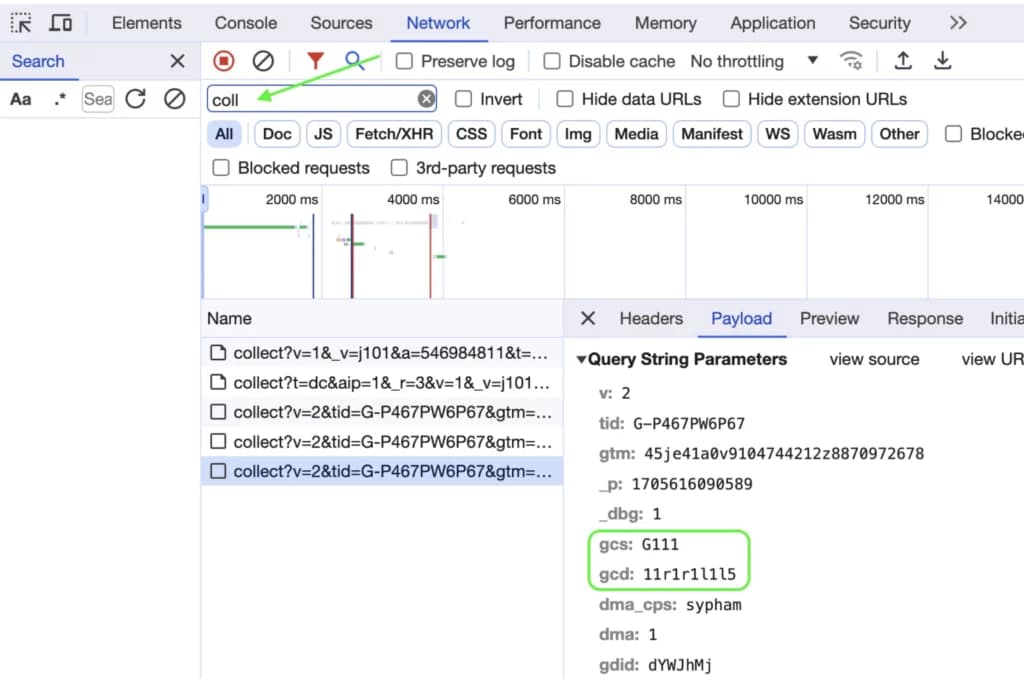
This parameter (gcd) holds the consent values for ad_storage, analytics_storage, ad_user_data and ad_personalization. Its value starts with “11”, usually ends with “5”, and the remaining “1”s act as separators. You can read it as: gcd=11{{ad_storage}}1{{analytics_storage}}1{{ad_user_data}}1{{ad_personalization}}5
The consent values are encoded as letters:
- l – no consent mode value
- p – denied by default, no update
- q – denied by default and after the update
- t – granted by default
- r – denied by default, granted after the update
- m – denied after the update, no default state
- n – granted after the update, no default state
- u – granted by default, revoked after the update
- v – granted by default and after the update
So the signal from the screenshot above, *11r1r1l1l5*, reads as: ad_storage and analytics_storage denied by default and granted after the update, and no information about ad_user_data and ad_personalization. In this case, the tool hadn't been updated to GCM v2.
Why implement Consent Mode using Google's standard
There are many reasons to use GCM, but right now the main one seems to be the risk of remarketing lists and conversion tracking being blocked in Google Ads. It hasn't been officially confirmed yet, but word is that Google plans to do this starting in March.
EDIT: this has now been confirmed. Since March 6, Google has been checking whether sites use consent mode based on Google's standard.
Other benefits include:
- Counts available in Google's tools, which allow more accurate analytics and better campaign optimization and attribution even without cookie consent, provided you use advanced mode.
- Easy management of tag firing rules based on consent state. In Google Tag Manager, all standard tag types have this mechanism built in, and Google tags also have built-in consent checks.
- A generic solution that works with many cookie management vendors. Tag firing rules you configure once stay valid even if you switch vendors.
How to implement Google Consent Mode
Available tools
The best way to implement Consent Mode is with a dedicated tool. You can, of course, build your own custom solution in-house, but there are plenty of proven, ready-made options on the market. The most popular include OneTrust, Didomi, Cookiebot, CookieHub and CookieScript, along with many less known tools.
When choosing a tool for your site, pay particular attention to:
- Legal compliance. The tool should be built around the laws that apply in the region where you operate online. In the EU that's GDPR, but if you operate globally, support for other legal frameworks will matter too.
- Banner customization. Make sure you can configure the banner's behavior (content, which buttons are shown, opt-in or opt-out by default) and its look, so it matches your site and encourages users to give consent.
- Usability for visitors. Test whether your users can easily change their preferences or withdraw consent completely if they change their mind. This matters if you want to avoid legal consequences.
- Google Consent Mode integration. This option makes implementing Google's version of Consent Mode much easier and lets you get the most out of Google tags even without user consent. You'll find a list of platforms that definitely offer it on this page. Tools not on the list may still have this feature.
The license price for such a tool usually depends on one or more of the following:
- the number of domains you'll use the tool on
- traffic, measured in sessions or page views
- site size, i.e. the number of pages that need to be scanned
Site scan and cookie categorization
The first step in implementing Consent Mode is to scan the site with the chosen tool and make sure all expected cookies have been detected and categorized correctly. If you have trouble categorizing cookies, you can use https://cookiedatabase.org/ , but keep in mind that you probably won't find custom cookies there.
Banner configuration: general guidelines
Every tool has its own banner configuration wizard, but the rules come down to a few main points:
- legal basis – in the EU, this will be GDPR
- language – I recommend a dynamic value based on the user's browser language
- default consent state – in the EU, GDPR requires the opt-in option, meaning consent is treated as not given by default and the user is asked to actively give it. The opposite is opt-out, where consent is given automatically until the user withdraws it
- Google Consent Mode – whenever it's available, I always recommend turning this option on
Adding the Consent Mode banner to your site
You have two options for adding the banner to your site:
- recommended – add the banner directly to the site code, ideally right above the GTM snippet and before the Google consent API code, if you use it. That way the consent state should be available very soon after the container loads.
- fallback, using GTM – if for some reason you can't add the banner directly to the site code, you can use a Custom HTML tag in GTM. Remember to fire it as early as possible, and keep in mind that an ad blocker or a privacy-focused browser may block Tag Manager, in which case your cookie consent tool won't load.
Enabling consent mode in Google Tag Manager
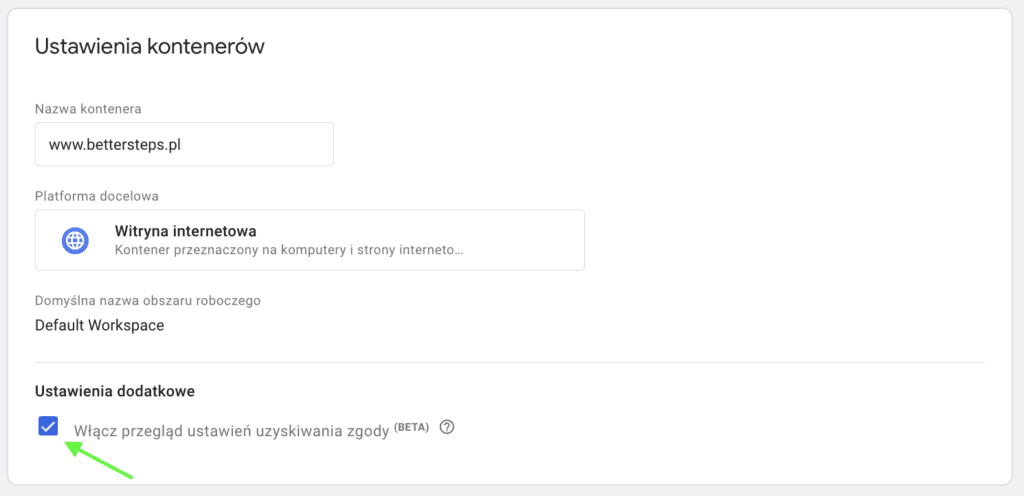
Before configuring Google Consent Mode, turn on the consent overview in your container settings by ticking the relevant checkbox.
Default consent state: Google Consent API
The standard approach
For Google Consent Mode to work properly, you need to implement the Google Consent API on your site with a default consent state. You can do this by adding a short script directly to the site code.
0
1
2
3
4
5
6
7
8
9
10
11
12
13
window.dataLayer = window.dataLayer || [];
function gtag(){dataLayer.push(arguments);}
gtag('consent', 'default',
{
'ad_storage': 'denied',
'analytics_storage': 'denied',
'ad_personalization': 'denied',
'ad_user_data': 'denied',
'personalization_storage': 'denied'
'security_storage': 'denied',
'functionality_storage': 'denied',
'wait_for_update': 500
});
It's best to place this code above the banner code. We've set the default state of every consent type to denied. For the US, for example, you could change it to granted. You can see the code already includes the two new Google Consent Mode v2 consent types, ad_user_data and ad_personalization.
Even though the tools don't expose these consent types yet, you can be sure they'll handle them automatically once GCM v2 is fully in effect. That's why it's better to declare them in the default state now and avoid fixes later.
Using Google Tag Manager
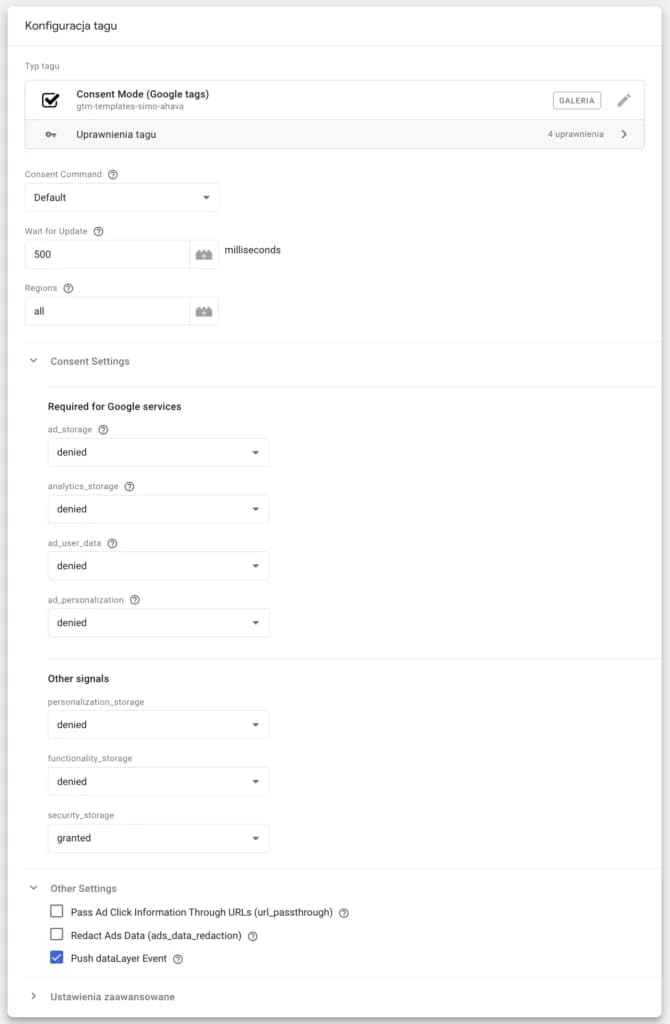
Adding the default consent state script to the site code is just one option. Often you don't have access to the site code, and to avoid waiting for the IT team to deploy it, you can take the easier route with Google Tag Manager. To do this, use the template created by Simo Ahava, which you can import from the Community Template Gallery.

Set Consent Command to *default* and all consent values to *denied*, except security, which is always *granted*. I also recommend ticking the *Push dataLayer Event checkbox. That way you can listen in GTM for the moment the default state loads.
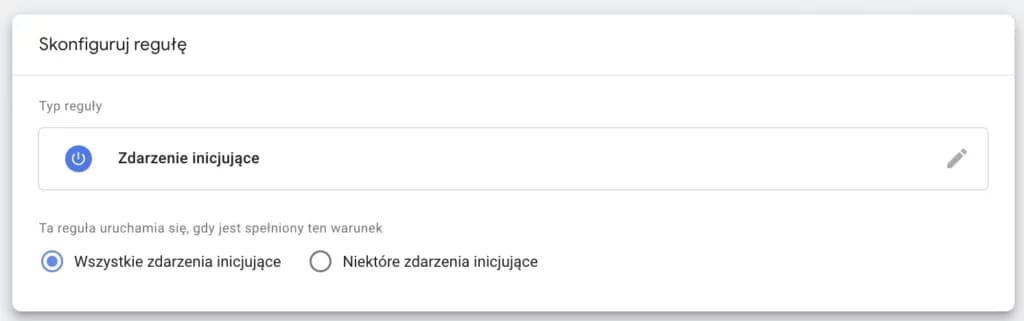
As the trigger, choose the Initialization event, because we want this tag to fire as early as possible.
Updated consent state
Google Consent Mode integrated with your tool
If your tool has a built-in Google Consent Mode integration, this part is very simple. Just turn the option on in the tool and publish the script or, in some cases, add the new banner code.
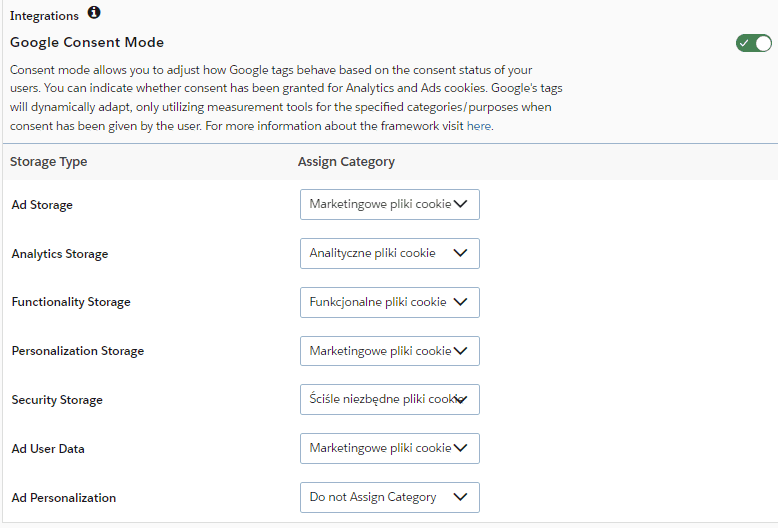
In some tools you have to map a cookie category from the tool to each GCM consent type, as in the OneTrust example below
Once the script with GCM enabled is published, GTM will automatically detect the updated consent state, and the tool will pass the values in the right format for GTM to read.
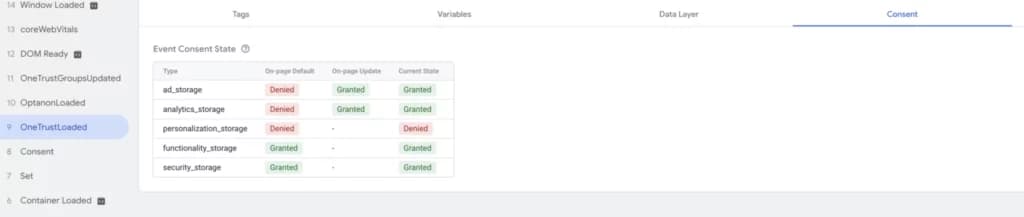
The example above shows the consent state being updated at the same moment the OneTrust script loads. In this case only two consent types were updated, because only two cookie categories were used on the site.
Google Consent Mode not available in your tool
If your tool doesn't have a built-in GCM integration for the updated consent state, Simo Ahava's template helps once again
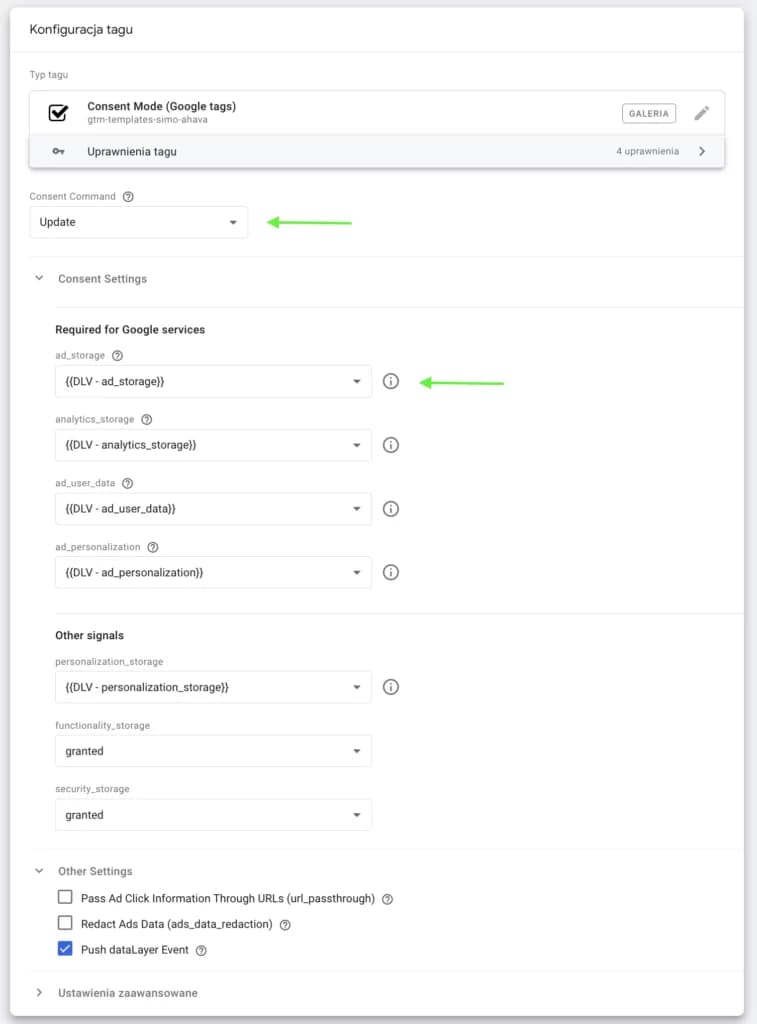
This time set Consent Command to update, and for each consent value use variables configured to map the values coming from your cookie management tool. Remember that these variables should only return granted or denied.
Again, I recommend ticking the Push dataLayer Event checkbox, so you can listen in GTM for the moment the updated state loads.
For the trigger, use the event that the cookie consent tool usually pushes to signal that the consent state has been updated.
Managing tags
The most important part of the implementation is managing tags so they respect the preferences users set in the cookie management tool.
You can manage each tag separately. To do this, open Advanced Settings in the tag configuration and expand Consent Settings.
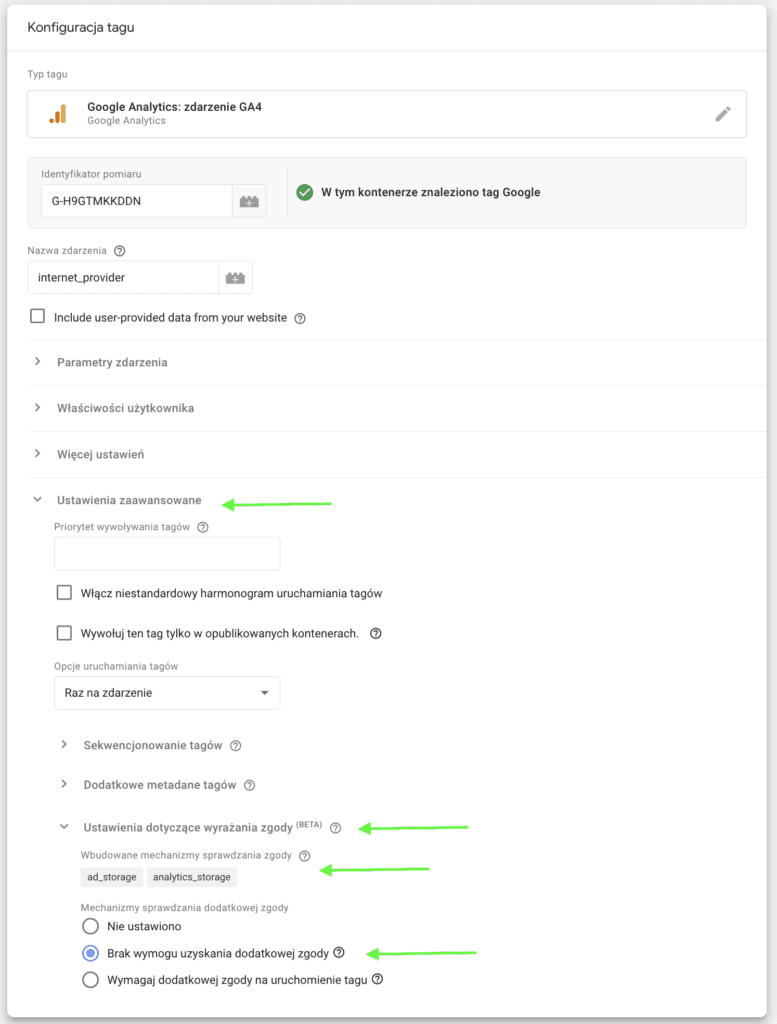
Google tags have built-in ad_storage and analytics_storage consent checks, so unless there's a special reason, choose No additional consent required and save the tag. This is how you implement consent mode in advanced mode.
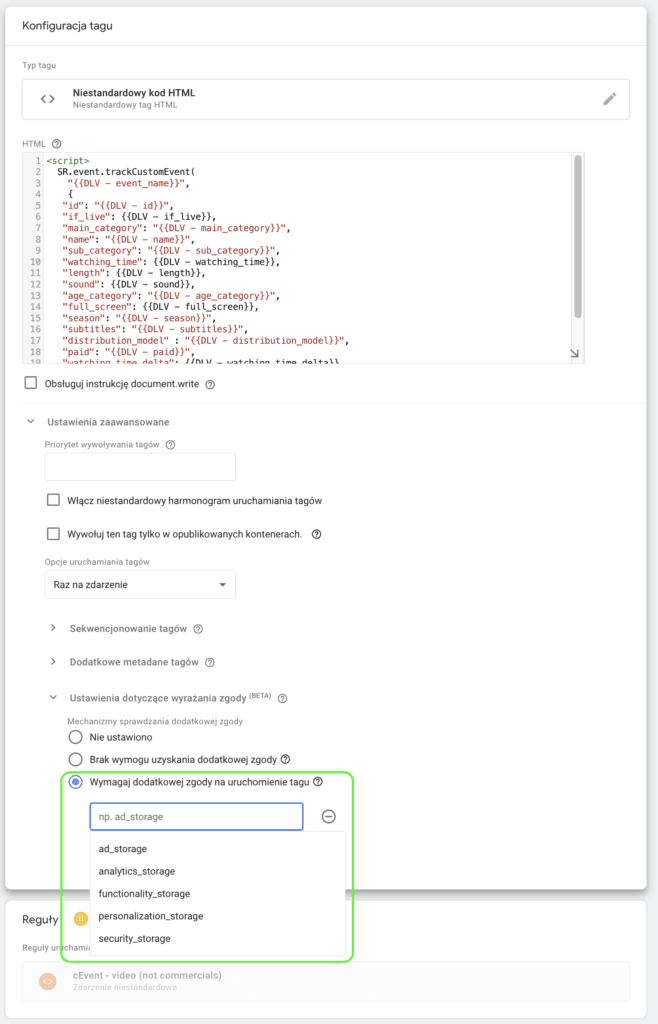
For other tag types, or if you also want Google tags to run in basic mode, choose Require additional consent for tag to fire and then select the consent types the tag requires from the list.
Another important point for non-Google tags is changing page view triggers so the tags fire only once the updated consent state is available. Google tags don't need this, because GCM fully supports them, but other tags will be blocked completely while consent is denied.
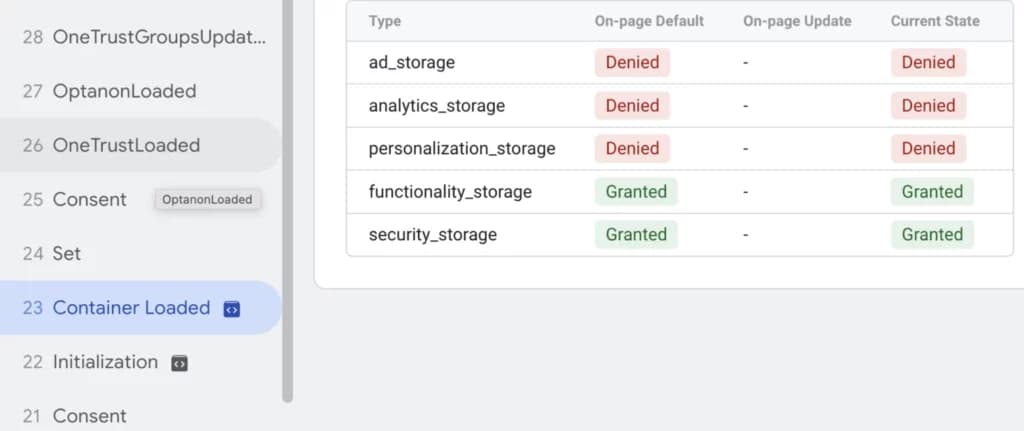
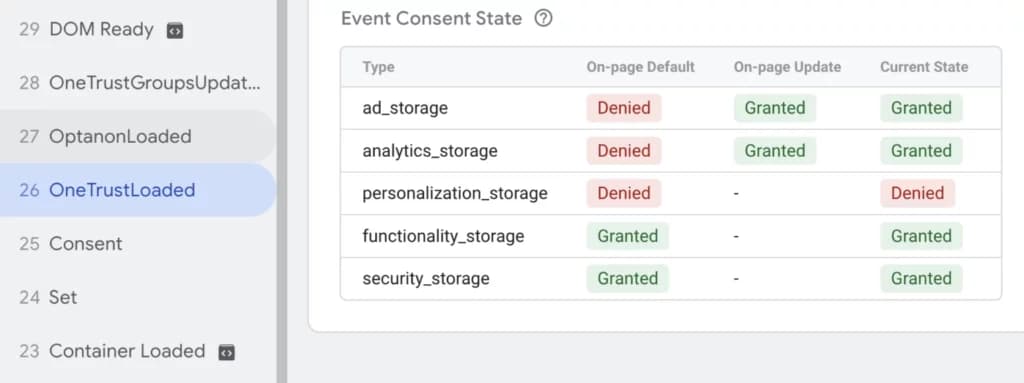
The example below shows this well: at page view the consent states are denied, and a moment later, when OneTrust loads (the OneTrustLoaded event), consent has already been granted.
You can also manage consent requirements for tags in groups. In the Tags section, click the consent overview icon.

Then select the tags whose consent settings you want to manage together and click the Edit consent settings button.
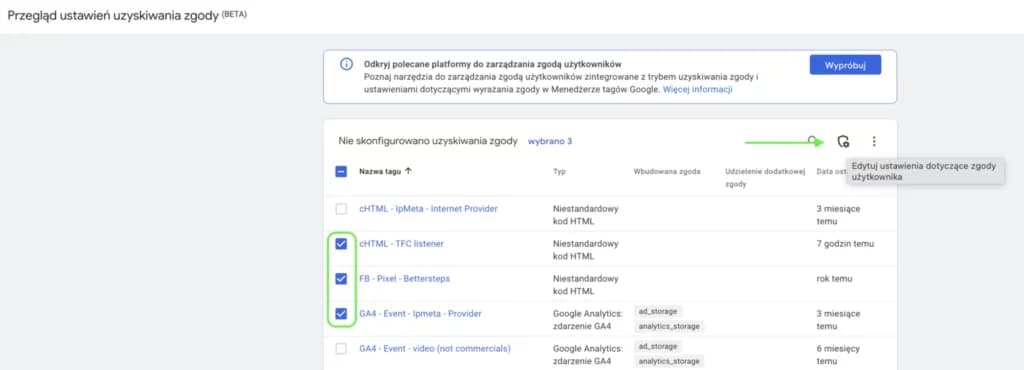
Finally, choose the consent settings for the selected tags the same way as for a single tag and save your changes.

Adding new tags
How you add new tags depends on whether that type of tag has been implemented before. By type I mean the type of cookies it uses.
If a given type of tag, e.g. Google Analytics 4, is already on your site, add it as usual and remember to select the right consent in the settings before publishing.
It gets more complicated if you want to add a completely new type of tag, e.g. a new remarketing partner that uses entirely new cookies.
First, you have to publish the tag without any consent requirements. This is necessary so that your cookie management tool's crawler can detect the new cookies.
After publishing the tag, run a site scan in your CMP. Make sure the new cookie has been detected and categorized correctly, then publish the updated banner script in the CMP interface.
Finally, go back to GTM and publish the tag again, this time with the required consent set correctly.
Sources:
Google Consent Mode documentation: https://developers.google.com/tag-platform/security/guides/consent?hl=pl
Detailed consent type definitions: https://developers.google.com/tag-platform/security/concepts/consent-mode?hl=pl
How tags behave depending on consent state: https://support.google.com/analytics/answer/9976101?hl=pl&sjid=1091137706529052351-EU