Rafał Piszczatowski
Reading time: 13:00
Google Analytics 4: everything you need to know about GA4
Google Analytics 4 launched in 2020. It was first called "App + Web" before getting its final name, GA4. Its core idea, and the main difference from its predecessor, is a single data structure for both websites and mobile apps. That step was clearly needed: apps and websites now depend heavily on each other, and customers use both because it's convenient. It also reflects the growing role of apps in business and as a way to build customer loyalty.
GA4 vs Universal Analytics: differences and similarities
How data is collected
Universal Analytics was built around website traffic, so as users of the tool we got used to metrics such as sessions, unique users, pageviews and transactions. In GA4, all of these are recorded as events. Events themselves also work differently than in the older version. In Universal, an event always had three parameters: Category, Action and Label. In GA4, every interaction is an event, so there is no distinction between types of interactions. Viewing a page used to be a Pageview. In GA4 it's simply an event called page_view.
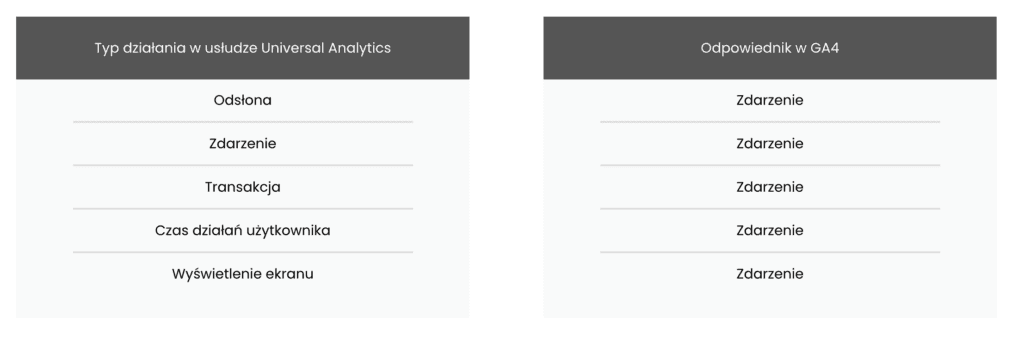
Sessions
In Universal, a session could contain many pageviews, various events and e-commerce transactions. In GA4, a session starts with the session_start event, and its duration is determined by the first and last event in that session. Apart from different session duration values, expect fewer sessions in GA4. That's because a new campaign source during an ongoing session (for example, a visit overwritten by new UTM parameters) does not start a new session.
User ID
This feature stays the same. Its purpose is to anonymously identify the same customer across different browsers or devices (for example, when the user logs in on the site). The big advantage of User ID in GA4 is that you can analyze the customer journey not only on the website across desktop and mobile, but also the behavior of users who use both the app and the website. If you build a property that combines data streams from all sources and implement User ID, you can enrich your data considerably and understand how customers behave in different environments. On the implementation side, you'll need to send the same user ID from both the app and the website.
Goodbye, bounce rate
If bounce rate is one of the KPIs you present in your monthly report, you'll need to update your deck. GA4 won't have a bounce rate metric. The new version of GA replaces it with engagement rate. I think that's a good direction. Maybe it will spare analysts from answering that a good bounce rate is… well, it depends.
Advantages of Google Analytics 4
App + web in one place
One advantage of the new Google Analytics is that it combines data from mobile apps and websites. This matters most for larger companies that do business in both channels at once. Today, analyzing data from a website and an app together is hard because the data is structured and counted in completely different ways. Google Analytics 4 is built on events, the same approach Firebase already uses. Thanks to this event-based collection, GA4 can fully bring together three worlds: iOS, Android and web data.
BigQuery available to everyone
Another change compared to Universal Analytics is access to BigQuery. With Universal, this was only available to customers on the premium version. In GA4, linking a property to BigQuery is meant to be free. With access to raw data, you can avoid sampling on larger datasets. BigQuery also lets you connect directly to the raw data through the connectors available in visualization tools such as Data Studio or Power BI.
More precise remarketing
Imagine a user who added your product to the cart in your app but didn't complete the purchase. You can record that event in a property that combines web and app. This means you can build a remarketing list from it, so a user who did something in the app can be included in remarketing campaigns, for example on desktop.
Easier access to different attribution models
In GA4, you can analyze the reports you create under different attribution models. In Universal, we usually got used to the last-click model. That was because attribution models lived in a separate section and were hard to apply cleanly to the custom reports we built. GA4 changes this: you can choose the attribution model at the level of individual reports, which is a big plus when you want to see where purchases really come from. It's also worth remembering the app and web connection here. Today, analyzing how a website promotes an app is fairly difficult. Imagine you publish a LinkedIn post that leads to your website, where people can either buy on the site or install the app and make the purchase in another channel (the app). Combining that data to attribute the real source is simply very hard. Firebase on its own still isn't a precise tool for attributing traffic sources, which is why tools like AppsFlyer come to the rescue. In theory, GA4 looks promising for identifying the real source of an in-app purchase (in our example, the visit from the LinkedIn post).
Disadvantages of Google Analytics 4
A new data structure
GA4 looks a lot like Firebase. For some users that's a plus, because they're already used to this data structure and the way it's analyzed. But for most users, who only use Universal Analytics to analyze website traffic, moving to GA4 will feel like switching to a completely new analytics tool.
Did I install Google Analytics or some other tool?
The data structure is completely different because it's event-based, and on top of that the interface and the information it shows are radically different. In Google Analytics fan groups you often come across posts from people who don't realize they're in a new tool.
"It's about the "Acquisition" tab. On one site I can access All traffic -> Channels, and on the other I can't. What do I do to get access to this data? I need to know how many sessions there are (not users) and from which source (organic, direct, social, etc.)"
Google is trying to push GA4 when you create new properties. Combining app and web data is certainly the right direction, but for someone who uses analytics only now and then and just needs data for their website, the new tool will simply be hard to digest.
A new interface
Universal Analytics was fairly simple to use. Basic analysis of traffic, sources and conversions on a site was reasonably clear and usually logical. GA4 feels like a harder tool, especially for people who use analytics occasionally and are used to how data looks in Universal. The switch to GA4 may turn out to be tough. If someone only has a website and limited data needs, the switch isn't really justified either, apart from the argument that Google will stop supporting the older version.
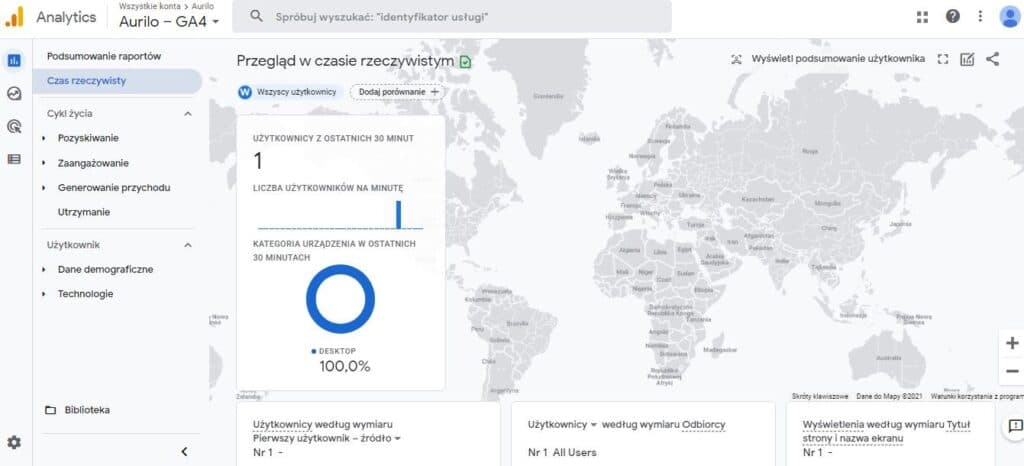
No ready-made reports
When you add the basic Google Analytics script to your site and collect some data, Universal gives you plenty of ready-made reports. It's easy to check cookie information, device type, traffic sources and top pages there. In GA4, getting around is much harder until you click through and build the reports yourself. I suspect this is one of the things that will get simpler, and with future updates I'll delete this point (or at least I hope so!). For now, though, navigating GA4 takes some work before you get the basic reports you care about and were used to in Universal. That said, I've heard people argue that GA4 actually simplifies the interface, and that Universal is a bit too complicated because it shows a lot of information that doesn't need to be available in the panel right away. It's probably a matter of habit and personal preference.
Implementing GA4 on your website
It's worth implementing GA4 sooner rather than later. The new data structure doesn't let you migrate historical data, so the sooner you create the new property, the more historical data you'll have. GA4 data volumes will differ somewhat from the older version. For example, the number of sessions will be a bit lower because sessions are counted differently.
Companies that only have a website will struggle to see the point of this migration. It will feel like moving to a completely new tool, at least as far as the interface goes. Still, it doesn't hurt to set up even a basic implementation (for example, collecting traffic only), so that when Google retires the previous version you aren't left with a brand-new tool and no historical data.
Below are instructions for implementing GA4 if you have a Universal Analytics account and use Google Tag Manager.
Create a new property in Google Analytics
Go to Admin, and in the Property column select: GA4 Setup Assistant.
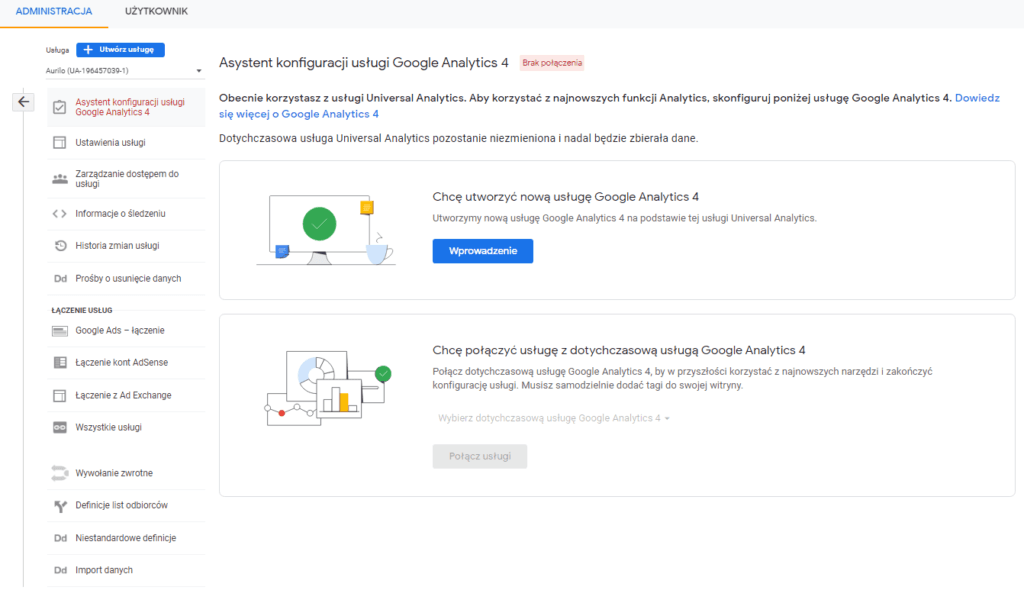
After you click Get started and confirm creating the new property, you get its new ID, and an additional property is created in your current account. So this isn't a migration of your existing account, just the creation of another property. In practice, you'll collect data in two properties: your existing Universal Analytics one and the new GA4 data stream.
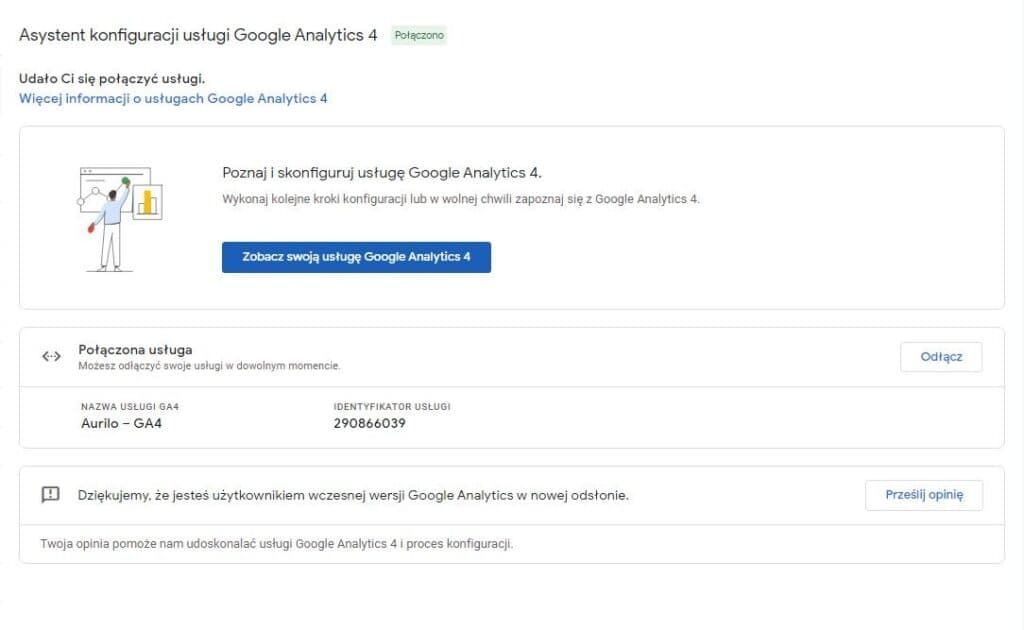
After you select See your GA4 property, you'll be taken to the new property.
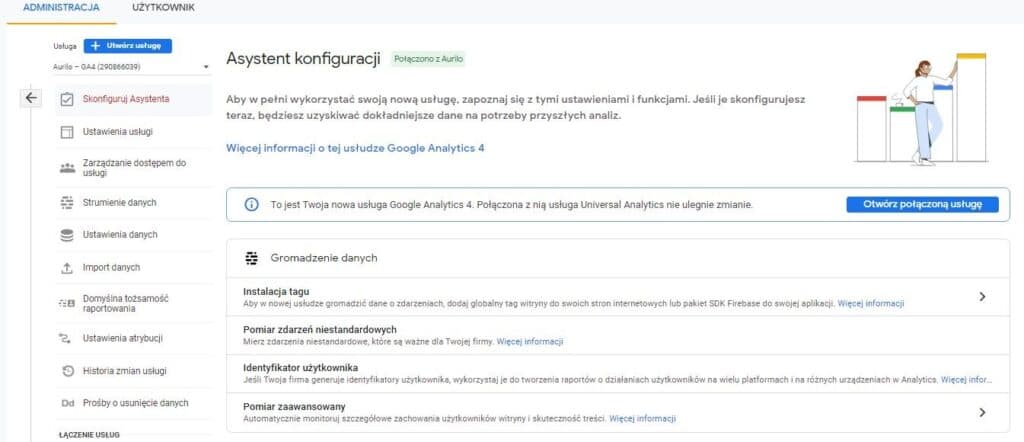
Click Tag installation here, then the data stream that was created. It shows the details of your account. What you need from this screen is the Measurement ID.
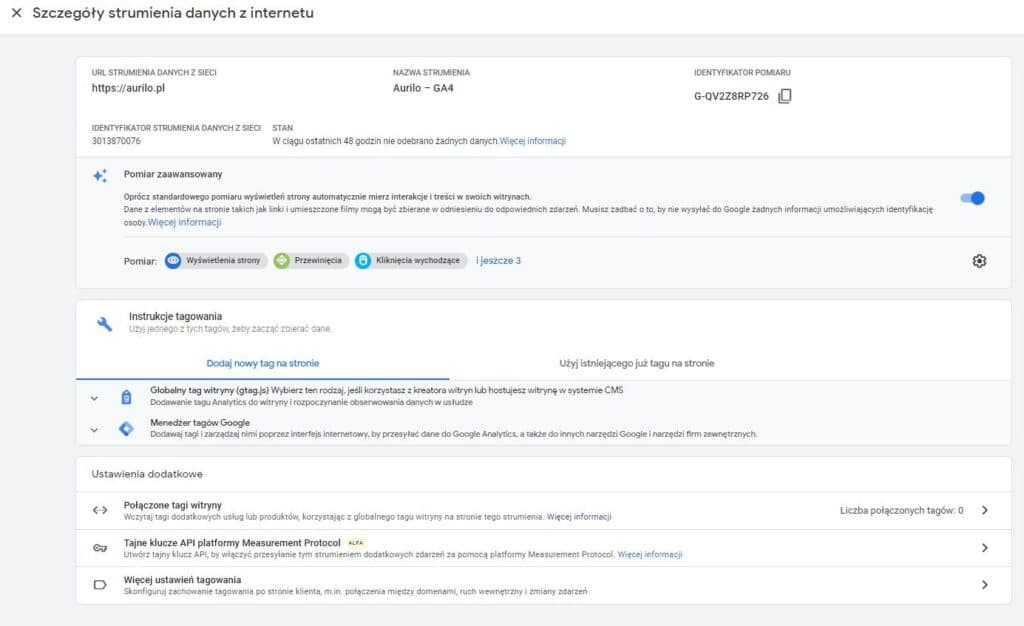
Creating a tag to collect data
Copy your Measurement ID and go to Google Tag Manager for your current account. Create a new tag there. I recommend creating a new folder in GTM just for GA4 tags.
First, we want to create the main tag that collects site traffic. Choose the tag type Google Analytics: GA4 Configuration and paste the ID you copied earlier into Measurement ID. The trigger works the same way as with Universal: the tag should fire on every page, so add the All Pages trigger.
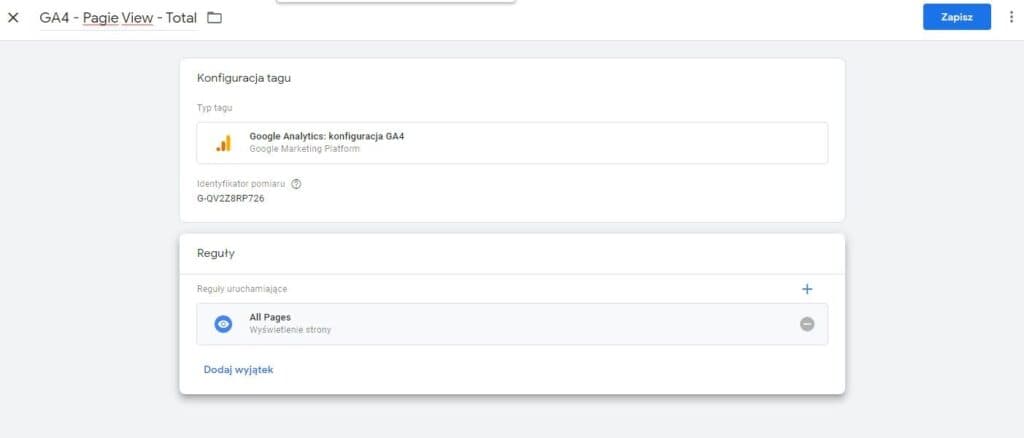
Now you can save and publish it. It's worth checking the Realtime report in the property to confirm that GA4 is actually receiving events.
Migrating the purchase tag from Universal to GA4
If you had Enhanced Ecommerce implemented in Universal, reuse your existing Data Layer for GA4. The GA4 data structure itself is different. The full specification is available at: https://developers.google.com/tag-manager/ecommerce-ga4. Fortunately, Google makes life much easier: if you already have a Data Layer that follows the Enhanced Ecommerce specification, you can use it.
Let's implement the purchase tag in the new property. This setup assumes your site already has a dataLayer in this format: https://developers.google.com/tag-manager/enhanced-ecommerce#purchases.
In Google Tag Manager, create a new tag: Google Analytics: GA4 Event. Under Configuration Tag you can pick the tag created earlier that collects all traffic. Select it, and in Event Name enter purchase, as per Google's specification (https://support.google.com/analytics/answer/9267735?hl=pl).
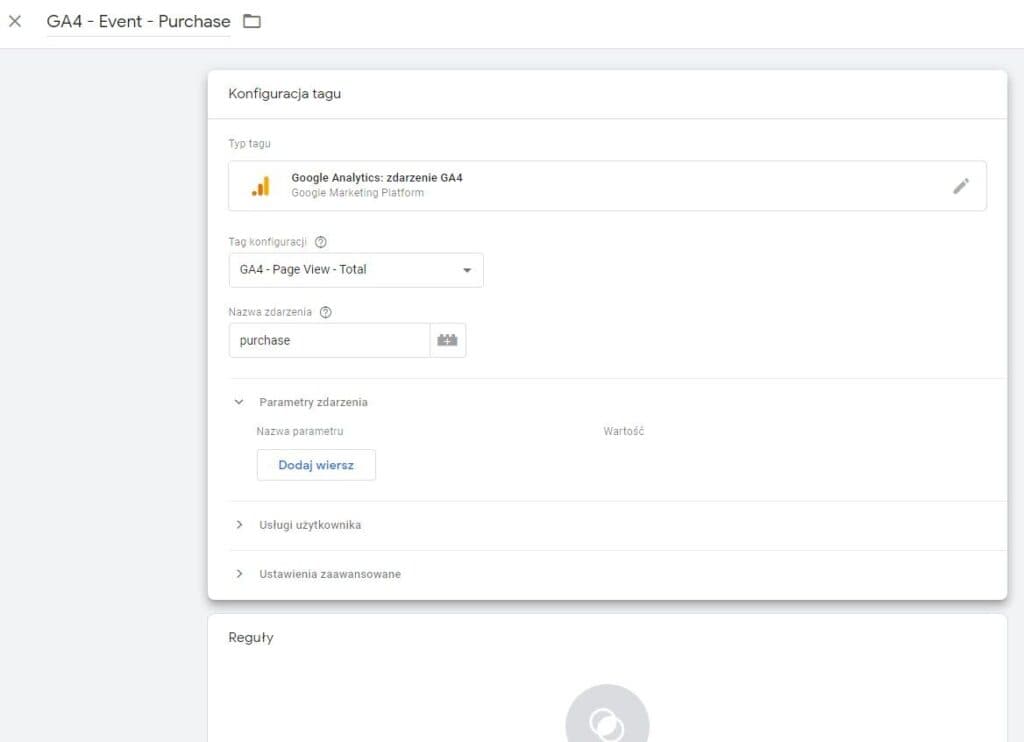
GA4 uses a slightly different logic for building e-commerce tags. Previously, we were used to ticking a box so the tag used the dataLayer, and possibly adding other fields if we had a custom Data Layer. In GA4, you need to open Event Parameters and specify there what you want to send with the purchase. In this example, I'll send the currency and the products bought when the purchase event fires. The other parameters worth sending (transaction ID, value, etc.) are covered in the following paragraphs.
In Parameter Name, enter currency and items. For the currency value, you can hardcode PLN. If your store accepts several currencies, though, you need to pull this value from the dataLayer so it matches the customer's choice. For items, set the value to pull product information from the existing dataLayer, i.e. the values from ecommerce.purchase.products. If you don't have this variable in Google Tag Manager yet, you need to create it.
Clicking the plus icon next to the empty value lets you choose a variable.
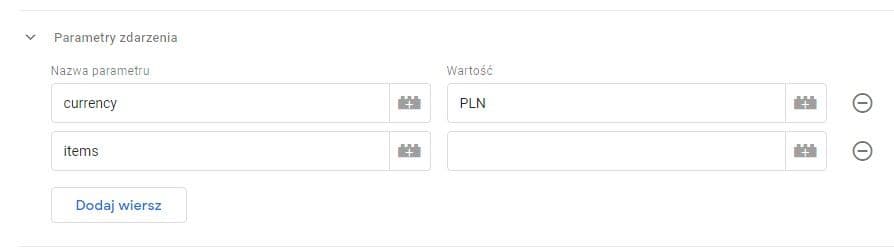
To create a new variable, click + again and create a Data Layer Variable that reads from ecommerce.purchase.products. Once you save it, it should be selected automatically in the value field.
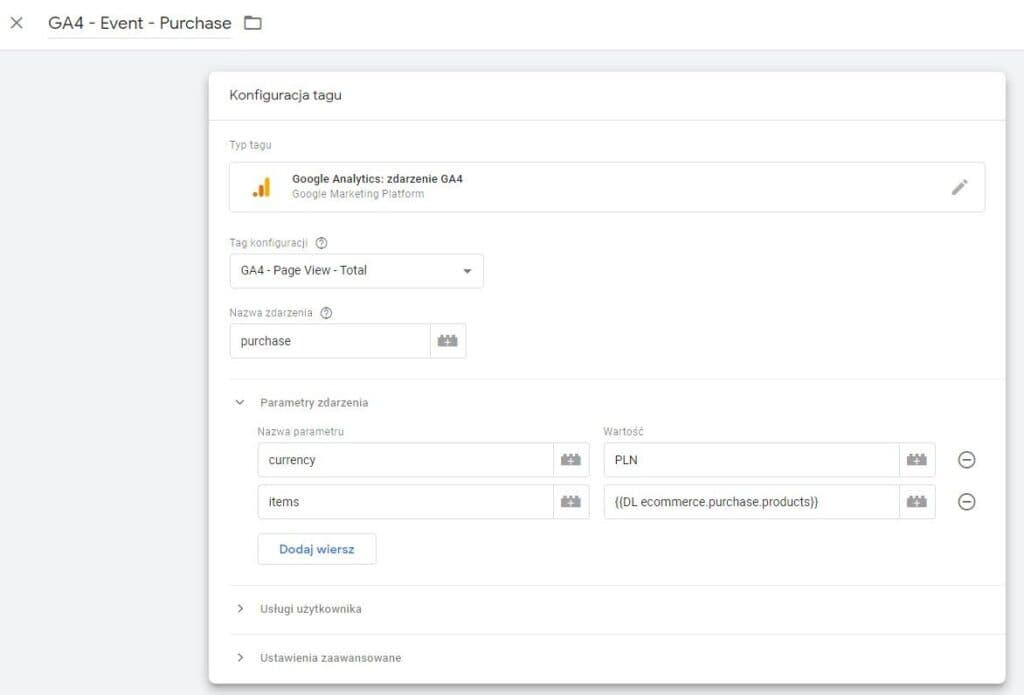
All that's left is to add a trigger. In our case it fires when a purchase is made, so in most accounts the event will be called purchase. If you use Enhanced Ecommerce in Universal, this trigger should already exist, so select the existing one.
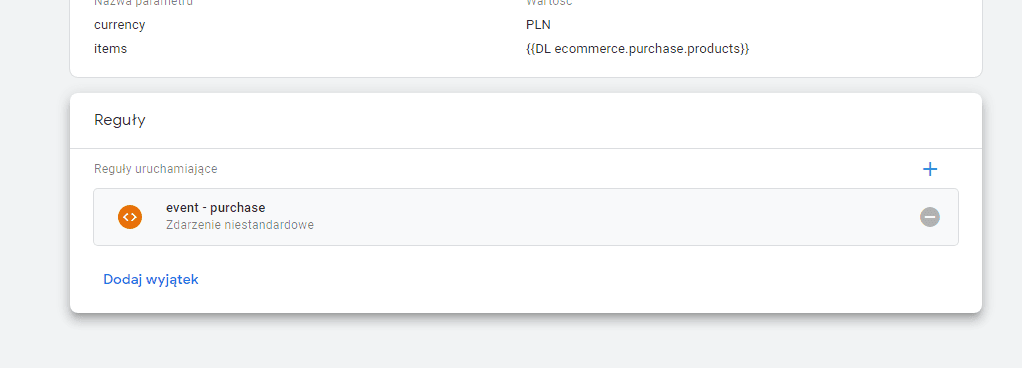
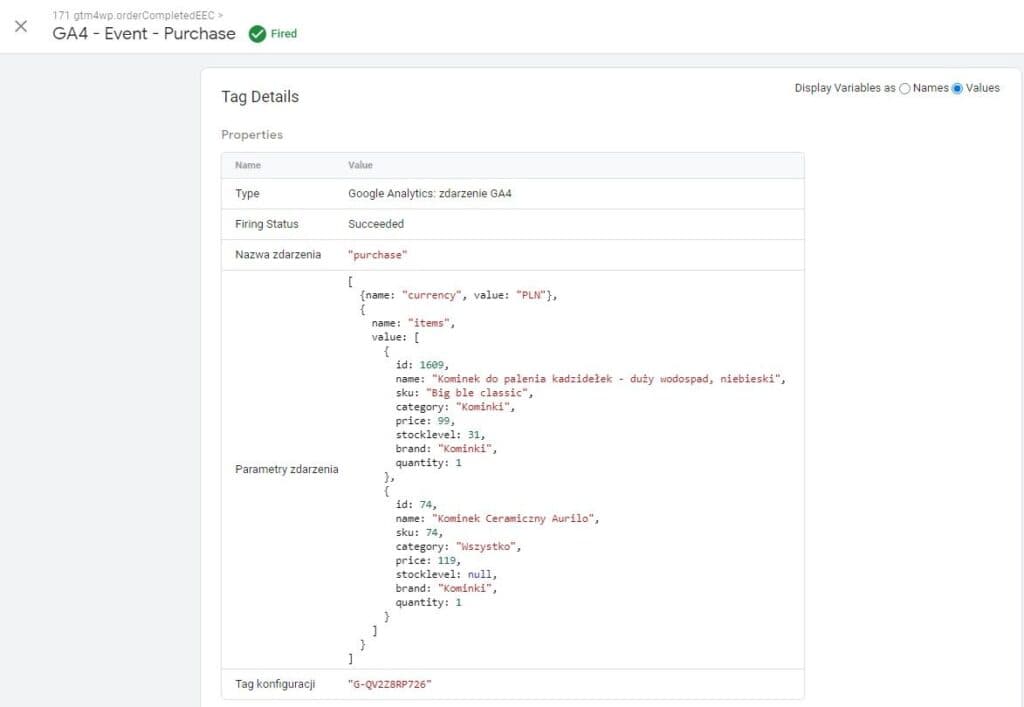
The tag is ready, and you can save it. It's best to check the tag in debug mode. If it fires correctly, push it to production and check in the GA4 property that everything is recorded correctly and the product values match the Universal Analytics data. At the moment of purchase, two tags were sent: one to Universal Analytics and one to GA4. If you open the tag that sends data to GA4, you can see what was sent. In the variable we set the currency and items parameters. Both were sent according to the settings in Google Tag Manager:
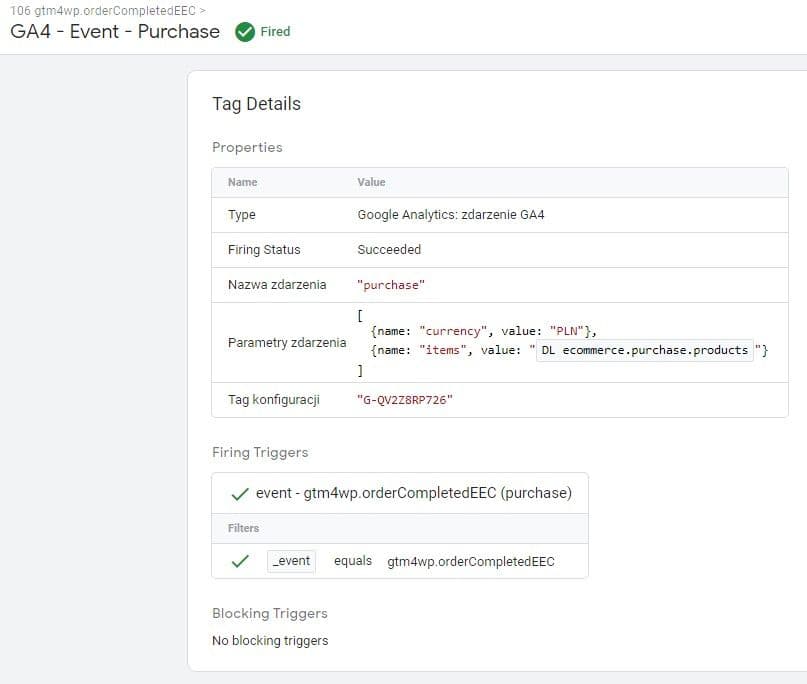
In GTM, you can see exactly what's in the data being sent by clicking Values. Be careful here, though. Not everything shown in the Data Layer will be passed to GA4. Just like with Universal Analytics, custom parameters won't be sent. In this case, a parameter such as stockLevel won't be passed. It doesn't meet the requirements, so GA4 doesn't know it should transform it into the right data structure and send it. That's why it's worth using the new way of inspecting data: the debugger built into GA4 itself.
Debug mode in GA4
GA4 has DebugView. This means that while you debug in GTM, you can also watch all the events one by one in GA4. It's a convenient view for checking which events are collected and which parameters are sent.
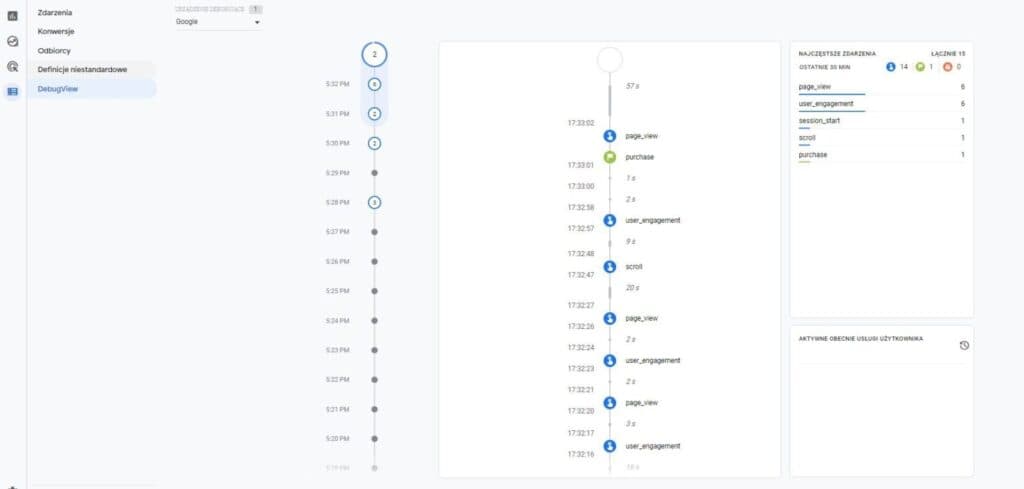
By selecting the event you're interested in, you can check the parameters and items that were sent. Note that GA4 automatically transforms the Data Layer for you and passes the parameters it recognizes under the Enhanced Ecommerce standard.
Additional event parameters for the purchase event
In the previous steps I showed how to send the currency and items parameters. It's worth adding all the main parameters you also collect in Universal Analytics. In the same way as items, add parameters such as value, shipping and transaction_id. You do this by adding event parameters.
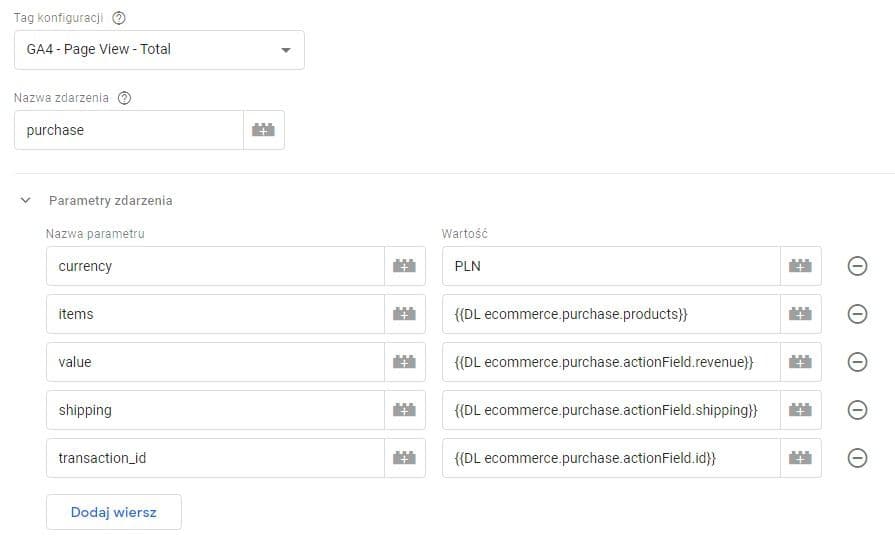
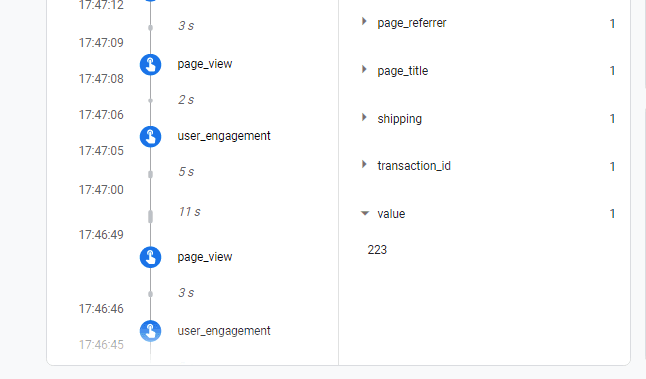
For the value, pass the variable from your existing Data Layer. After you update the tag, the new parameters will be sent when a transaction (purchase) happens. You'll now see shipping, transaction_id and value, with values that match what's sent in the Data Layer.
Useful articles about GA4
Tracking pageviews and events in GA4 with GTM: https://analityka.online/odslony-zdarzenia-ga4/
Tracking events in GA4 with GTM: https://www.analyticsmania.com/post/how-to-track-events-with-google-analytics-4-and-google-tag-manager/
Google Analytics 4: everything you need to know: https://modrzewski.com/google-analytics-4-wszystko-co-trzeba-wiedziec/
Configuring GA4 events with GTM: https://www.damianrams.pl/zdarzenia-google-analytics-4/
Connecting BigQuery to GA4: https://www.optimizesmart.com/how-to-connect-google-analytics-4-with-bigquery/#3-conclusion-
Tutorial on building segments in GA4: https://www.youtube.com/watch?v=Zk65ZbJEAxA