Implementing Enhanced Conversions in Google Ads is an important part of campaign optimization. It lets you send additional user data, such as email addresses or phone numbers, to make conversion tracking more accurate.
Rafał Piszczatowski
Reading time: 7:00
How to implement Google Ads Enhanced Conversions
Enhanced Conversions in Google Ads
Enhanced Conversions is a Google Ads feature that lets you send hashed user data (an email address or phone number) to Google to measure conversions more accurately. The data is hashed before it's sent, which keeps it secure and compliant with privacy regulations such as the GDPR.
With Enhanced Conversions, you can better match conversion data to user actions across devices and platforms, because Google matches the data you send against its own database. That means it can match your customer base to the people who completed a macro conversion on your site (for example, a purchase or a form submission) more efficiently and more accurately.
Why implement Google Ads Enhanced Conversions?
- more accurate conversion measurement (Enhanced Conversions let you attribute conversions to specific user actions more precisely, so advertisers get a fuller picture of how their campaigns perform)
- better campaign optimization (more data helps Google Ads algorithms match ads to audiences and improve campaign performance)
- privacy compliance (data sent with Enhanced Conversions is hashed with the SHA256 algorithm, or you can send it already hashed with SHA256, which keeps it secure and compliant with the law)
- keeping up with technology changes (as cookie restrictions grow, Enhanced Conversions are an effective addition to traditional tracking methods)
How to set up Enhanced Conversions with Google Tag Manager
Implementing Enhanced Conversions takes a few steps: configuring Google Tag Manager and turning the feature on in Google Ads.
Google recently introduced a new tag type called “Google Ads User-provided Data Event”. It lets you send Enhanced Conversions data to Google Ads at any point on the site, so you no longer have to send it exactly when the conversion happens, for example on form submission. You can still send the data the traditional way, but in this guide I'll focus on the new method, which is far more versatile.
The traditional method had one significant drawback: data such as the email address or phone number wasn't always available after the form was submitted, especially when the page reloaded. In those cases we couldn't read the email value directly from the front end. There were workarounds, but Google has made life much easier with the new approach.
During implementation you can take one of two paths: push the customer's email and phone number directly to the Data Layer, or read these values directly from the page (only when they're available, of course). Which one is recommended? Both are valid. However, if the site's code changes a lot or the site is rebuilt often, I'd personally go with passing the data directly to the Data Layer. You don't always have access to developers, though, so I'll start with the version that doesn't need IT support.
VERSION THAT READS DATA DIRECTLY FROM THE PAGE
Step 1: Capturing customer data in variables
Right-click the Email field and choose ”Inspect”, which opens the Elements panel in Chrome:
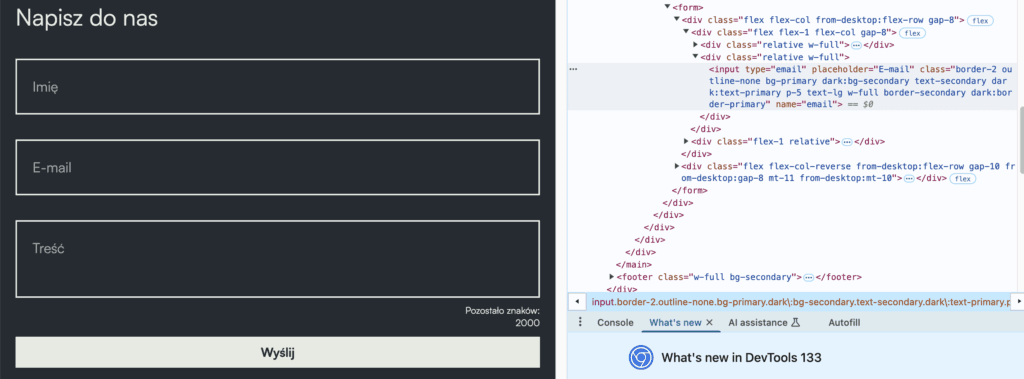
Here you can see how the email input field is built. Very often the field has a name=’email’ attribute. Based on that, you can write a function that always reads the value from the email field. Example:
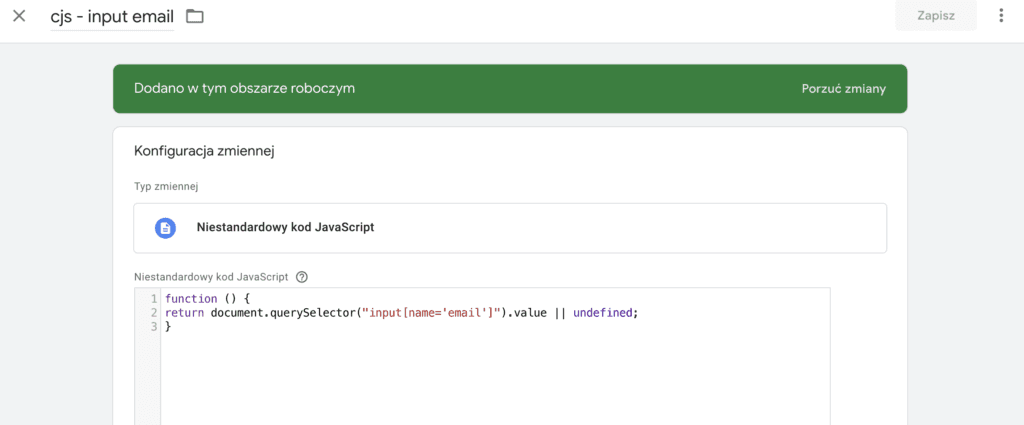
function () {
return document.querySelector("input[name='email']").value || undefined;
}
Use the function in Google Tag Manager: go to Variables and create a Custom JavaScript variable:
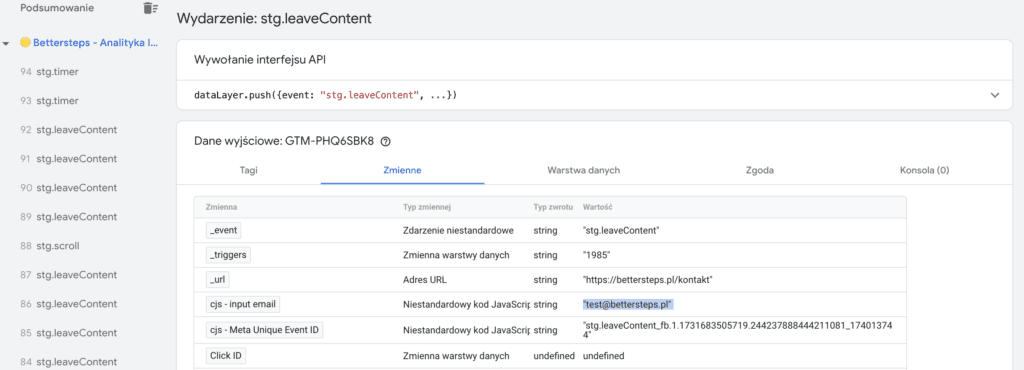
After saving the variable and entering debug mode, you can test whether it works correctly. As you can see in the screenshot below, it passes the email value, in our case test@bettersteps.pl. With the variable ready, you can move on to the next step and configure the tag.
Step 2: Setting up the Google Ads User-provided Data Event tag
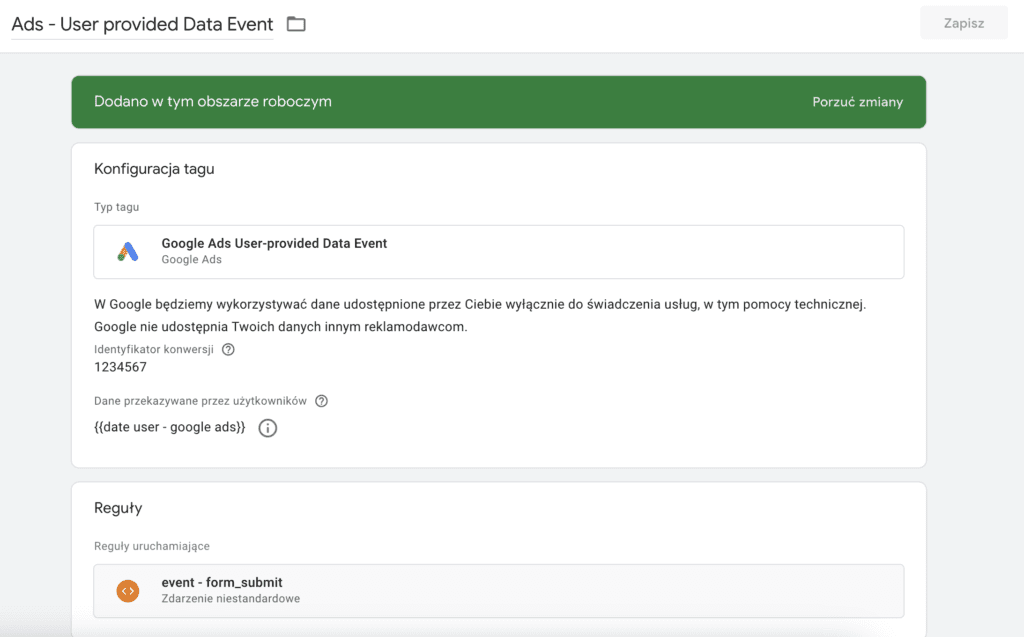
In GTM, create a Google Ads User-provided Data Event tag.
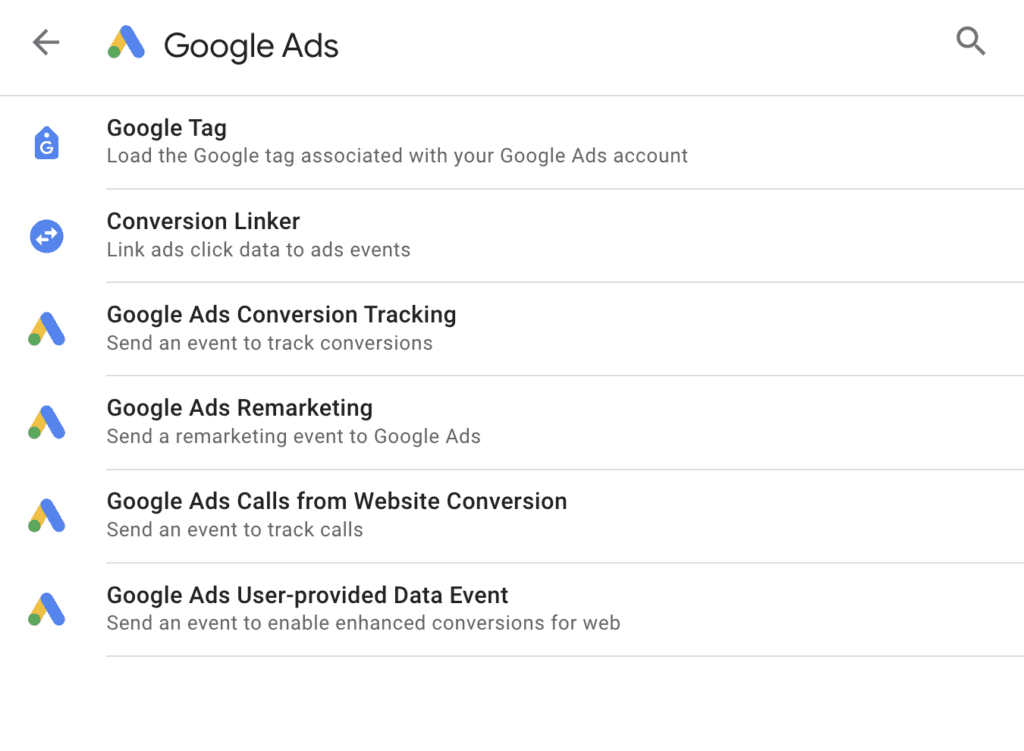
In the tag, enter your Google Ads ID (you'll find it in your Google Ads account) and specify the user-provided data you're passing.
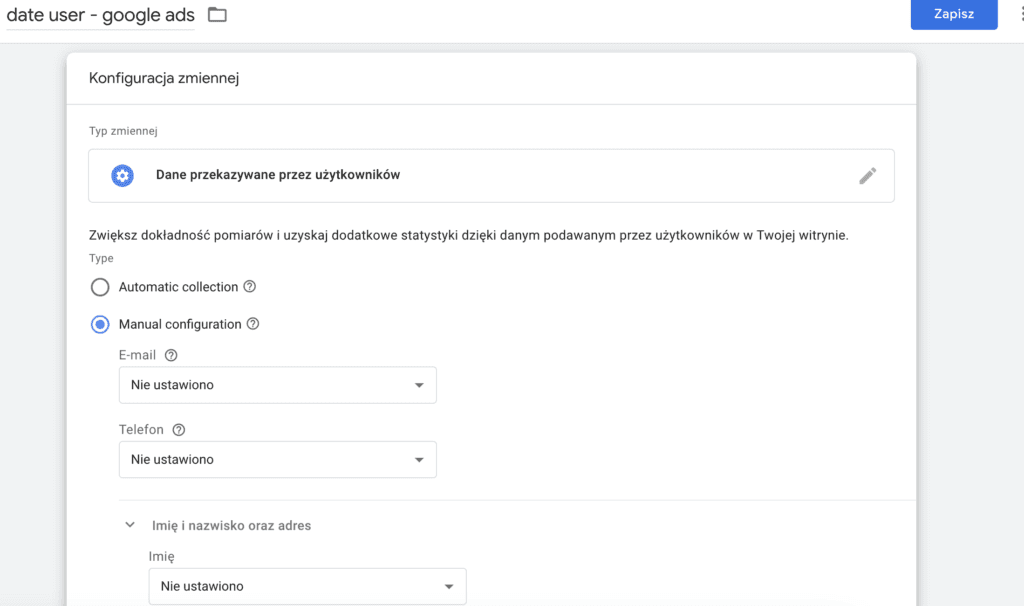
In our case it's the email, so select the variable created earlier.
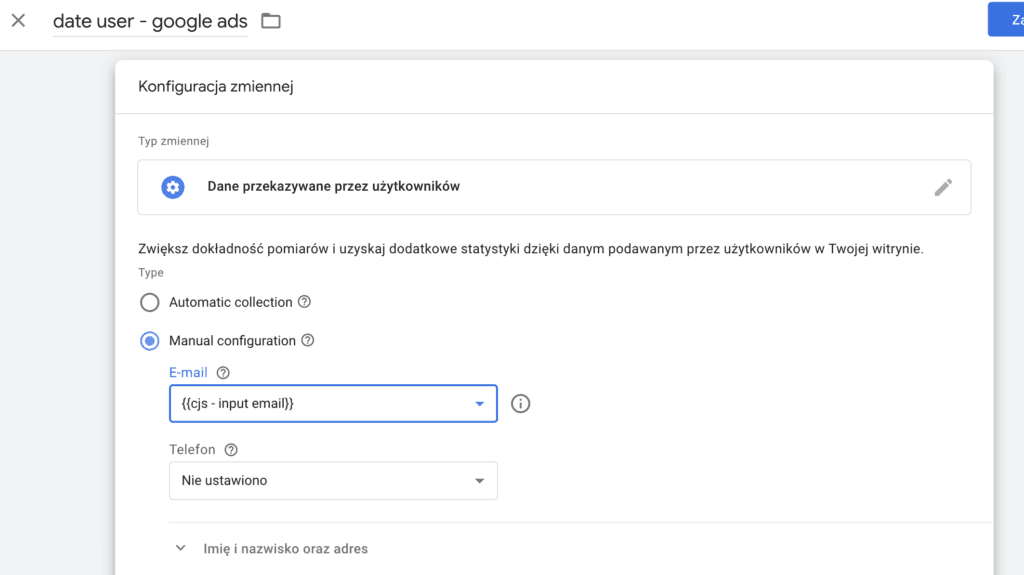
We don't capture any other variables, so the remaining fields stay empty. If your site has other data, such as a phone number, it's worth repeating the process to get the most precise data and setting up a variable for Phone in the same way.
After saving, decide when the tag should fire. That depends on what your GTM already collects. For forms, it's often something like form_submit, or you can use click tracking on the “Send” button
To sum up, our tag will fire when the form submit button is clicked and will:
-send the values to account 1234567 (a sample ID that you obviously need to replace with your own)
-send the hashed email address (the email is hashed automatically when it's sent to Google Ads, or you can send it already hashed if you use SHA256 hashing)
Step 3: Testing the setup
a. Use GTM's Preview mode (“Preview”) to make sure the conversion tracking tag works correctly.
b. Check that the data from the Data Layer is passed to the tag correctly.
When the configured tag fires, make sure the variable you created earlier returns a value at the exact moment the tag is sent. Open Variables and check the assigned value.
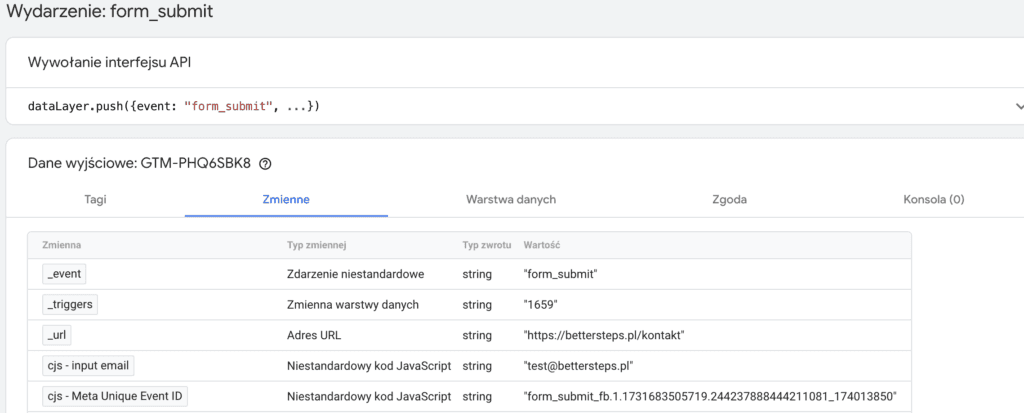
If everything checks out, you can publish the tag. This method is very convenient because you can send user data at any point when it's available on the page. You don't have to send it at the moment the goal is completed (in our case, the actual form submission).
Step 4: Turning on Enhanced Conversions in Google Ads
The rest is done in Google Ads.
a. Sign in to your Google Ads account.
b. Go to “Goals” → “Conversions”.
c. Select an existing conversion action or create a new one.
d. In “Settings”, check “Turn on enhanced conversions”.
e. Accept the required customer data terms.
After a few days, check whether Google Ads reports that the conversions are set up correctly.
Version with a Data Layer in place
If you can get help from a developer or already have a Data Layer on your site, you can have a Data Layer push available when the form is submitted, passing information about the submitted form (an event named, for example, form_sent) and the email address.
dataLayer.push({
'event': 'form_sent',
'email': 'test@bettersteps.pl',
});
Step 1: Capturing customer data in variables
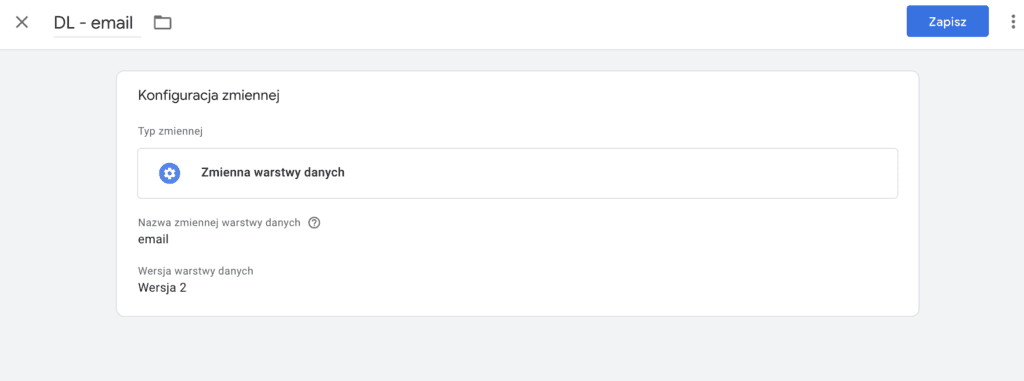
With a Data Layer available, the process is simpler. In GTM Variables, create a new variable that reads the value of “email”. In our Data Layer example, choose the Data Layer Variable type.
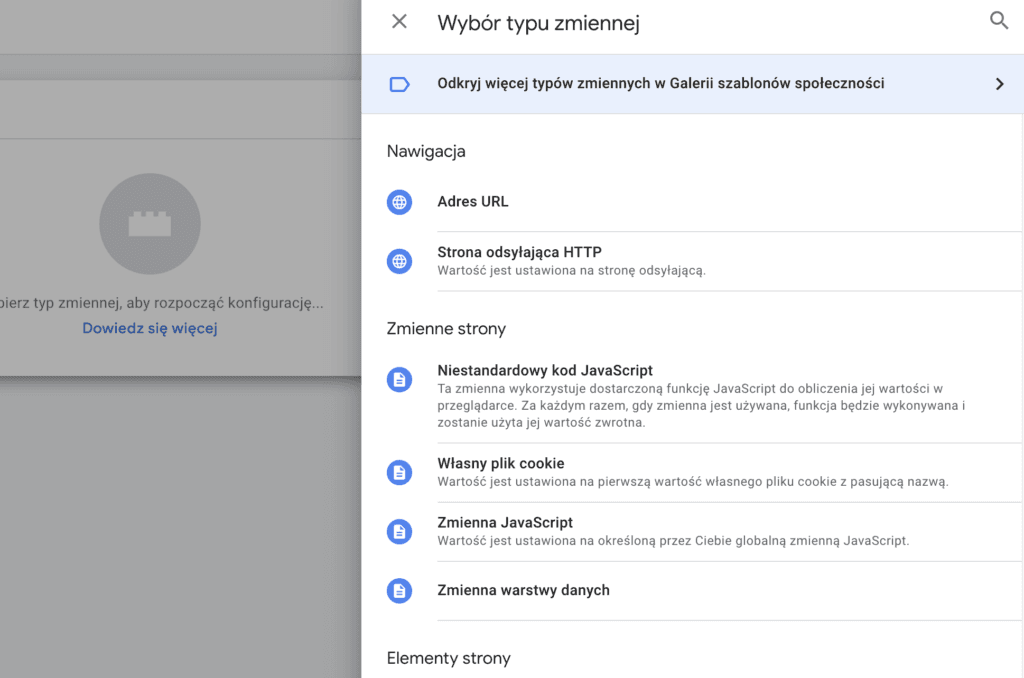
Enter “email” in the field, because that's exactly what the variable is called in the Data Layer push.
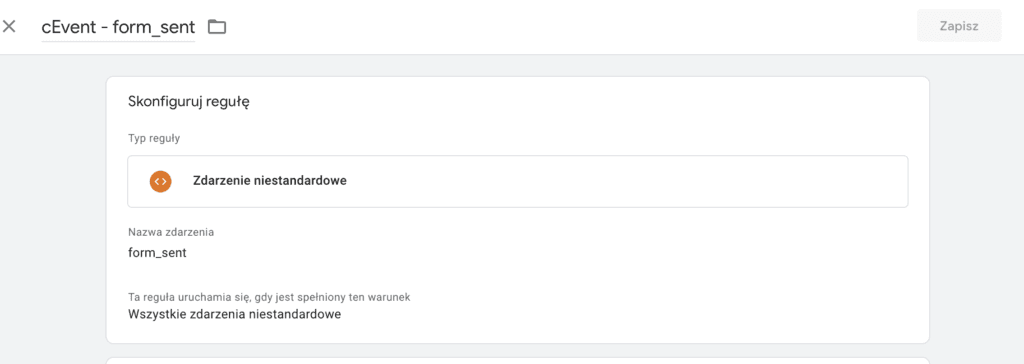
The next steps are the same as before. The one extra difference is when the tag fires, because a button click trigger won't work here. The form submission Data Layer push only happens when the form is actually submitted, and it sends the “form_sent” event.
Things to watch out for
If you send a phone number, make sure the value includes the country code. Google Ads won't read the number correctly without +48 (for Poland). If your site doesn't pass it, you'll need to rebuild the variable so it always adds +48 to the phone number value.
Summary
Implementing Enhanced Conversions with Google Tag Manager is one of the most important steps for marketers who want to get better results from their Google Ads campaigns. The feature lets you send hashed user contact details (email address and phone number), which makes conversion tracking more precise and helps match ads to the right audiences.
The implementation takes some technical knowledge and possibly help from a developer to set up the Data Layer, but the benefits are well worth it, from more accurate measurement to more effective ad campaigns.