Rafał Piszczatowski
Reading time: 2:00
Analytics news: December 2024
AI in Looker Studio Pro
Google is bringing Gemini AI to Looker. For now, the AI feature is only available to Looker Studio Pro users. Still, it's an interesting move toward using AI directly in the tool, with no need for external solutions. Gemini will make it easier to create calculated fields by suggesting formulas based on your descriptions.
So in theory, if you need to, say, group organic traffic sources and put all other traffic into a single “Other” category, you'll be able to either write the CASE statement yourself or just describe what you need.
- Write a CASE statement:
CASE
WHEN REGEXP_CONTAINS(Sesja – źródło/medium,'.*organic.*') then "Organiczny"
ELSE "Inne"
END- Describe what you need (prompt):
For the Session source/medium dimension, create an “Organic” group for values containing “organic” and name the rest “Other”.
To use Gemini in Looker Studio, you need to meet a few requirements:
- Looker Studio Pro subscription: Gemini is only available to users with an active Pro subscription.
- Editor permissions: to create chart-specific fields, you must be an editor of the report.
- Field editing in reports enabled: this option must be turned on in the data source.
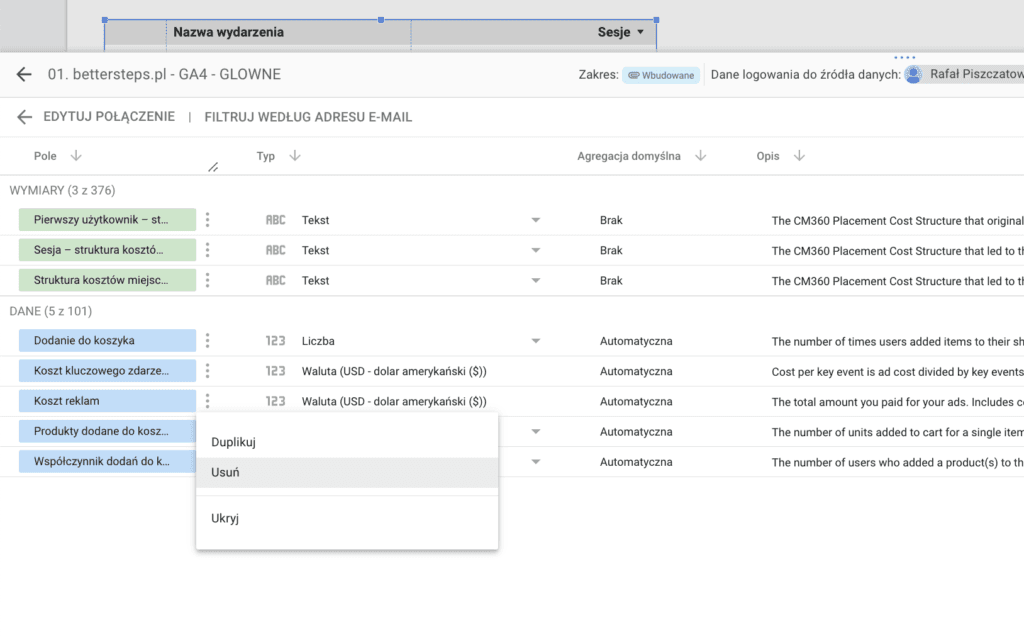
Removing fields from a data source
Hiding or removing a field prevents report users from accessing that field's data. It's a useful safeguard if you want to keep sensitive data (e.g. ad costs) away from people who can edit the report but shouldn't be working with that data.
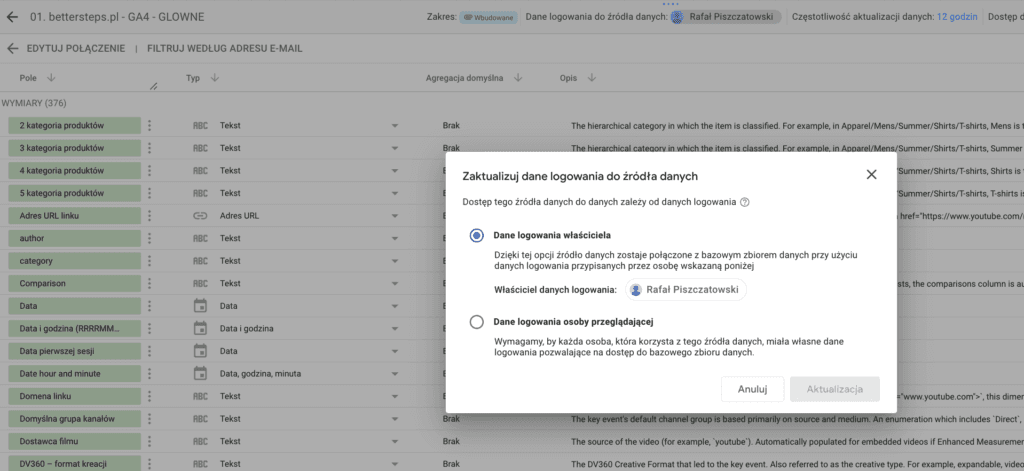
Renamed in the Admin Console from Let editors set owner's credentials for data source access to Allow users in this org to be the credential owner for any data source.
Not much changes for Looker Studio users, but this is a good moment to mention a Looker Studio feature that has been available for quite a while. In the data source, as the report owner you can choose which account is used to authenticate the data connection for your source. If you use the owner's credentials (Owner's credentials), Looker Studio can show data from the relevant GA4 property, as long as the owner who created the data source has access to that GA4 property.
On the other hand, if you set the credentials to Viewer's credentials, the person viewing the report needs access to that GA4 property to see the data. By default, data sources use the owner's credentials.